


 TL;DR:
Formatting the EFI partition in Windows 11/10 is only necessary to resolve severe startup errors, but you must strictly create a full system image and a USB recovery drive beforehand to prevent an unbootable system.
● Format this 100 MB to 260 MB FAT32 hidden partition only when resolving critical boot failures like "Bootmgr is missing" caused by corrupted files, failed OS updates, or dual-boot conflicts.
● Execute the formatting process by running Command Prompt as an administrator, launching the `diskpart` utility, selecting the exact EFI volume, and applying the `format fs=fat32 quick` command.
● Modifying this system partition risks permanent data loss and breaks built-in Windows recovery features, making it necessary to rely on pre-made backups or third-party tools like Wondershare Recoverit if files are wiped.
Ask AI for a summary
 ChatGPT
 Perplexity
 Gemini
 Claude
 Grok
Grok
The system creates a small hidden partition at the time of setup when you install Windows with UEFI firmware. Many users later face problems when this partition gets corrupted and prevents a successful boot after updates or disk changes. These types of errors tend to prevent the booting of Windows or display absent boot files during startup.
In this complete guide, we’ll explain how to format efi partition in Windows 10 and 11 safely so your computer remains bootable. As a bonus, we will also introduce a powerful recovery tool to restore lost data after EFI formatting.
Try Recoverit to Perform Partition Data Recovery
 Security Verified. 3,591,664 people have downloaded it.
In this article

Part 1. Should You Format EFI Partition in Windows 11/10?
Before deciding whether you should format the EFI partition in Windows 11 or 10, let’s cover the frequently asked question, “what is efi partition?” and why it exists.
What Is the EFI Partition in Windows 11/10?
An EFI partition is a system partition that is automatically created on computers using the UEFI firmware standard. It provides storage for boot loaders and utility programs that initiate the operating system’s startup. Without a valid EFI partition, the computer may not boot or start its installed systems properly.
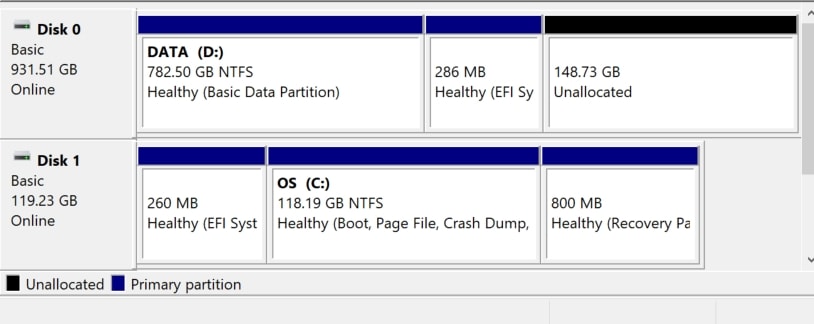
The EFI partition is typically set to the FAT32 file system by default and operates under the operating system. It is 100 MB to 260 MB in size, depending on the requirements of systems and the choice of manufacturers. This hidden partition should not be deleted under any conditions since it may prevent the operating system from starting.

Can You Create an EFI Partition?
You can manually create an EFI partition on a disk by using system utilities or command-line tools. This includes choosing a free space, partitioning it, making it FAT32, and changing the EFI system partition type. It usually happens when installing new operating systems or restoring system boot capability in deleted EFI partitions.
Part 2. When Do You Need to Format EFI Partition in Windows 11/10?
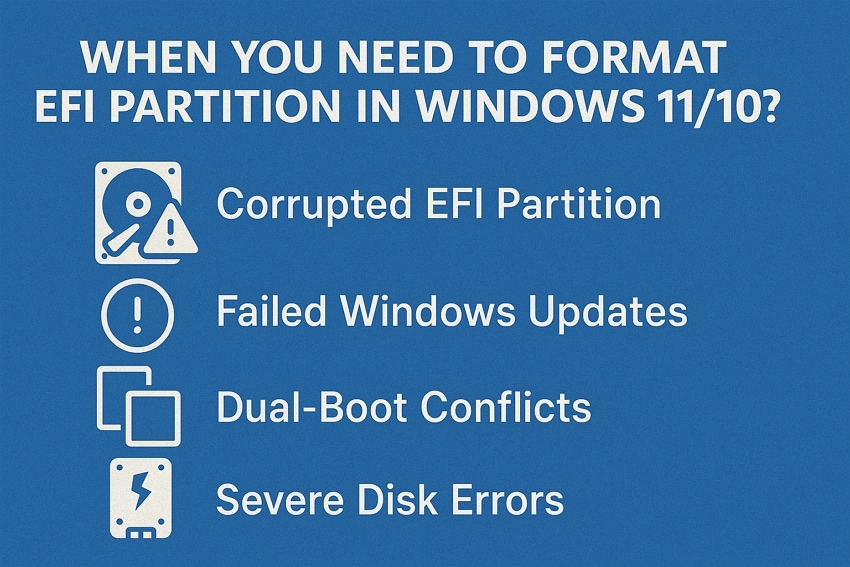
Normally, the EFI partition does not need formatting to work properly. In some cases, users need to format efi partition windows 11 or 10 to restore proper boot control. Let’s explore some reasons when users need to format an EFI partition.
- Corrupted EFI Partition: When the EFI files get damaged due to viruses, power failure, or bad sectors, Windows may fail to boot properly. Errors like “Bootmgr is missing” or “No boot device found” are common signs of corruption.
- Failed Windows Updates: A broken or incomplete update can replace important EFI files with incorrect versions on the disk. This situation stops the operating system from loading and often displays error messages about missing boot files.
- OS Reinstallation or Migration: A new hard drive or system reinstall may leave old EFI data that conflicts with the current Windows boot configuration. These conflicts prevent the firmware from locating the correct partition and block the system from starting normally.
- Dual-Boot Conflicts: Installing another operating system can overwrite Windows boot entries in the EFI partition and modify startup order. This causes Windows to fail during boot and may produce multiple errors in the startup menu repeatedly.
- Severe Disk Errors: Physical disk damage or repeated read and write errors can corrupt EFI partition structures completely. Corrupted structures prevent the system from accessing essential boot files, which in turn stops Windows from starting.
Part 3. Backup Data Before You Format EFI Partition in Windows 11/10
Although this partition doesn’t store personal files, a wrong step can affect your system drive and lead to total data loss. Backing up data ensures that any mistake while formatting the EFI partition does not lead to permanent loss. It protects personal files, system settings, and boot data, giving you a safe way to restore Windows if problems occur.
Precautions You Need to Take Before Formatting
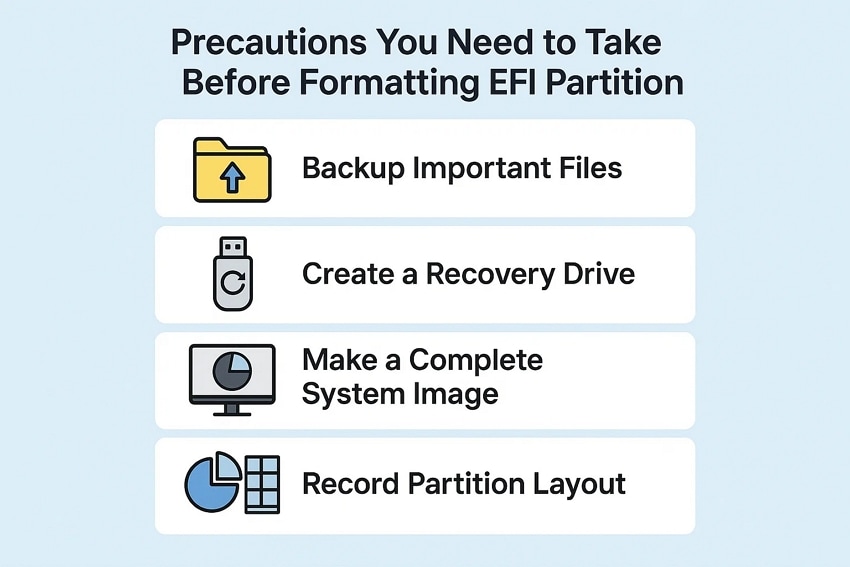
Before you format efi partition windows, let’s explore the precautions you should take to avoid losing data or breaking Windows.
- Backup Important Files: Sudden errors during EFI operations can cause Windows to lose access to personal documents and files permanently. Copying all important files to an external drive or cloud storage prevents permanent loss if the system fails.
- Create a Recovery Drive: Without a recovery drive, the system cannot repair boot errors caused by corrupted EFI data on the disk. A recovery USB provides access to repair tools and prevents situations where Windows fails to start.
- Make a Complete System Image: A system image contains all programs, drivers, and settings exactly as they exist before changes occur. This image allows full system restoration if EFI modification or disk errors stop Windows from starting again.
- Record Partition Layout: If the EFI partition location or size is unknown, it becomes difficult to restore the correct boot configuration. Recording the partition layout helps recreate the EFI partition correctly if the firmware cannot detect the startup partition.
How to Take a Backup of the EFI Partition Before Partition
Now, follow the steps below to take a backup before you format efi partition:
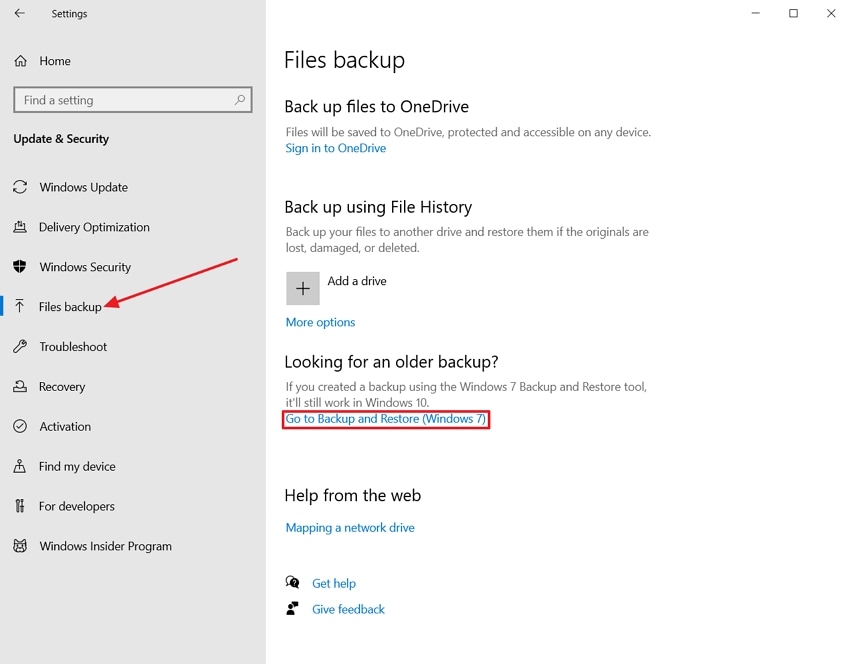
- First off, open the "Control Panel" and access the "Update and Security" section. Next, hit the "File Backup" option from the left menu and click on the "Go to Backup and Restore (Windows 7)" option.
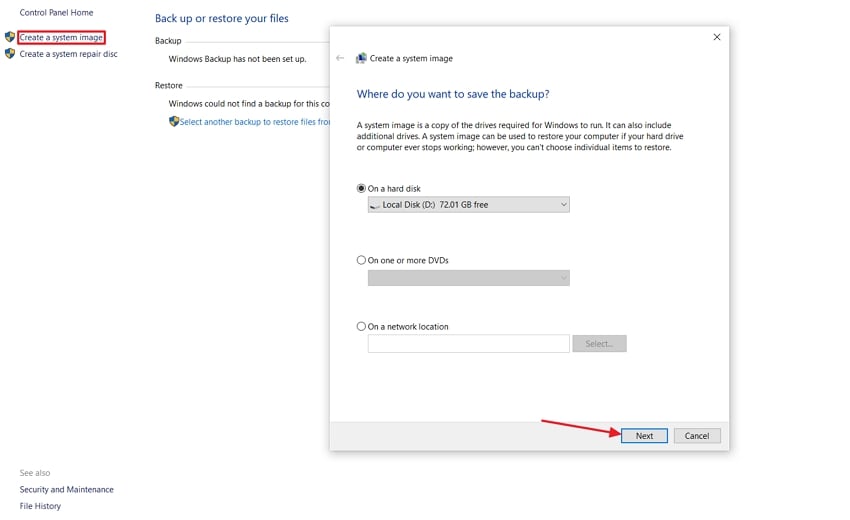
- Next, click on the "Create a System Image" option to open a pop-up window. Choose the backup target location and hit the "Next" option.
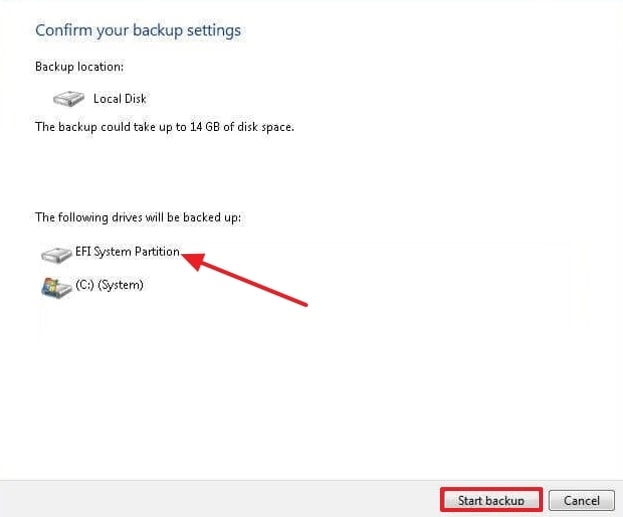
- Now, Windows will show that the C drive and EFI System Partition are included in the backup automatically. Click "Start Backup" to save the image to the selected location.
Part 4. How to Format EFI Partition in Windows 11/10
After knowing the importance of data backup, follow the steps below to see how you can format efi partition windows 11 or 10:
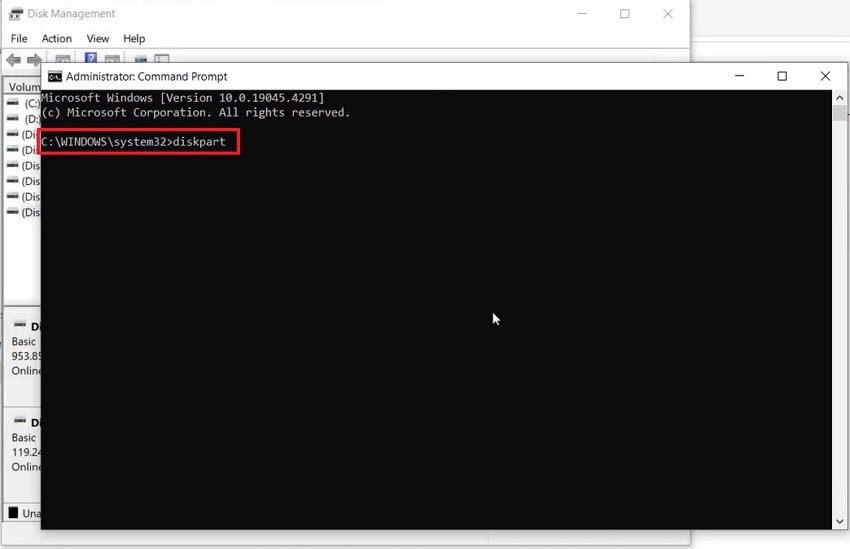
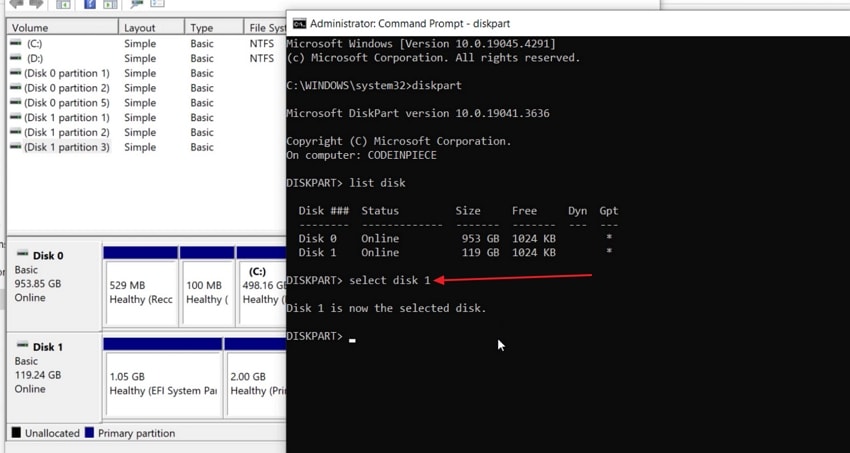
- Run Command Prompt as an Administrator on your Windows device and enter the command "diskpart" to proceed further.
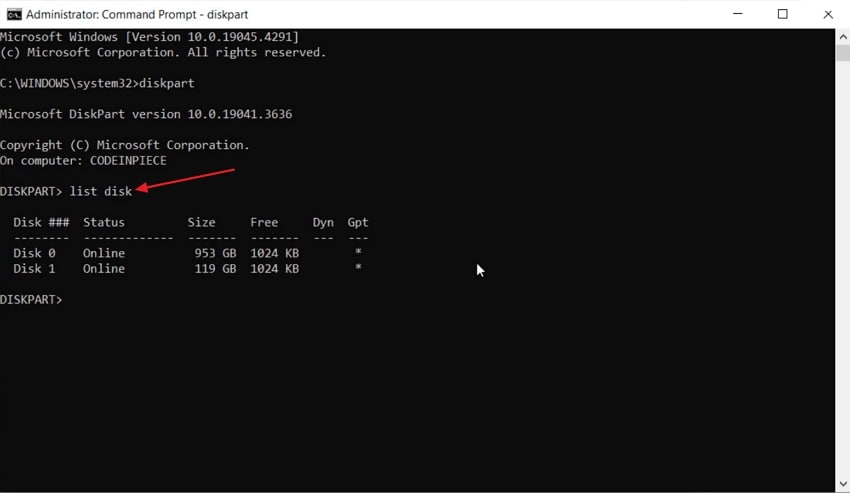
- Next, enter the command "list disk" to display the disks on your system.
- Enter the prompt "select disk x" and make sure you select the correct disk that contains the EFI partition. Type the command "list partition" to display the EFI system partition.
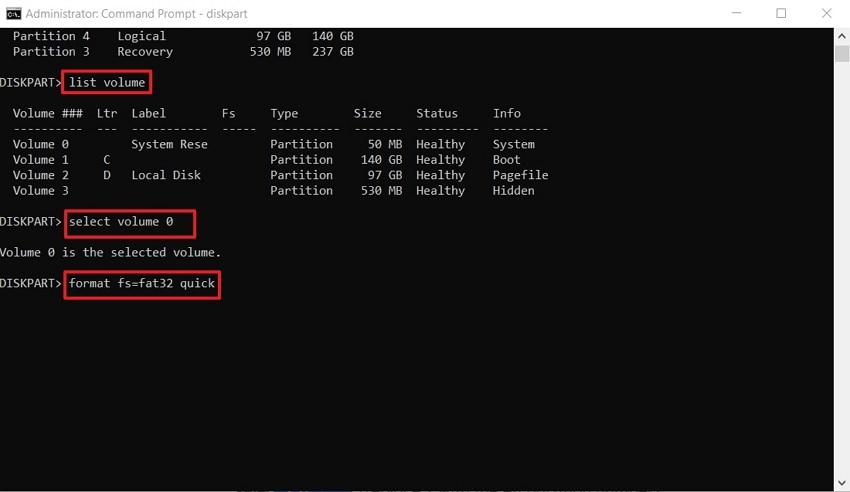
- Now, enter the prompt "list volume" to display a list of volumes. Type the prompt "select volume x" with your volume number and hit the "Enter" button. Enter the prompt "format fs=fat32 quick" to format the EFI partition.
Pro Tip: Use Recoverit to Recover Lost Data After Formatting EFI Partition
After you successfully format efi partition, you may encounter a serious issue: losing important data. When the system partition is formatted, valuable files might be lost, and your data will no longer be available. This is where Wondershare Recoverit comes in with new-fangled data recovery tools. It assists in recovering lost files from formatted partitions and damaged drives with impressive precision.
This tool recovers system files in minutes, unlike other tools that only support a limited number of file types. Whether the loss of data occurs during EFI formatting, Recoverit provides you with a scalable solution to recover your files. The tool allows the user to select a directory, then conducts a thorough scan of the disk in that directory.
Key Features
- Preview File Before Saving: Users can view the scanned results in the Preview window before saving the recovered files.
- Advanced Search Filters: Offers multiple search filters, including file size or file type, to narrow down the search results.
- Deep Scanning: Allows users to select a particular directory and perform a deep search for deleted files to restore them.
Ultimate Guide to Recover Lost Data After Formatting EFI Partition With Recoverit
If data loss occurs after you format efi partition windows 10 or 11, follow the steps below to recover your important files with Wondershare Recoverit:
1. Select The EFI Partition Disk Drive For Scanning
Once you enter the main tool's interface, select the "Hard Drives and Location" tab from the left-hand menu. Next, click on the drive where the EFI partition was located. It will automatically start the scanning process.

2. Apply Search Filters
During scanning, press the "Filter" icon at the top and select filters such as "File Type" or "File Size" to narrow the results.

3. Preview and Export The Scanned EFI Partition Files
After the files start appearing in the "File Path" section, see the scanned results in the "Preview." In the end, hit the "Recover" button to save the scanned EFI partition files.

Conclusion
To conclude, formatting the EFI partition in Windows 10 or 11 can fix startup errors. Always make a full backup before the process to protect your files in the event of data loss. If you lose data after you format efi partition, use Recoverit to get it back. The tool offers deep scan mode and supports many file types to recover data and keep your system stable.
FAQ
-
1. Can formatting the EFI partition fix blue screen errors after major updates?
Formatting your EFI partition may fix recurring blue screen issues after updates and disk changes. Consider backing up everything before modifying this partition to prevent further problems. -
2. What should I do if EFI partition formatting fails on my system?
If EFI formatting fails, run disk error checks or try again as administrator. Some issues require third-party recovery utilities for more advanced repair and troubleshooting operations. -
3. How can I identify if my disk uses EFI partition or a legacy BIOS?
Open Disk Management and look for an EFI-labeled partition on your system drive. If it’s missing, your machine is likely using legacy BIOS rather than UEFI boot firmware for startup. -
4. What is the risk of losing recovery options after EFI partition is formatted?
Formatting your EFI partition could break Windows recovery or reset features on your device completely. Always make backup images or recovery media before formatting, so you can restore these important options later if needed.


