

 TL;DR:
Recovering photos after a factory reset relies entirely on locating a surviving copy in a cloud library, a pre-reset backup, or on external media, because modern iOS and Android encryption renders erased internal storage cryptographically inaccessible to direct software scans.
● Restore images directly via photos.google.com or iCloud.com, keeping in mind that if iCloud Photos was enabled prior to the reset, those synced pictures are deliberately excluded from standard full-device backups.
● Data recovery tools like Wondershare Recoverit can retrieve files from a portable SD card connected to a computer, but this method fails if the card was previously formatted as Android adopted storage because the mandatory decryption key is destroyed during the reset.
● If scanning a portable memory card, immediately stop taking new photos and reject any system prompts to reformat the storage to prevent overwriting, ensuring all recovered items are saved to a completely separate computer drive.
Ask AI for a summary
 ChatGPT
 Perplexity
 Gemini
 Claude
 Grok
Grok
A factory reset can empty the photo library you see on the phone without erasing every copy that existed before the reset. Your best chance is usually not a scan of the phone itself. It is a verified Google Photos or iCloud library, a backup created before the reset, an earlier import on a computer, or a portable SD card.
This distinction matters. One real support case describes resetting a malfunctioning phone and only afterward realizing that no backup had been confirmed. This guide starts with the least destructive checks and explains honestly when recovery is no longer realistic.
Try Recoverit to Recover Photos After Factory Reset
 Security Verified. Over 7,302,189 people have downloaded it.
In this article
-
- Method 1. Restore Backed-Up Photos From Google Photos
- Method 2. Restore Photos From iCloud Photos
- Method 3. Restore From an Older Phone or Computer Backup
- Method 4. Recover Photos From an SD or microSD Card
- Method 5. Check Other Cloud and Synced Photo Copies
- Method 6. Recover Local Photo Copies With Wondershare Recoverit
Part 1. Can You Recover Photos After a Factory Reset?
Short answer: Yes, if another copy survived. Start with cloud photo libraries, pre-reset backups, old devices, computer imports, and portable memory cards. If the only copy was inside a modern encrypted phone and the device completed a true factory erase, direct recovery is usually not practical.
What a Factory Reset Does to Phone Storage
A real factory reset removes user data from the phone. Android Help states that a factory reset erases data from the phone, and Apple's erase guidance explains that restoring factory settings removes personal information and settings.
Do not confuse this with resetting settings. On iPhone and iPad, Reset All Settings returns settings to defaults but does not delete photos, apps, messages, or documents. If your photos disappeared after Reset All Settings rather than Erase All Content and Settings, first check the correct account, hidden albums, sync status, and library filters.
Android vs. iPhone Photo Recovery After Reset
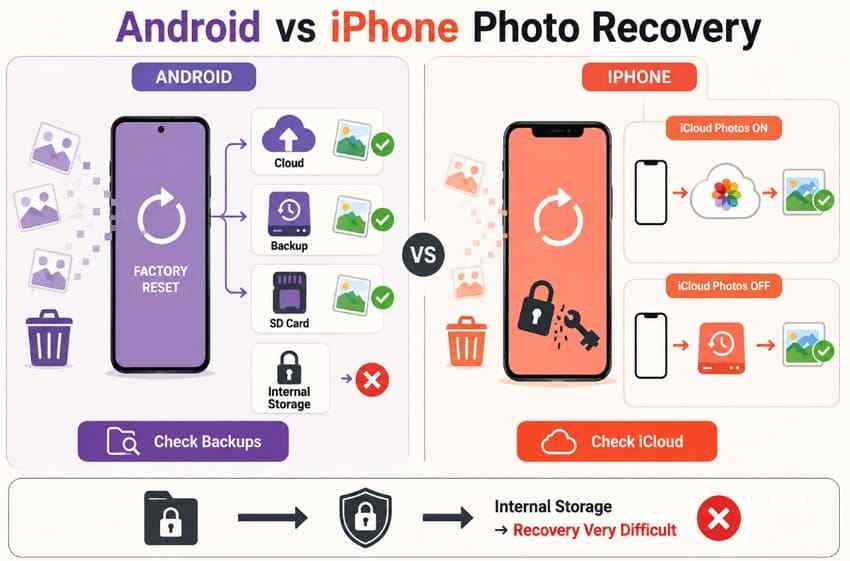
For an iPhone, the decisive question is whether the pictures synced to iCloud Photos, were included in a backup made while iCloud Photos was off, or were copied elsewhere. Apple's platform security documentation explains that erasing the relevant storage key makes protected files cryptographically inaccessible. That is why software cannot simply scan a properly erased iPhone and rebuild the old camera roll.
Android phones also use encrypted internal storage, but exact reset behavior depends on the manufacturer, OS version, and storage configuration. Recovery still centers on Google Photos, manufacturer cloud services, pre-reset backups, computer copies, and portable cards. An Android card configured as adopted storage is a special case because Android encrypts it for one device and stores the keys on that device.
Recovery With a Backup vs. Without a Backup
With a backup, recovery means locating a copy that predates the reset and restoring or downloading it. Without a backup, the search expands to any other surviving copy: a cloud library that was syncing rather than backing up, a computer import, an old phone, an email or chat attachment, a shared album, or portable SD storage.
The phrase "without backup" does not automatically mean "scan the phone." On a modern erased phone, encryption is the main barrier. A removable card or a copied file on a computer is different because a computer can access that storage directly.
Internal Storage vs. SD Card Recovery
Internal phone storage is managed and encrypted by the operating system. A portable SD card is removable storage, so it can often be connected to a computer through a card reader and checked independently. Do not accept a prompt to format or initialize the card before recovery.
If Android formatted the card as internal or adopted storage, removing it and scanning it like a normal card will not bypass encryption. The Android Open Source Project states that adopted media is formatted, encrypted, and tied to a single device.
When Photos May Still Be Recoverable
- A cloud upload completed before the reset: The pictures still appear at photos.google.com, iCloud.com, OneDrive, Dropbox, Amazon Photos, or another provider.
- A relevant backup predates the reset: The backup date is earlier than the loss, and the photo library was actually included.
- A portable memory card held the files: The card was not adopted as internal storage, securely erased, or heavily reused.
- A computer or old phone has an import: Look for DCIM copies, Photos libraries, Pictures folders, exports, and device-backup folders.
- Another person or app has a copy: Shared albums, messages, email attachments, editing apps, and social uploads may preserve usable versions.
When Photos Are Likely Gone
- The photos existed only in encrypted internal storage: No cloud upload, pre-reset backup, computer import, shared copy, or other secondary copy is available.
- Cloud backup or syncing never completed: Uploading was disabled, incomplete, paused, blocked by account storage limits, or connected to a different account.
- The cloud recovery window expired: The photos were deleted from cloud storage and are no longer available in Trash or Recently Deleted.
- The SD card was securely erased or overwritten: Formatting, repair attempts, new photos, or substantial reuse replaced the deleted photo data.
- The SD card was adopted as internal storage: The card is encrypted and the Android device key needed to read it is no longer available after the reset.
| Situation | Where photos may exist | Recovery possibility | Best option |
| Google Photos showed "Backup complete" before reset | The Google Account used for Photos backup | Good, if the correct account still contains the items | Sign in to Google Photos and verify the library before downloading |
| iCloud Photos was enabled before reset | iCloud Photos under the same Apple Account | Good, if syncing finished and the photos were not permanently deleted | Check iCloud.com or enable Sync this iPhone |
| Photos were included in a pre-reset phone backup | iCloud Backup or a Finder, Apple Devices, or iTunes backup | Possible, depending on the backup date and what it included | Restore the relevant full-device backup after preserving current data |
| Photos were copied to a computer or external drive | Pictures, DCIM imports, Photos library, backup folders, or external storage | Good, if the copy opens normally | Copy or sync the files back to the phone |
| Photos were stored on a portable SD or microSD card | The card itself or an earlier card backup | Possible if the card is readable and data has not been overwritten | Stop using the card, image or scan it on a computer, and save elsewhere |
| SD card was adopted as Android internal storage | Encrypted card tied to the original phone | Low after reset or loss of the device key | Do not format it; seek device-specific help before changing anything |
| Only copy was in modern encrypted internal phone storage | No confirmed secondary location | Very low after a completed factory erase | Avoid software that promises guaranteed recovery and keep searching for copies |
Part 2. Where to Look for Photos After a Factory Reset
Before trying recovery software, how to retrieve deleted photos after a factory reset often comes down to finding a copy that survived elsewhere. Review these locations first, as they may hold usable versions of the missing photos:
- Google Photos or another Google Account: Open Google Photos in a browser and test every Google Account that may have been active on the old phone. Google's backup documentation says backed-up photos are accessible from devices signed in to the same account, but only one Google Account can be the backup destination at a time. Also check Archive, Locked Folder availability, and Google Photos Trash. A thumbnail previously visible on the phone did not necessarily mean the item was backed up.
- iCloud Photos or another Apple device: Sign in at iCloud.com with the Apple Account used before the reset. Check Photos, Recently Deleted, Shared Albums where relevant, and any Mac, iPad, or older iPhone signed in to the same account. Keep an offline copy before making deletions or reorganizing a synced library.
- Phone backup created before the reset: Review the backup date, not just whether a backup exists. If iCloud Photos was on, the photo library synced to iCloud and was not included in the daily device backup. If iCloud Photos was off, the backup may include the camera roll. Save current phone data before restoring an older full-device backup.
- Computer, external drive, or previous photo import: Search the computer that previously connected to the phone. On Windows, check Pictures, Downloads, OneDrive Pictures, imported DCIM folders, and external disks. On Mac, check the Photos library, Image Capture destinations, Pictures, Downloads, and external drives. Search by date and common extensions such as JPG, JPEG, PNG, HEIC, MOV, and MP4.
- SD or microSD card used with the phone: If the phone used a removable card, power it off before removing the card when practical. Copy any readable photos to another drive first. If the card is empty, formatted, RAW, or missing folders, do not repair or reformat it before recovery. See how to recover photos from a formatted SD card.
- OneDrive, Dropbox, Amazon Photos, or another cloud service: Check every account and shared space used on the old phone. Do not assume a provider mirrored all folders. Camera Roll may have uploaded while screenshots, messaging images, downloaded pictures, or edited copies remained local because those folders were not selected.
Part 3. How to Recover Photos After Factory Reset
Use the methods in this order. Cloud and existing copies are safer than restoring an entire old phone backup. Scan removable storage only after stopping new writes, and never save recovered files back to the card or drive being scanned.
Method 1. Restore Backed-Up Photos From Google Photos
Use this method when Google Photos backup was enabled and completed before the reset. If you have multiple accounts, verify each one at photos.google.com before changing anything on the phone.
Step 1. Open Google Photos and sign in to the Google Account used for backup. Tap the profile picture and confirm the selected account, then search by date, place, person, album, or filename.

Step 2. Open the required photo. Use Download on the web or Download/Save to device in the mobile menu when available. If that option is missing, the file may already be stored locally. Download to a separate computer first when recovering many important images.
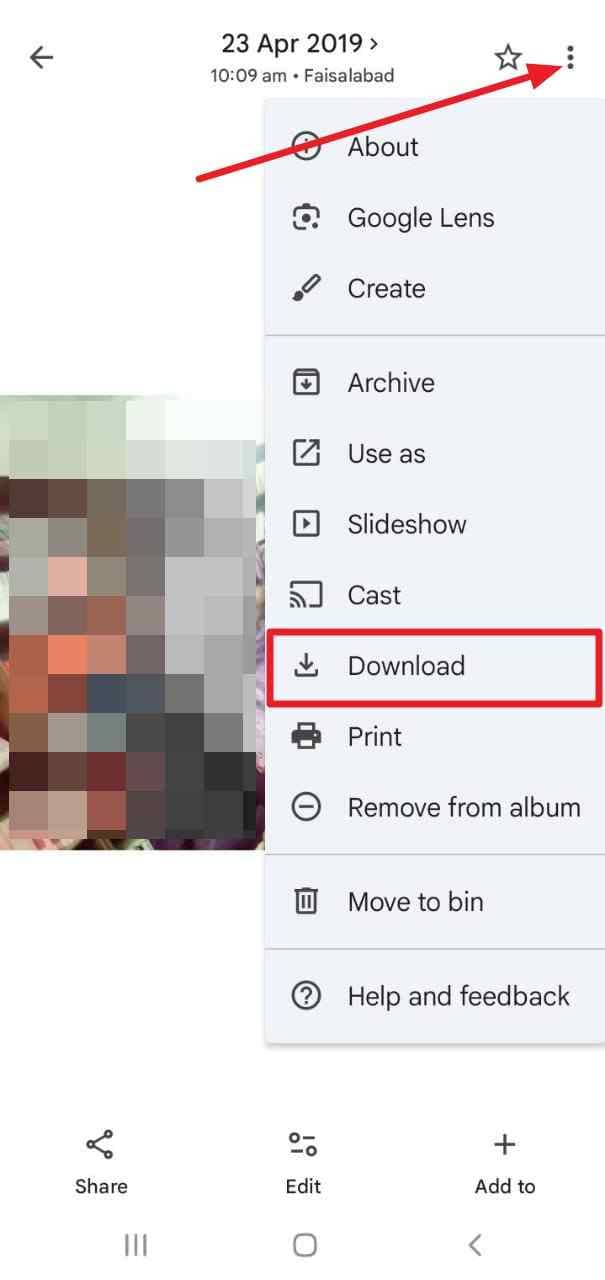
Check before declaring failure: Google Photos can display local device pictures even when they were never backed up. Google recommends checking the photo's Details panel for its backup status and switching among Google Accounts to locate the actual cloud copy.
Method 2. Restore Photos From iCloud Photos
Use this method when iCloud Photos was enabled before the reset. First check the library at iCloud.com. This avoids another erase and confirms whether the server copy exists.
Step 1. On the reset iPhone, open Settings and sign in with the same Apple Account. Tap your name, choose iCloud, then Photos.
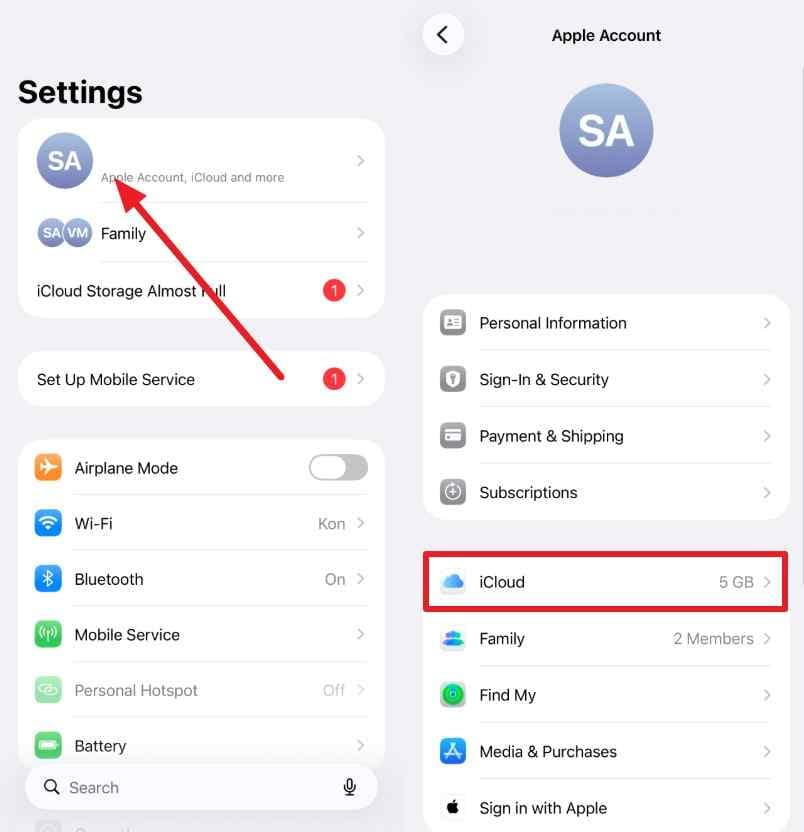
Step 2. Turn on Sync this iPhone, connect to Wi-Fi and power, and allow the library to populate. For immediate safekeeping, select important photos at iCloud.com and download originals to a computer.
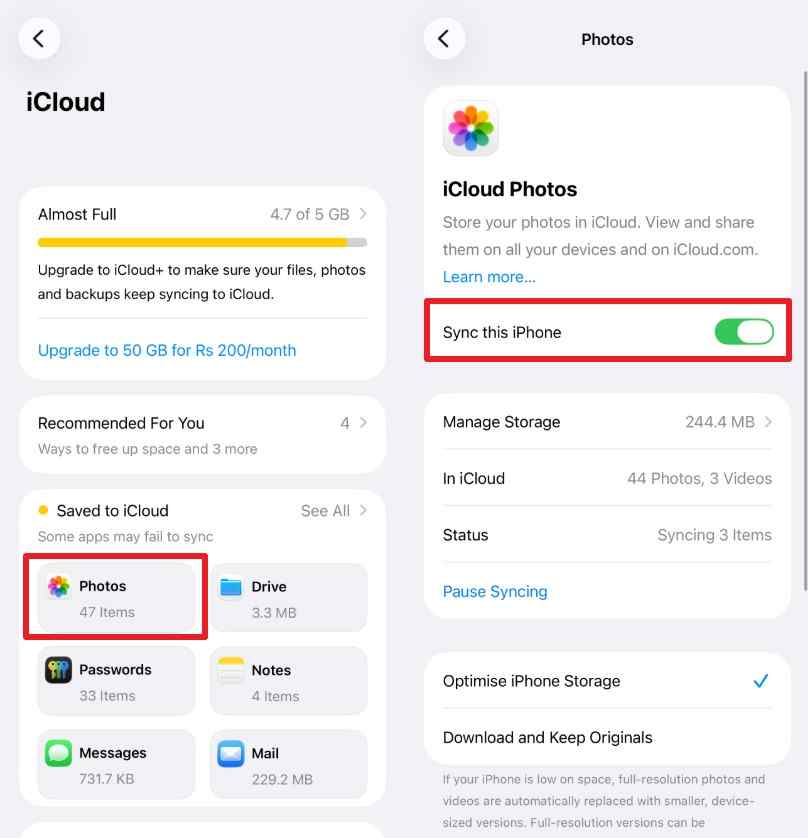
Important: Apple confirms that iCloud Photos items are not included in the nightly iCloud Backup. If iCloud Photos was on, restoring different device backups is not a way to roll the synced photo library back to an older state.
Method 3. Restore From an Older Phone or Computer Backup
An older phone or a computer backup is another option when exploring how to retrieve photos after a factory reset. Use a copy or backup created before the reset, while remembering that a full-device restore can replace newer files added afterward.
From Older Phone
Place the old phone in airplane mode before opening a synced photo app if you are worried that recent deletions may propagate. Copy the files to a computer or external drive first. Then use the platform's normal transfer or sharing workflow to put selected copies on the reset phone.
From Computer
If photos or a full phone backup were saved to a computer before the factory reset, use the matching workflow below. Copying Android photo files is different from restoring an iPhone backup, so choose the section for your device and operating system.
For Android Photos in Windows
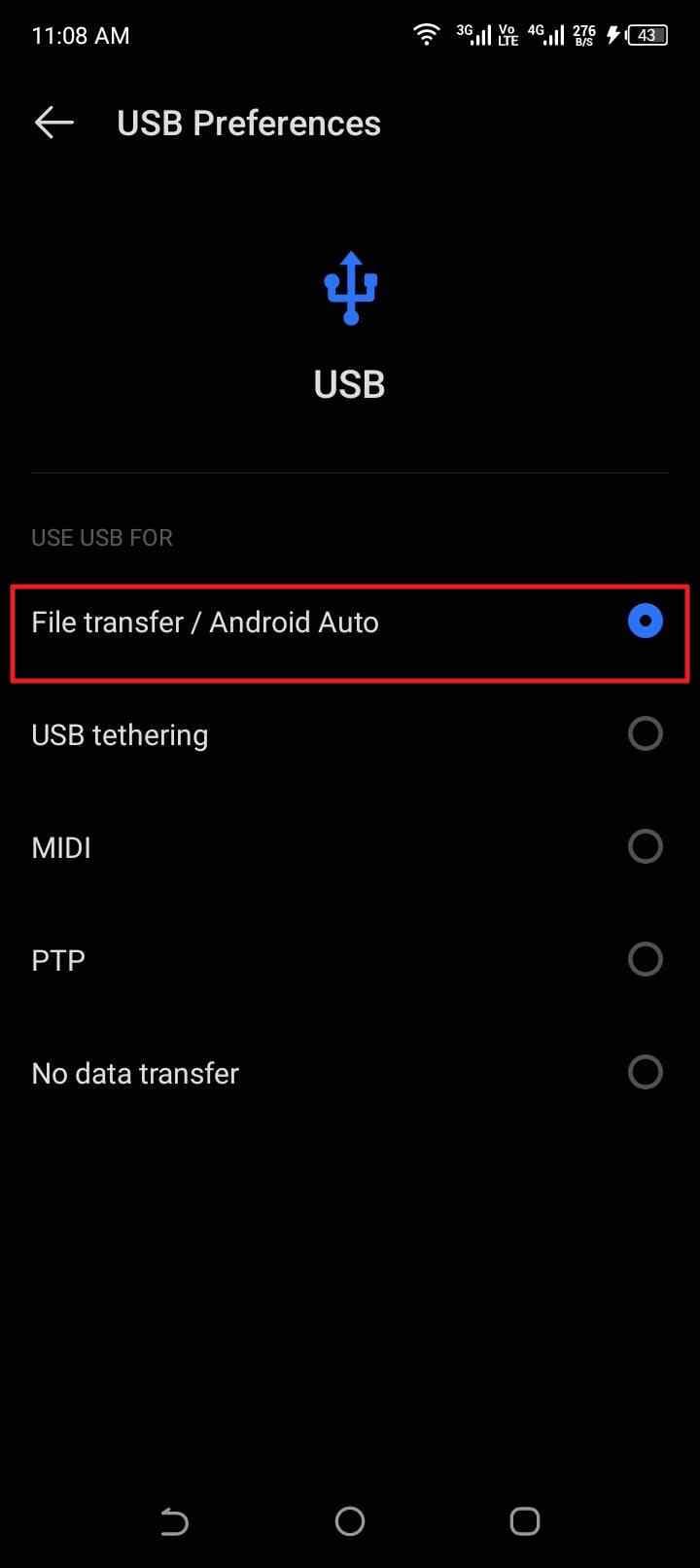
Step 1. Connect the Android phone to the PC, unlock it, and select File transfer or the equivalent USB mode when prompted. Open the device in File Explorer.
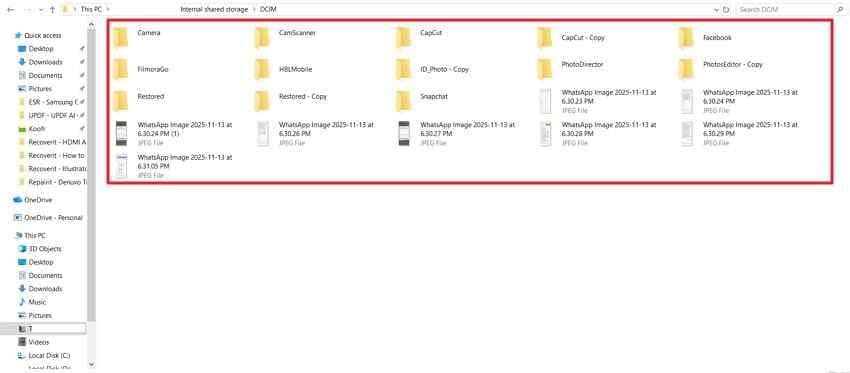
Step 2. Copy the saved photos from the computer into the phone's Pictures or DCIM folder. Keep the computer copy until you have opened several files on the phone and confirmed the transfer.
For iPhone with a Mac
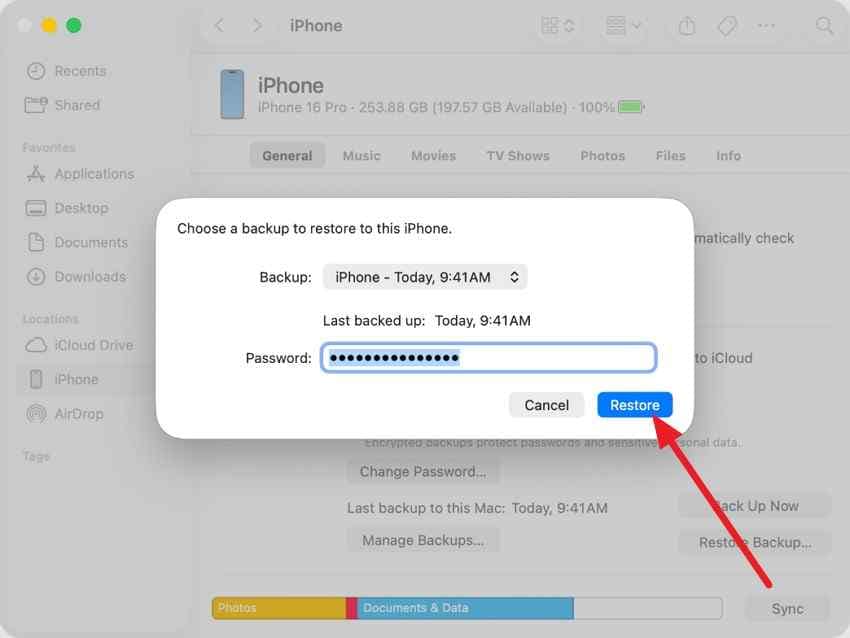
Step 1. Connect the iPhone, open Finder, select the device in the sidebar, and choose Restore Backup. This is a full-device restore, not a selective photo extraction.
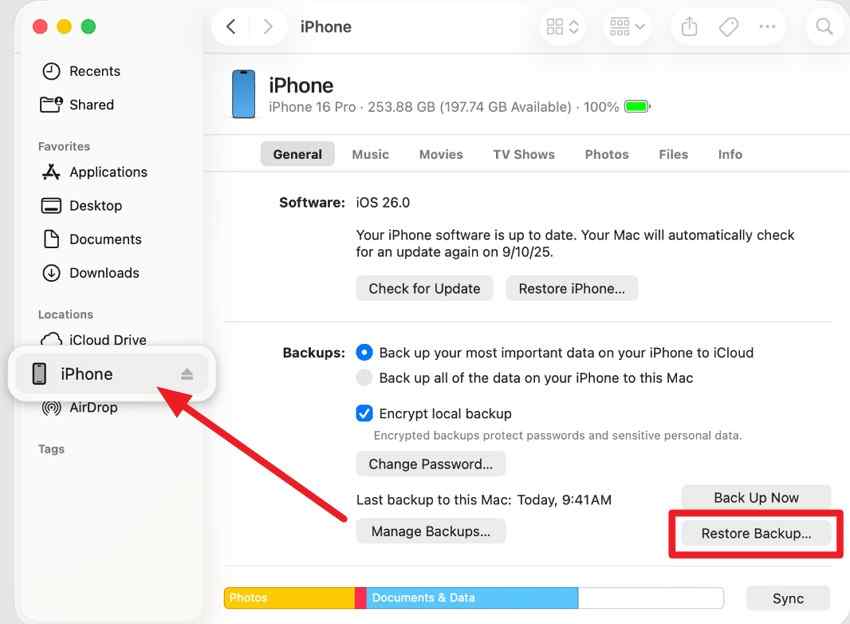
Step 2. Select a backup created before the factory reset, enter the backup password if required, and click Restore. Keep the phone connected until it restarts and finishes syncing.
For iPhone with Windows
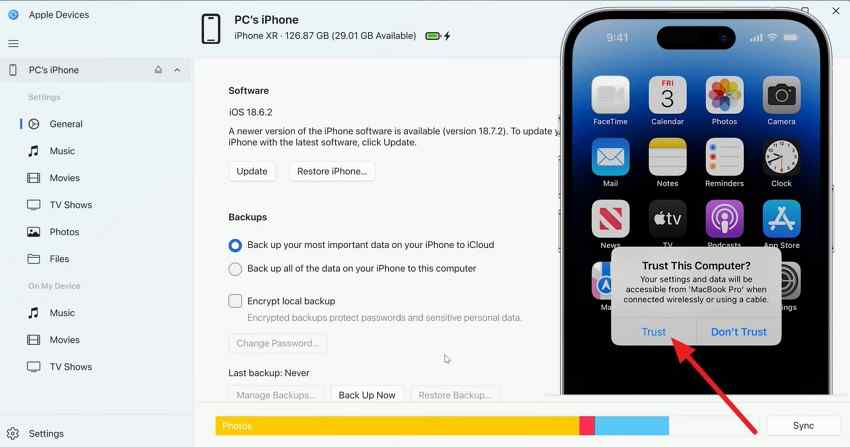
Step 1. Connect the iPhone to the Windows PC and open Apple Devices. Select the iPhone and tap Trust on the device if prompted.
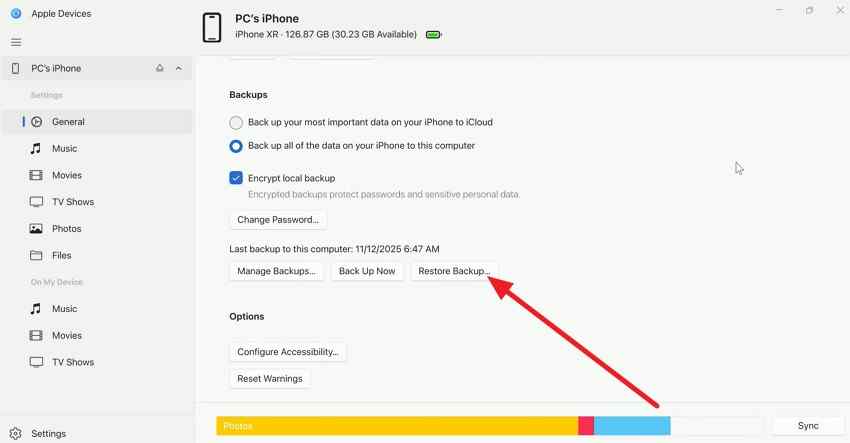
Step 2. Open General, scroll to Backups, and click Restore Backup.
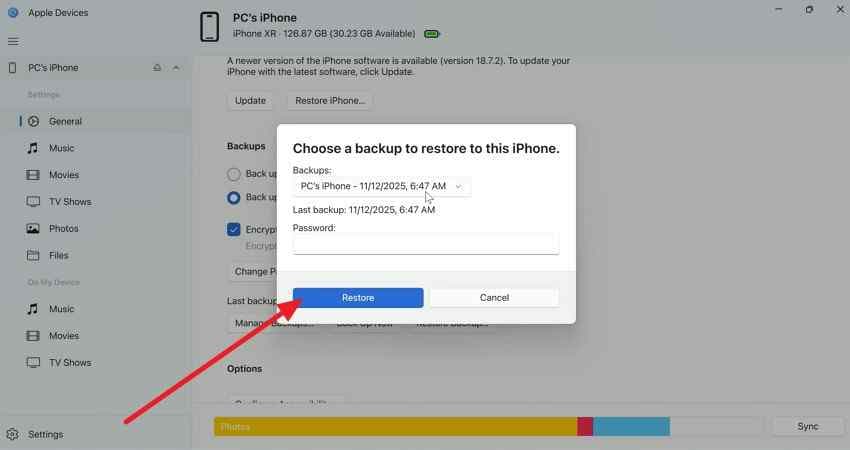
Step 3. Choose the relevant pre-reset backup, enter its password if it is encrypted, and click Restore. Apple's current backup restoration guide recommends choosing by date and keeping the device connected through the post-restart sync.
Before restoring any iPhone backup: Save current phone data elsewhere. Also confirm whether iCloud Photos was enabled when the backup was made. Apple's iCloud Backup documentation says photos may be included when iCloud Photos is off, but synced iCloud Photos are not duplicated in the daily backup.
Method 4. Recover Photos From an SD or microSD Card
A portable card gives you a storage device that can be examined separately from the reset phone. Stop using it immediately. If files are readable, copy them first. If files were deleted or the card was formatted, connect it through a reliable card reader and follow Method 6. Do not format the card, run CHKDSK or First Aid, take new photos, or install anything onto it before recovery.
This method does not apply normally to an adopted Android card. If the phone formatted the card as internal storage, it is encrypted and tied to that device. Do not accept a reformat prompt.
Method 5. Check Other Cloud and Synced Photo Copies
Search OneDrive, Dropbox, Google Drive, Amazon Photos, manufacturer cloud services, shared albums, and previously synchronized folders. Microsoft explains that OneDrive camera backup is not a two-way photo sync, so deleting a backed-up local item does not delete its OneDrive copy. Other services may behave differently, so verify before deleting anything.
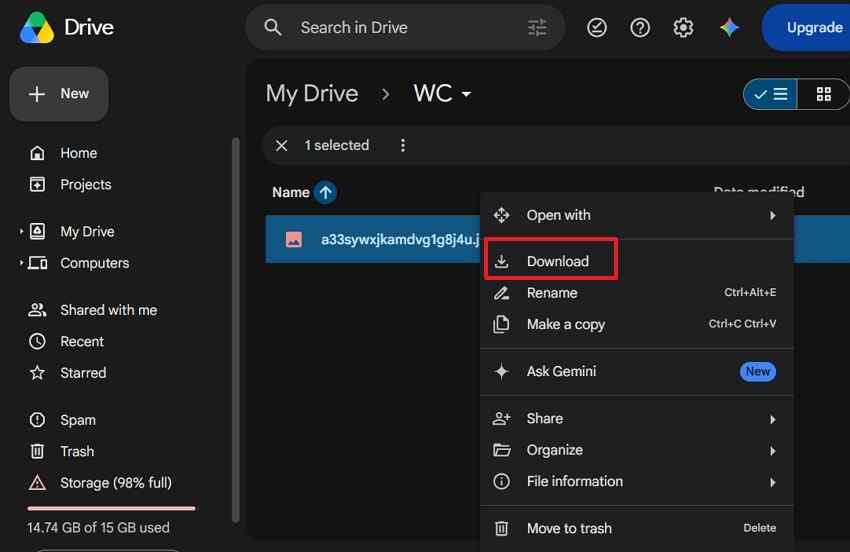
Instructions. Sign in to the service in a browser, confirm the correct account, open the photo or camera-upload folder, select the required images, and choose Download. Save important files to a computer or external drive before re-uploading or reorganizing the library.
Method 6. Recover Local Photo Copies With Wondershare Recoverit
Use this method only when a recoverable copy may exist on computer-accessible storage: a portable SD or microSD card, computer drive, external drive, USB drive, camera card, or an old local import. Wondershare Recoverit Photo Recovery can scan supported storage and let you preview found media before saving selected files. This workflow is also covered in the dedicated guide to recover lost photos from an SD card.
Boundary that protects user trust: Recoverit is not a direct Android or iPhone internal-memory scanner. Its official Recoverit user guide lists mobile devices, overwritten files, and physically failed storage among unsupported recovery targets. For a phone memory card, remove the portable card and connect it to the computer. For a physically damaged card or drive, use a professional lab.
Why Recoverit Fits This Specific Scenario
- Direct removable-media scanning: Scan an SD card, microSD card in a reader, external drive, or computer location without writing recovered files to the reset phone.
- Filtering and preview: Narrow found files by type, name, path, date, or other available filters, then preview supported images before choosing what to save.
- Separate recovery destination: Save selected photos to a different healthy drive, which avoids writing new data over still-recoverable card sectors.
Guide to Recover Local Photo Copies With Recoverit
Step 1. Scan the SD Card
Connect the portable card to the computer. Open Recoverit, choose SD Card Recovery, select the card, and start the scan. If the operating system asks to format the card, cancel that prompt.

Step 2. Narrow Down the Scan Results
Let the scan continue while you use the available Filter or Search File controls to narrow results. Preview important photos where supported. A filename alone does not prove that the image data is intact.

Step 3. Choose Where to Save Them
Select the recoverable photos, click Recover, and choose a folder on a different computer drive or external disk. Do not save them back to the scanned SD card. Open a sample of the recovered files before reusing or formatting the card.

Try Recoverit to Recover Photos After Factory Reset
Security Verified. Over 7,302,189 people have downloaded it.
Part 4. Can You Recover Photos After Factory Reset Without a Backup?
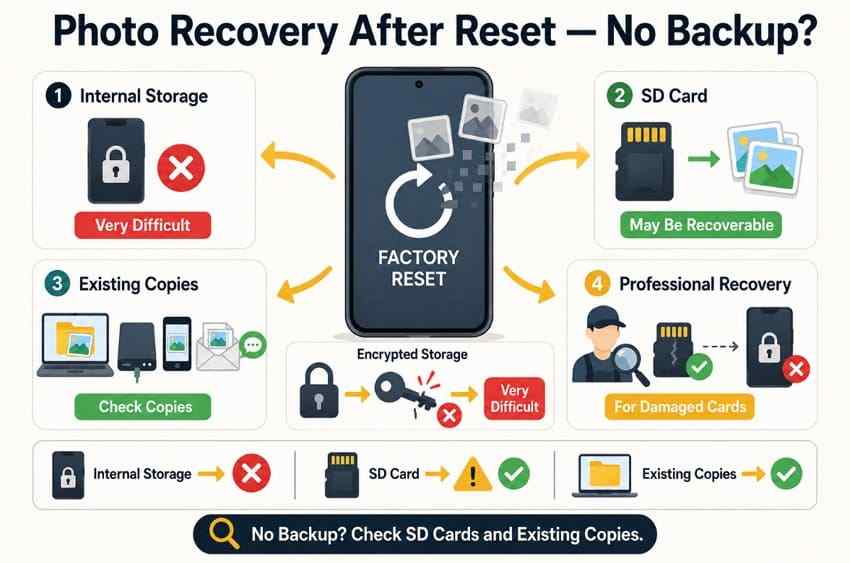
Sometimes, but only if "without a backup" still leaves another copy or independently readable storage. A computer import, cloud upload, old device, shared file, or portable SD card can survive even when no formal phone backup exists. If the only copy was inside modern encrypted internal phone storage, a completed factory reset usually closes the practical recovery path.
Modern Phone Encryption and Factory Reset
Apple's Data Protection documentation explains that Erase All Content and Settings removes a key in a way that renders protected files cryptographically inaccessible. Android implementations vary, but current devices also rely on encrypted storage. This is why post-reset recovery claims based on a simple deleted-file scan should be treated skeptically.
Why Internal Phone Storage Recovery Is Difficult After Reset
Traditional file recovery needs readable storage blocks that still contain the old data. Phone operating systems do not expose modern internal flash as an ordinary USB disk, and the encryption keys that made the old user data readable can be removed during reset. Rooting, unlocking a bootloader, reinstalling firmware, or repeatedly using the phone can also change storage and make the situation worse.
Why an SD Card Is Different From Internal Storage
A portable SD card can be removed and read as a normal storage device. If deleted file data has not been overwritten, a scan may find usable photos. Adopted storage is different: Android encrypts it for one device, so it should not be treated as an ordinary portable card.
Previously Imported or Exported Photos May Still Exist
Search beyond obvious backup folders. Photo editors may have exported copies; messaging apps may retain sent media; email attachments may still be downloadable; a family member may have shared-album versions; and a computer may contain an import under a different date or filename. Lower-resolution copies are still worth preserving if the originals are gone.
When Professional Data Recovery Is Worth Considering
Use a reputable lab when a portable card has physical or controller failure, is not detected consistently, or contains irreplaceable evidence and further DIY attempts are too risky. A lab may also help preserve evidence in legal or incident-response cases. It should not promise recovery from a properly erased, encrypted phone without a surviving key or copy.
Part 5. Why Some Photo Recovery Methods Do Not Work
- The factory reset removed the only local copy: Photos stored only in encrypted internal phone storage are generally inaccessible after a proper erase removes access to the required keys.
- Cloud backup was never enabled or never completed: An enabled setting is not proof that every item uploaded. Poor connectivity, account storage limits, battery restrictions, or excluded folders may leave gaps.
- The available backup was created after the photos were lost: Restoring a newer backup cannot recreate files that were already absent when it was made.
- The SD card data was overwritten: New photos, downloads, formatting, or repair attempts can replace deleted data. Learn why overwritten SD card data is different from merely deleted data.
- Cloud Trash expired or was emptied: According to Google Photos guidance, backed-up items normally remain in Trash for 60 days, while items that were not backed up remain for 30 days. Permanently deleted items cannot be restored through Google Photos.
- Restoring the backup replaced newer content: A full-device restore is not a selective photo merge. Preserve current files before returning to an older snapshot.
- No secondary copy exists: If the photos were never backed up, synced, imported, exported, sent, shared, or stored on portable media, there may be nothing left to retrieve.
Part 6. How to Prevent Photo Loss Before the Next Factory Reset
The safest time to solve factory-reset photo loss is before pressing Erase. Verify actual files, not just enabled settings, and keep more than one independent copy of irreplaceable pictures.
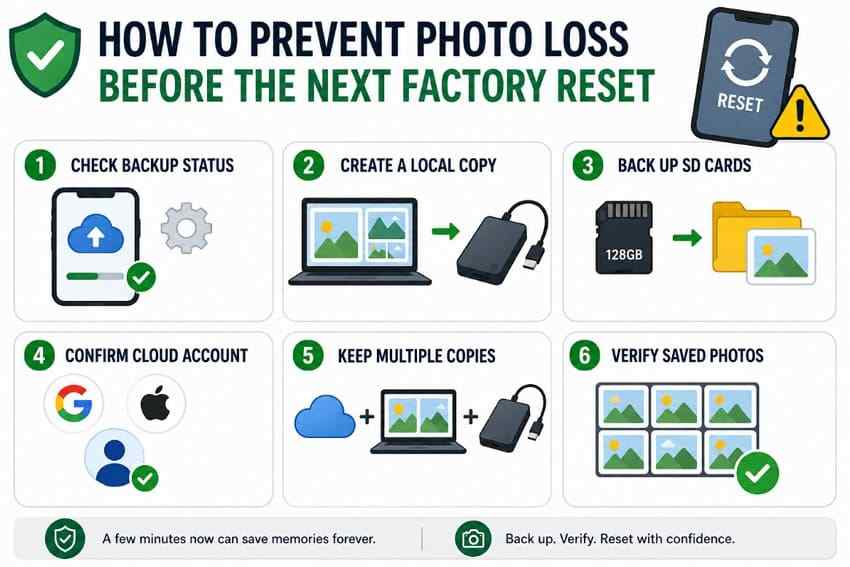
- Confirm the correct cloud account: Check which Google or Apple Account contains recent photos, especially when several personal, work, or family accounts are signed in.
- Wait for backup to finish: In Google Photos, confirm the status says Backup complete. In iCloud Photos, check that syncing has finished and confirm recent items at iCloud.com.
- Open critical photos at the destination: View recent and older files from a browser or second device. A thumbnail on the phone is not enough evidence.
- Create a local copy: Export irreplaceable photos to a computer or external drive before resetting. Keep original filenames and folder structure when practical.
- Back up portable cards separately: Copy SD card contents to at least one other storage location. Remove the card before reset if the phone treats it as portable media.
- Preserve two independent copies: Use a cloud library plus a computer or external-drive copy. Two folders on the same phone do not count as two copies.
- Record backup dates and passwords: An encrypted iPhone computer backup requires its password. Verify that you can access the backup before erasing the device.
- Do not reset during an active upload: Keep the phone on Wi-Fi and power until cloud and local transfers complete, then verify the destination one final time.
Conclusion
How to recover photos after a factory reset depends less on the reset phone and more on where copies existed before it was erased. Check Google Photos, iCloud Photos, pre-reset backups, computers, old devices, cloud services, and portable SD cards in that order. For a portable card or computer-accessible local copy, Recoverit can scan the storage, preview found photos, and save recoverable files to a separate drive. It cannot reverse a completed cryptographic erase of modern phone internal storage.
Try Recoverit to Recover Photos After Factory Reset
Security Verified. Over 7,302,189 people have downloaded it.
FAQs
-
Can photos remain on an SD card after the phone is factory reset?
Yes, if the card was used as portable removable storage and the reset did not erase or reformat it. A card adopted as Android internal storage is encrypted and tied to the original device, so it may become inaccessible after reset. Do not format either type while investigating. -
Does removing the SIM card affect photo recovery after reset?
No. A SIM identifies the subscriber to the mobile network and may hold limited contact data on some systems, but it is not the phone's photo library. Removing it neither restores nor erases camera photos. -
Can a factory reset delete photos from Google Photos or iCloud?
The reset itself erases the phone, not confirmed server copies. However, cloud photo libraries sync changes, so later deletions made while signed in can affect other devices and the cloud library. Verify the account and download important originals before reorganizing anything. -
Why are some photos missing even after restoring the phone backup?
The backup may be newer than the loss, the photos may have synced separately through Google Photos or iCloud Photos, the wrong account may be active, excluded device folders may never have uploaded, or the restore may still be downloading in the background. Check the backup date, cloud account, sync status, and computer copies.


