

 TL;DR:
To safely recover photos from a corrupted SD card, you must immediately stop using it and extract the images using recovery software before executing formatting, CHKDSK, or partition repairs that will overwrite the surviving data sectors.
● Use Recoverit to preview and restore RAW and common image formats from logically corrupted cards, or choose the free, open-source PhotoRec for signature-based extraction, which recovers data without retaining original file names, folders, or metadata.
● Always save your recovered photos to a completely separate computer or external drive, and restrict repair actions like Windows Error Checking or formatting until the photo files are entirely secured.
● Bypass software recovery attempts and contact a professional data recovery lab if the card exhibits physical damage such as cracks, water damage, bent contacts, or remains completely undetected across multiple card readers and USB ports.
Ask AI for a summary
 ChatGPT
 Perplexity
 Gemini
 Claude
 Grok
Grok
A corrupted SD card can make precious photos disappear in seconds. Your camera may refuse to read the card. Windows may ask you to format it. The card may show as RAW, empty, unreadable, or suddenly stop opening photos. When this happens, the safest rule is simple: recover your photos first, then repair the card later.
Many corrupted SD card problems affect the file system, directory records, or partition information rather than immediately destroying the actual image data. That means your photos may still be recoverable if the card is detected and the data has not been overwritten or physically damaged.
This guide explains how to recover photos from a corrupted SD card safely with Recoverit, PhotoRec, TestDisk, backups, and professional recovery options. It also explains how to fix the corrupted SD card only after your photos are safe.
In this article
-
- 1. Try a Different Card Reader, USB Port, or Computer
- 2. Check Camera, Phone, or Computer Imports
- 3. Use PhotoRec for Signature-Based Photo Recovery
- 4. Use TestDisk When the Partition or File System Is Lost
- 5. Use a Backup, Cloud Album, or Editing App Export
- 6. Contact a Professional Data Recovery Service
Part 1. Can You Recover Photos from a Corrupted SD Card?
Yes, recovering photos from a corrupted SD card is possible in most cases. Corruption usually affects the file system rather than destroying your actual photo data. Thus, your images may remain physically present on the card after corruption occurs. Individuals should act fast and avoid new overwrites to increase the success rate.
When Photo Recovery Is Still Possible
Recovery is possible when photos have not yet been overwritten by new data. PR Newswire reports that around 72% of SD card data loss cases are successfully recoverable. Nonetheless, it’s essential to act immediately after corruption occurs to give you the highest chance of successful recovery.
When Images May Be Permanently Lost
Photos become permanently lost when their storage sectors get fully overwritten by newer data. Sometimes, severe physical damage to card components also makes recovery impossible afterward. Furthermore, SD cards have an average failure rate of 13% according to consumer surveys on Reddit.
Why You Should Recover Photos Before Fixing the Card
Fixing the card before recovery attempts risks permanently destroying your remaining photo data. CHKDSK and formatting operations overwrite the exact sectors where deleted photos still exist.
Part 2. Recover Photos Before Fixing the Corrupted SD Card
When an SD card becomes corrupted, Windows or your camera may suggest formatting, repairing, or scanning the card. Do not do that first if the card contains important photos.
Recovery and repair are different steps:
| Before Photo Recovery | After Photos Are Safe |
|---|---|
| Do not format the card. | Format the card only if you plan to reuse it. |
| Do not run CHKDSK. | Run CHKDSK only after recovery. |
| Do not use Error Checking. | Use Error Checking after files are saved elsewhere. |
| Do not repair partitions. | Try partition or drive letter fixes after recovery. |
| Scan or image the card first. | Repair or replace the card later. |
| Save recovered photos to another drive. | Test the card before reusing it. |
This order matters because repair tools can change file system records. Formatting can rebuild the card structure. CHKDSK and Error Checking may modify metadata. These actions may help the card work again, but they can also make photo recovery harder if performed too early.
Part 3. Quick Diagnosis: Choose the Right Recovery Path
Use this table to identify the problem before choosing a recovery method.
| Your Situation | Likely Cause | Safest Recovery Path |
|---|---|---|
| SD card asks to be formatted. | Damaged file system, index table, or directory structure. | Ignore the format prompt and scan the card first. |
| SD card shows RAW or unreadable. | File system corruption. | Use deep scan or signature-based recovery before repair. |
| SD card is detected but appears empty. | Hidden files, damaged directory records, or logical errors. | Check hidden files, then scan unallocated or raw data. |
| SD card is not detected by one device. | Faulty reader, port, adapter, or driver. | Try another reader, USB port, or computer once. |
| SD card is not detected by multiple devices. | Possible physical or controller failure. | Stop and consider a professional recovery service. |
| Photos open half-loaded, blurry, or broken. | Partial image data damage or missing file fragments. | Recover available files first, then try photo repair. |
| Card has cracks, bent contacts, water damage, or heat damage. | Physical component damage. | Do not scan repeatedly. Contact a professional lab. |
| Card was formatted after corruption. | File system was rebuilt or partially overwritten. | Stop using it and run recovery as soon as possible. |
Part 4. Recover Photos from a Corrupted SD Card with Recoverit
Once you stop using the corrupted card, the next step is choosing a safe recovery method. Recoverit can help scan corrupted, RAW, unreadable, formatted, or damaged SD card file systems and preview recoverable photos before saving them to another drive.
Recoverit is useful when:
- The SD card asks to be formatted.
- The card shows RAW or unreadable.
- Photos disappeared after corruption.
- The card is detected but appears empty.
- Photos were deleted or lost from the SD card.
- The SD card was accidentally formatted.
- You need to preview photos before recovery.
- You want to recover photos from SD cards, microSD cards, SDHC, SDXC, camera cards, drone cards, or action camera cards.
Important: Do not save recovered photos back to the corrupted SD card. Always save them to your computer, an external drive, or another safe storage device.
Key Features for Corrupted SD Card Photo Recovery
- Corrupted SD Card Recovery: Scan unreadable, RAW, formatted, or logically corrupted cards.
- Photo Preview Before Recovery: Check recoverable images before saving them.
- RAW and Common Image Format Support: Recover JPG, PNG, HEIC, RAW, CR2, NEF, ARW, and other photo files.
- SD and microSD Compatibility: Recover photos from SD, microSD, SDHC, SDXC, camera cards, drone cards, and action camera cards.
- File Filters: Filter scan results by file type, date, size, or name.
- Save to Another Drive: Export recovered photos to a safe location to avoid overwriting data.
- Video and Media Recovery: Recover videos and other media files stored on the same card.
Guide to Recover Photos from a Corrupted SD Card with Recoverit
Adhere to the given steps to learn how to recover corrupted images from the SD card:
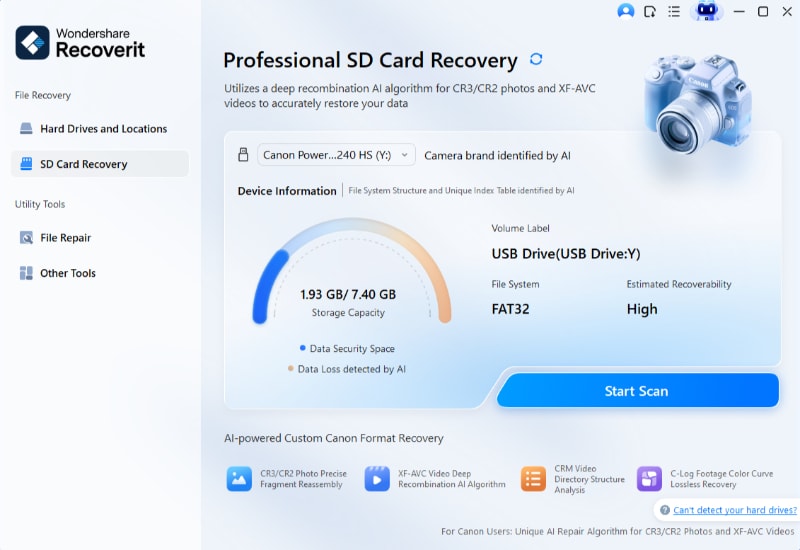
Step 1. Connect the Corrupted SD Card for Recovery
You need to access the “SD Card Recovery” tab and insert your corrupted SD card using a compatible card reader. Then, choose the detected card and click “Scan” to continue.
Step 2. Search the SD Card for Missing Photos
The software will immediately begin analyzing the card for lost and inaccessible images. During the process, you can track the scan progress and review photos that are being discovered.
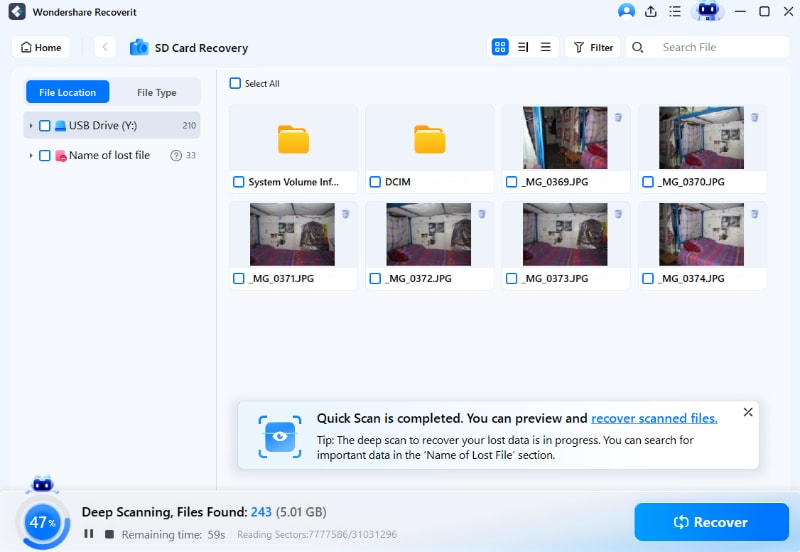
Step 3. Recover Photos to a Different Storage Device
Preview the recovered images to verify their quality. Select the photos you want to restore and press “Recover” to save them to another drive or storage location.

What to Do If Some Recovered Images Are Damaged
Some recovered photos may appear blurry, incomplete, gray, broken, or only partially visible. This usually means the file data itself was damaged, fragmented, or partially overwritten.
Recovery and repair are separate steps. Recoverit helps recover photo files from the corrupted SD card. If recovered images are still damaged, a photo repair tool such as Repairit may help repair the image file after recovery.
Part 5. Recover Photos from a Corrupted SD Card Without Recoverit
If you want to try free or manual options first, use the following methods. Always recover or copy photos to another drive before repairing or formatting the card. :
1. Try a Different Card Reader, USB Port, or Computer
Sometimes the problem is not the SD card itself. A damaged adapter, loose USB port, outdated reader, or incompatible device can make the card appear corrupted.
Try these quick checks:
- Insert the SD card into another card reader.
- Try a different USB port.
- Test the card on another computer.
- Gently check the contacts for dust or dirt.
- Do not force the card into a reader.
- Do not keep testing if the card becomes hot or unstable.
If the card works on another device, copy the photos to a safe location immediately.
2. Check Camera, Phone, or Computer Imports
Your device may have already imported photos before the SD card became corrupted. Check your camera's internal memory for any saved image copies first. On phones, access the gallery app and look inside the recently imported albums folder. Computers also store previously imported photos inside dedicated Pictures or Photos directories.
3. Use PhotoRec for Signature-Based Photo Recovery
PhotoRec is a free, open-source recovery tool that can scan raw storage data for recognizable file signatures. It can work even when the SD card file system is damaged or unavailable.
PhotoRec is powerful, but it is less beginner-friendly than visual recovery tools. It may recover photos without original file names, folder paths, dates, or metadata.
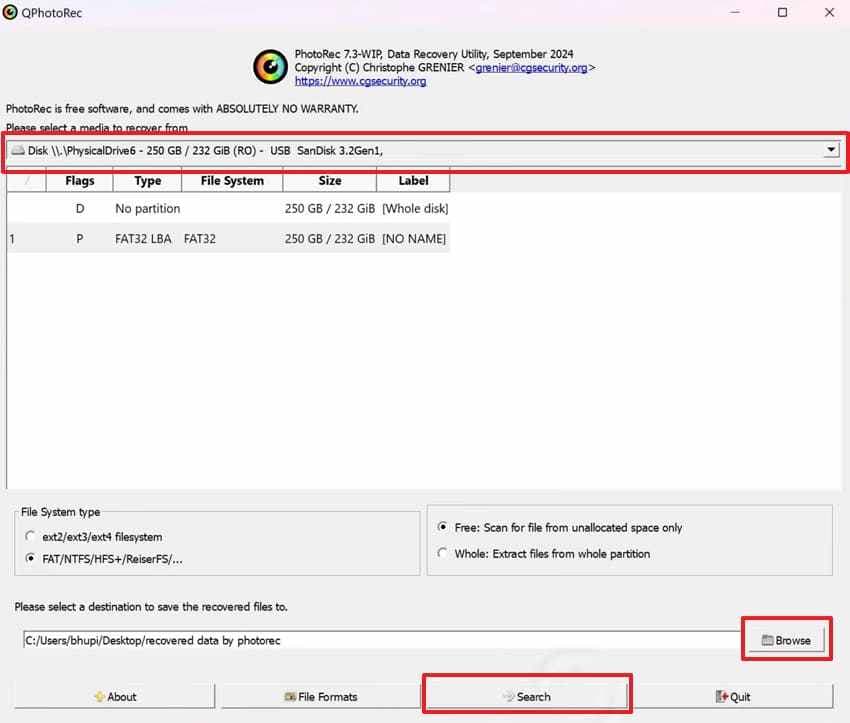
Step 1. Choose your “SD Card” > Press “Browse” to select the output location > Click the “Search” button.
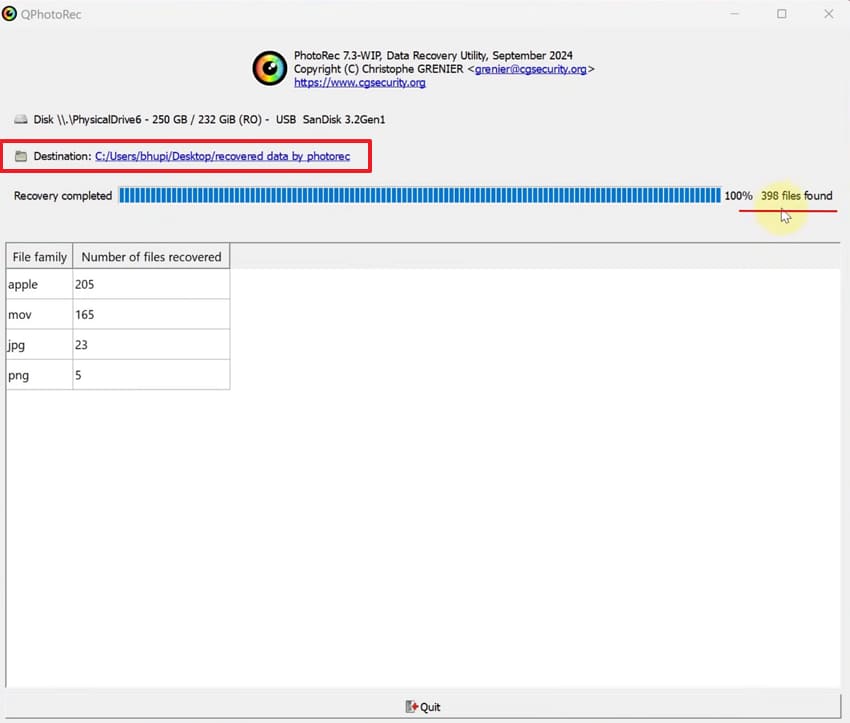
Step 2. Once your lost SD card photos are recovered, click the “Destination” button to check them.
4. Use TestDisk When the Partition or File System Is Lost
TestDisk is a free tool designed for lost partitions, damaged partition tables, and file system access problems. It is different from PhotoRec. TestDisk focuses more on restoring access to partitions and file systems, while PhotoRec focuses on extracting files by signatures.
Use TestDisk carefully. If you are unsure, copy files out instead of writing partition changes back to the card.
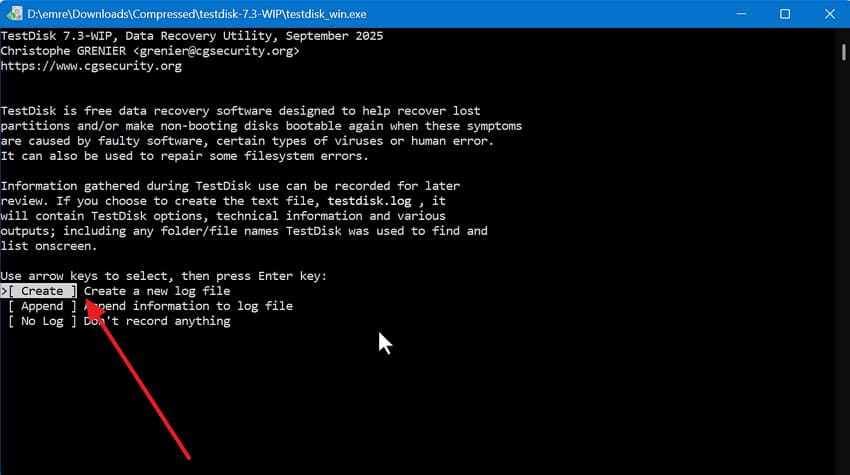
Step 1. Confirm “Create” by pressing “Enter” > Select your corrupt SD card > Choose the appropriate “Partition Table” option.
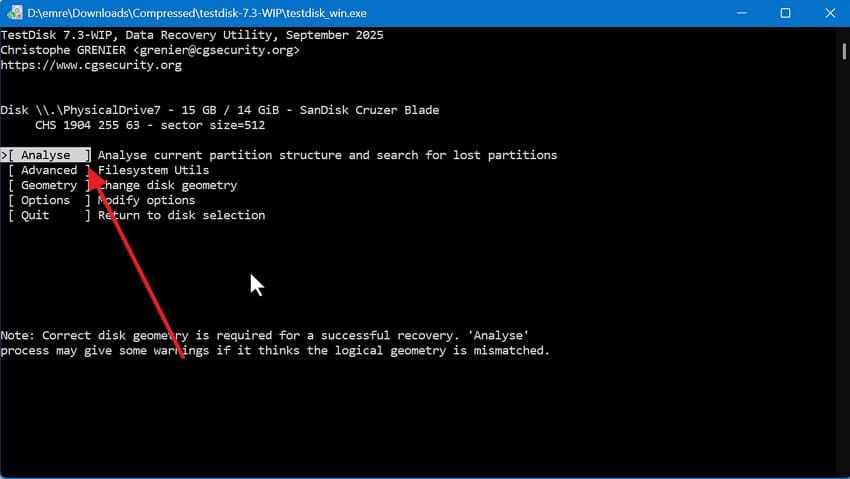
Step 2. Go to “Analyse” > Select “Quick Search” to locate the lost partitions.
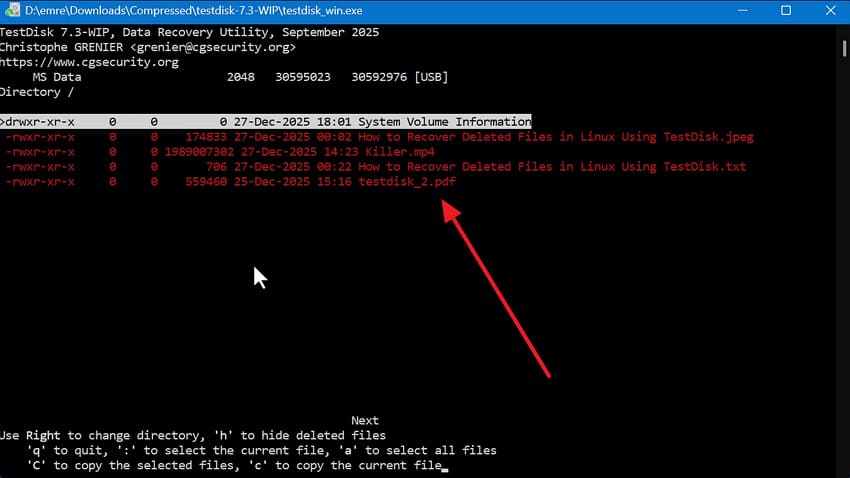
Step 3. When the partition appears, press “P” to display recoverable files and press “C” to copy the recovered images.
5. Use a Backup, Cloud Album, or Editing App Export
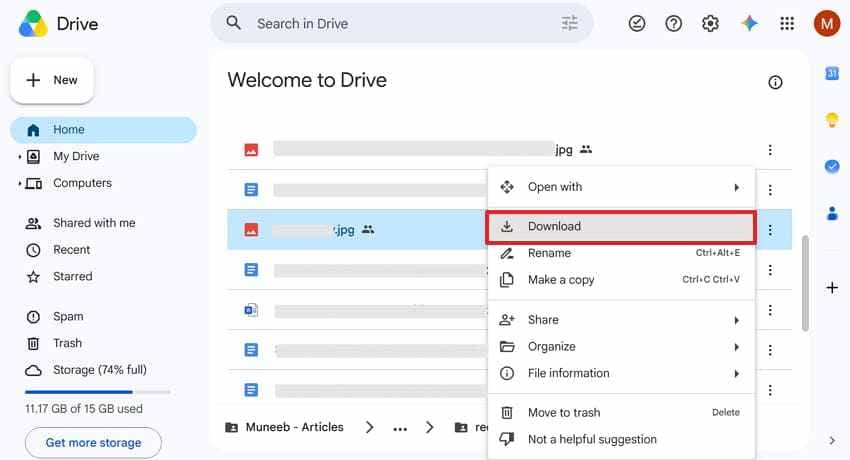
It is also advisable to check if your photos already exist somewhere else. Many people searching for how to retrieve pictures from a corrupted SD card overlook cloud backups. Follow the steps below to check cloud backup sources and restore photos:
- Access platform like “Google Drive” > Look for your synced images > Click “Three Dots” > Opt for “Download.”
6. Contact a Professional Data Recovery Service
When your SD card has clear signs of physical damage, contact a professional service. Software tools cannot recover data from cards with failed memory chips or bent contacts. Professionals use specialized equipment inside controlled spaces to access damaged storage components.
Part 6. Fix the Corrupted SD Card Only After Photo Recovery
After your photos are recovered and backed up, you can try fixing the corrupted SD card. Do not use these repair methods before recovering important photos.
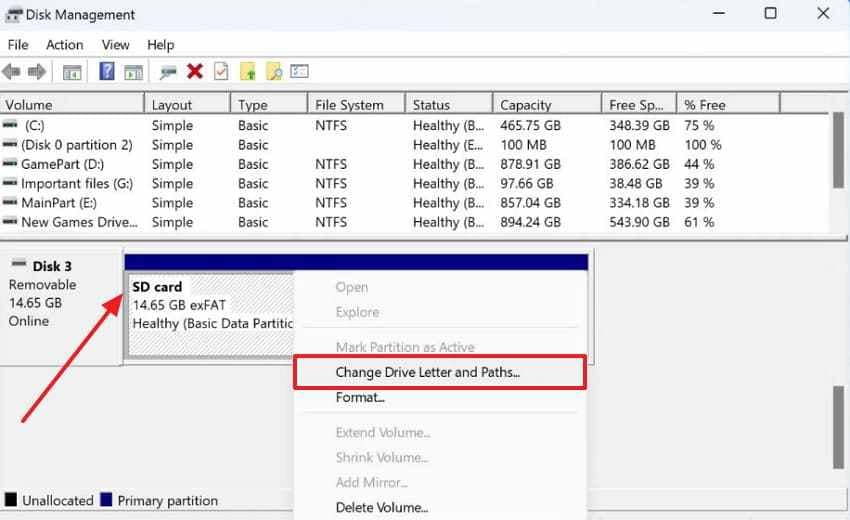
1. Assign or Change the Drive Letter in Disk Management
If Windows detects the SD card but does not show it in File Explorer, a missing or conflicting drive letter may be the reason.
Step 1. Press the “Win + X” keys > Select “Disk Management” > Right-click on your inserted card > Select “Change Drive Letter and Paths…”
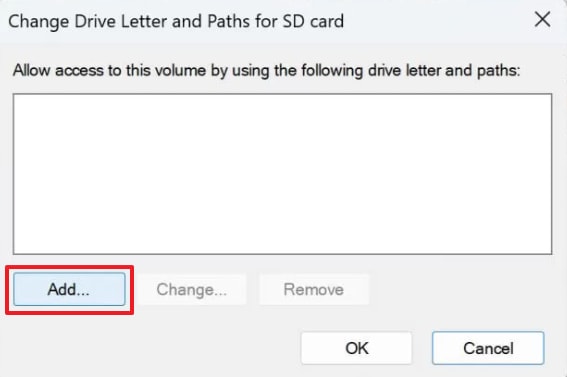
Step 2. After that, press the “Add…” button to alter your drive letter.
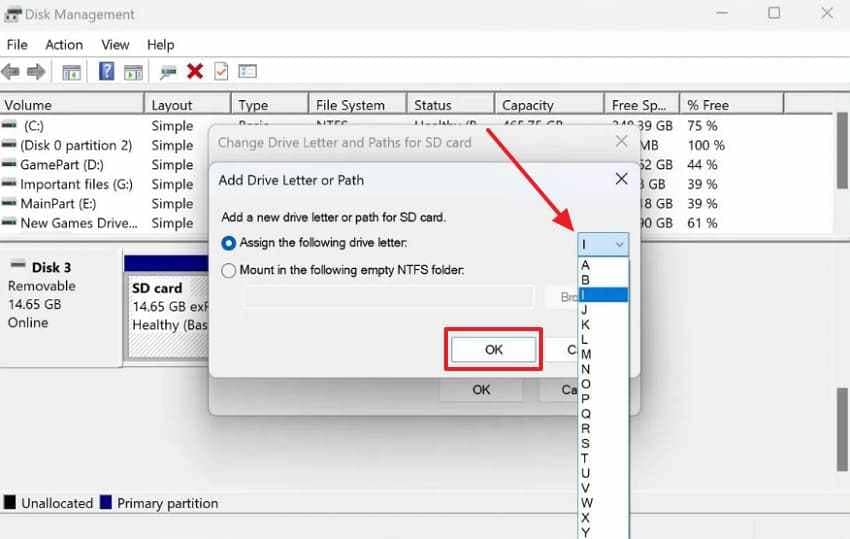
Step 3. Opt for a new letter from “Assign the Following Drive Letter” > Click “OK” twice.
2. Update or Reinstall SD Card Reader Drivers
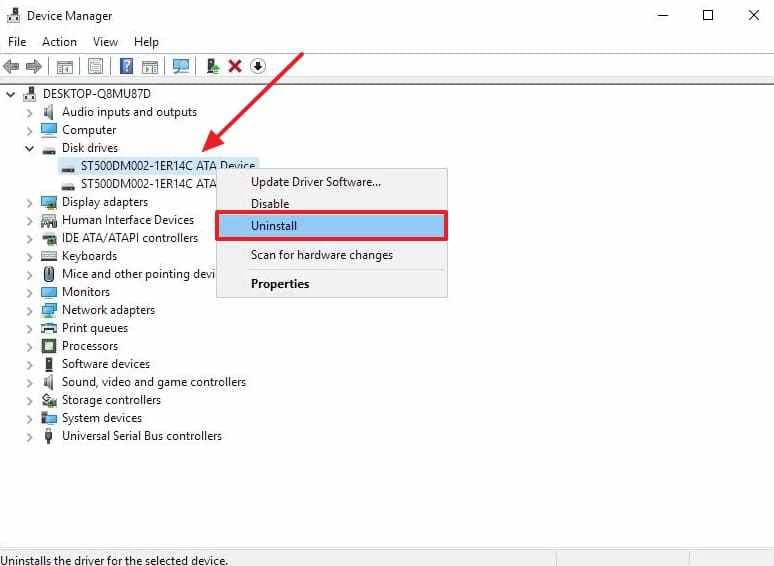
If the issue comes from the card reader or Windows driver, reinstalling the device driver may help.
- Run the “Device Manager” > Expand the “Disk Drivers” > Right-click the removable drive > Choose “Uninstall” > Disconnect your SD card.
- Upon waiting for a few minutes, restart your device and connect the card again.
3. Run Windows Error Checking After Files Are Safe
Windows Error Checking can detect and repair file system errors. Use it only after recovering your photos.
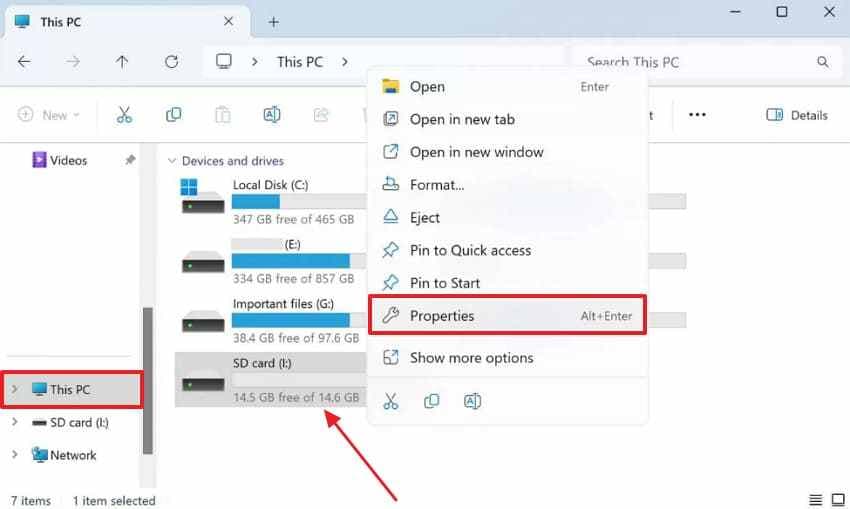
Step 1. Insert the memory card into your device > Navigate to “File Explorer” > Choose “This PC” > Right-click your inserted card > Choose “Properties.”
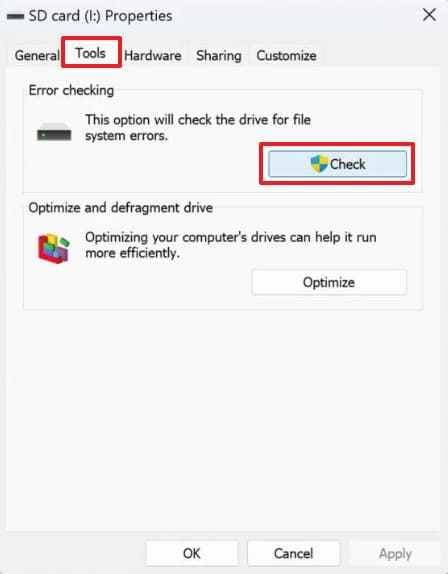
Step 2. Go to the “Tools” tab > Press the “Check” button under “Error Checking” > Click “Scan and Repair Drive.”
4. Use CHKDSK Only After Recovering Important Photos
CHKDSK can repair file system errors, but it can also modify file system structures. Run it only after your important photos are recovered.
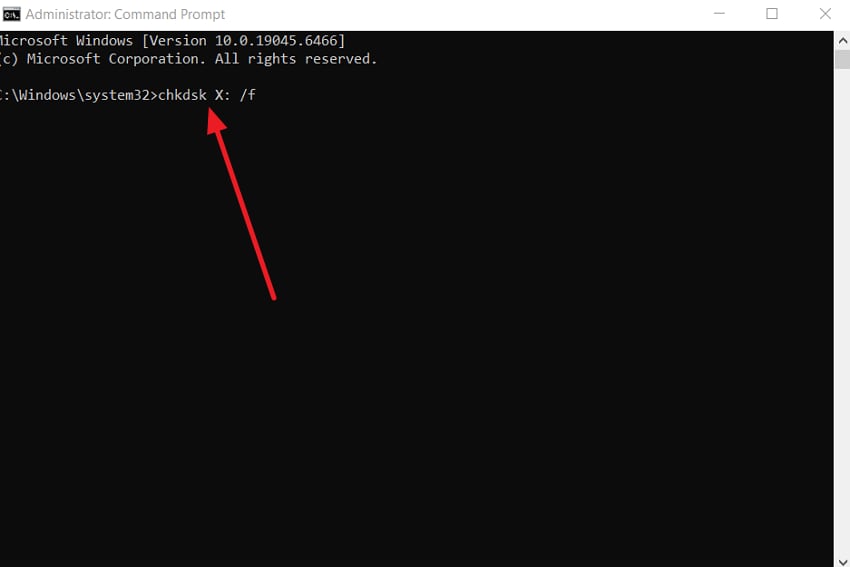
- Open “Command Prompt” as admin > Execute “chkdsk X: /f” by replacing “X” with your USB letter.
5. Format the SD Card as a Last Resort
Formatting should only happen after every important photo has been recovered and backed up. Formatting erases the visible file system and prepares the card for reuse.
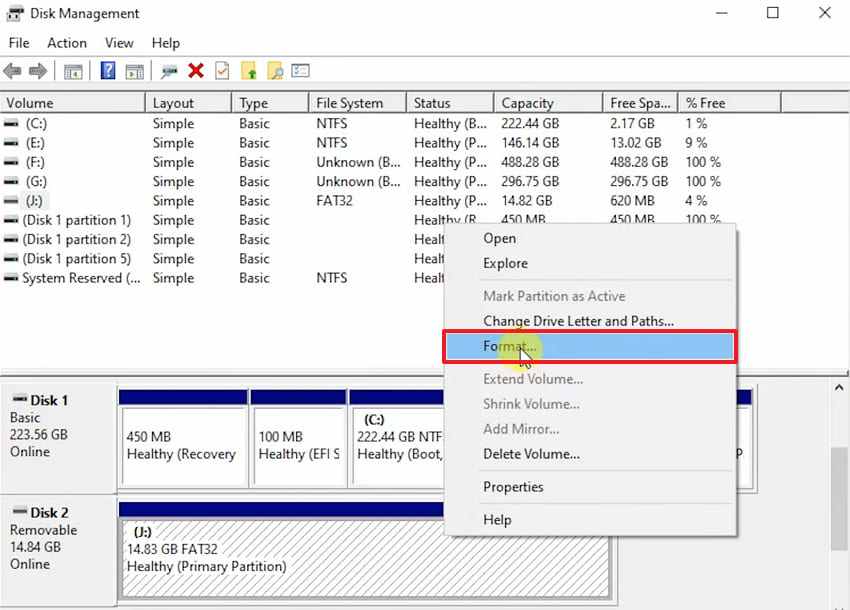
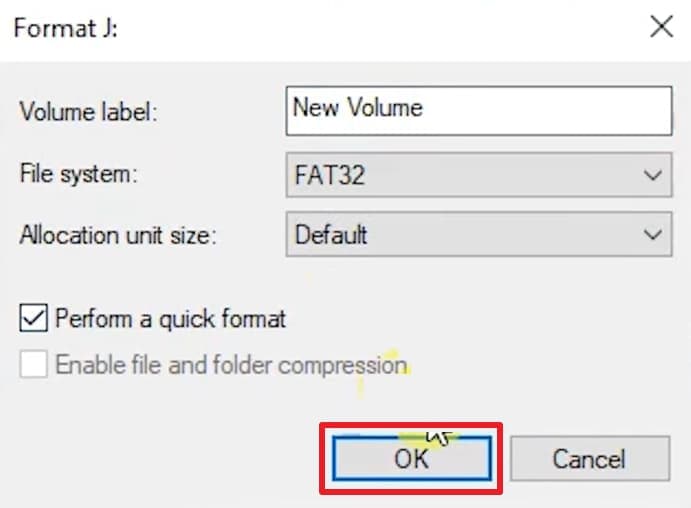
Step 1. As you right-click the memory card from “Disk Management,” press “Format…”
Step 2. Check the “Perform a Quick Format” box > Click “OK.”
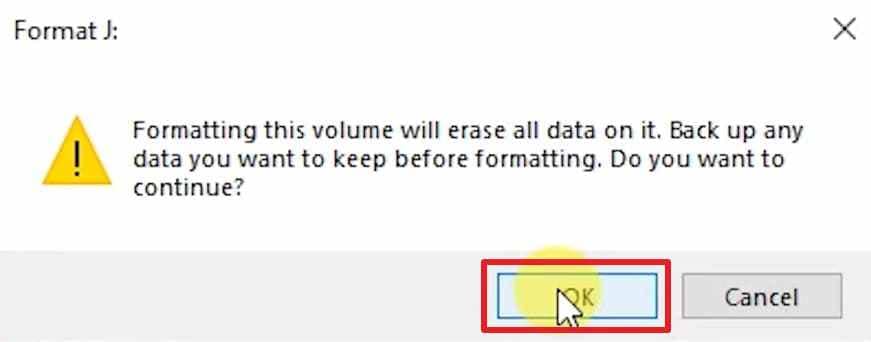
Step 3. Upon accessing a new prompt, opt for “OK” again.
After formatting, test the SD card before using it again. If errors return, replace the card.
Part 7. Why Recovered SD Card Images May Still Be Corrupted
Even after successful recovery, some images may still appear damaged. This does not always mean the recovery tool failed. The original image files may have already been affected by corruption, missing data, or overwriting.
- Metadata Loss: File system damage often breaks important photo metadata like dates and tags. Recovered images may open but show missing or incorrect file information.
- Overwritten Sectors: Photos partially overwritten by new data cannot be fully reconstructed. So, these files often appear blurry or only partially visible after restoration.
- Folder Loss: Severe corruption often removes original folder structures from storage devices. Recovery tools may restore files without preserving their previous organization.
- Repair Needed: Some recovered images contain damage that standard recovery tools cannot fix. Image repair tools can reconstruct damaged file headers and restore image files to working condition.
Part 8. How to Prevent SD Card Corruption and Photo Loss
Many users also seek preventive tips to avoid having to attempt photo recovery. For those, here is a practical prevention table covering the most effective protective habits:
| Prevention Method | What to Do | Why It Matters |
|---|---|---|
| Eject Card Safely | Use the eject option before removing it | Sudden removal can corrupt files being written |
| Limit Device Usage | Avoid using one card across too many devices | Different devices increase the file system corruption risk |
| Back Up Photos | Copy photos to another drive regularly | Protects images before formatting or reusing cards |
| Replace Faulty Cards | Stop using cards with repeated errors | Worn cards corrupt files more frequently over time |
| Keep Multiple Copies | Store important photos in several locations | Multiple copies prevent total loss from one failure |
Conclusion
Knowing how to recover photos from a corrupted SD card starts with the right order. Do not format the card, run CHKDSK, use Error Checking, or repair partitions before recovering your photos. Stop using the card, connect it through a reliable reader, and scan it with a trusted recovery tool such as Recoverit, a free option such as PhotoRec, or a professional service if physical damage is suspected.
Recoverit can help recover photos from corrupted, RAW, unreadable, formatted, or logically damaged SD cards and lets you preview photos before saving them to another drive. Free tools such as PhotoRec and TestDisk may also help, especially for technical users.
After your photos are recovered and backed up, you can try fixing the SD card with drive letter changes, driver reinstalling, Error Checking, CHKDSK, or formatting. If the card continues to show errors after repair, replace it instead of trusting it with important photos again.
FAQs
-
Q1. Can I recover photos from a corrupted SD card?
Yes, photos can often be recovered if the SD card is detected and the image data has not been overwritten or physically destroyed. Stop using the card and recover photos before repairing or formatting it. -
Q2. Should I format a corrupted SD card before recovery?
No. Do not format the SD card before recovery. Formatting can change file system records and may reduce recovery chances. Recover your photos first, then format the card only after your files are safe. -
Q3. Should I run CHKDSK before recovering photos?
No. Run CHKDSK only after recovering important photos. CHKDSK can modify file system structures, which may affect recovery results if used too early. -
Q4. Can PhotoRec recover photos from a corrupted SD card?
Yes. PhotoRec can scan for file signatures even when the SD card file system is damaged. However, recovered photos may lose original file names, folders, dates, or metadata. -
Q5. When should I contact a professional recovery service?
Contact a professional service if the card is cracked, bent, water-damaged, overheating, unstable, or not detected by multiple readers. You should also seek help if the photos are extremely valuable and you cannot risk further damage. -
Q6. Why are recovered photos still corrupted?
Recovered photos may still be corrupted if image data was missing, overwritten, fragmented, or damaged by bad memory sectors. A photo repair tool may help if the recovered file is partially readable. -
Q7. Can I recover photos from a corrupted microSD card used in a drone or camera?
Yes, recovery software can often scan corrupted microSD cards from drones, cameras, phones, and action cameras if the card is detected by the computer. Save recovered files to another drive. -
Q8. Can I reuse the SD card after recovery?
Only reuse the SD card after all photos are backed up and the card is tested. If errors return, replace the card. Do not trust important photos to a card that repeatedly corrupts data.


