

 TL;DR:
Resolve the Discord "loading chunk failed" error by clearing the application's cache data, refreshing your network connection, or temporarily disabling your firewall to unblock essential interface resources.
● Clear the desktop application cache by pressing Win+R, navigating to "%appdata%\discord\Cache\Cache_Data", and deleting all files to force Discord to rebuild corrupted assets.
● Bypass persistent local file issues by logging into the Discord Web version, or verify if a widespread outage is causing the chunkloaderror by checking discordstatus.com.
● Utilize Wondershare Recoverit to restore up to 500 MB of missing Discord attachments and downloads for free if the loading failure resulted in permanently inaccessible local media.
Ask AI for a summary
 ChatGPT
 Perplexity
 Gemini
 Claude
 Grok
Grok
You open Discord to jump into an active server, ready to reply to messages or join a voice chat, but the screen freezes and refuses to load. Instead of conversations, emojis, or channels, an error message appears saying "Discord loading chunk failed," instantly breaking your flow. Refreshing the app doesn't help, and restarting feels like wasted time when you just want Discord to work.
This issue can be frustrating, especially during gaming sessions, study groups, or important community discussions. Understanding how to respond quickly makes a big difference, helping you get back online without stress or unnecessary trial and error. In this article, you will learn the causes of this issue and how to resolve it.
Try Recoverit to Perform Data Recovery
 Security Verified. 3,591,664 people have downloaded it.
In this article

Part 1. What "Loading Chunk Failed" Means in Discord
In Discord, the "Loading Chunk Failed" message appears when the app cannot load a required code segment. This error, often labeled as chunkloaderror, prevents parts of the interface from displaying correctly. As a result, servers, channels, or messages may not load, leaving the app stuck or partially functional instead of opening normally.
Common Scenarios Where It Appears
Once you know what the message represents, the next step is recognizing when it tends to appear during normal use rather than focusing on technical explanations.
- While Opening the App: You launch Discord, and the loading screen never completes. The error appears before any servers or messages become visible.
- During Server Entry: Clicking a server icon leads to a blank or frozen interface instead of channel loading. The error message replaces the expected server content.
- When Refreshing Discord: Refreshing the app or browser tab suddenly interrupts an active session. The interface reloads but stops at the error screen.
- After Signing In: You successfully log in, but the main dashboard fails to appear. The error shows immediately after authentication instead of your chat list. If Discord not opening, click here to learn more.
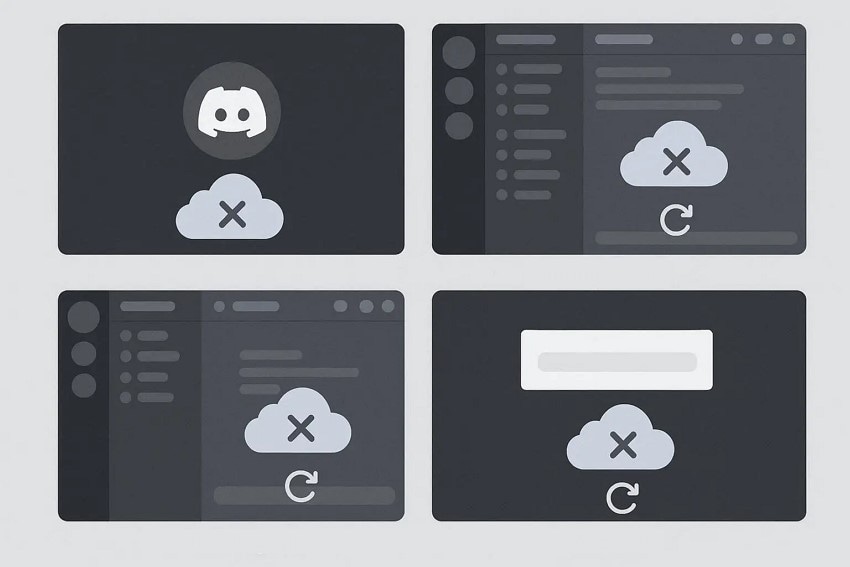
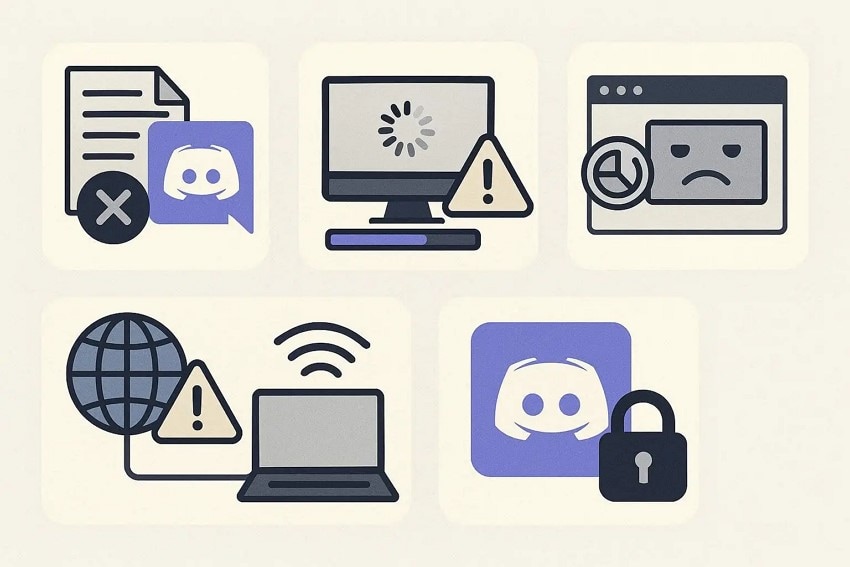
Part 2. 5 Main Reasons Behind the Discord 'Loading Chunk Failed' Error
Now that you know when it appears, it's important to understand why the "loading chunk failed" error prevents Discord from working as expected.
- Cached Data Conflicts: Stored cache files can become outdated and stop new app components from loading. This often results in missing screens or frozen interfaces in Discord.
- Interrupted Updates: An update may install partially without completing all required files. When Discord tries to load afterward, key interface elements fail to appear.
- Browser Storage Issues: Corrupted cookies or local storage can block Discord Web from loading properly. This leaves the page stuck with the same error message.
- Network Instability: Unstable or restricted internet connections can interrupt how Discord loads its interface files. As a result, the app cannot fully render servers or channels.
- Blocked App Resources: Security tools, extensions, or firewalls may prevent Discord from accessing required files. This interference causes the app to stop loading mid-process.
Part 3. Basic Step-By-Step Solutions For Discord Loading Chunk Failed
After identifying what triggers the issue, the focus shifts to action. The good news is that most Discord loading chunk failure problems can be resolved using simple, step-by-step solutions that don't require technical expertise. These basic fixes target the app's local data, helping Discord reload its interface properly:
1. Refresh Discord Or Restart The App
Refreshing the app clears temporary session glitches that may trigger the Discord "loading chunk failed" message. A clean restart forces Discord to reload interface components from scratch, often restoring access to servers and chats. This quick action is especially useful when the app freezes mid-load or opens to a blank screen. Read the instructions below to learn how to restart the app:
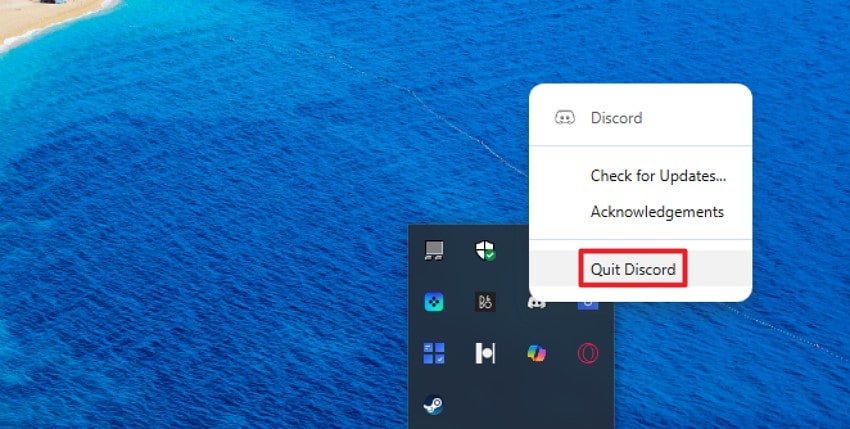
Instructions. Begin by heading to the taskbar located at the bottom and finding the Discord icon. Right-click on it and press the "Quit Discord" option to end the task. Now, locate the shortcut for the program and double-click on it to launch it again, refreshed.
2. Clear Discord Cache (Desktop or Mobile)
Accumulated cache files can interfere with how the interface loads, leading to a persistent "loading chunk failed" screen. Clearing cached data removes outdated assets and allows the app to rebuild fresh files. This refresh improves stability across desktop and mobile versions without affecting your account, servers, or saved conversations. If you do not know how to clear the Discord cache on desktop, read the steps provided next:
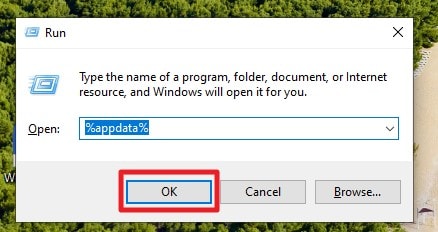
- Begin by pressing the "Win+R" keys on your keyboard. Next, input "%appdata%" in the text field and press "OK."
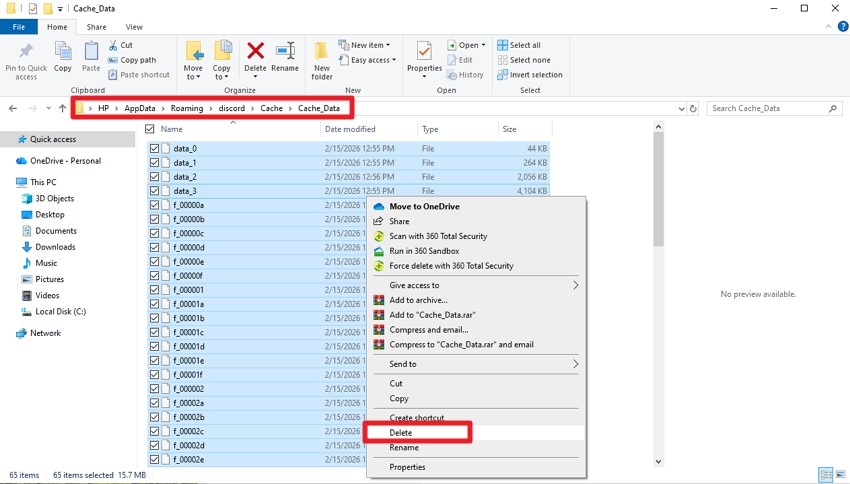
- Now, open the following path: "C:\Users\HP\AppData\Roaming\discord\Cache\Cache_Data" and select all the data. Once done, right-click and press "Delete" to remove all the unwanted caches.
3. Switch Network Or Restart Router
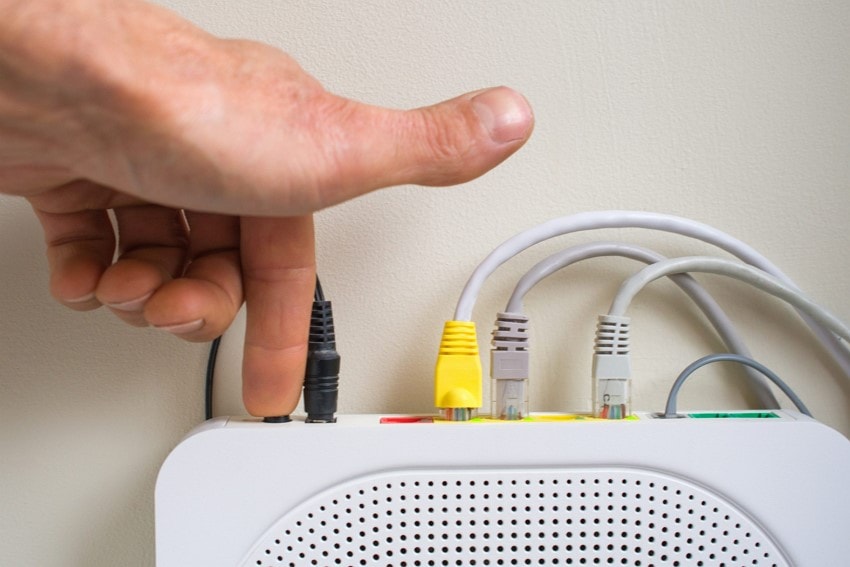
Network changes can immediately impact how Discord loads its interface elements, sometimes resulting in a "chunkloaderror" message. Switching to a different connection or resetting your router refreshes data routing. This helps Discord retrieve required resources smoothly, especially when the app loads partially but never completes the process.
4. Update Discord To The Latest Version
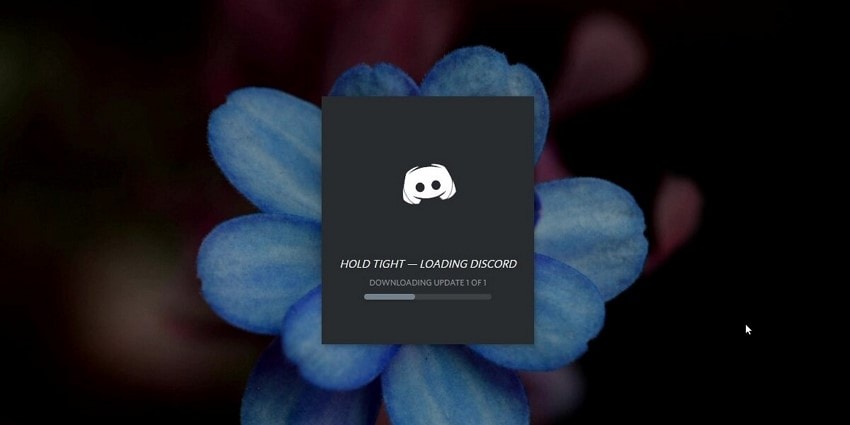
Running an outdated version can cause compatibility issues that surface as the Discord "loading chunk failed" error. Updating ensures the app uses the latest interface components and performance fixes. For updating Discord, you do not have to perform any steps, as the app automatically shows the prompts when there is a new update.
5. Disable Browser Extensions Or Firewall Temporarily
Certain extensions or firewall rules may interfere with how Discord loads its web components, resulting in a "loading chunk failed" screen. Temporarily disabling them helps confirm whether background protections are blocking required resources. Once identified, you can adjust settings to allow Discord to function normally without repeated interruptions. Read the steps provided below to learn how to disable the firewall on your system:
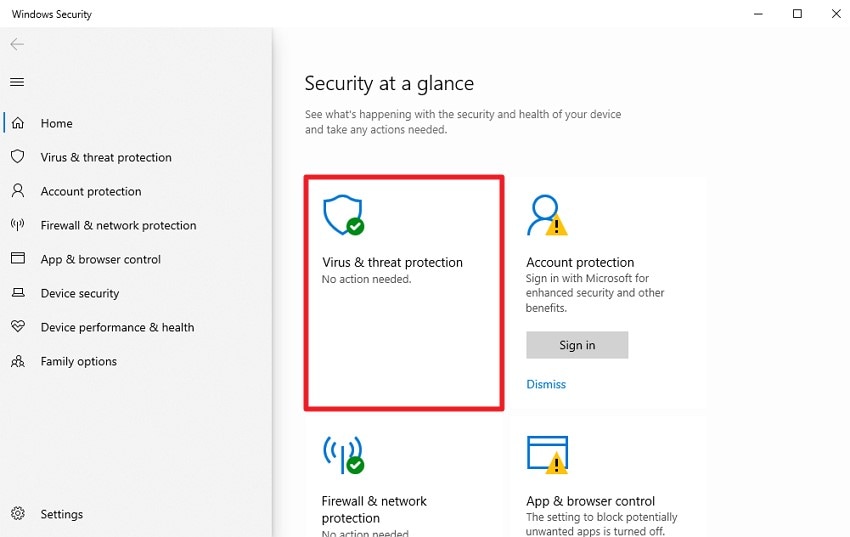
- Acquire Windows Security on your system and access "Virus and Threat Protection."
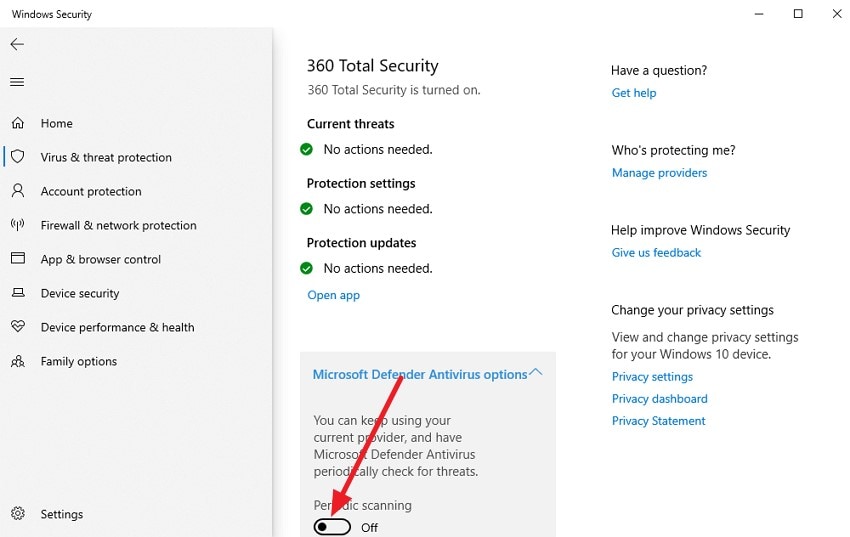
- In the following interface, turn the toggle off for "Microsoft Defender Antivirus" to disable the firewall.
Part 4. Advanced Ways To Solve Discord Loading Chunk Failed Persistently
When basic fixes no longer make a difference, it's time to take a deeper approach. These solutions focus on resetting deeper app components and system-level settings:
1. Reinstall Discord Completely
A full reinstall can fix lingering issues that cause the Discord loading chunk failed message. Removing all app files ensures corrupted components are cleared, and a fresh installation restores the default interface. This method is effective when cache clearing or updates haven't resolved repeated errors, giving the app a completely clean start. To learn how to reinstall Discord, read the steps provided next:
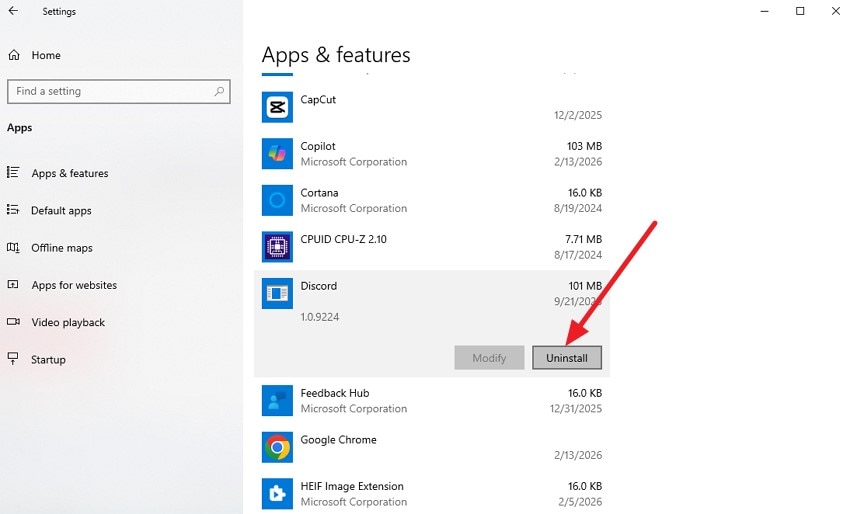
- Access the "Apps & features" option on your system and browse through to locate the "Discord" option. Click on it and press the "Uninstall" button to successfully remove the program from your system.
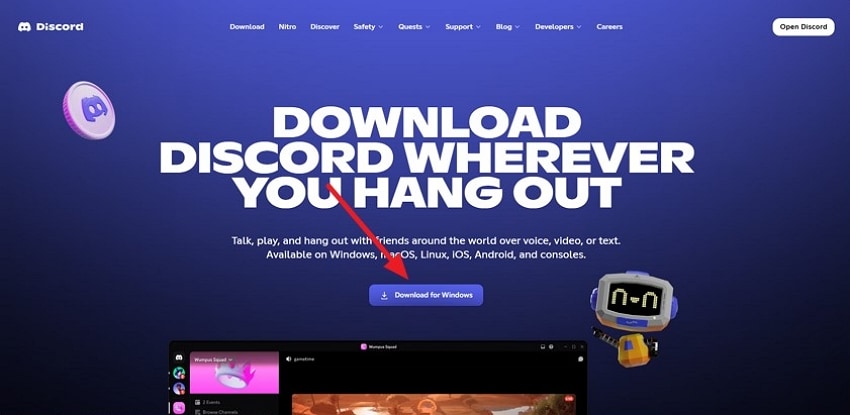
- Next, head to the official website of Discord and press the "Download for Windows" button to successfully install it on your system.
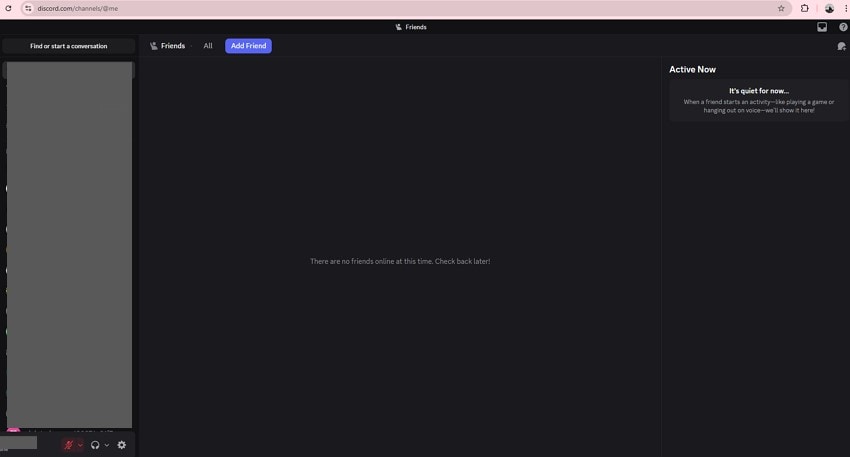
2. Try The Web Version if the Desktop App Fails
Switching to Discord's web platform can bypass desktop-specific issues, including persistent "chunkloaderror" messages. The browser version loads all interface elements independently of local files, making it a useful alternative. Users can continue conversations and access servers while troubleshooting the desktop app or waiting for updates to fix loading failures.
3. Check For Discord Server Status Online
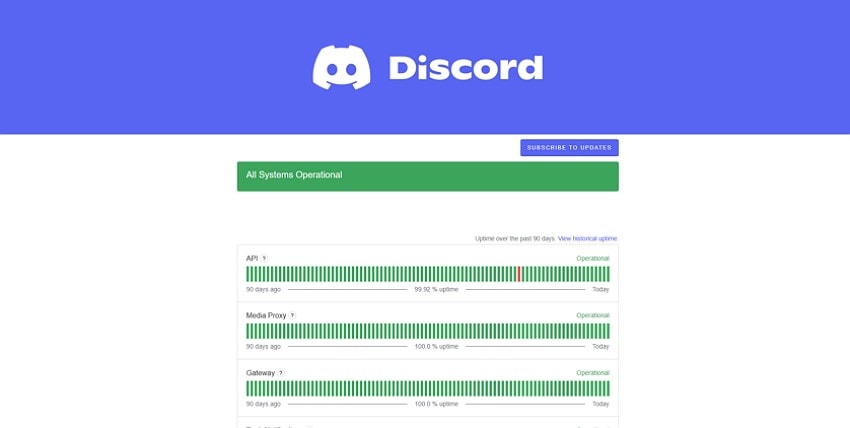
Sometimes the problem isn't local, as server outages or maintenance can trigger a Discord loading chunk failed error. Monitoring official server status pages or status tools helps identify if issues are widespread. This knowledge prevents unnecessary troubleshooting and confirms whether delays in loading channels or messages are due to server-side interruptions. Read the instructions mentioned next to learn how to check the server status:
Instructions. Open your web browser and type "www.discordstatus.com" and hit enter. You will be navigated to the server status page, and now you can check whether the system is up and running.
4. Use a Different Device To Isolate The Problem
Testing Discord on another device can reveal whether the "chunkloaderror" originates from your system or the app itself. If it works elsewhere, the issue is likely local, such as device settings or network conflicts. This approach helps narrow down the cause, making subsequent fixes more targeted and effective.
Part 5. Recoverit Guide: Restore Lost Discord Attachments And Downloads
When Discord shows a Discord "loading chunk failed" message, attachments and downloads may suddenly become inaccessible, disrupting workflow or conversations. Recoverit is a powerful data recovery tool designed to retrieve lost files from PCs, Macs, or external drives. Its advanced scanning engine locates missing documents, images, and media, even if the app fails to load content properly, ensuring users don't permanently lose important Discord files.
Beyond simple recovery, Recoverit offers file previews, selective restoration, and support for multiple storage devices. Whether attachments disappear due to crashes, updates, or temporary errors, the tool restores them efficiently without overwriting existing data. Its intuitive interface allows users to recover lost Discord downloads quickly, maintaining continuity in chats, server activity, and shared media even after repeated loading errors. Moreover, users get the ability to recover 500 MB of data for absolutely free.
Incredible Features Offered by Recoverit
- Batch Data Recovery: Recoverit allows users to recover multiple lost Discord attachments or downloads at once, saving time and effort compared to recovering files individually.
- Numerous File Format Support: The software supports a wide range of file types, including images, videos, audio, documents, and compressed files, ensuring nearly all Discord content can be restored.
- Advanced Recovery Mode: Its advanced recovery mode performs deep scans to locate lost or corrupted files that standard recovery methods might miss, maximizing success even in complexity.
Step-by-Step Guide to Recover Lost Discord Attachments with Recoverit
When Discord shows a "Discord loading chunk failed" error, important attachments or downloaded files may disappear unexpectedly. Follow these steps to retrieve your missing Discord content:
1. Choose the Location to Scan
Open Recoverit and select the drive, folder, or storage location where your Discord downloads or attachments were originally saved. The software will perform a thorough deep scan, searching for deleted, corrupted, or inaccessible files automatically.

2. Locate the Files You Need
After the scan finishes, browse through the recovered items to identify your missing Discord attachments, images, videos, or documents. Select the specific files you want to restore and press the "Recover" button.

3. Preview and Recover Securely
Use Recoverit's preview feature to check that the files are complete and intact. Once confirmed, click "Recover" to save them to a secure location on your device, restoring full access to your lost Discord content safely.

Part 6. 6 Best Practices To Stop Discord Loading Chunk Failed Errors
After exploring recovery methods, it's equally important to prevent the "chunkloaderror" from happening in the first place. Implementing proactive measures ensures smoother Discord performance and reduces the chance of attachments or servers failing to load. Here are six best practices to minimize errors and keep your Discord experience uninterrupted:
- Keep Discord Updated: Always install the latest updates to ensure the app uses the newest bug fixes and performance improvements. Regular updates reduce the risk of encountering discord loading chunk failed errors caused by outdated files.
- Clear Cache Periodically: Remove old cache files from your desktop or mobile app to prevent conflicts with newly loaded data. This keeps the interface responsive and minimizes repeated loading errors.
- Maintain Stable Internet Connections: Use a reliable network or wired connection when possible. Interruptions or slow speeds can trigger "chunkloaderror" issues while Discord attempts to load servers and channels.
- Limit Browser Extensions: If using Discord Web, avoid unnecessary browser add-ons that may block scripts or data. Disabling or removing extensions reduces the chance of incomplete page loads and loading failures.
- Use Trusted Security Settings: Configure firewalls or antivirus software to allow Discord access. Overly strict settings can block essential resources, resulting in repeated "loading chunk failed" messages in Discord.
- Restart Devices Regularly: Periodic restarts help refresh system processes and clear temporary glitches. This practice prevents residual app errors from causing persistent loading issues in Discord.
Conclusion
All in all, this article provided a detailed guide on how to resolve the Discord loading chunk failed error, covering common scenarios, reasons, basic and advanced solutions, and preventative practices. For users who lose attachments or downloads during such interruptions, Recoverit comes highly recommended. Its powerful recovery tools, file previews, and support for multiple formats ensure lost Discord files are restored safely and efficiently.
FAQ
-
1. What does "Discord loading chunk failed" mean?
This error occurs when Discord cannot load certain interface elements, such as servers, channels, or messages. It usually happens due to cache conflicts, network issues, or outdated app files. -
2. Can I recover Discord attachments lost due to this error?
Yes, lost attachments or downloads can be retrieved using Recoverit. Its deep scan and file preview features allow you to restore missing files quickly and safely from your device or external storage. -
3. How can I prevent the loading chunk failed error from happening again?
Keep Discord updated, clear the cache regularly, maintain a stable internet, and configure security settings properly. These best practices reduce the risk of encountering repeated chunkloaderror issues. -
4. What should I do if Discord still won't load after trying basic fixes?
If standard methods fail, using Recoverit can help restore any lost attachments or downloads. Additionally, reinstalling Discord or trying the web version may resolve persistent loading problems.


