

 TL;DR:
You can safely change your Windows 11, 10, 8, or 7 account display name without losing your personal files, folder permissions, or installed applications by utilizing built-in account management tools.
● For local accounts, you can update the login screen name by navigating to the User Accounts section in the Control Panel or by running the netplwiz command to access advanced user properties.
● If your system is linked to a Microsoft Account, local changes will not work; you must edit your First and Last name under the Your Info section of your online Microsoft profile to sync the new identity across all connected devices.
● Advanced users and administrators can bypass graphic interfaces to modify local usernames at the system level using PowerShell with the Rename-LocalUser cmdlet or via Command Prompt using the wmic useraccount command.
Ask AI for a summary
 ChatGPT
 Perplexity
 Gemini
 Claude
 Grok
Grok
You log into your Windows computer and notice the username displayed on the screen no longer matches how you want the system to identify you. Updating it may seem straightforward, but many users worry about losing files, apps, or personalized settings in the process. Windows provides secure ways to modify the account name while keeping everything intact, as long as the correct steps are followed.
This article explains how to change username on Windows for versions 11, 10, 8, and 7 with clear, easy-to-follow instructions. By using the right approach, you can update your username smoothly without affecting your existing configuration or daily workflow.
Try Recoverit to Perform Windows Data Recovery
 Security Verified. 3,591,664 people have downloaded it.
In this article

Part 1. Understanding Usernames in Windows Accounts
Windows usernames identify individual accounts and control access to files, apps, and system settings. They appear on the login screen, file paths, and permission structures. Changing a username helps maintain consistency across devices and shared environments. It also improves personalization without affecting stored data. When done correctly, Windows updates the display name safely. Understanding usernames ensures smoother account management and avoids configuration confusion.
Why Updating Your Windows Account Name Can Be Helpful
Knowing how to change a username on Windows 11 helps users manage accounts more effectively. Below are key reasons why changing your account name can be helpful:
- Better Account Identification: A clear username helps distinguish accounts on shared or multi-user computers. It reduces confusion during sign-in and system navigation.
- Improved Professional Appearance: A refined username looks cleaner on login screens and system prompts. It presents a more polished identity during screen sharing or work use.
- Easier File Management: Consistent usernames make user folders easier to recognize. They simplify locating files across different drives and directories.
- Enhanced Personalization: An updated name better reflects current user preferences. Personalization improves comfort without affecting saved settings or data.
Related articles: Fix 'Your Credentials Could Not Be Verified' Error in Windows 11/10 - Complete Guide.
Part 2. How to Change the Account Name in Windows 11/10/8/7
Once you understand the reasons, it is time to take action. Learning how to change your username on Windows 10 requires advanced steps. The next section walks through reliable methods to change the account name:
Changing Local Account Name via Control Panel
The Control Panel method allows users to change a local account name without affecting system files or settings. It updates the display name shown on the login screen and Start menu. This approach works across multiple Windows versions. When applied correctly, the process keeps user data and installed applications intact. To learn how to change username on Windows with the Control Panel, read the steps mentioned below:
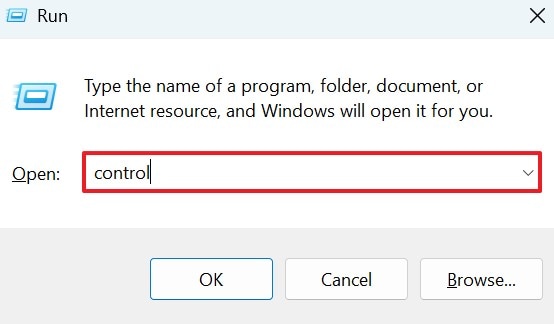
- To begin, press the "Windows + R" keys on the keyboard. Now type "control" in the field and press the "OK" button to launch the control panel.
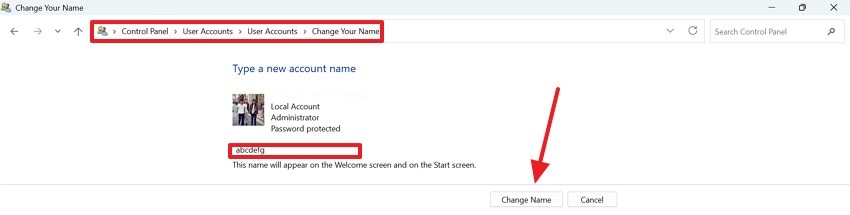
- Now, open the following navigation within the Control Panel: "User Account > User Account > Change Your Name." Once opened, enter the new name under the "Type a New Account Name" option. When you have entered the new name, press the "Change Name" button to successfully save the changes made.
Updating Microsoft Account Username in Windows Settings
Updating a Microsoft account username through Windows Settings changes the display name linked to your online profile. This method syncs the updated name across connected devices and Microsoft services. Understanding how to change your username on Windows 11 helps ensure the update reflects correctly after sign-in. The process preserves files, apps, and personalization while keeping the account connected to Microsoft's ecosystem. Here is how you can change the name:
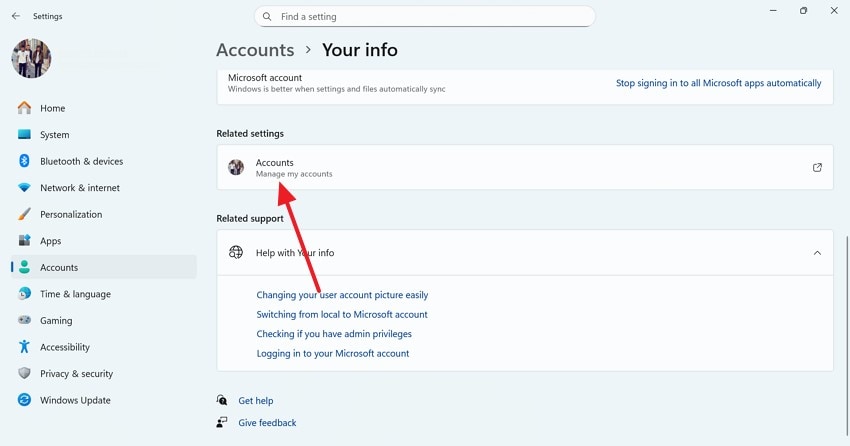
- Start the process by accessing the "Settings" on your device and selecting the "Accounts" section from the left. Next, press the "Accounts" option located within the "Your Info" section.
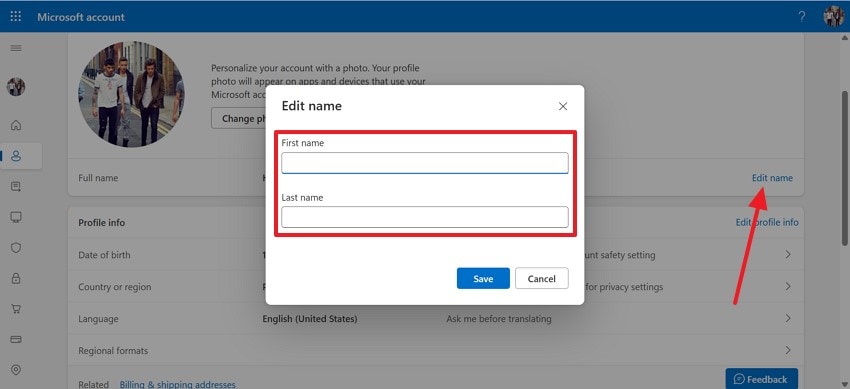
- Now press the "Edit Name" option and in the new dialog box, input the new name you want for your account. Enter the first name and last name in the designated fields and hit the "Save" button to change the name.
Netplwiz Method: Edit Your Windows Account Name Fast
The Netplwiz method offers a quick way to edit your Windows account name using advanced user settings. It is commonly used by experienced users for faster account management. Learning how to change username on Windows 10 or other versions with Netplwiz. It helps update the display name without impacting files, permissions, or installed applications. To learn how to use this method, read the steps mentioned next:
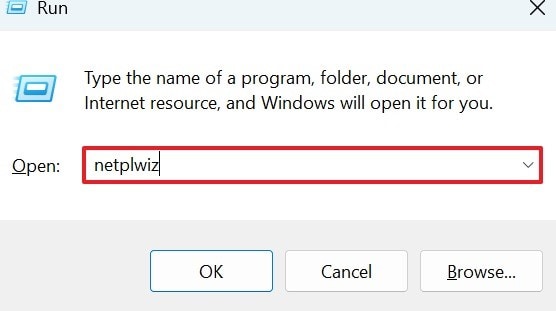
- Press "Windows + R" keys and type in "Netplwiz" in the text field. Press the "OK" button to run user settings.
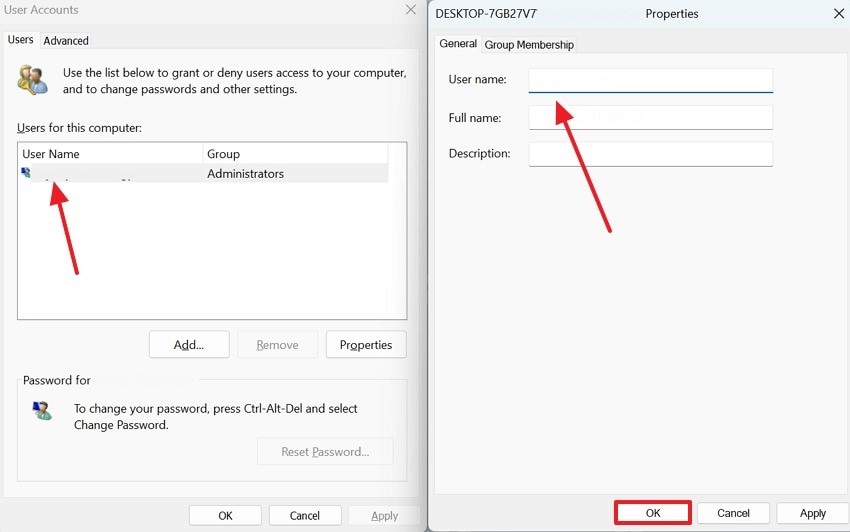
- In the following interface, click on your username located under the "Username" option to open its properties. In the "Properties" window, enter the new user name, last name, and even description in the designated fields. Once done, press the "OK" button to successfully apply the changes.
Part 3. Changing Username with Command Prompt and PowerShell [Advanced Way]
Command Prompt and PowerShell provide advanced options for changing a Windows account username. These tools are useful for administrators managing multiple accounts or automated setups. When used correctly, they modify the account name at the system level. Proper execution ensures system stability while keeping user data and permissions unchanged.
Changing User Name with Command Prompt
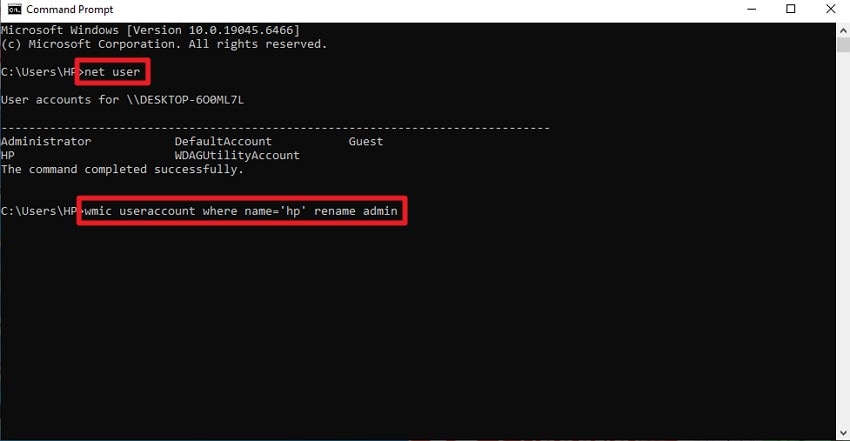
Instructions. To learn how to change username on Windows, open Command Prompt on your device and type "Net User". Press Enter, and the program will list all the users of the system. Now, input the command: "wmic useraccount where name="CurrentUsername" rename "NewUsername"." Press the "Enter" key to successfully change the name.
Change User Name with PowerShell
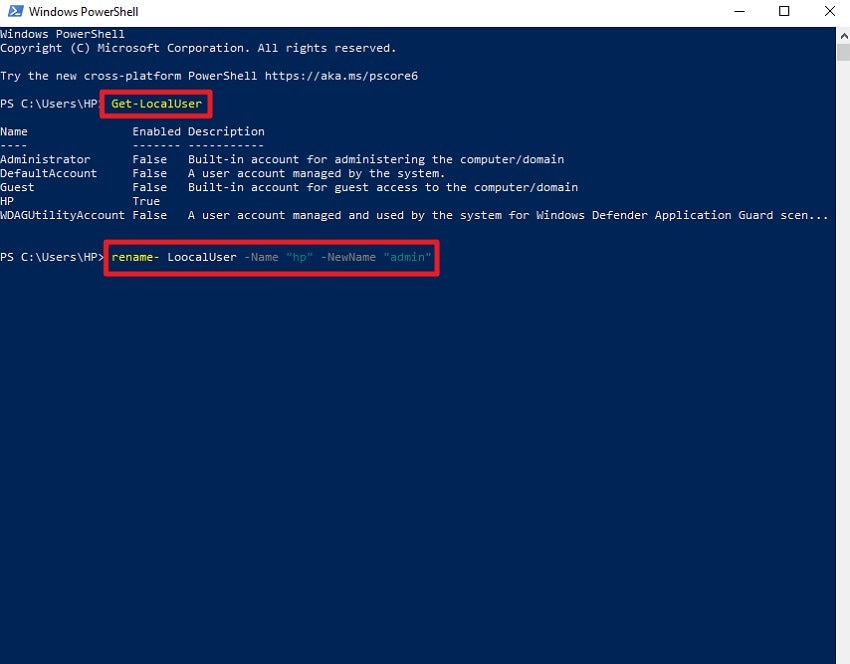
Instructions. Access PowerShell on your device and check the existing user accounts by running "Get-LocalUser" and note the exact username you want to change. Then, rename the account with the command: "Rename-LocalUser -Name "CurrentUsername" -NewName "NewUsername", replacing the placeholders with your current and desired names. Finally, verify the change by running Get-LocalUser again.
Part 4. Step-by-Step: Change Windows Username Through Microsoft Online
Changing your Windows username through Microsoft Online updates the name linked to your Microsoft account. This method automatically syncs across all connected devices and services. You sign in to your account online, edit the profile name, and save changes. The updated username reflects on your Windows login while keeping files, apps, and settings intact. To learn how to change username on Windows 11 and others, read the steps mentioned:
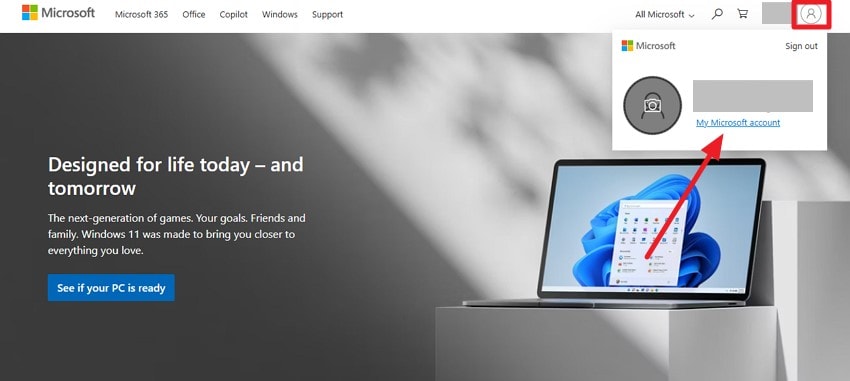
- Head to the official website of Microsoft and log in to your account. Next, head to the top-right corner and press the "Profile" icon. Click on the "My Microsoft Account" option to enter the "Profiles" option.
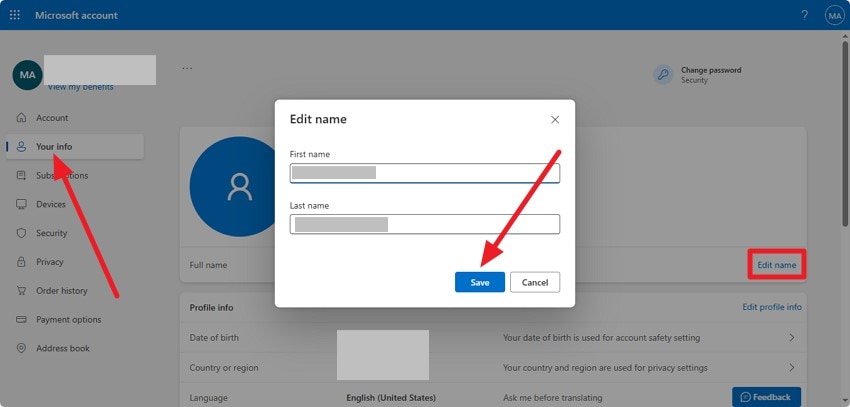
- In the following interface, access the "Your Info" section from the left. Now, press the "Edit Name" option from the right and edit the First name and Last name in the fields. Press the "Save" button to save the changes that you recently made.
Pro Tip: Use Recoverit to Recover and Secure Files Before Renaming Accounts
Before renaming a Windows account, it's important to secure your important files to avoid data loss. Recoverit helps recover lost or accidentally deleted documents, photos, and videos quickly. By scanning your system, it restores files from crucial directories safely. Learning how to change username on Windows 10 and others becomes risk-free when your data is backed up with a reliable recovery tool.
Recoverit also safeguards files from corruption during system changes or username updates. It restores files affected by temporary glitches or interrupted processes while renaming accounts. Recovered files retain their original format and location whenever possible. Moreover, you get the ability to search for specific files within the tool.
Coherent Features of Recoverit Data Recovery
- Batch Recovery: Recoverit allows restoring multiple files at once, saving time during large data recovery tasks.
- Multiple Device Support: The tool can recover data from internal drives, external storage, and removable media.
- Advanced Recovery Mode: It performs deep scans to retrieve files from complex loss scenarios with higher accuracy.
Step-by-Step Guide on How to Recover Files Before Renaming
Having learned how to change username on Windows, let us learn how to retrieve data using this efficient tool:
- Begin by Choosing a Location
To start the process, launch Recoverit on your device and select the location of the lost or corrupted file. Once you select the location, the tool will instantly begin the scanning process, which you can stop at any time you want.
- Choose Files to Restore
After the scan finishes, all recoverable files will appear in the results list. Browse through the folders, select the files you want to restore, and click the "Recover" button to proceed.
- Preview and Complete Recovery
Once the files are restored, use the built-in preview option to check their content and quality. When everything looks right, click "Recover" again to save the files to a secure location.
Conclusion
To wrap it up, this article provided a complete guide on how to change username on Windows using different methods. Before making changes, securing important files is always a smart step. Using a reliable tool like Recoverit adds an extra layer of protection by ensuring your data remains recoverable. This advanced data recovery tool lets you recover all types of files while keeping the quality intact.
FAQ
-
1. Will changing my Windows username delete my files?
No, changing the username only updates the account name. Your files, folders, and settings remain intact. -
2. Does changing the username affect installed applications?
Installed applications continue to work normally after the change. No reinstallation or reconfiguration is required. -
3. Should I back up data before changing my username?
Yes, backing up important files is always recommended before system changes. Recoverit can help recover files if an accidental loss occurs. -
4. Can I change the username for a Microsoft account online?
Yes, you can update the Microsoft account name online. The change syncs automatically across connected Windows devices.


