

 TL;DR:
To manually turn on Dark Mode in Windows 11, navigate to Start > Settings > Personalization > Colors and select "Dark" from the default Windows mode dropdown menu.
● Dark Mode saves battery power strictly on OLED or AMOLED screens and is ideal for nighttime use, whereas Light Mode is recommended for daytime tasks and reducing outdoor screen reflections.
● Windows 11 does not natively support automatic theme scheduling, requiring users to install third-party software like Auto Dark Mode to switch between light and dark visuals based on the time of day.
● If the dark theme fails to apply or system menus remain unchanged, restart Windows Explorer via Task Manager, disable fast startup, or update graphics drivers to resolve visual glitches.
Ask AI for a summary
 ChatGPT
 Perplexity
 Gemini
 Claude
 Grok
Grok
Many individuals have been working with computers every day and are having sore eyes due to the bright screens. Dark Mode decreases glare, allows for easier focus, and makes long screen time comfortable. Most of the users desire straightforward procedures that they can follow suitably. Windows 11 has built-in options, though not always so apparent. This guide explains how to turn on dark mode in Windows 11 with easy steps.
Try Recoverit to Perform Windows Data Recovery
 Security Verified. 3,591,664 people have downloaded it.
In this article

Part 1. What Is Dark Mode in Windows 11
Dark Mode in Windows 11 is a built-in theme that changes the screen color. It alters light backgrounds with darker ones and light text in system areas. This visual style feels softer on the eyes during night use or in dim rooms. As a result, the display feels calmer, especially when using the computer at night. After activation, the menus, taskbar settings panels, and file windows switch to dark.
Only the interface color changes while wallpaper, icons, and files stay the same. Many people choose Windows 11 dark mode to lower glare and reduce screen brightness stress. On supported screens, darker pixels can also help save some battery power. Understanding this feature helps you decide when dark visuals fit your daily work.
Related articles: How to Fix Windows 10/11 Black Screen After Login?
Fix Google Chrome Black Screen Issue on Windows 11/10
Benefits of Using Dark Mode on Windows 11
Learning how to turn on dark mode is essential if you work in dark rooms. This section explains the benefits of dark mode, improving focus and battery efficiency:
- Eye Comfort: Dark Mode eliminates glare, and text reading on Windows 11 becomes easier in hours. It also reduces tiredness in the eyes so that you can work longer without pain or disturbance.
- Battery Saver: On OLED or AMOLED screens, dark pixels use less power while active. This even saves energy, extending laptop battery life during travel or long sessions.
- Focus Boost: Less visual clutter helps keep attention on content like documents. Plus, Windows 11 dark mode keeps interface elements subtle, improving productivity and workflow.
- Hardware Friendly: Lower power use reduces heat generation on compatible displays over time. This can slightly extend device lifespan while maintaining consistent screen quality.
- Modern Look: Dark Mode creates a smooth, contemporary appearance across menus and applications. It allows users to personalize the Windows 11 interface with accent color effectively.
Light Mode vs. Dark Mode: Which Should You Use
Many users wonder which display setting suits them best in Windows 11. Below is a table comparing features of Light Mode and Windows 11 dark mode:
| Feature/Use Case | Light Mode | Dark Mode |
|---|---|---|
| Background/Text | Light background, dark text | Dark background, light text |
| Best Time of Use | Daytime, bright rooms | Nighttime, dim rooms |
| Eye Comfort | Clear in bright light | Gentle on the eyes in the darkness |
| Screen Type Advantage | Standard screens | OLED/AMOLED saves battery |
| Tasks Suited | Reading, office work | Coding, media, gaming |
| Glare/Reflections | Reduces reflections outdoors | Reduces screen glare at night |
| User Preference | Many prefer daytime clarity | Many prefer focus & comfort |
| Auto-Switch Recommendation | Use in the day | Use at night |
Part 2. How to Turn On Dark Mode in Windows 11 (Main Method)
Dark Mode in Windows 11 changes interface elements to dark-themed backgrounds and text. It overcomes eye pain in dark rooms or during nighttime computer use. Further, all the system apps, such as the menu and taskbar, adopt a sleek, modern dark appearance. However, dark Mode can also save battery on various laptop screens. Take guidance below to learn how to turn on dark mode in Windows 11:
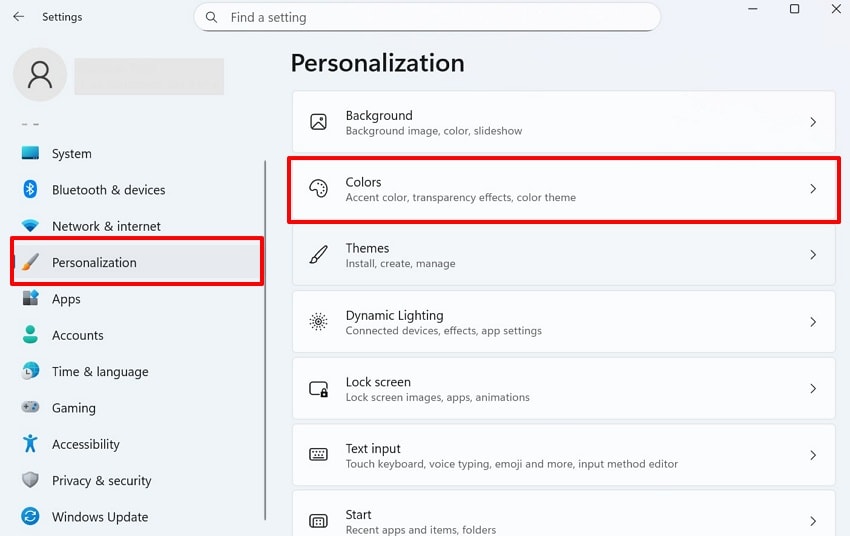
- Click the "Start" button and open "Settings," then choose the "Personalization" option. After that, select the "Colors" section.
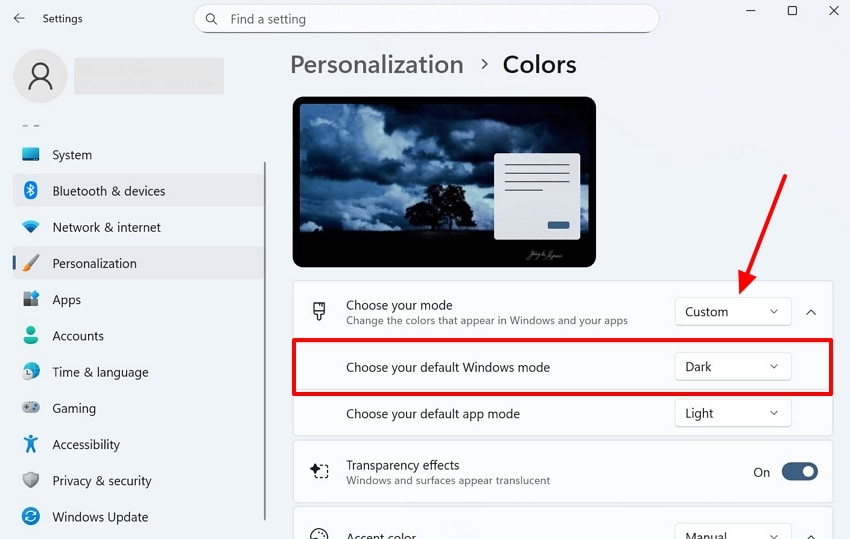
- Next, find the "Choose Your Default Windows Mode" dropdown and select "Dark" from the dropdown to apply dark mode across Windows 11.
Part 3. Can't Find Night Light in Windows 11? Here's How to Enable It
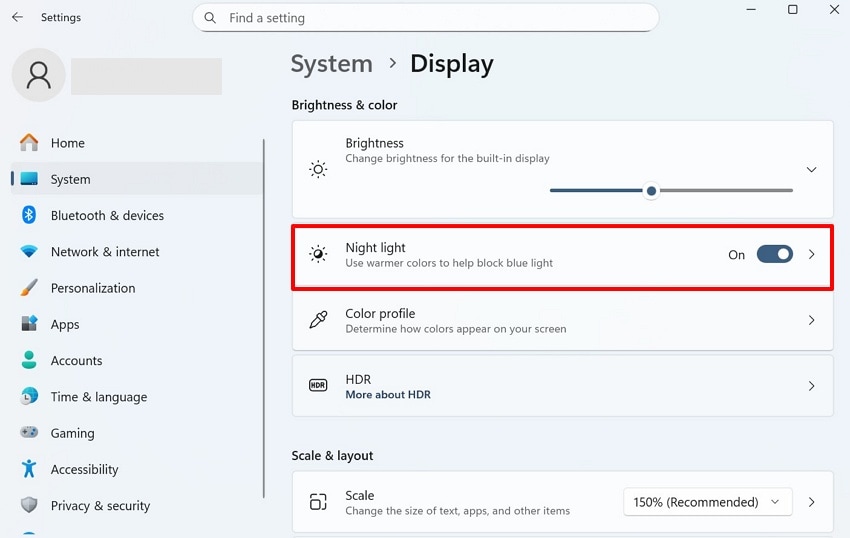
Sometimes the night light seems missing because the display toggle is temporarily hidden. However, outdated or incompatible graphics drivers often disable or grey out the night light. Pending Windows updates or recent system upgrades affect Windows 11 dark mode behavior. As a result, quick settings or search may fail due to minor system glitches. Moreover, power settings like fast startup can interfere with night light behavior. So, review the given steps to enable it:
- Press "Windows + I" together to open Settings, then go to the "System" section and choose "Display."
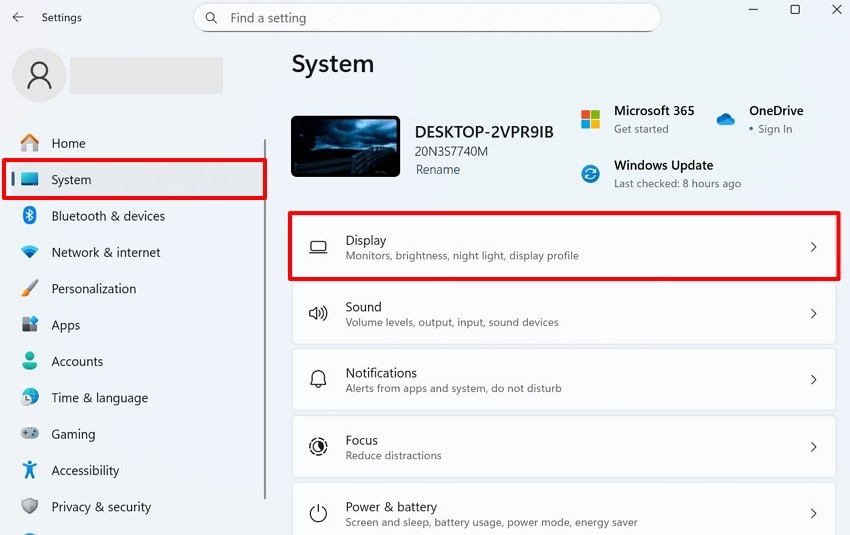
- At last, navigate to the "Night Light" option and turn on the "Toggle" button.
Part 4. Windows 11: How to Turn on Dark Mode Automatically
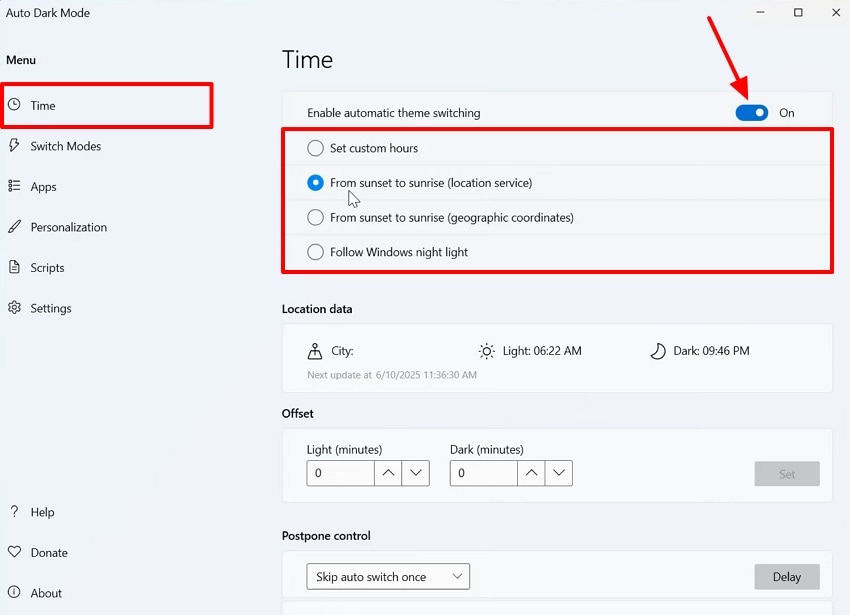
You need a third-party tool like Auto Dark Mode to turn on dark mode on a schedule. However, scheduling dark mode helps screens adapt to lighting changes throughout the day. Automatic switching reduces eye strain by avoiding brightness shifts during use. It even keeps visual comfort for work during the day and relaxation at night. Let's explore the given steps to learn how to turn on dark mode:
Instructions. Open the app to select the "Time" option and turn on the "Toggle" button. After that, choose the preferred option from among all and schedule your dark mode.
Part 5. Dark Mode Not Working in Windows 11? Try 4 Quick Fixes
Sometimes Dark Mode may fail to apply, causing display settings to stay unchanged. This part explains various fixes related to how to turn on dark mode in Windows 11 and restore proper theme behavior:
Fix 1: Restart Windows Explorer
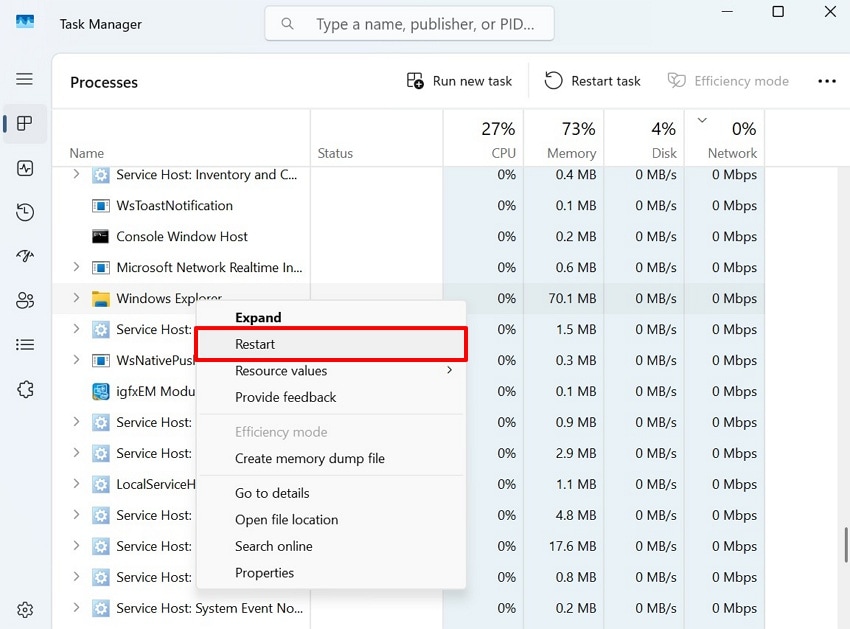
Sometimes restarting Windows Explorer helps when the interface does not refresh. Explorer controls the taskbar menus and file windows that show theme colors. If it freezes, visual updates stop, and Windows 11 dark mode appears broken. Therefore, restarting reloads these parts, so saved color choices apply again everywhere. This quick action fixes small glitches without restarting the entire computer system. Go through the steps below to restart the Windows Explorer:
- To initiate, from the "Start" menu, find "Task Manager" and choose "Open."
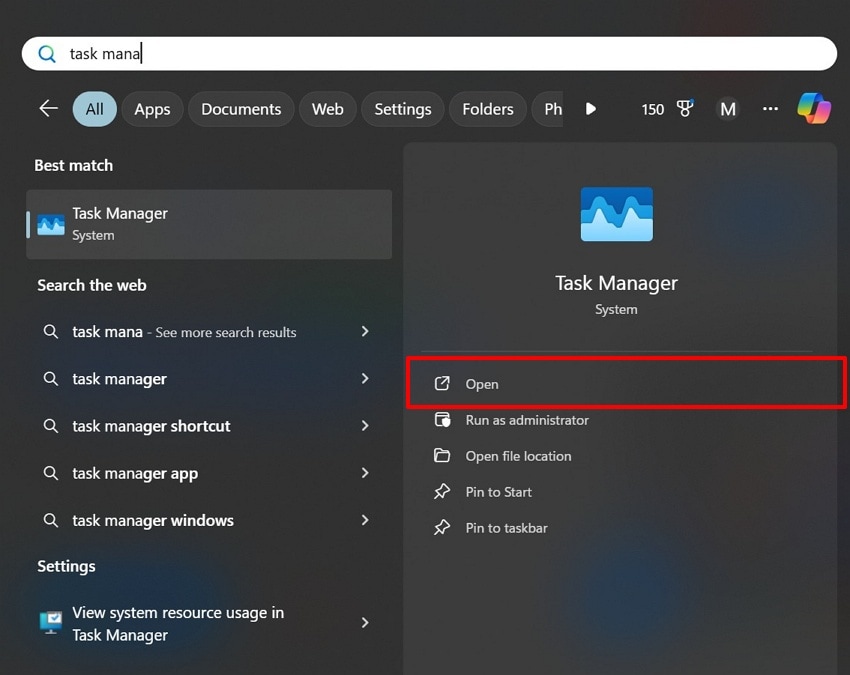
- In the "Processes" tab, locate "Windows Explorer" and right-click on it, then choose "Restart."
Fix 2: Restart Windows After Theme Changes
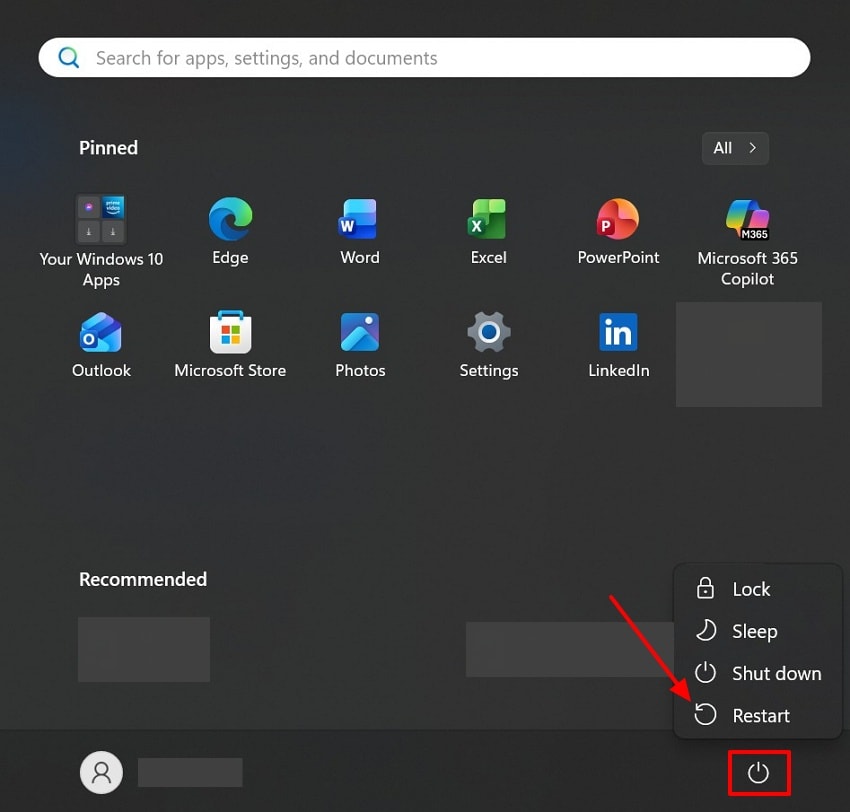
You should restart Windows after changing themes to ensure all settings reload. A reboot forces system files and registry keys to apply the new Dark Mode configuration. Cached values can prevent changes from taking effect, leaving Dark Mode partially applied. This step is essential when learning how to turn on dark mode reliably on Windows. Review the given instructions to restart Windows after theme changes:
Instructions. Click the "Start" button in the bottom-left corner of your screen, then click the "Power" icon in the Start menu. At last, opt for the "Restart" option from the menu to reboot your computer.
Fix 3: Check Windows Version Compatibility
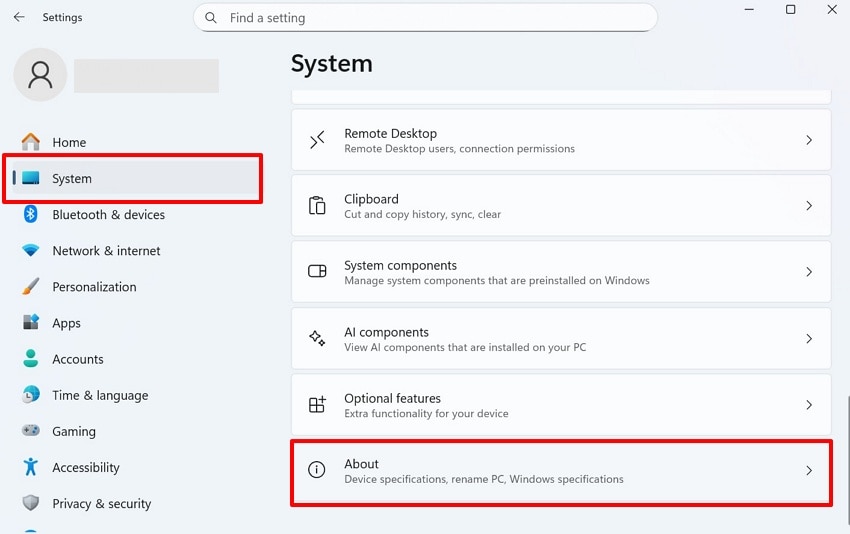
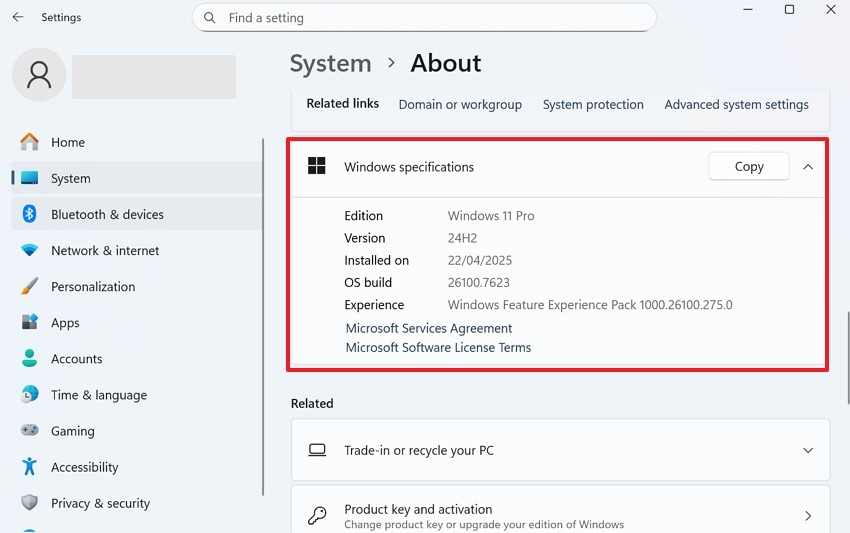
Another simple way to fix Dark Mode issues is to check Windows version compatibility. However, there are certain Windows 11 releases with bugs that do not allow Windows 11 dark mode to work. Many updates may either reverse the themes or produce the inconsistent dark elements of apps. Therefore, confirming your edition and version helps identify if your system is affected. Hence, follow the steps below to check Windows version compatibility:
- Search for "Settings" from the "Start" menu and open it. After getting it, go to the "System" section and opt for the "About" option.
- Now you can see both Windows version compatibility and the OS build.
Fix 4: Update Windows For Theme Bug Fixes
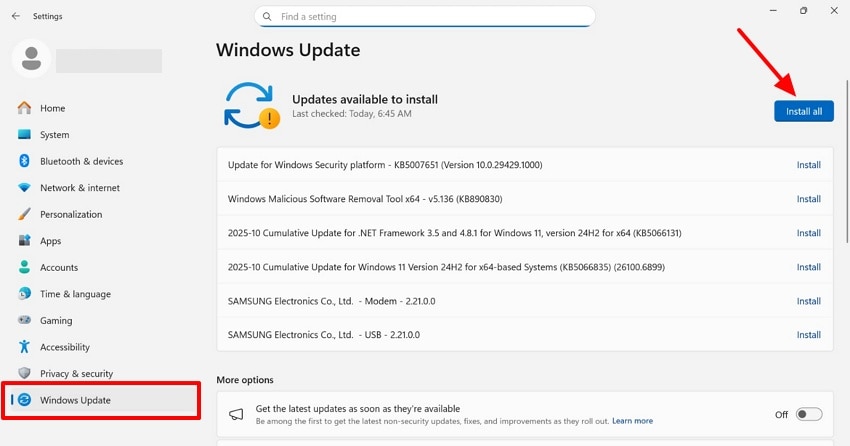
If the above fixes don't help you, then you should update your Windows. Keeping Windows updated helps fix bugs that prevent Dark Mode from working correctly. Some Dark Mode problems come from outdated components or auto-theme tools, causing glitches. If Dark Mode still misbehaves, following the guidance on how to turn on Dark Mode ensures proper application after updates. Adhere to the given guide to update Windows for theme bug fixes:
Instructions: To initiate, access the "Settings" app and click "Windows Update". At last, if updates are found, then click the "Install All" button. When Windows gets updated, restart your system to apply the updates fully.
Pro Tip: Lost Important Data During System Upgrade? Recover It!
Apart from learning how to turn on dark mode, many individuals lose important data by mistake during Windows upgrades or system updates. To address this need, Recoverit is the best option as it handles 10,000+ data loss situations, including crashes and upgrades. It helps distinguish recovered essential data files with proper sorting and categorization. You can recover 1000+ file types, including media and archives. The tool allows users to select specific file types or folders for recovery.
Recoverit performs thorough scans for hard-to-find files after severe data loss events. It also restores deleted or lost emails and attachments from email clients. This is 100% virus-free and secure, protecting user devices during recovery processes and achieving a 99.5% success rate for recovery. Additionally, it maintains data integrity to ensure recovered data is unaltered and complete. The dedicated tool allows previewing recoverable files before restoring them, saving time.
Key Features
- AI Recovery: It uses AI-powered solutions to recover lost data from over 1M+ devices.
- NAS Recovery: You can retrieve lost data from network-attached storage with high efficiency.
- RAW Recovery: Users can even recover data from RAW disks or corrupted partitions safely.
A Detailed Guide to Recover Lost Data After System Update Using Recoverit
You need to go through the guide below to restore lost data without effort:
- Select a Location Using Recoverit
Access the program and pick the location from where you want to recover deleted or lost data.
- Quick Scan the Location
Now the tool will start a deep scan of the selected location, and you can see the scanning results in real-time.
- Preview and Recover Data Using Recoverit
When the scan is done, hit the "Preview" button to verify the result. At last, press the "Recover" button to restore your lost data from the system.
Conclusion
To summarize, dark mode in Windows 11 helps overcome eye pain and makes screens easier to use. Knowing how to turn on dark mode in Windows 11 ensures users apply it and avoid display problems. Still, system updates or crashes can sometimes cause data loss. As a result, users need a reliable way to recover files. Therefore, Recoverit is useful because it safely restores lost data quickly.
FAQ
1. Will Dark Mode save a fortune in battery life of laptops?
On OLED or AMOLED screens, Dark Mode reduces power use and extends battery life. The savings vary depending on brightness settings and the display type being used daily. Other optimizations, such as closing background apps, further improve energy efficiency noticeably.2. Can third-party apps automatically switch to Dark Mode safely?
Yes, apps like Auto Dark Mode safely schedule theme changes according to daylight. They adapt the system and apps together without affecting personal files or system stability. Ensure downloading apps only from trusted sources, such as the Microsoft Store, to avoid malware.3. Can Windows revert to Dark Mode after updates?
Certain Windows 11 updates may reset theme settings, reverting Dark Mode unexpectedly. Always reapply Dark Mode after major updates to ensure interface preferences persist. Checking version compatibility prevents potential theme glitches in system or app visuals.4. Is it possible to get back data from corrupted external drives?
Yes, programs such as Recoverit will allow secure recovery of external USBs and hard drives. It performs thorough scans and restores data even from severely corrupted storage. Users can preview files before recovery, allowing selective restoration to save time and space.


