

 TL;DR:
To resolve the Package Failed Updates Dependency or Conflict Validation error in Windows 11 caused by mismatched framework versions or conflicting installation methods, you must clear system package conflicts using built-in Windows repair tools and component resets.
● Execute sfc /scannow and DISM /Online /Cleanup-Image /RestoreHealth via Command Prompt to repair corrupted system files, or install missing Microsoft Visual C++ Redistributables to fulfill specific runtime requirements.
● Clear cached update data by resetting the problematic application through App Settings, resetting Windows Update Components, or isolating third-party conflicts by performing a Clean Boot via System Configuration.
● If system diagnostics or update component resets cause document loss, you can utilize the Wondershare Recoverit tool to preview and retrieve over 1,000 supported file formats on Windows or Mac devices.
Ask AI for a summary
 ChatGPT
 Perplexity
 Gemini
 Claude
 Grok
Grok
Encountering the package failed updates dependency or conflict validation message during work can be frustrating. It can interrupt important software updates and leave users uncertain about system behavior. They can also delay routine operations that depend on timely updates and stability. This article explains what this message means and the steps to troubleshoot and resolve it effectively.
Try Recoverit to Perform Data Recovery
 Security Verified. 3,591,664 people have downloaded it.
In this article

Part 1. Understanding the “Package Failed Updates Dependency or Conflict Validation” Error
The package failed updates dependency or conflict validation error occurs when a system update or software installation fails. It could be due to unresolved dependencies or conflicts between existing and new packages. This error prevents successful completion and affects overall system functionality and stability. Read the following section for details on this error:
When it Usually Occurs
- During Windows Update: Frequently appears when cumulative or feature updates are applied to the system.
- System Upgrades: The package failed updates dependency or conflict validation windows 11 occurs when multiple software components must align for successful installation.
- Framework Requirements: Updates needing specific versions of drivers, libraries, or frameworks are prone to triggering this error.
- Interrupted Installations: Partially completed or previously failed updates increase the likelihood of this error appearing.
Impact on System Stability
- Security Risk: Failed updates prevent critical patches from being installed, leaving the system vulnerable.
- Application Errors: Some applications may malfunction or fail to launch without the required updates.
- User Disruption: Repeated update failures generate error prompts and reduce overall productivity.
- Performance Degradation: Accumulated unresolved conflicts can gradually reduce system speed and stability.
Part 2. 6 Checks to Fix the Error | “Package Failed Updates Dependency or Conflict Validation”
Before fixing the error, there are numerous things you need to make sure of. The following section covers what does checking dependencies mean and the 6 checks that are important in the process:
1. Reset Problematic App or Windows Store
Resetting a problematic application or Windows Store clears cached data, corrupted files, and misconfigurations that block updates. This action restores the app to its default state without affecting personal data. It ensures dependency checks can run properly and new packages install successfully. Check out the following steps to find out how to execute this method:
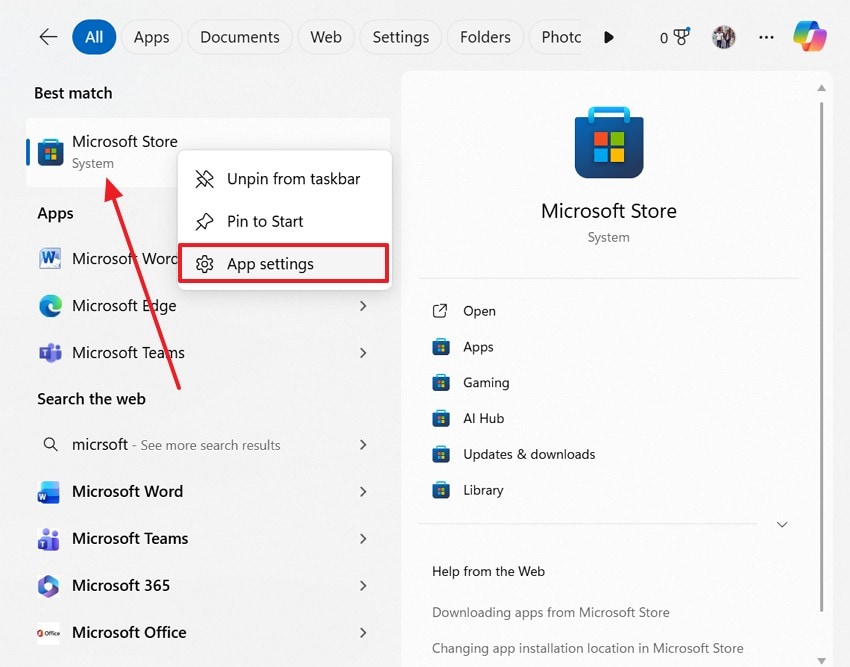
- To start, open the Start menu and search for the problematic app. Using the right-click menu, select the "App Settings" option to proceed.
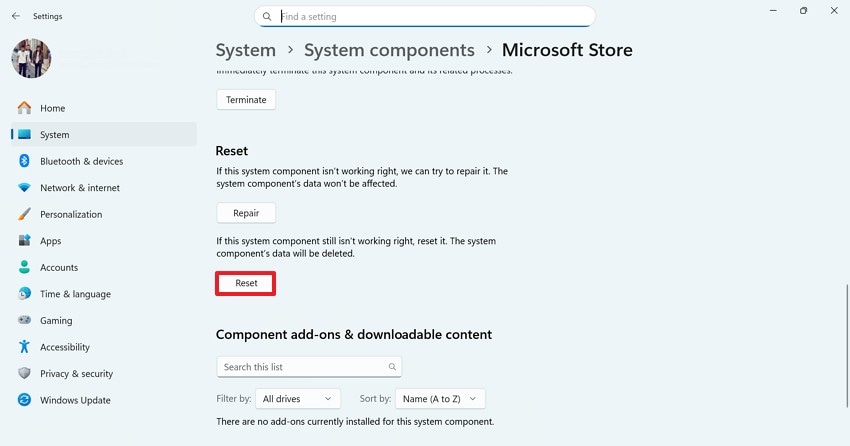
- On entering the app settings window, select the "Reset" option and follow the on-screen instructions to complete the process.
2. Install Missing Visual C++ Redistributables
Many system updates or software packages rely on Visual C++ Redistributables to provide essential runtime components. Missing or outdated redistributables can trigger dependency or conflict validation errors. Installing all required versions ensures that applications and updates find the libraries they need to execute properly. This prevents repeated update failures and stabilizes both system and application operations.
The following steps explain how this method can be executed on your PC to resolve the package failed updates dependency or conflict validation error:
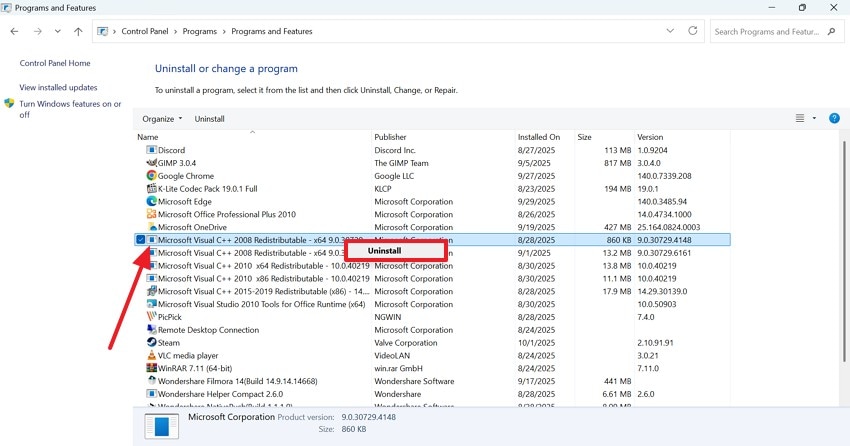
- To begin with, follow the navigation below and click "Uninstall" on finding the MS Visual C++.
Control Panel > Programs > Microsoft Visual C++ Redistributable
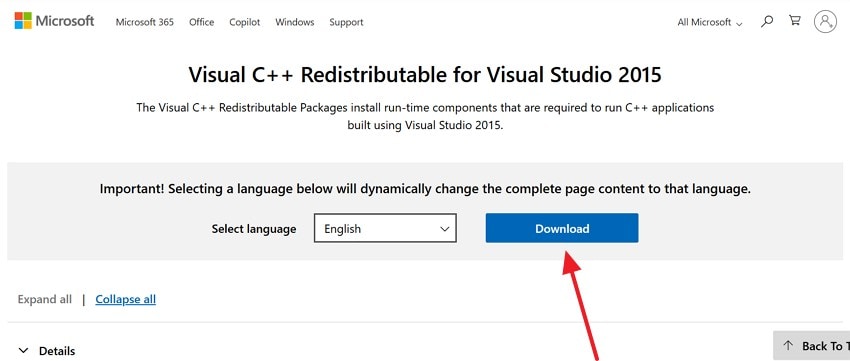
- When the redistributable has been uninstalled, visit Microsoft’s website and click "Download" to install it.
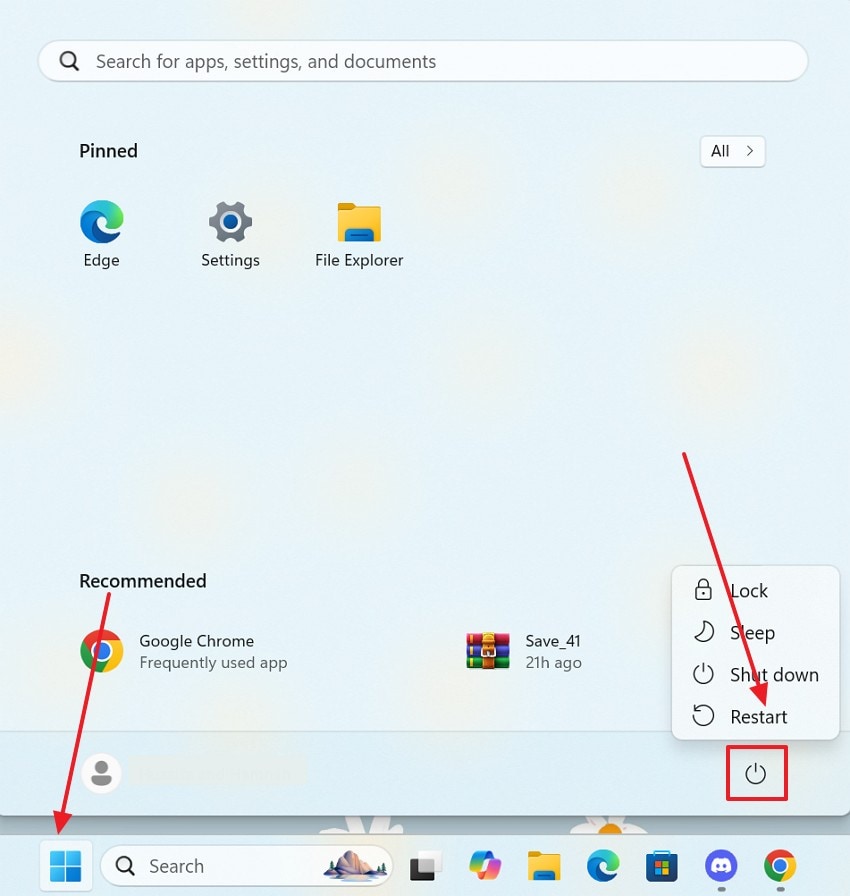
- Once it has been installed, "Restart" your PC and test the game again to make sure the process worked.
3. Run SFC and DISM to Repair System Files
System File Checker (SFC) scans and restores corrupted Windows files, while DISM repairs deeper image-level corruption. Running these tools ensures that system files required for updates are intact and properly configured. Corrupted or missing files often trigger package dependency errors.
This method preserves system integrity, allows updates to install correctly, and reduces the likelihood of further errors during installations. The following steps are a guide to checking the SFC scan and DISM for corrupted files to fix the package failed updates dependency or conflict validation windows 11 issue:
SFC Scan
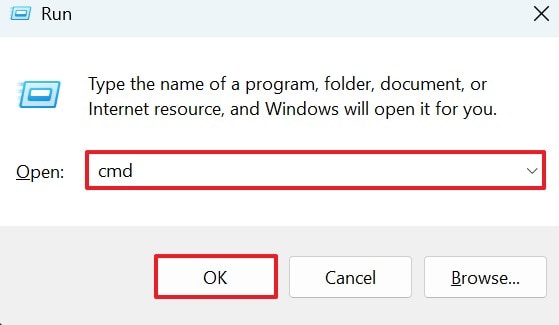
- To start, use the "Win+R" keys on the keyboard and enter the "CMD" command.
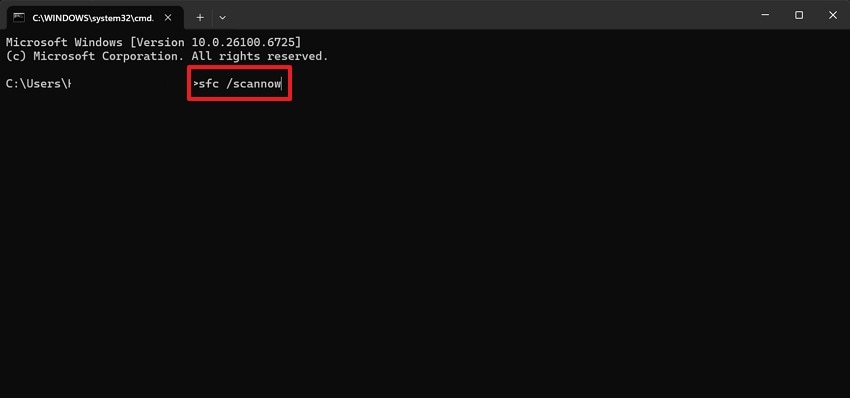
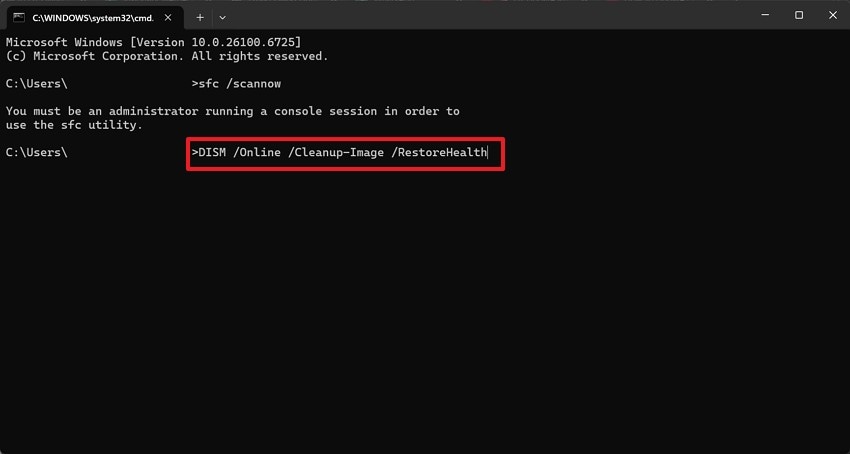
- When the command prompt window opens, enter the "sfc /scannow" command and hit the "Enter" key.
- If the system reports any issues, give the "DISM /Online /Cleanup-Image /RestoreHealth" prompt and wait. Now, reboot and restart the system to fix the error.
DISM
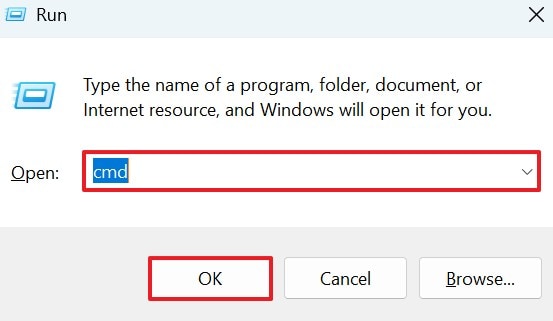
- To start the process, enter the "Win + R" hotkeys and type "CMD" in the following window.
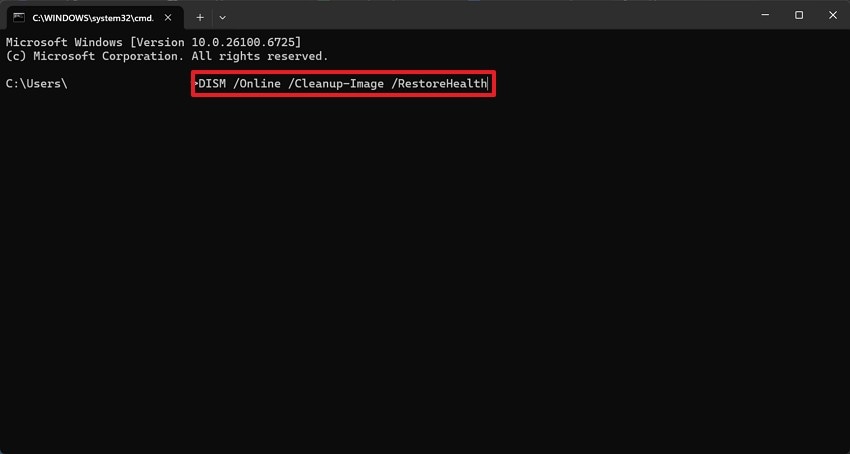
- From the following window, enter the "DISM /Online /Cleanup-Image /RestoreHealth" command and press the "Enter" key to start the repair.
4. Update Windows 11
Updating Windows 11 ensures all system components, libraries, and frameworks remain compatible with incoming updates. Many dependency errors occur when older versions of packages conflict with new ones. Keeping the operating system updated prevents such mismatches and enhances overall stability. Follow the instructions below to update your Windows 11 to fix the package failed updates dependency or conflict validation issue:
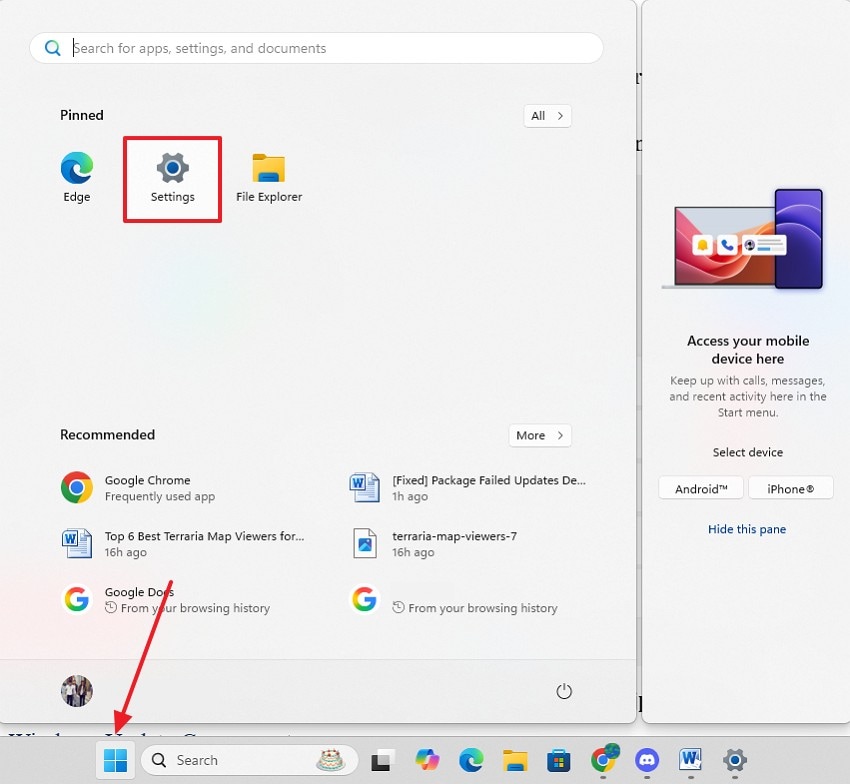
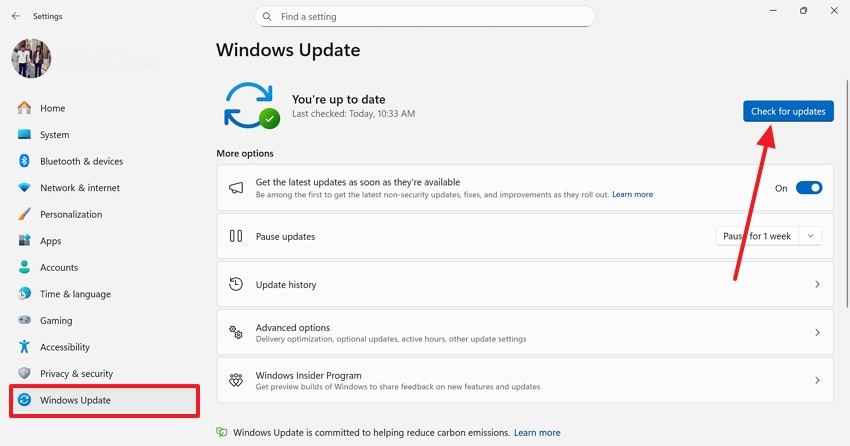
- Once you have opened the "Start" menu, go to the "Settings" tab to open a new window.
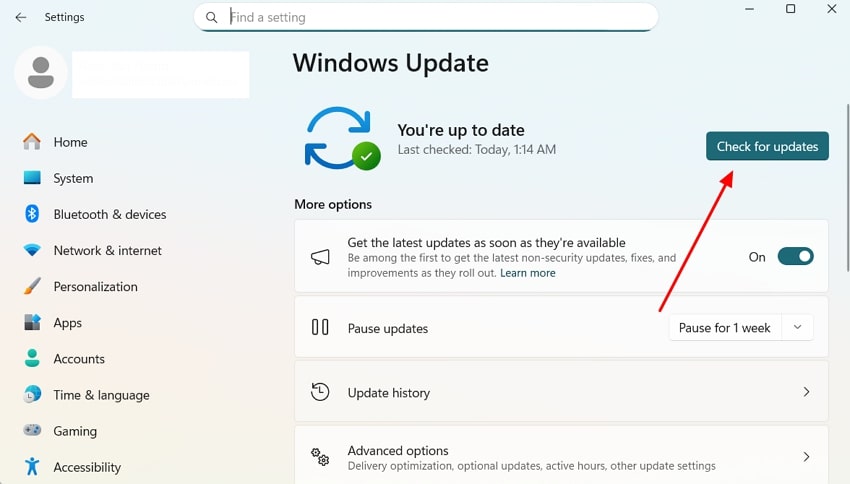
- Click on the "Check for Updates" button in the following interface to begin the system update.
5. Reset Windows Update Components
Resetting Windows Update components clears cached files, resets services, and resolves misconfigured registry entries that may prevent updates from being installed. This ensures that the Windows Update mechanism operates correctly, allowing proper dependency validation for new packages. It prevents recurring failures and restores the update process to a functional state. These steps are a detailed guide to fixing the package failed updates dependency or conflict validation error:
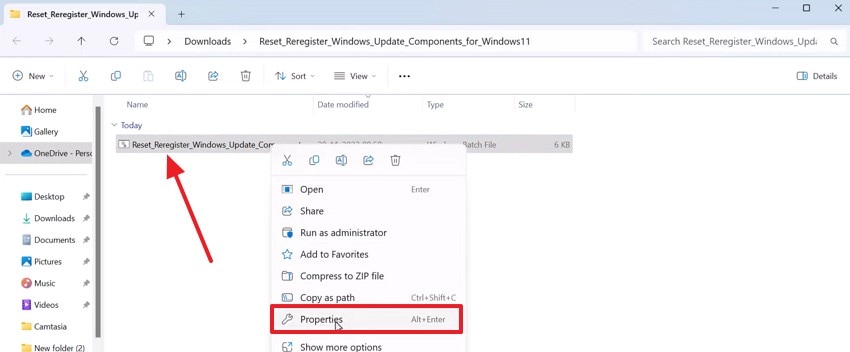
- To begin, install Windows Update Component Reset on your PC and right-click on it when downloaded. Using the pop-up menu, enter the "Properties" window for it.
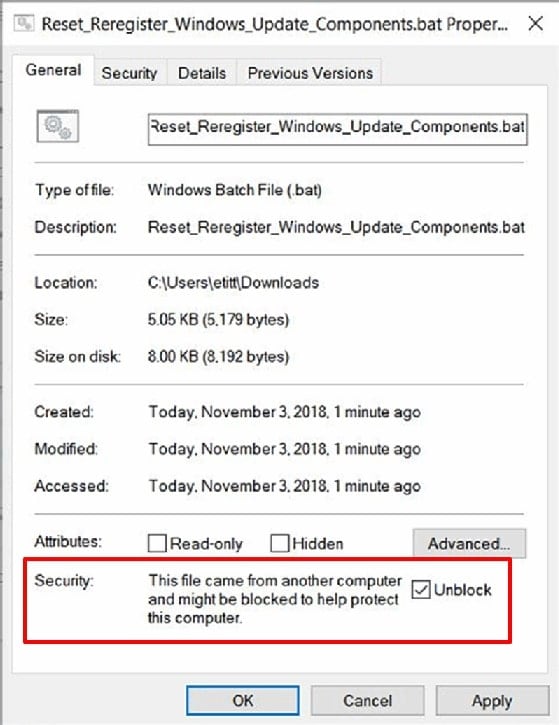
- Using the General tab, check the "Block" box and hit the "OK" button to apply the changes.
- Now, double-click on the Windows Update Component Reset and wait for the command prompt window to open. The system will automatically start updating Windows Update Components. During this time, the system tends to stop many services.
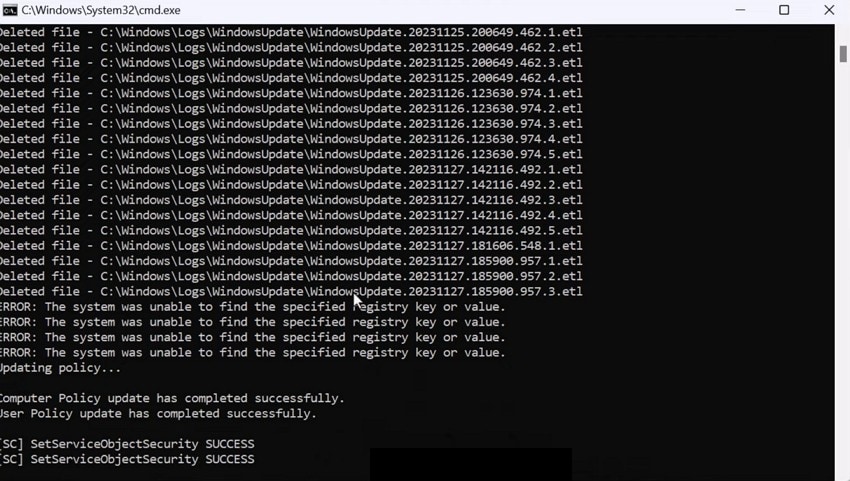
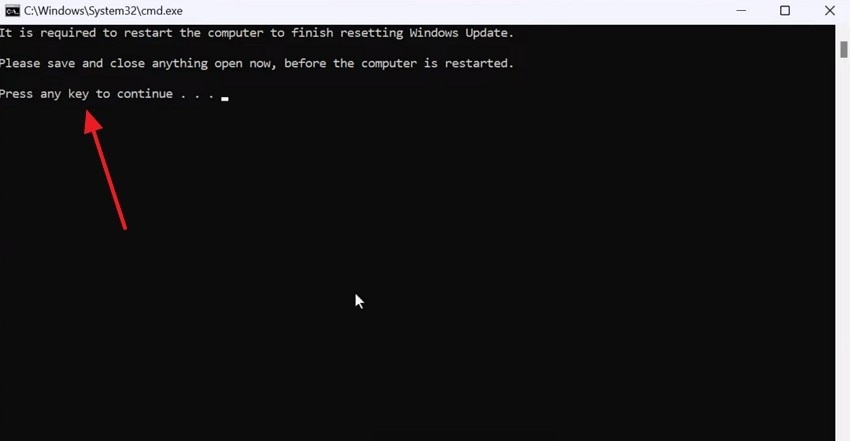
- When the update is completed, press any key on your keyboard, and the system will automatically restart.
- Upon the restart, access the Settings app on the PC and "Check for Updates" to ensure that the Windows Update Component has been reset.
6. Perform a Clean Boot
Performing a clean boot disables non-essential startup programs and third-party services that may interfere with updates. Clean booting isolates the issue, ensuring updates or installations run without interruptions. It provides a controlled environment for troubleshooting, allowing users to identify whether external software conflicts cause the error. The following guide explains how to perform a clean boot to fix the package failed updates dependency or conflict validation error:
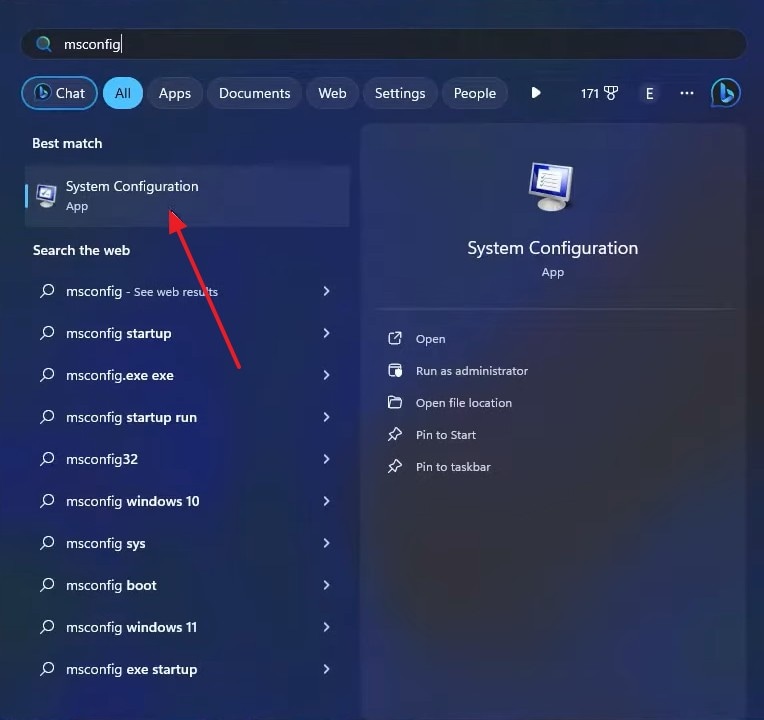
- In the search bar of your PC, select "System Configuration" and wait for the next window to open.
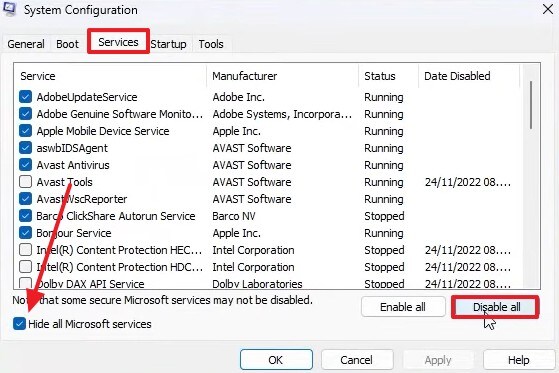
- In the next window, enter the "Services" tab and check the "Hide All Microsoft Services" box, and hit the "Disable All" button.
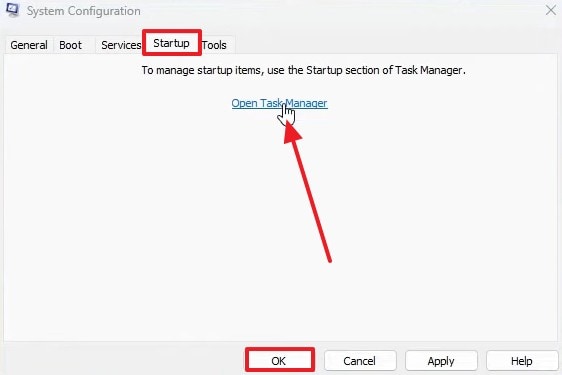
- Now, switch to the "Startup" tab and click the "Open Task Manager" option and wait for Task Manager to open. Next, disable all non-essential startup programs in the Task Manager window. Heading back to the System Configuration window, hit the "OK" button to apply the changes.
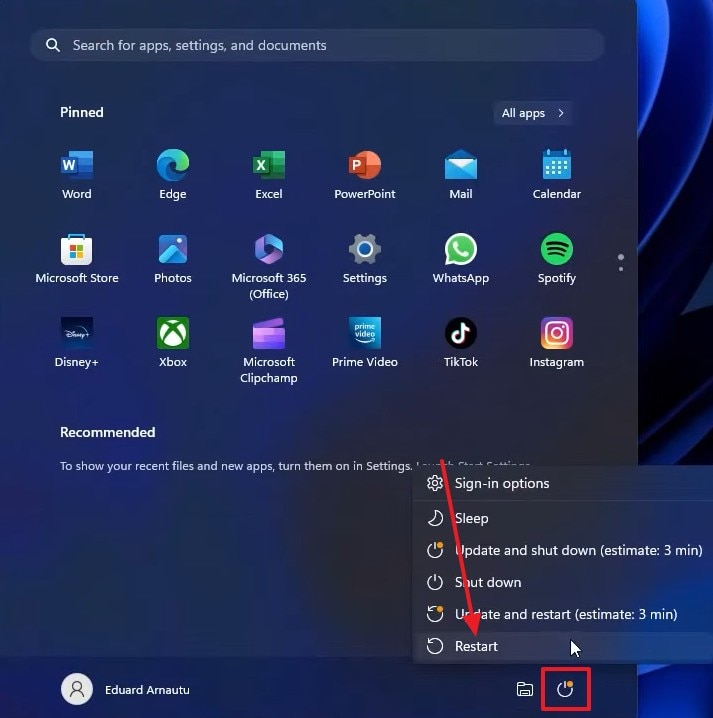
- To perform a clean boot, use the "Power" button at the bottom right and "Restart" the system.
Pro Tip: Lost Files? Recoverit Helps You Recover Critical Data Before Update Fixes
Fixing the package failed updates dependency or conflict validation error ends up in lost files. To avoid losing documents on your device, make sure to recover all missing files using a third-party tool. Recoverit is an effective recovery platform that supports over 10,000 scenarios for lost files. With a 99.5% success rate in file recovery, Recoverit ensures you can access missing files.
This platform supports Windows and Mac devices for maximum compatibility. It offers an automated file scan to find lost files while allowing you to add a custom search filter. If the Quick Scan fails to deliver results, you can use the Deep Scan to take a deep dive into the system to find the files. At the end of the recovery, the quality of your files is preserved as it was initially.
Key Features
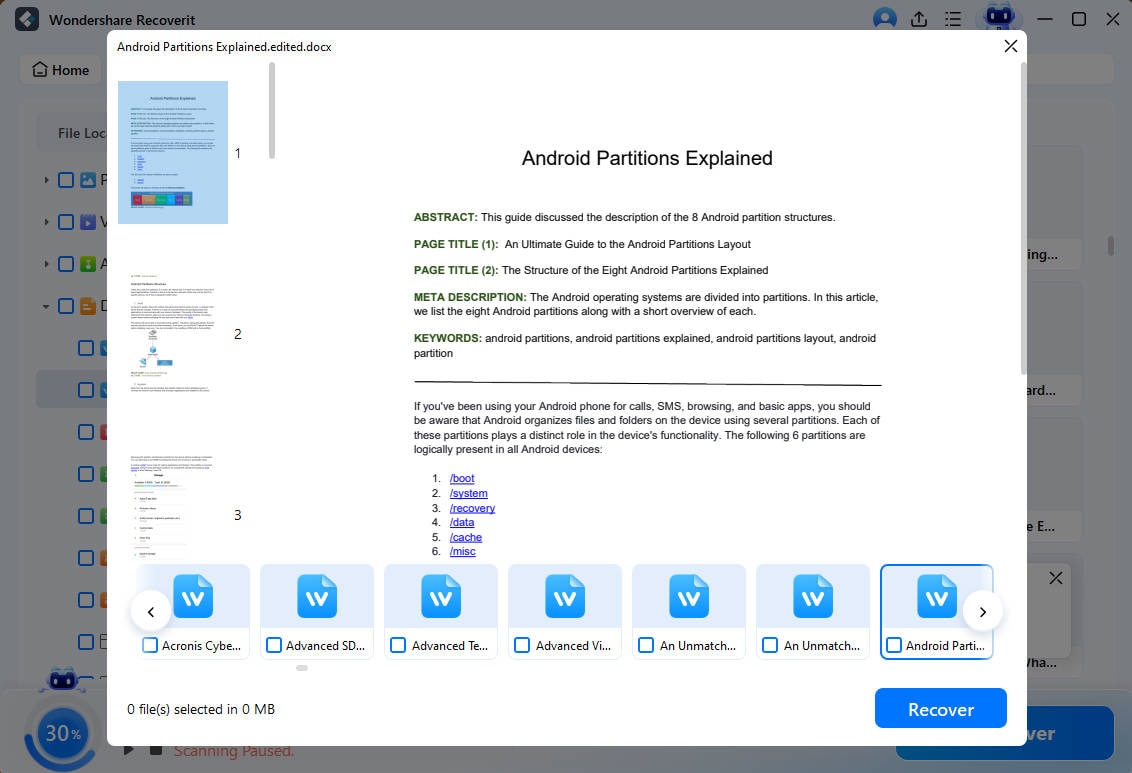
- File Preview Feature: Before you save the recovered file in a secure location, use the preview feature to verify the results.
- Format Support: You can retrieve more than 1,000 types of documents and multimedia files in order to get the most productivity.
- Compatible Devices: Recoverit supports over 1M+ storage devices, including hard drives, memory cards, and flash drives.
Using Recoverit to Retrieve Missing Files
Now that we know the capabilities of Recoverit, let’s see how it can help you restore files. The steps below feature a guide on using this data recovery software on your PC before fixing the package failed updates dependency or conflict validation:
1. Select the Location of a Missing File
To begin with, open Recoverit and select the location of your missing file from the left panel.

2. Choose the Missing Files and Recover
When the missing files appear on the next interface, select them and click "Recover" to retrieve them.

3. Preview the Recovered File
As the files are recovered, preview them and hit the "Recover" button to save it.
Conclusion
In conclusion, the package failed updates dependency or conflict validation error notification hinders the daily tasks. This article explored the most efficient fixes of this issue and taught how to perform these fixes. We know that such extensive diagnosis and fixes often end up in missing files. Therefore, it is necessary to recover the lost files before you run the device reset.
Recoverit is a robust solution that helps you restore missing documents on your device. With its efficient functionalities, it supports more than 10,000 cases of lost files.
FAQ
1. What does the “Package Failed Updates Dependency or Conflict Validation” error mean?
It means one or more update packages cannot be installed because they conflict with existing software components or dependencies.2. Why does this error occur during Windows Update?
This error occurs when required system files, drivers, or libraries do not match the versions expected by new updates.3. Is it possible to lose files while fixing this error and how can those files be restored?
If you have lost important files while fixing this error, they can be restored using Recoverit. This platform supports more than 10,000 scenarios of a missing file, catering to a broad audience.4. Which recovery tool can restore multiple files lost while fixing the error?
Recoverit is a robust missing file retrieval tool that supports more than 1,000 formats of lost files. Besides, its Preview feature enables users to preview the recovered files before downloading them.


