
 TL;DR:
Windows Search typing failures are typically caused by software conflicts, corrupt indexes, or system bugs rather than hardware issues, and can usually be resolved by restarting Windows Explorer or the Windows Search service.
● Rebuild the search index through the Control Panel or use an elevated PowerShell to re-register the Windows Search component if standard service restarts fail to restore keyboard input.
● Uninstalling recently applied Windows updates or disabling startup applications in Task Manager can resolve the issue if a new software bug or background program is actively blocking text entry.
● If system freezes or forced restarts during search troubleshooting cause files to go missing, Wondershare Recoverit can scan the affected drive and recover up to 500MB of data for free.
Ask AI for a summary
 ChatGPT
 Perplexity
 Gemini
 Claude
 Grok
Grok
Sometimes the search bar stops responding, even though everything else works fine. This can feel annoying when you need quick access to apps. Many users face "Windows Search Not Working" issues after updates or changes. The problem often appears suddenly, without clear reasons, which confuses most people.
These search typing issues can block tasks, slowing down work and increasing frustration. In some cases, text does not appear, or results never load. This guide explains why Windows Search is not working and how to resolve it. It focuses on practical checks instead of technical steps or complex commands.
Try Recoverit to Perform Windows Data Recovery
 Security Verified. 3,591,664 people have downloaded it.
In this article
-
- Fix 1: Restart Windows Explorer
- Fix 2: Restart Windows Search Service
- Fix 3: Run Windows Search Troubleshooter
- Fix 4: Rebuild Windows Search Index
- Fix 5: Run System File Checker (SFC)
- Fix 6: Run DISM Image Repair Tool
- Fix 7: Re-register Windows Search via PowerShell
- Fix 8: Install All Pending Windows Updates
- Fix 9: Uninstall Recent Problematic Updates
- Fix 10: Create a New User Account for Testing
- Fix 11: Disable Conflicting Startup Programs
- Fix 12: Update or Reinstall Keyboard Drivers

Part 1. When You Can't Type in Windows Search — What It Means
When you cannot type in windows search bar, the search bar is running but not responding. It usually means something is blocking input, not that Windows is broken. The keyboard works elsewhere, but the search fails to accept text. Understanding this helps avoid unnecessary resets or advanced fixes.
Common Forms of the Windows Search Typing Issue
This problem shows up in a few clear ways that you should know. Each form helps explain why you cannot type in the Windows Search bar.
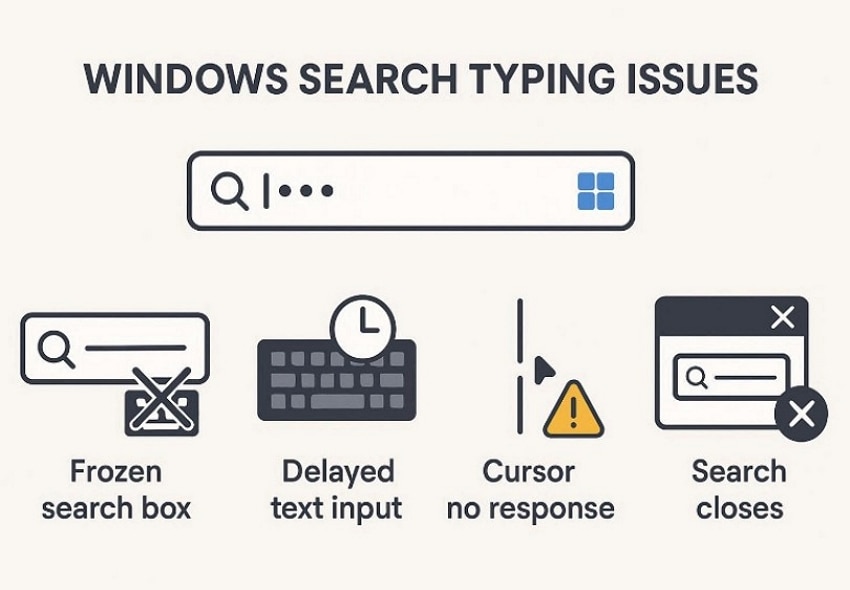
- Frozen Search Box: The search bar opens normally, but does not accept any typed input. Clicks register, yet typed letters never appear inside the box.
- Delayed Text Input: Typed letters appear slowly instead of showing instantly while using search. This delay makes searching feel unreliable and frustrating during daily tasks.
- Cursor Without Response: The cursor blinks inside the search bar, but typing has no effect. Keyboard input works in other apps, which makes the issue harder to understand.
- Search Closes Automatically: The search window opens briefly and closes as soon as you start typing. This behavior often signals service crashes or background software conflicts.
Part 2. 6 Main Causes Behind Search Bar Input Failure
When Windows Search not working, the problem usually starts behind the scenes. These common causes explain why search input fails, even when the keyboard works elsewhere:
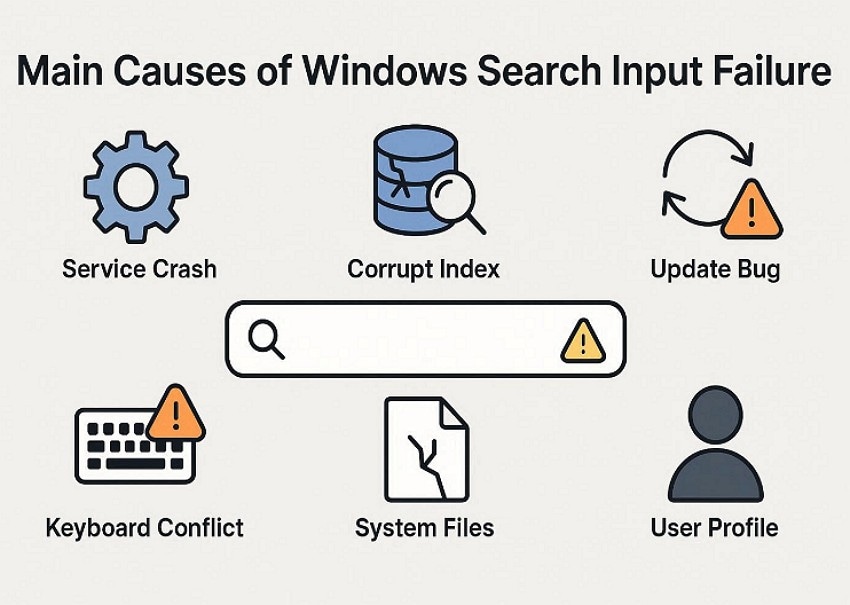
- Service Crash: Windows Search service may stop responding, blocking text entry inside search. This failure usually happens due to errors or interrupted system processes.
- Corrupt Index: A damaged search index prevents typed characters from registering correctly. Index corruption often occurs after updates, shutdowns, or incomplete indexing operations.
- Update Bug: Some Windows updates introduce bugs that disrupt search input handling functions. These bugs may appear suddenly, even when everything worked normally before.
- Keyboard Conflict: Certain background applications can interfere with keyboard input inside Windows Search. This conflict makes typing inconsistent or completely unresponsive during normal usage.
- System Files: Corrupted system files can break communication between Windows Search component modules. When these files fail, the search input stops responding as expected.
- User Profile: Problems within a user profile can affect the permissions needed for search. Profile-related issues may limit how Windows Search processes typed input data.
Part 3. Step-by-Step Fixes to Make Windows Search Typable Again
If search typing fails, the following step-by-step fixes help restore normal Windows Search behavior:
Fix 1: Restart Windows Explorer
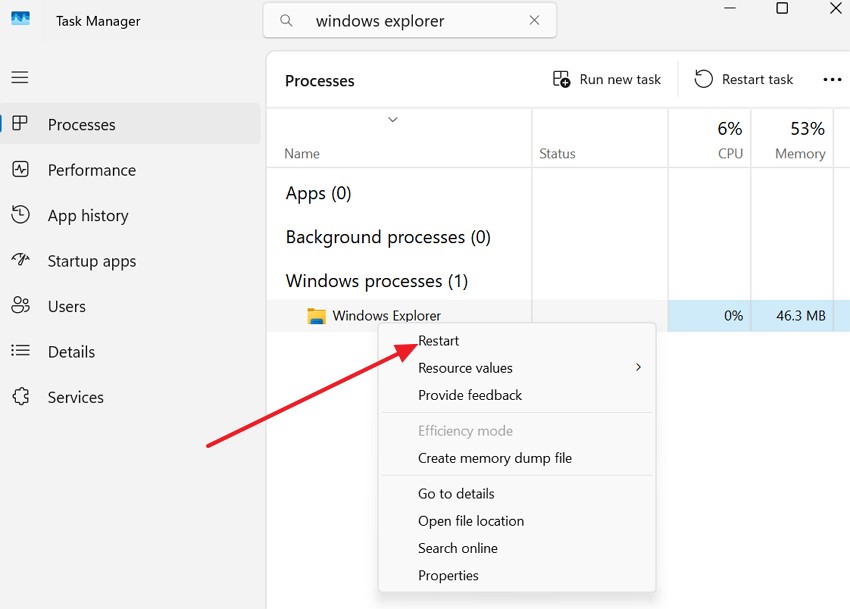
Restarting Windows Explorer refreshes the desktop and taskbar without changing files. Small system glitches can cause the "Windows Search not working" issue even when nothing is wrong. Restarting Explorer reloads background parts that control search and typing behavior. This action clears temporary problems that stop the search bar from responding. It is a safe and quick step that often fixes search typing issues with the steps below:
- To start, right-click on the Windows taskbar and select "Task Manager" to proceed.
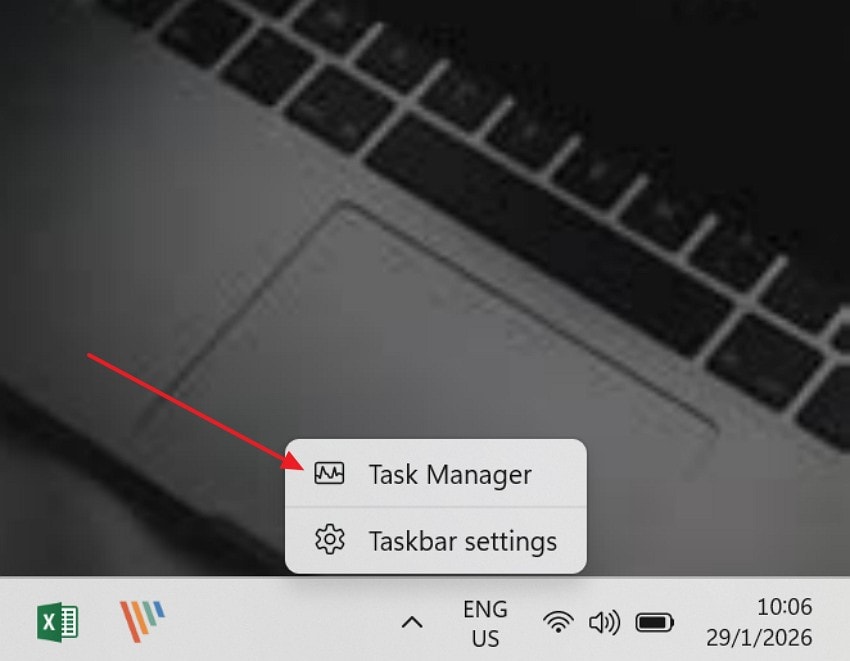
- After that, select the "Windows Explorer" option, then choose "Restart" to refresh the search behaviour.
Fix 2: Restart Windows Search Service
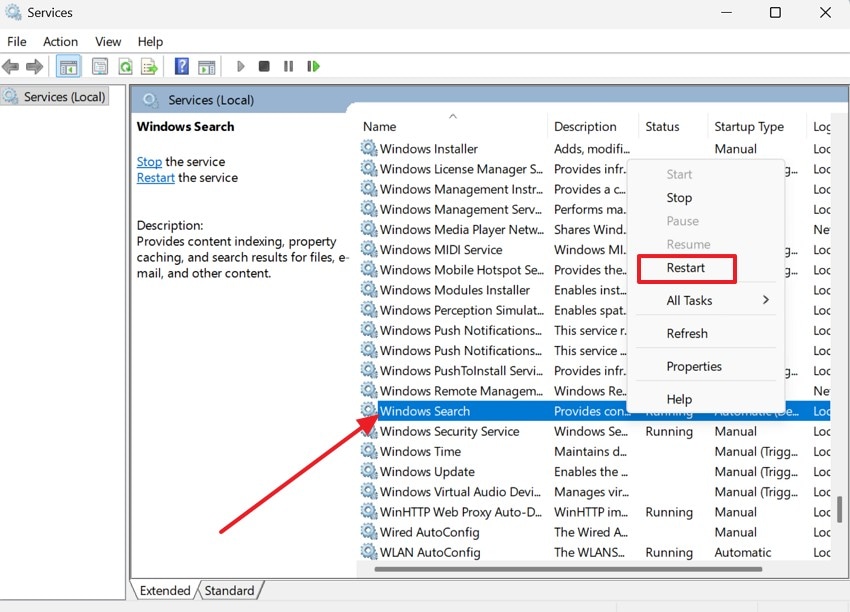
Windows Search uses a background service to read typing and find files. Sometimes this service freezes, so the search bar stops accepting typing. This problem often happens after updates or when the computer wakes. Restarting the service refreshes it and removes small system glitches. This fix is safe and does not delete any personal files. Now, follow the steps below to see how to perform this fix:
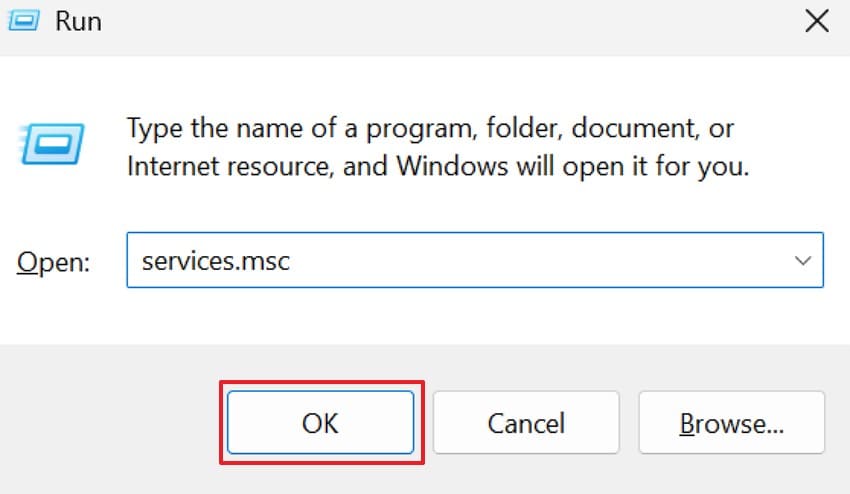
- Firstly, press "Windows + R" to access the run command dialog and type "services.msc" to hit "OK" to continue.
- Now, locate "Windows Search" and right-click to select "Restart" from the menu.
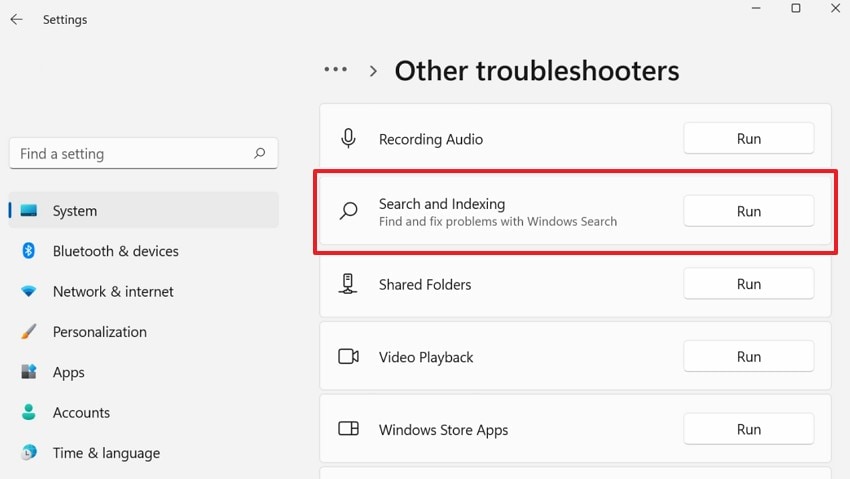
Fix 3: Run Windows Search Troubleshooter
The built-in troubleshooter checks basic system settings that affect Windows Search performance. It looks for service issues, permission problems, and search indexing errors. This tool helps users when Windows Search stops working without visible errors. Most users can run this tool and finish the process in minutes. Use the steps below to run the Windows Search troubleshooter tool:
- Upon entering the "Settings," choose the "System" section to further select the "Troubleshoot" to continue.
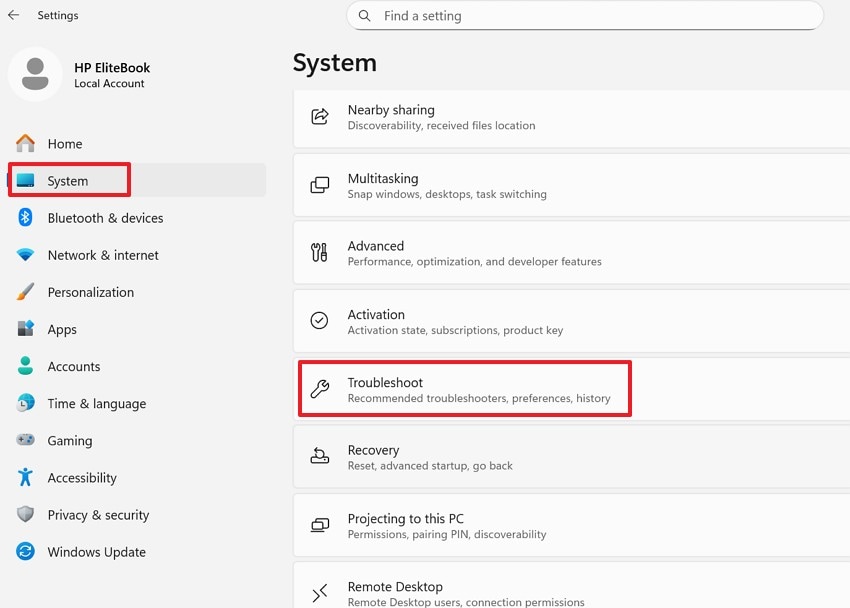
- Afterwards, select "Other troubleshooters" to choose "Search and Indexing," then press "Run" to begin the scan.
Fix 4: Rebuild Windows Search Index
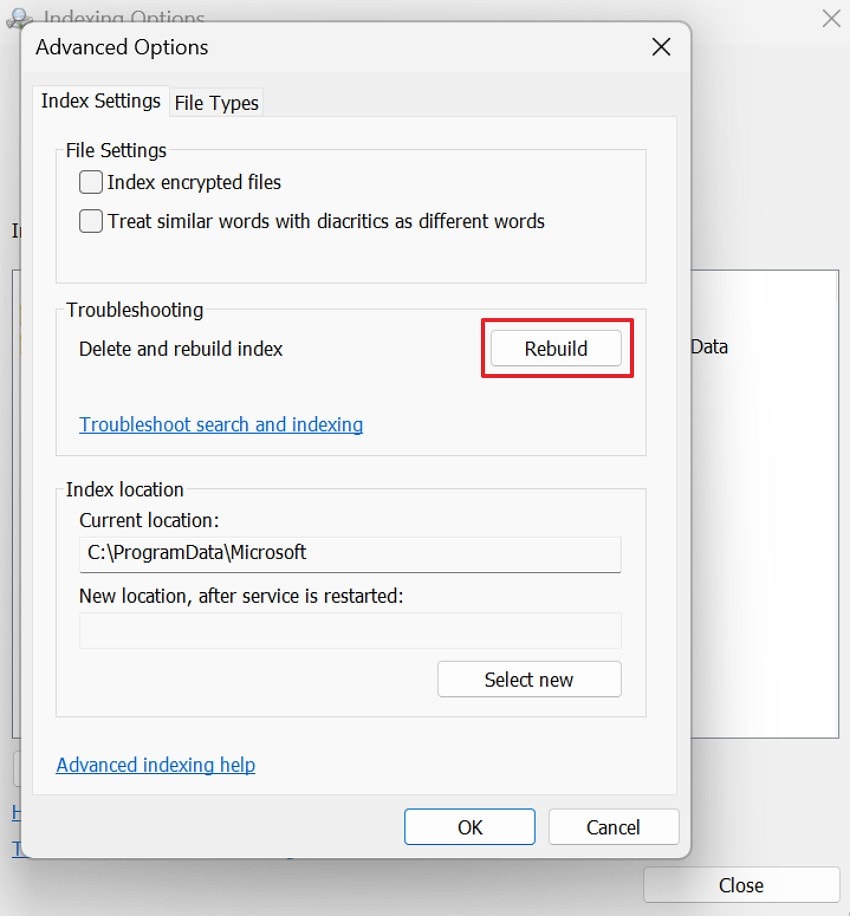
The search index stores searchable data needed for fast responses. If corrupted, you cannot type in windows search bar. Rebuilding forces Windows to recreate indexing data from scratch. Index corruption occurs after crashes, shutdowns, or interrupted system update events. This fix restores proper search behavior but may take time. Now, stick to the steps below to try this fix:
- Upon accessing the "Control Panel," navigate to "Indexing Options" from the menu.
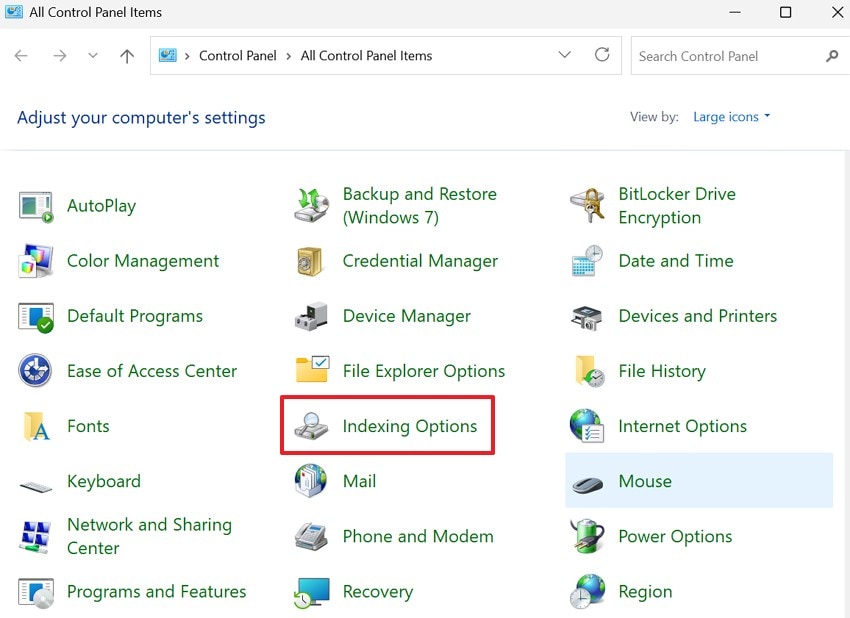
- After that, select "Advanced" to later choose "Rebuild" under troubleshooting.
Fix 5: Run System File Checker (SFC)
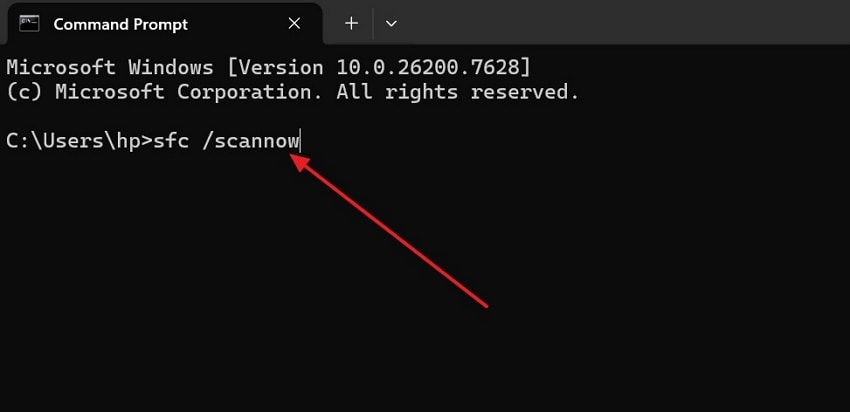
System File Checker scans important Windows files and looks for damage. Damaged files often stop Windows Search from working the right way. This tool replaces broken files with clean copies from the system. Users run this scan using Command Prompt with administrator access. So, follow the steps below to run System File Checker on your computer:
- Firstly, access the "Command Prompt" and choose "Run as Administrator" to continue.
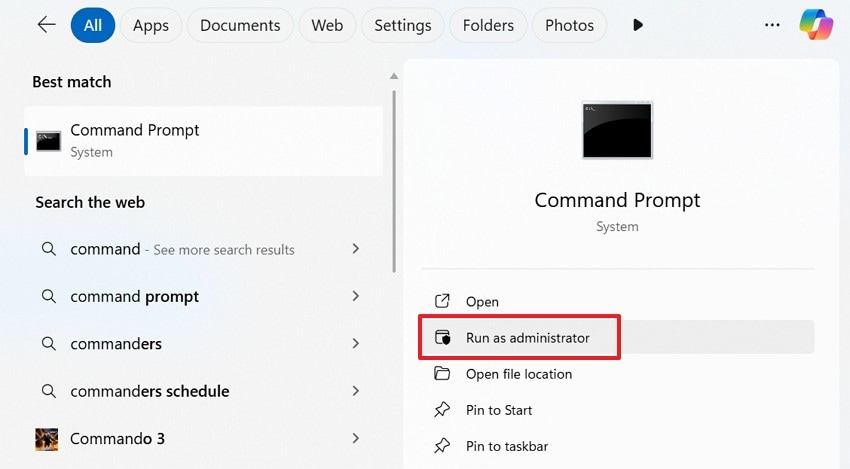
- Next, in the Command Prompt window, run the command: "sfc /scannow" and hit "Enter".
Fix 6: Run DISM Image Repair Tool
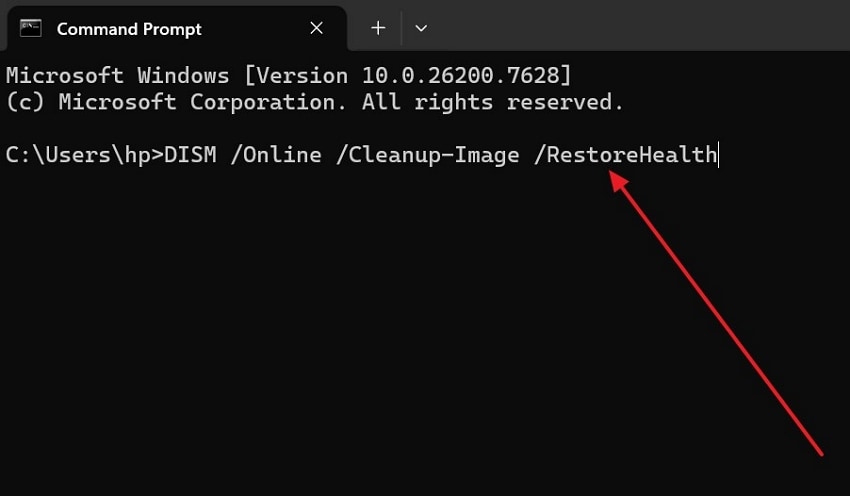
DISM repairs the Windows image when deeper system corruption exists. If SFC fails, you cannot type in windows search bar. This tool restores system health by downloading replacement files. DISM fixes underlying problems affecting many Windows features with ease. It is slower than SFC but more powerful for serious issues. Now, stick to the instructions below to try this fix:
- Instructions. Upon launching the "Command Prompt" as administrator, run the command "DISM /Online /Cleanup-Image /RestoreHealth" and press the "Enter" key.
Fix 7: Re-register Windows Search via PowerShell
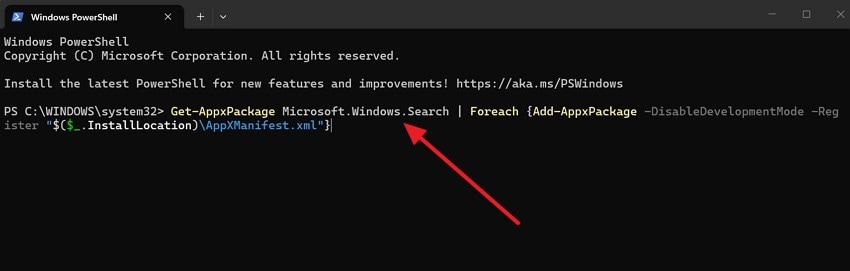
Re-registering Windows Search helps reset how search works inside the system. Sometimes updates break search settings, which causes Windows Search to stop working. This step uses PowerShell to fix missing links used by the search feature. Thus, it fixes software problems, not keyboard or hardware-related issues. The steps below show how to re-register Windows Search with ease:
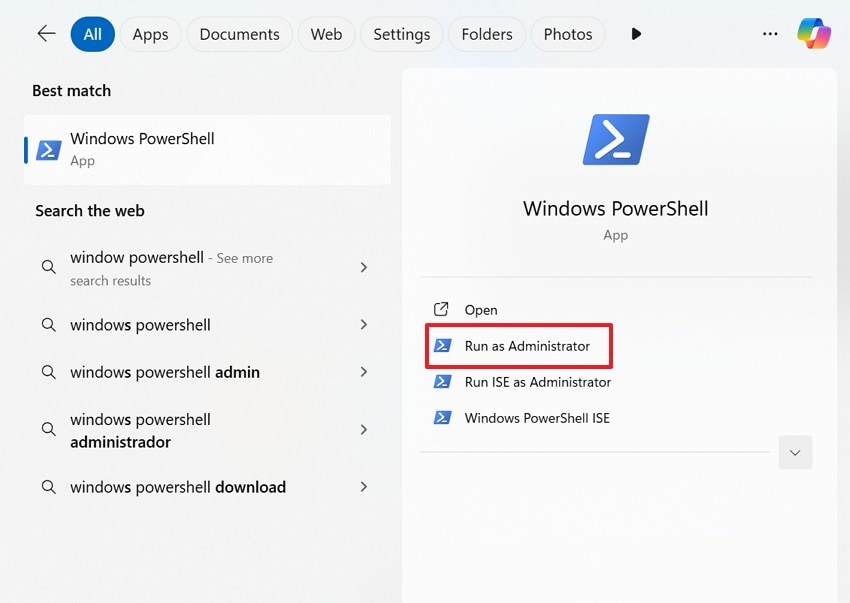
- Access "PowerShell" and select "Run as Administrator" to continue.
- Here, run the following command: "Get-AppxPackage Microsoft.Windows.Search | Foreach {Add-AppxPackage-DisableDevelopmentMode-Register "$($_.InstallLocation)\AppXManifest.xml}" and hit "Enter."
Fix 8: Install All Pending Windows Updates
Microsoft sends updates to fix problems with search and typing on Windows. Older systems can cause an inability to type in the Windows search bar. Installing updates replaces broken parts that stop Windows features from working. Restarting the computer helps Windows finish updates and work again. Now, stick to the instructions below to try this fix with ease:
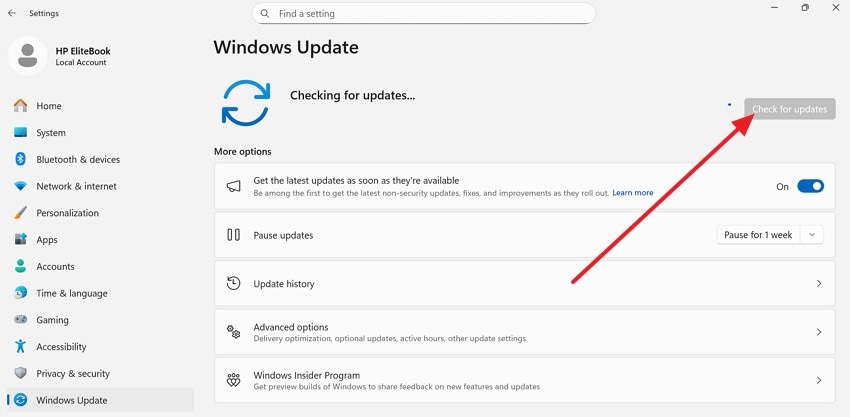
- Instructions. To start, open "Settings," then navigate to the "Windows Update" section. After that, click on "Check for updates" and install all available updates.
Fix 9: Uninstall Recent Problematic Updates
Some Windows updates introduce issues that break search typing functionality. When "Windows Search not working" begins right after updates, rolling back often helps. Uninstalling recent updates restores the system to a stable working state. This fix is useful when problems appear without any clear explanation. Windows allows safe removal of recent updates through the system settings. Let's adhere to the steps below to uninstall problematic updates:
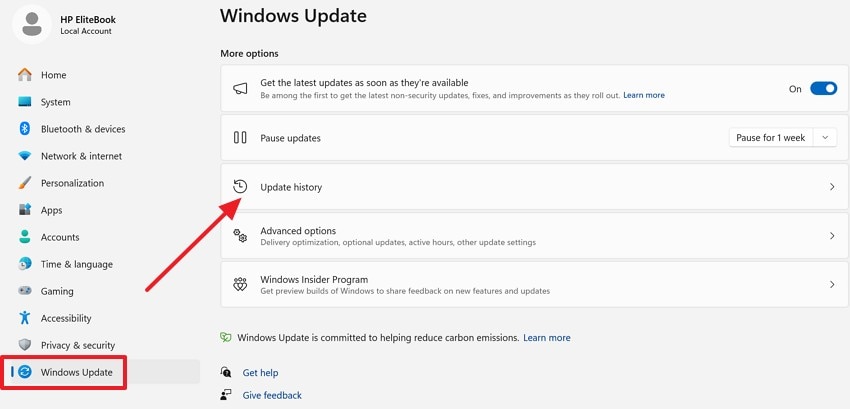
- Navigate to the "Windows Update" section and then access the "Update History" page to proceed.
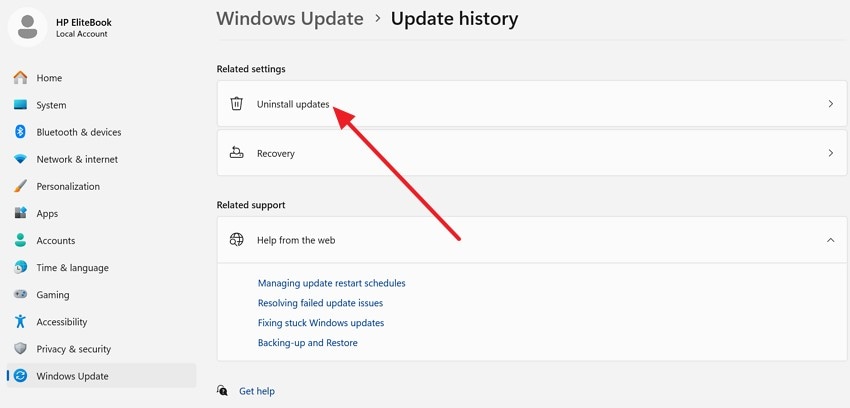
- Afterwards, choose "Uninstall updates" and remove recently installed problematic updates.
Fix 10: Create a New User Account for Testing
User profile problems can block typing in Windows Search and other features. If the search bar does not accept typing, profile settings may cause issues. Creating a new user account helps check if the problem stays limited. Profile damage can affect permissions and background services used by search. This method checks system problems without deleting personal files. Adhere to the steps below to create a new user account:
- Firstly, open "Settings," then go to "Accounts" and choose the "Other users" option to proceed.
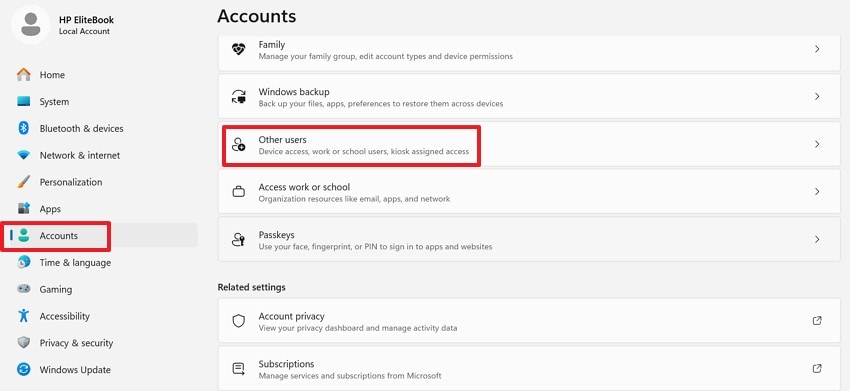
- Later, choose the "Add Account" option and follow on screen setup instructions.

Fix 11: Disable Conflicting Startup Programs
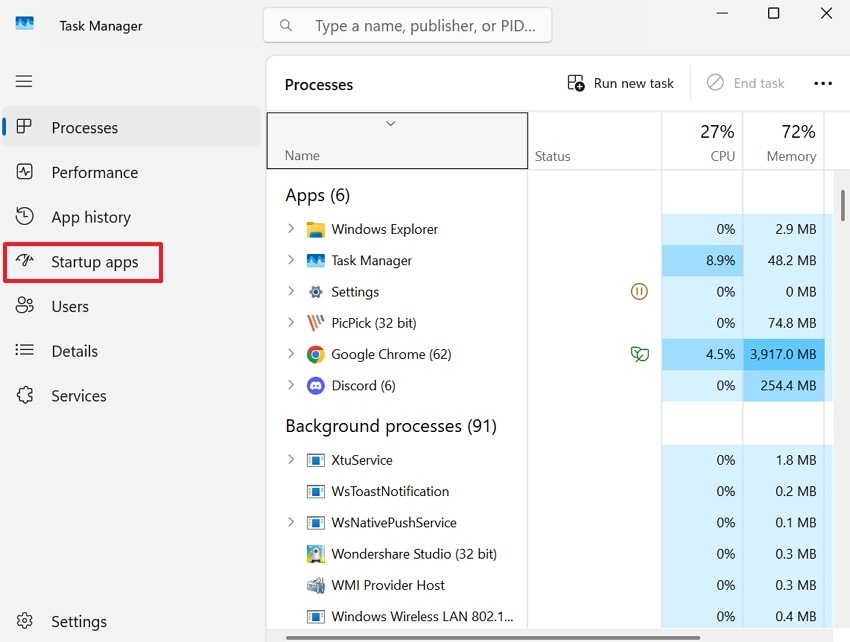
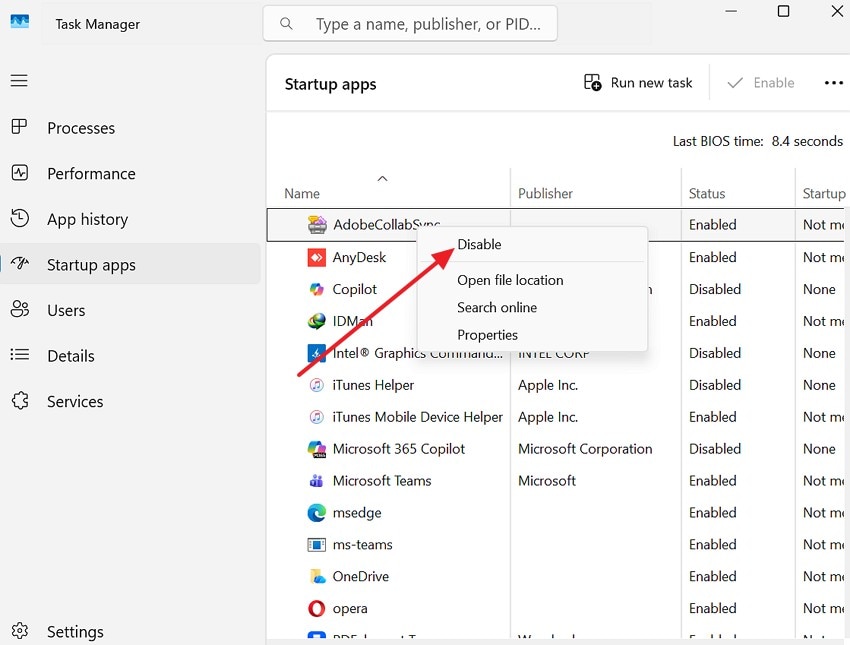
Some apps start with Windows and interfere with normal typing behavior. These apps can stop Windows Search from working during daily computer use. Thus, turning off startup apps helps identify which program causes typing problems. This step helps Windows run better without removing installed applications. So, use the steps below to turn off startup apps:
- To start, navigate to "Task Manager" and select the "Startup apps" option.
- Now, right-click on the unnecessary apps and choose the "Disable" option, then restart the computer to apply the changes.
Fix 12: Update or Reinstall Keyboard Drivers
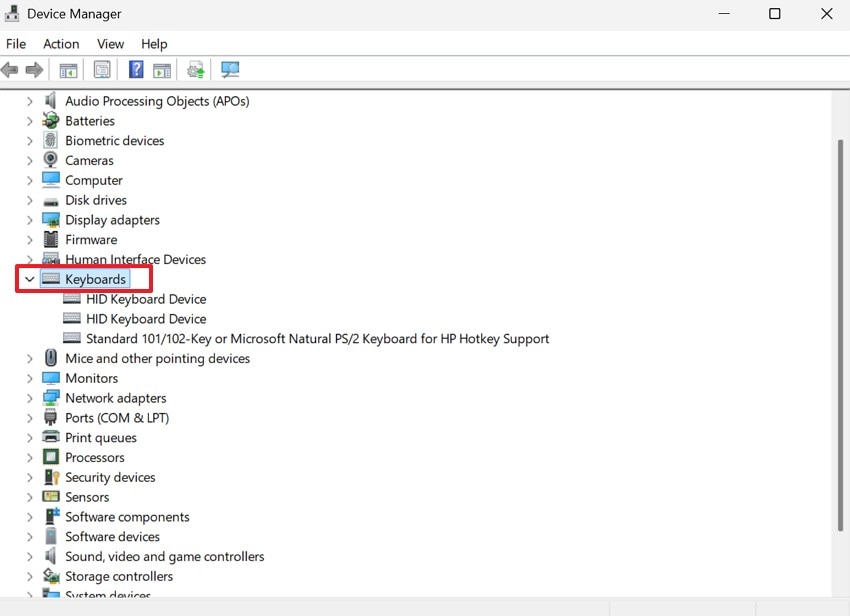
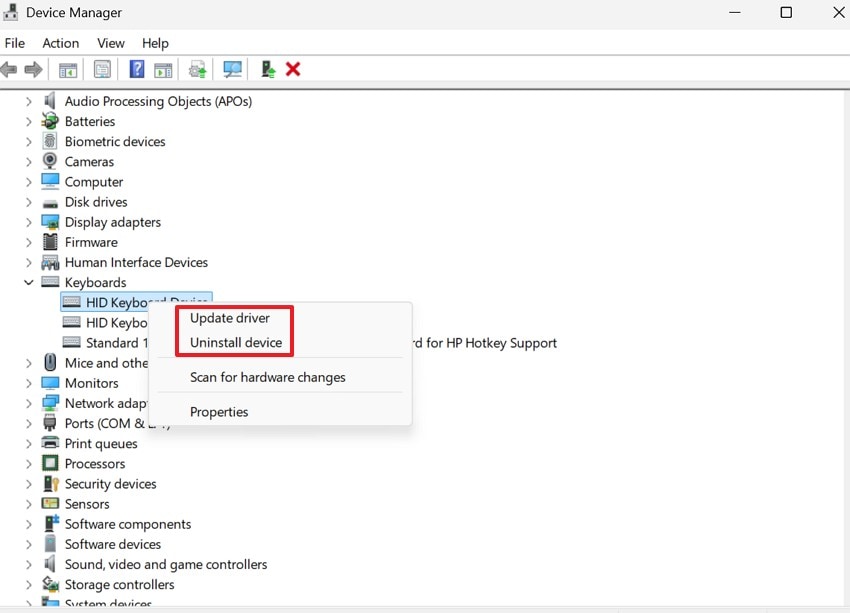
Keyboard drivers help Windows read keys when you type on your keyboard. Old or damaged drivers "cannot type in the Windows search bar". Updating the driver helps Windows receive keyboard input again. Reinstalling the driver clears broken settings that block typing. This fix works well after hardware changes or major Windows updates. Use the steps below to update or reinstall keyboard drivers:
- First, press "Windows + X" to access "Device Manager," where you need to expand the "Keyboards" category list.
- Afterwards, right-click on the keyboard driver and choose "Update" or "Uninstall" to update or reinstall relevant keyboard drivers.
Pro Tip: Use Recoverit to Recover Files After Windows Search Errors
When "Windows Search not working" causes system glitches, files can sometimes go missing. Sudden freezes, crashes, or forced restarts may interrupt file access or saving processes. This can leave documents hard to locate or seemingly lost. In such situations, focusing only on fixing search issues may overlook potential data loss that happens in the background.
Thus, Recoverit helps by scanning the storage to locate files affected by system errors. It works even when files are deleted, hidden, or no longer visible through normal search. The tool supports common file types and drives and offers 500MB of free data recovery for users. Using Recoverit alongside system fixes ensures your important data stays safe while resolving Windows Search problems.
Key Features
- Advanced Scan Engine: Uses deep and quick scan algorithms to locate lost, deleted, or inaccessible files.
- Broad File Compatibility: Supports recovery of documents, images, videos, audio, and archive file formats.
- Read-Only Recovery Mode: Performs data recovery without modifying existing files or storage structures.
Stepwise Guide to Recover Files After Windows Search Errors with Recoverit
Adhere to the steps below to try Recoverit for safe file Recovery:
- Select the Drive Affected by Windows Search Errors
To start, choose "Hard Drives and Location" from the left panel. Then select the affected drive under "Quick Access" to proceed.
- Scan the Drive to Find Missing or Hidden Files
Next, Recoverit starts scanning and shows the found files during the "Quick Scanning" progress. You can also use "File Location" or "File Type" filters to narrow results.
- Preview and Recover Files to a Safe Location
Lastly, click a file to preview it in the preview window before recovery. After that, select the required files and click "Recover" to save them.
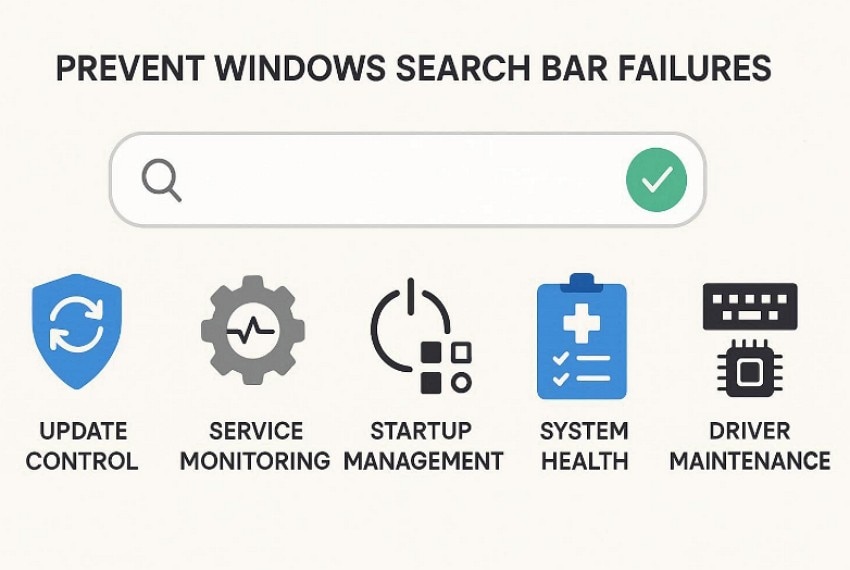
Part 4. 5 Prevention Tips to Avoid Future Search Bar Failures
To reduce the chances of Windows Search not working again, it helps to follow simple prevention habits.
- Update Control: Regular updates help fix small bugs that affect search and typing. Waiting before installing optional updates helps avoid new system problems.
- Service Monitoring: Windows Search needs background services to stay active and working. If these services stop, search typing can fail without any warning.
- Startup Management: Too many startup apps can interfere with search and keyboard input. Reducing startup apps helps Windows run more smoothly and respond faster.
- System Health: Basic system checks help find problems before the search stops working. Healthy system files allow search features to run without errors.
- Driver Maintenance: Keyboard drivers help Windows correctly interpret typing. Old drivers can cause input problems after updates or hardware changes.
Conclusion
To conclude, Windows Search issues can interrupt daily work for many users. Most problems have simple fixes that help restore typing quickly. Knowing the causes helps users avoid complex system changes and confusion. These steps reduce frustration and improve everyday Windows use for users. If Windows Search not working and leads to missing files, consider Recoverit. It can scan drives and recover up to 500 MB for free, depending on license terms.
FAQ
-
1. Why does Windows Search stop accepting typing input?
Windows Search stops typing when services crash, updates fail, or files are corrupted. Restarting services, rebuilding the index, and repairing files usually restores normal search typing. -
2. What does it mean when I cannot type in Windows Search?
Typing fails when Windows Search opens, but the input does not appear properly. This issue shows blocked input rather than keyboard or hardware failure problems. -
3. Can Windows updates cause search bar typing issues?
Yes, some Windows updates may introduce bugs affecting search typing behavior. These issues often appear after installation or system restart events. -
4. Should I recover files after Windows Search errors?
Search errors can hide files, making them hard to locate through a normal search. In such cases, Recoverit can scan drives and may recover up to 500 MB, depending on the current license.


