

 TL;DR:
You can resolve Call of Duty: Black Ops 7 crashing or launch failures by verifying Steam file integrity, resolving GPU driver conflicts, and adjusting specific system or game configuration settings.
● Modify the game's configuration file by changing the "DirectX Select" value to "1" and delete the "appcache" folder within the Steam directory to force the regeneration of clean temporary data.
● Eliminate background and system-level interference by disabling the Steam in-game overlay, rolling back unstable GPU drivers via Device Manager, and reinstalling the Microsoft Visual C++ Redistributables.
● If standard troubleshooting fails due to permanently deleted or severely corrupted assets, a data retrieval tool like Recoverit can scan your drives to reconstruct and restore the missing game files.
Ask AI for a summary
 ChatGPT
 Perplexity
 Gemini
 Claude
 Grok
Grok
A player launches Call of Duty: Black Ops 7 and watches the game crash before loading. This frustrating issue stops campaigns, multiplayer sessions, and progress instantly. Many users face crashes, freezing, or complete launch failures across different systems.
Fortunately, you can fix most Black Ops 7 issues with simple and reliable methods. This guide explains common causes and provides clear solutions that restore smooth gameplay. Follow each section carefully to eliminate errors and stabilize your game. With the right steps, you can return to uninterrupted Black Ops 7 action.
Try Recoverit to Perform Game Data Recovery
 Security Verified. 3,591,664 people have downloaded it.
In this article

Part 1. Why Does Call of Duty: Black Ops 7 Keep Crashing or Not Launch?
Before applying any solutions, it helps to understand why Black Ops 7 crashes or refuses to launch. Mentioned below are some of the reasons why you might face this issue in the first place:
- Outdated Graphics Drivers: Outdated graphics drivers create rendering conflicts that destabilize Black Ops 7 and cause repeated crashes across different systems. Driver mismatches often interrupt essential game processes and trigger unexpected failures.
- Corrupted Game Files: Corrupted game files disrupt the necessary assets required for Black Ops 7 to start properly and function smoothly across multiple devices. Damaged or missing files interrupt internal operations and cause Black Ops 7 to freeze or crash.
- Conflicting Background Programs: Background applications sometimes interfere with Black Ops 7 processes and create conflicts that lead to sudden crashes. Software overlaps consume resources and interrupt engine functions, causing Black Ops 7 instability.
- Insufficient System Resources: Insufficient system resources prevent Black Ops 7 from loading required assets and generate performance bottlenecks that frequently trigger unexpected crashes. Low memory availability disrupts game stability and causes Black Ops 7 to stop responding.
- Incompatible Game Settings: Incompatible graphics settings create configuration conflicts that block Black Ops 7 from launching normally across various screens.
Part 2. Early Signs of Black Ops 7 Crashing or Not Launching
After understanding the causes, it’s crucial to recognize early warning signs indicating Call of Duty: Black Ops 7 crashing. Learn about these indications in detail in the section below:
- Frequent Freezing During Startup: The game freezes repeatedly while loading, showing a static screen and no progress for several seconds consistently.
- Unexpected Game Crashes: Black Ops 7 closes automatically without warning during gameplay or in menus, interrupting missions and multiplayer sessions.
- Long Loading Times: Assets take unusually long to load, and the game seems stuck on splash screens or initial load sequences.
- Error Messages at Launch: Frequent pop-ups or alerts appear when opening the game, often referencing missing files or failed processes.
- Low Frame Rates or Stuttering: Gameplay slows unexpectedly, with noticeable lag and jittering, even on systems that usually run the game smoothly.
Part 3. Quick Actions: How to Fix Call of Duty: Black Ops 7 Crashing and Launching Issues
After learning about the reasons and signs of the game’s sudden crash, let us have a look at the effective solution to resolve this Call of Duty: Black Ops 7 not launching issue:
1. Restart Your PC
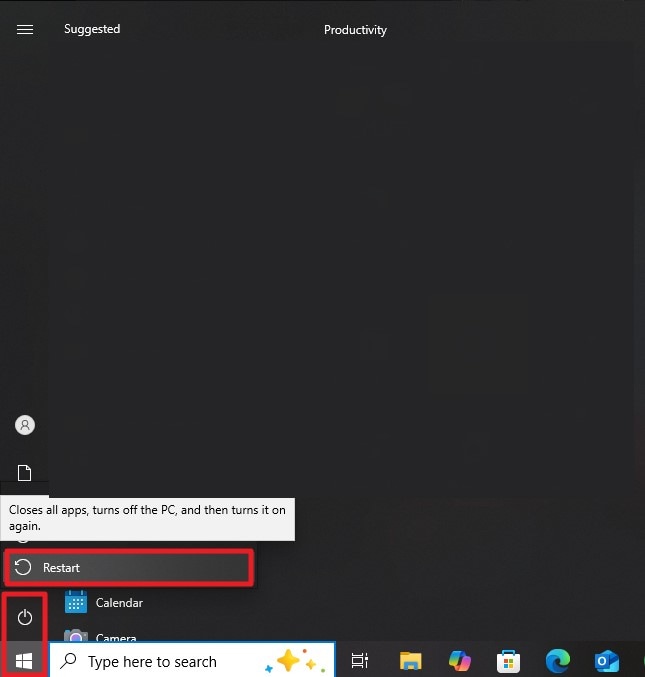
The simplest and easiest fix is to restart your computer when your system faces a sudden game crash. This simple method resets memory allocation and background services. Many minor launch issues are resolved automatically after a restart. Additionally, it ensures the operating system loads essential components freshly. Follow the instructions provided below to learn how to restart your computer easily:
Instructions. Click the "Windows" icon at the bottom-left of your screen, then select the "Power" icon. Choose "Restart" to close all running tasks and reboot your system.
2. Verify Game Files
One effective method is verifying Black Ops 7 game files to ensure all essential components are intact and uncorrupted. This process detects missing or damaged files automatically. It maintains smooth gameplay and prevents crashes caused by incomplete or altered data. Follow the steps mentioned below to verify game files within the Steam interface:
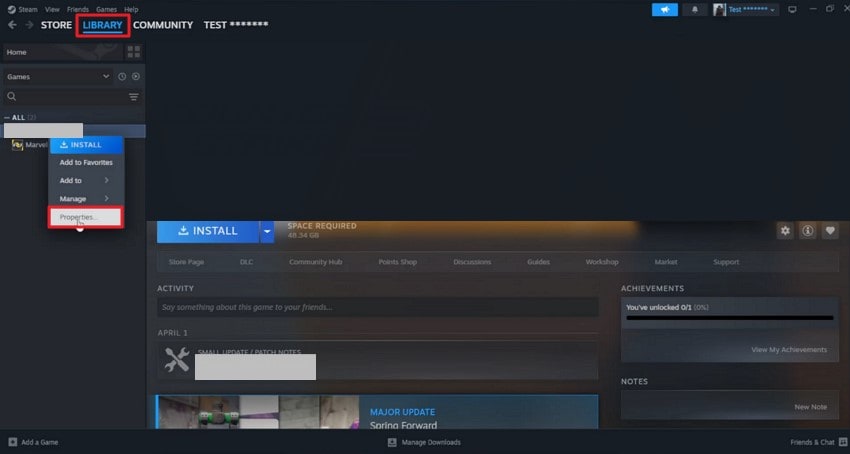
- Open Steam and navigate to your game library. Scroll through the list to find the game, then right-click on it and select "Properties" from the menu that appears.
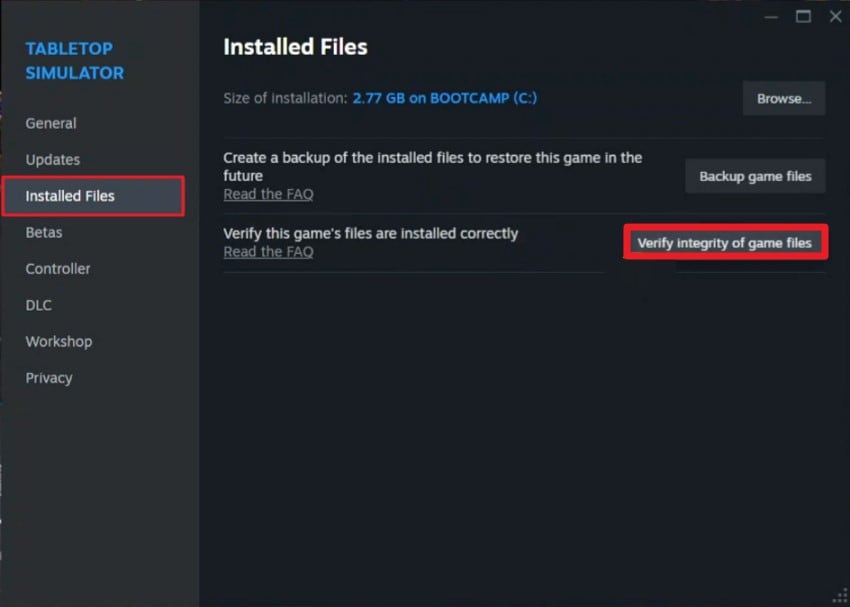
- In the "Properties" window, click on the "Installed Files" tab on the left side. Select the button labeled "Verify Integrity of Game Files" to begin the process of checking and repairing any corrupted or missing files associated with the game.
3. Update Graphics Drivers
Keeping your graphics drivers up to date ensures Black Ops 7 runs smoothly without rendering issues. Updated drivers improve compatibility with the latest game updates. They optimize performance and reduce crashes caused by outdated GPU software. Follow the steps mentioned below to update your graphics driver and resolve the Call of Duty: Black Ops 7 crashing issue:
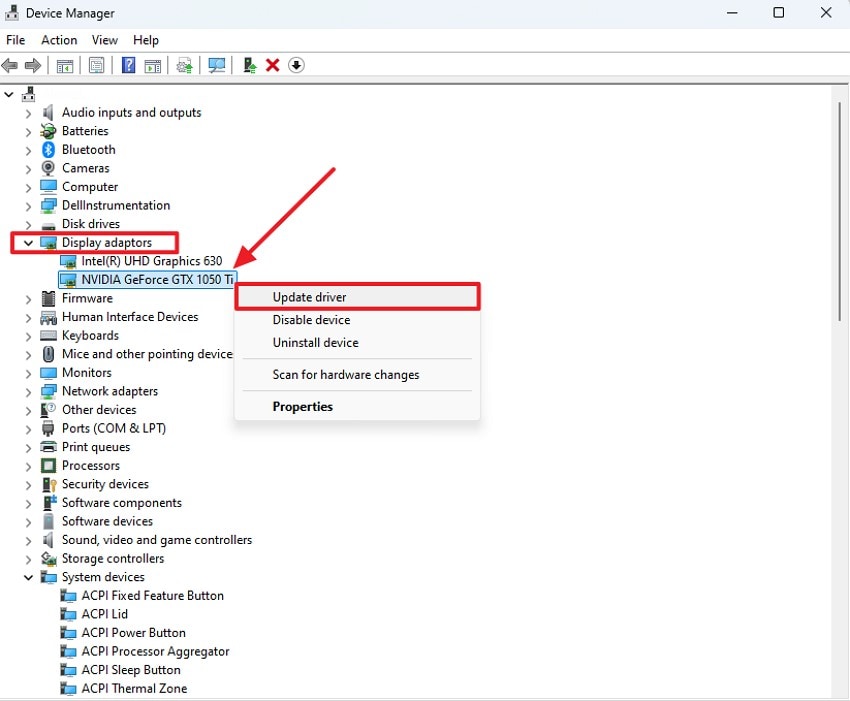
- Open the "Device Manager" on your system and expand the "Display Adapters" section located on the left side. Next, find the graphics driver that your system uses for gaming, right-click on it, and select the "Update Driver" option from the context menu.
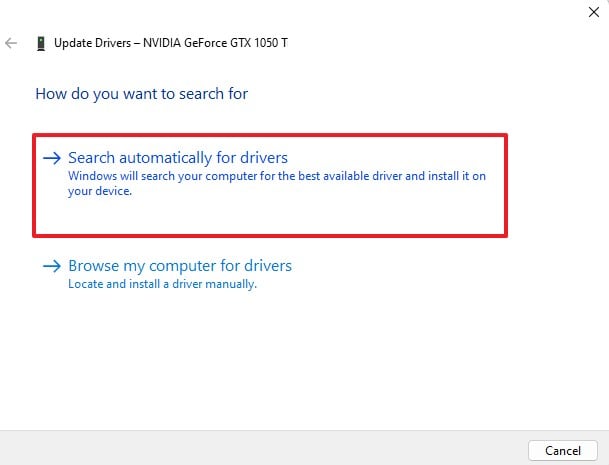
- In the window that appears, choose the "Search Automatically for Drivers" option. This will allow Windows to search for any available driver updates online and install them automatically if they are found.
4. Run as Administrator
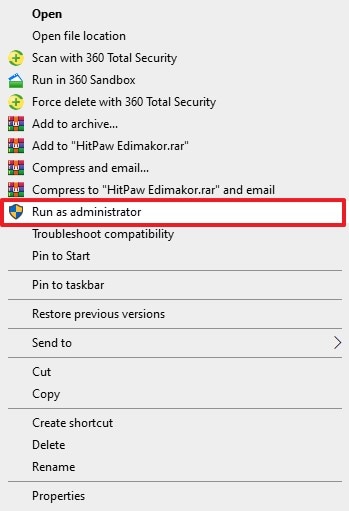
It is important to run Black Ops 7 as an administrator to grant the game full system permissions. This ensures it can access necessary files and resources without restrictions. Running as an administrator helps prevent launch errors and interruptions caused by insufficient privileges. Mentioned below are the instructions to make the game run as an administrator:
Instructions. Navigate to the Steam file in your File Explorer, right-click on it, and locate the "Run As Administrator" option. Click it to launch the program with administrative privileges.
5. Change DirectX Mode
Switching DirectX modes can help Call of Duty: Black Ops 7 run more efficiently on different hardware configurations. Adjusting the mode changes how the game interacts with your system’s graphics engine. This method can improve compatibility and reduce crashes or graphical glitches. To change the DirectX mode, read the steps mentioned next:
- Access the File Explorer and locate your game's configuration settings file. Open it in Notepad and check the value of the "DirectX Select" option.
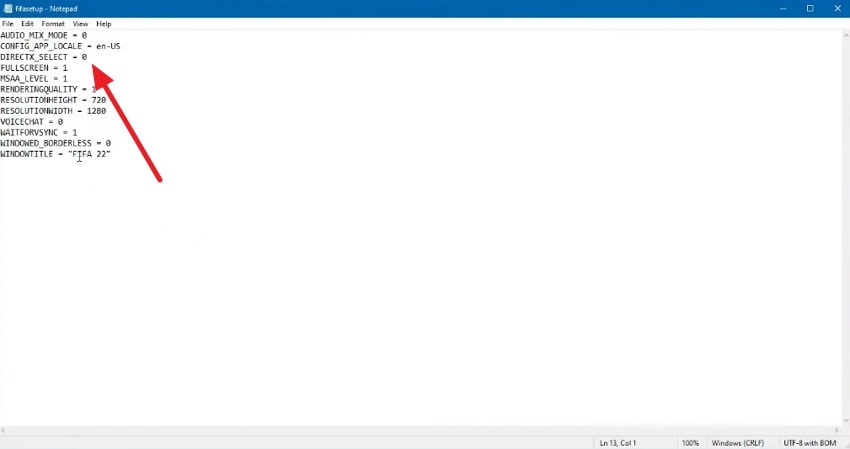
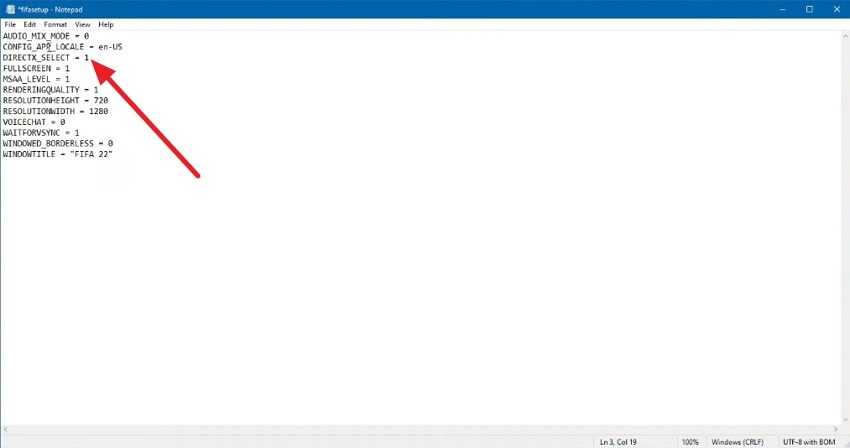
- Now, change the value of it into "1" and press the "Save" button by accessing the "File" option from the menu. Next, launch the game smoothly with the DirectX mode changed.
6. Disable Overlays and Background Apps
Another effective approach is disabling overlays and background applications to prevent conflicts with Black Ops 7 processes. Programs like Discord, Steam chats, or other overlay tools can interfere with the game and cause crashes. Shutting down unnecessary apps frees system resources and ensures smoother performance. Read the steps provided below to learn how to use this utility for smoother gameplay:
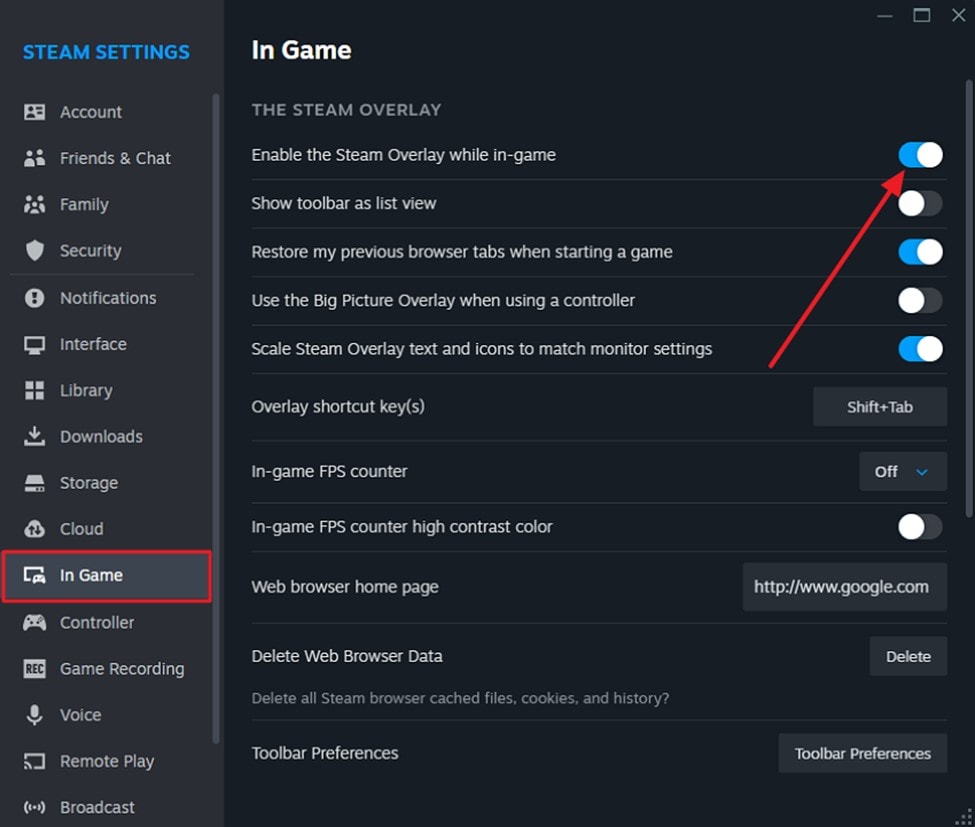
- Starting from the top-left corner of the Steam interface, click on the "Steam" menu and select "Settings" from the dropdown list.
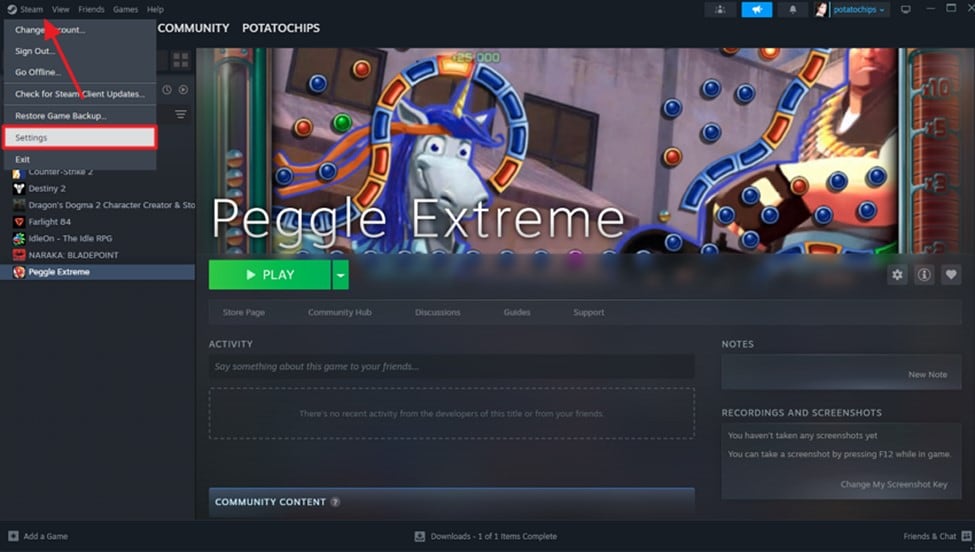
- Moving into the Settings window, go to the "In-Game" tab on the left side. Find the option labeled "Enable the Steam Overlay While In-Game" and toggle it off to disable the Steam Overlay feature.
7. Clean or Roll Back GPU Driver
Sometimes, cleaning or rolling back your GPU driver resolves compatibility issues with Black Ops 7. Older or corrupted drivers can cause crashes and launch failures. Reverting to a stable version restores proper communication between the game and hardware. This method ensures smoother performance and reduces Call of Duty: Black Ops 7 crashing. Learn how to perform the mentioned task in the steps provided below:
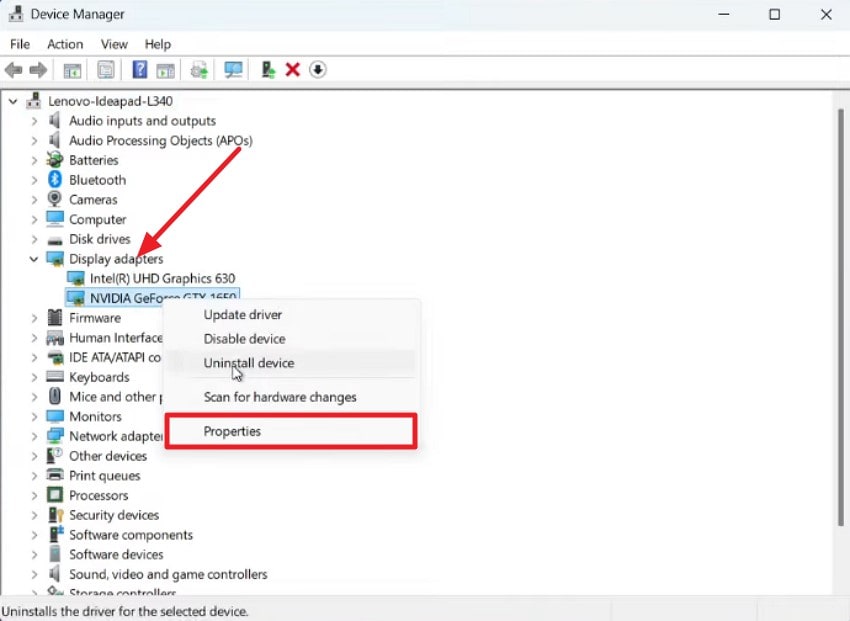
- Begin by opening the Device Manager and expanding the "Display Adapter" option. Now choose the graphic driver of your choice, right-click on it, and press the "Properties" option.
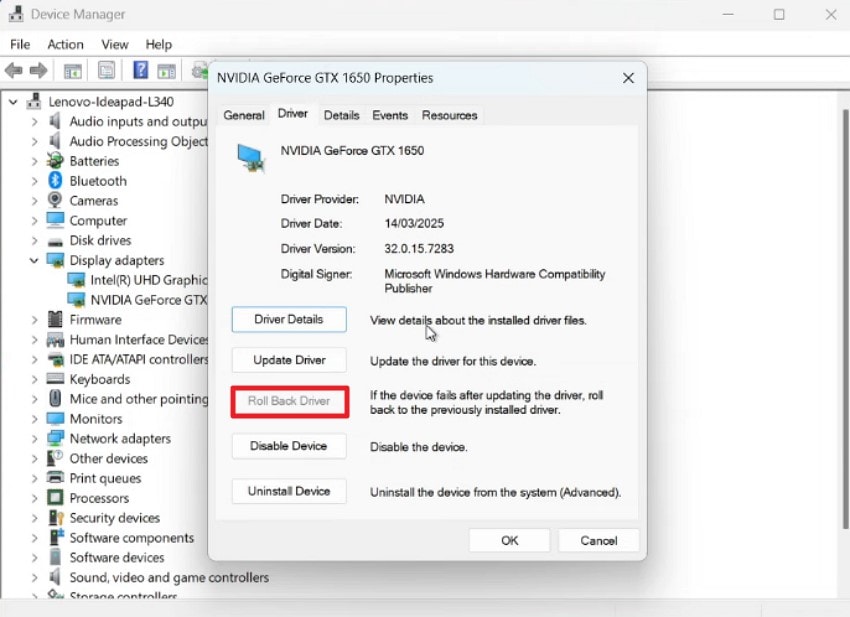
- In the properties window, enable the "Driver" section and press the "Roll Back Driver" button. Once done, hit the "OK" button to save the changes successfully.
8. Delete Cache and Shader Files
Cache and shader files store temporary game data that Black Ops 7 uses during gameplay. Deleting them clears old or unnecessary files. The game automatically regenerates new cache and shader files after launch. This method ensures the game works with a fresh set of temporary data. Follow the instructions in the following section to learn how to perform this fix effortlessly:
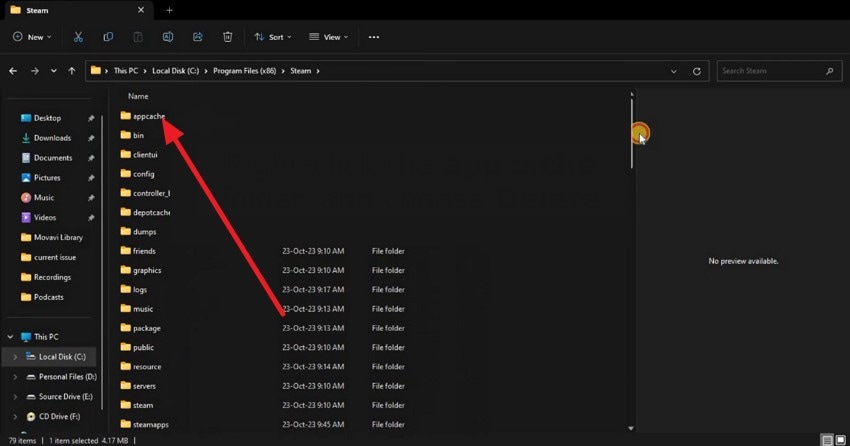
Instructions. Inside the Steam folder, find the "appcache" directory, right-click on it, and select "Delete" to remove the cached files. This action removes temporary data that may be causing performance issues.
9. Reinstall Visual C++ Redistributables
Reinstalling Visual C++ Redistributables restores essential runtime components required by Black Ops 7. These libraries enable the game to run critical processes correctly. The method ensures all necessary files are present and properly registered in the system. Reinstallation helps maintain stable interactions between the game and Windows without altering other settings. Follow the steps mentioned below to learn how to reinstall these redistributables:
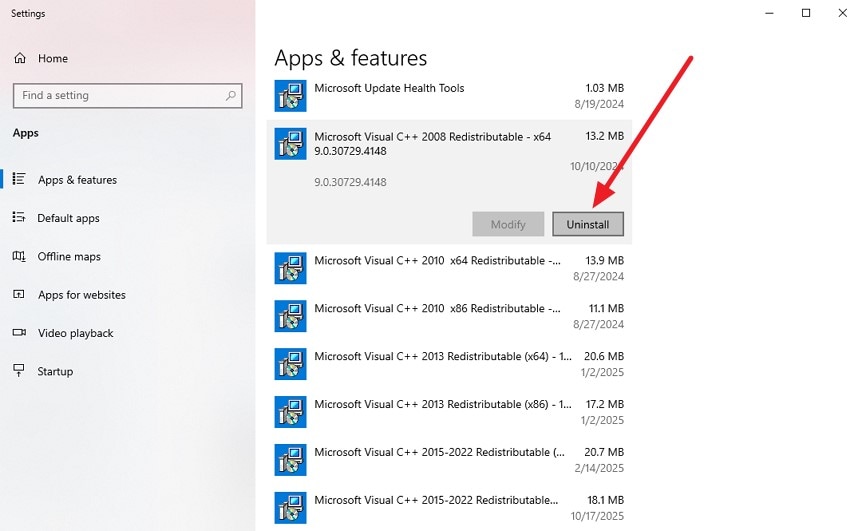
- Go to the "App & Features" section in your system settings and scroll through the list of apps to find the Microsoft Visual C++ Redistributable program. Click on it to reveal the available options, then select the "Uninstall" button to remove the program from your system.
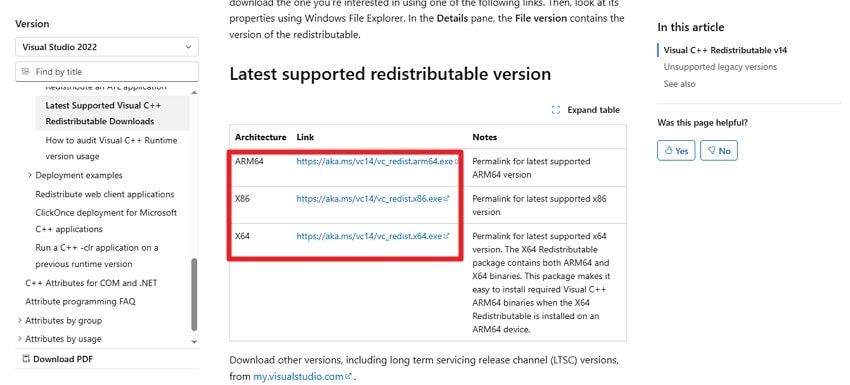
- Next, visit the official Microsoft or Visual Studio website to find the specific redistributable version you need. Click on the link to download it, and follow the on-screen instructions to successfully resolve the Call of Duty: Black Ops 7 not launching issue.
10. Reinstall the Game
A complete game reinstallation can resolve persistent issues that other methods cannot fix. This process replaces all game files with fresh copies. It ensures corrupted or missing data is fully restored. Reinstalling the game provides a clean installation environment, improving stability and launch reliability. Read the steps mentioned below to learn how to reinstall the game and resolve the Black Ops 7 conflict:
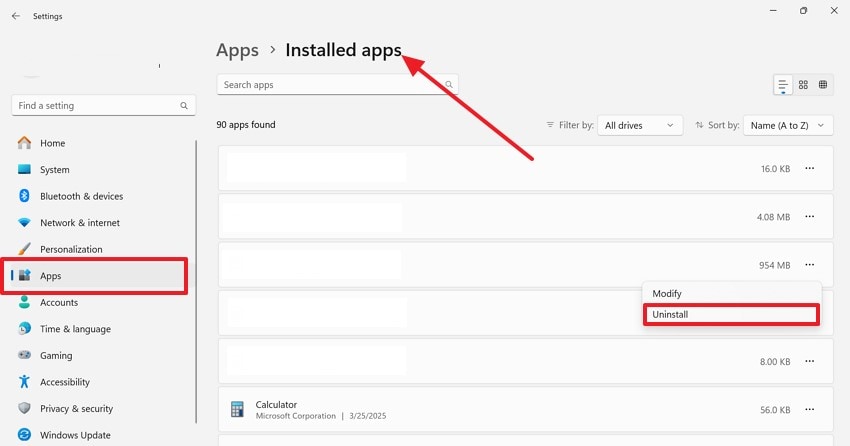
- Access the "Apps" section in your device’s settings and navigate to the "Installed Apps" list. Locate Black Ops 7 or "Steam" in the list, right-click on it, and select "Uninstall" to remove the game from your system.
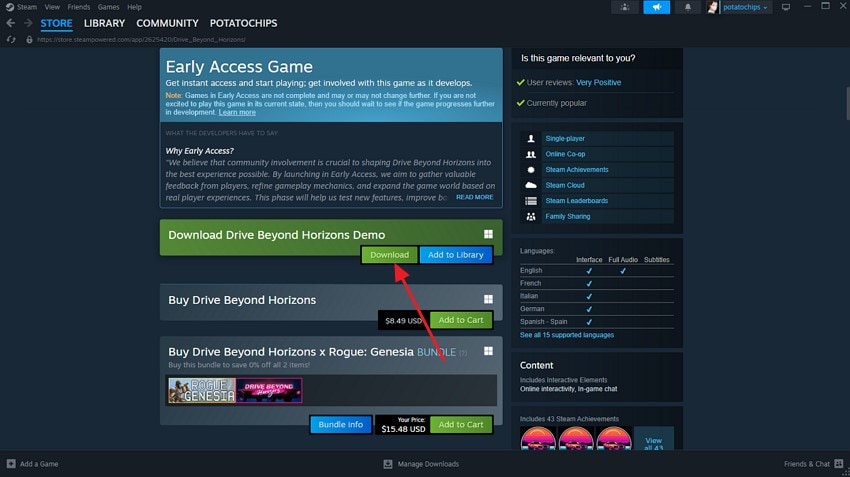
- Open the Steam client, use the search bar to look for "Call of Duty," and then click the "Download" button to reinstall the game fresh onto your device.
Pro Tip: How Can Recoverit Help in Fixing Black Ops 7 Crashing Issue?
If you have tried all the fixes mentioned above and your Call of Duty: Black Ops 7 game still fails to launch, the issue might be related to corrupted or missing game files. Various factors can cause game files to be lost, and to resolve this, you can rely on Recoverit to perform a Steam file recovery. This powerful tool supports recovery for over 1000 file formats, including videos, photos, and documents.
In addition, Recoverit allows batch recovery, letting you restore multiple files at once to save both time and effort. The tool ensures a completely safe recovery process, so users don’t have to worry about malware or viruses. Even if your system experiences a blue screen of death, this software can help prevent crashes and improve overall system stability.
Key Features Offered by Recoverit
- Storage Devices: Recoverit can restore files from more than 1 million storage devices, including USB drives, cameras, and other external media.
- Retrieval Rate: The tool offers a 99.5% recovery rate, capable of retrieving nearly all lost or corrupted files.
- Advanced Repair: For severely damaged files, the Advanced Repair feature performs a deep scan and reconstructs missing game files effectively.
Step-by-Step Guide to Recover Lost Call of Duty Game Files Using Recoverit
After learning about this incredible data retrieval tool in detail, let us have a look at the step-by-step guide to using Recoverit for this:
1. Open the Tool and Select File Location
Launch Recoverit and go to the "Hard Drives and Location" section from the left panel. Next, choose "Desktop" under the "Quick Access" menu to locate the target game files.

2. Select the Corrupted Game File and Recover
Then, pick the corrupted Call of Duty game file from the "File Type" section. The tool will perform a quick scan, after which you can click the "Recover" button at the bottom-right corner to begin restoration.

3. Preview and Finalize Recovery
Once the recovery process completes, a pop-up menu will appear showing the recovered file. Preview the file there, and press "Recover" to finish the procedure successfully.

Conclusion
To wrap it up, this article offered a detailed guide with methods on how to resolve Call of Duty: Black Ops 7 crashing with practical methods. However, if your game file goes missing, using Recoverit is one of the most reliable solutions. The tool delivers a safe and user-friendly solution, making file restoration quick, dependable, and stress-free for everyone.
FAQ
1. Why does Black Ops 7 keep crashing on my PC?
Crashes often result from outdated drivers, corrupted files, insufficient resources, or conflicting applications. You can try restarting your computer or simply reinstalling the game entirely to resolve this issue.2. Will updating graphics drivers stop Black Ops 7 crashes?
Yes, updated drivers improve compatibility and performance, which can significantly reduce crashes and freezes in Black Ops 7. By keeping your GPU drivers current, the game can better communicate with your hardware, ensuring smoother gameplay.3. Can deleting cache and shader files help with game crashes?
Yes, clearing these files removes temporary corruption that can cause game instability, stuttering, or crashes. By deleting them, you force the game to regenerate fresh files, which often resolves performance issues.4. How can I get back the missing game files?
One of the most reliable solutions is to use Recoverit to retrieve your missing or damaged game files. This tool can scan your storage deeply to locate lost data, including game saves and other important assets.


