


 TL;DR:
To resolve the "msvcp140_atomic_wait.dll was not found" error, you must restore the missing runtime component by either repairing or reinstalling the Microsoft Visual C++ Redistributable package.
● Go to your system's "Apps & Features" menu to "Modify" and "Repair" the existing Microsoft Visual C++ Redistributable, or completely uninstall it and download the appropriate version directly from the official Microsoft website.
● Use the Command Prompt to execute `sfc /scannow` followed by `dism.exe /online /cleanup-image /scanhealth` to automatically scan your Windows installation and replace corrupted system-level library files.
● If the issue is isolated to a specific game or software, perform a fresh installation of the failing application or remove overlapping Microsoft 365 and Office suites that frequently interfere with shared dependencies.
Ask AI for a summary
 ChatGPT
 Perplexity
 Gemini
 Claude
 Grok
Grok
Imagine launching your favorite program only to be stopped by a message saying msvcp140_atomic_wait.dll was not found. This sudden error can be frustrating, especially when you need the app for work, gaming, or daily tasks. The issue typically appears when essential Visual C++ runtime files are missing, corrupted, or not properly registered.
Fortunately, there are several reliable ways to restore the required DLL and get your system running smoothly again. In this guide, you'll learn the most effective troubleshooting steps to fix the problem quickly and prevent it from returning.
Try Recoverit to Perform Data Recovery
 Security Verified. 3,591,664 people have downloaded it.
In this article

Part 1. Main Causes of The MSVCP140_atomic_wait.dll Error
Several system-level factors can interrupt how Windows loads Visual C++ components, leading to this missing DLL message. Below are the most frequent causes you should know about:
- Damaged Visual C++ Redistributables: When your Visual C++ runtime package becomes partially broken, Windows cannot access essential components. This disruption prevents programs from loading the msvcp140_atomic_wait.dll missing file.
- Incomplete Software Installation: Applications that rely on this DLL may fail to install all required files. As a result, the program launches without the necessary runtime support.
- Outdated Runtime Libraries: Older Visual C++ libraries may not include newer DLLs required by modern applications. This mismatch causes Windows to report the DLL as missing.
- Faulty Program Updates: Some application updates overwrite or remove supporting files accidentally. When the update process fails, dependent DLLs can disappear without warning.
- Unexpected Power Loss or System Crash: Sudden shutdowns can interrupt file-writing processes. This interruption may corrupt or remove runtime files that include the MSVCP140_atomic_wait.dll component.

Part 2. A Pre-Check List Before Starting to Fix the MSVCP140_atomic_wait.dll Error
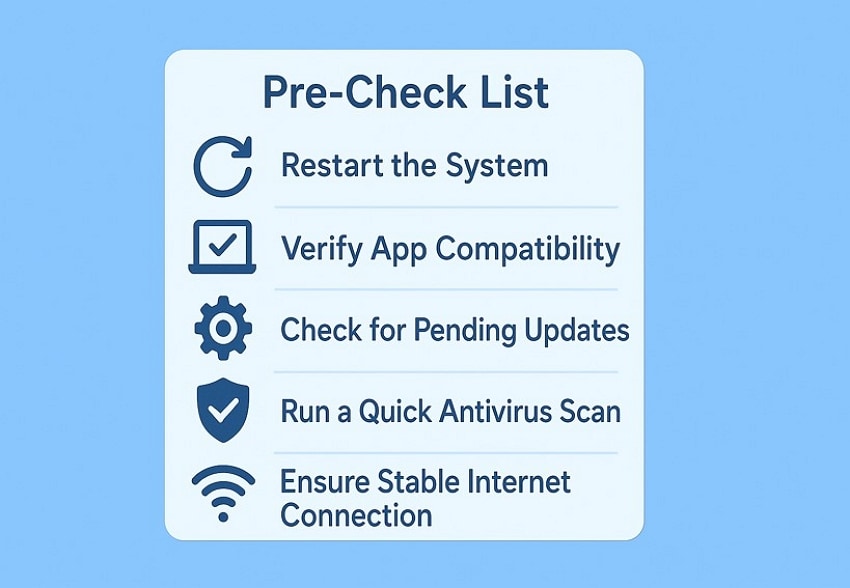
Before diving into the actual repair methods, it helps to run through a quick pre-check list. Go through the points below to confirm your system is ready for proper msvcp140_atomic_wait.dll not found fixes:
- Restart the System: A basic reboot can refresh system processes and reload essential components. Many temporary DLL errors disappear after a restart.
- Verify App Compatibility: Check if the program you're using supports your Windows version. Incompatibility often triggers missing DLL messages.
- Check for Pending Updates: Look for Windows or Microsoft Visual C++ updates waiting to install. These updates frequently include repaired or replaced DLL files.
- Run a Quick Antivirus Scan: Perform a fast scan to rule out malware affecting your DLL files. Viruses often corrupt or hide shared libraries.
- Ensure Stable Internet Connection: Confirm your connection is active before applying updates or reinstalling components. Many fixes require downloading essential files.
Part 3. Top Fixes For MSVCP140_atomic_wait.dll Error
Having learned about the causes and pre-checklist for resolving this issue, let us now move to the methods that will help you fix the msvcp140_atomic_wait.dll missing issue:
1. Reinstall Microsoft Visual C++ Redistributable
This fix involves reinstalling the Microsoft Visual C++ Redistributable package, which supplies many of the core runtime components Windows needs to run modern applications. By installing a fresh and complete version of the redistributable, you replace missing, damaged, or mismatched runtime files that may be triggering the MSVCP140_atomic_wait.dll error. Follow the steps provided next to learn how to use this fix:
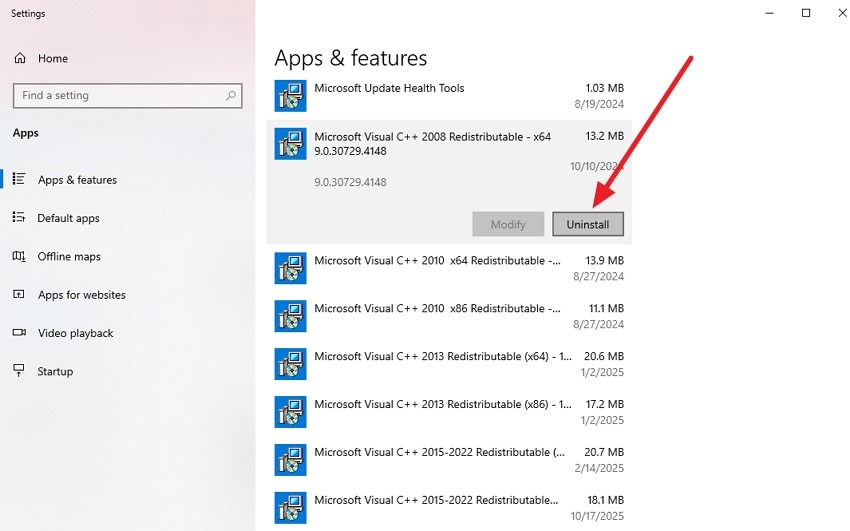
- Go to the "App & Features" option from your system settings and scroll through the apps to locate the Microsoft Visual C++ Redistributable program. Click on it to enable the options, from which you can click on the "Uninstall" button to successfully remove the program from your system.
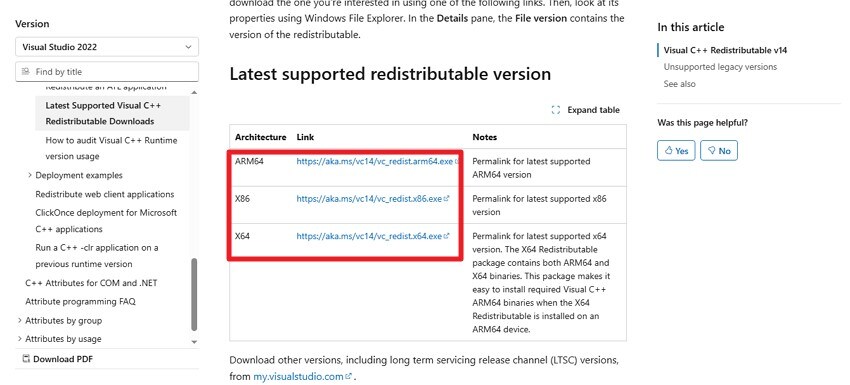
- Moving forward, head to the official Microsoft or Visual Studio website and locate the desired redistributable version. Click on the link that suits your system specifications to download it again to your device. Follow the instructions on the screen to successfully reinstall the program on your system.
2. Repair Microsoft Visual C++ Redistributable
Repairing Microsoft Visual C++ Redistributable offers a straightforward way to address underlying issues that may trigger the msvcp140_atomic_wait.dll was not found error. This method focuses on fixing corrupted runtime components that Windows and many applications rely on for smooth operation. Moreover, by running a repair on the installed Visual C++ packages, the system automatically restores missing, damaged, or misconfigured files. To learn how to use the built-in repair function of the program, read the steps mentioned below:
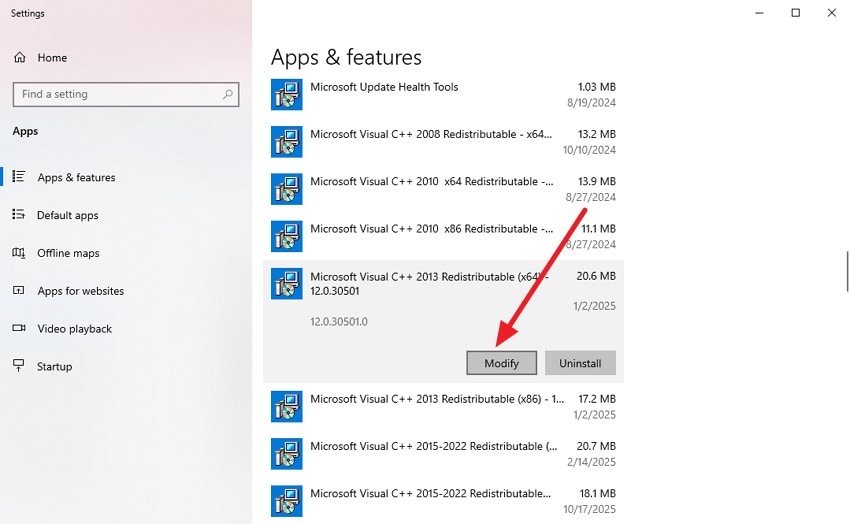
- Begin by accessing the “Apps” section in the settings and locating the Microsoft Visual C++ Redistributable. Now, click on the “Modify” button to proceed.
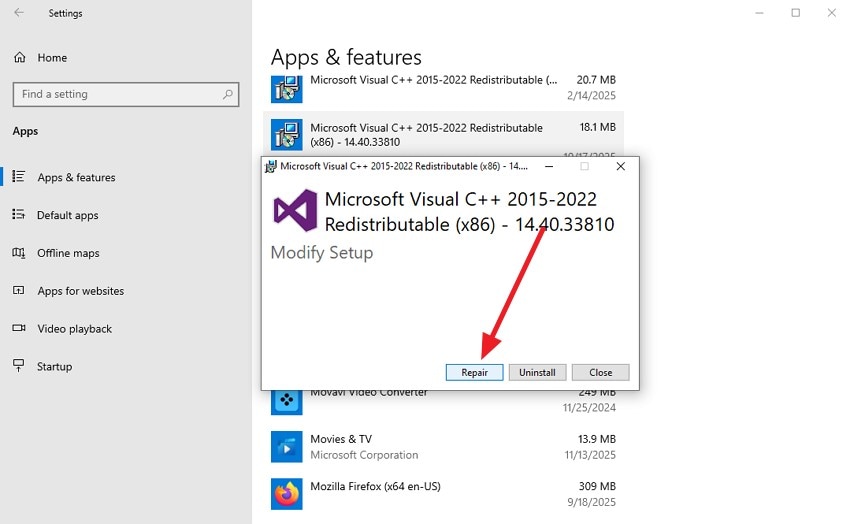
- In the following small window, click the "Repair" button, and the tool will begin instant repair to remove any bugs and errors.
3. Remove Conflicting Microsoft 365 or Office Tools
Sometimes overlapping or partially installed Office components can interfere with library files and trigger DLL errors. Removing any conflicting Office apps helps clean up leftovers that disrupt system libraries. Once the conflicting tools are uninstalled, reinstalling your primary Office suite ensures a clean, error-free environment. Read the instructions below to know how to remove a conflicting Office Tool to resolve the msvcp140_atomic_wait.dll missing error:
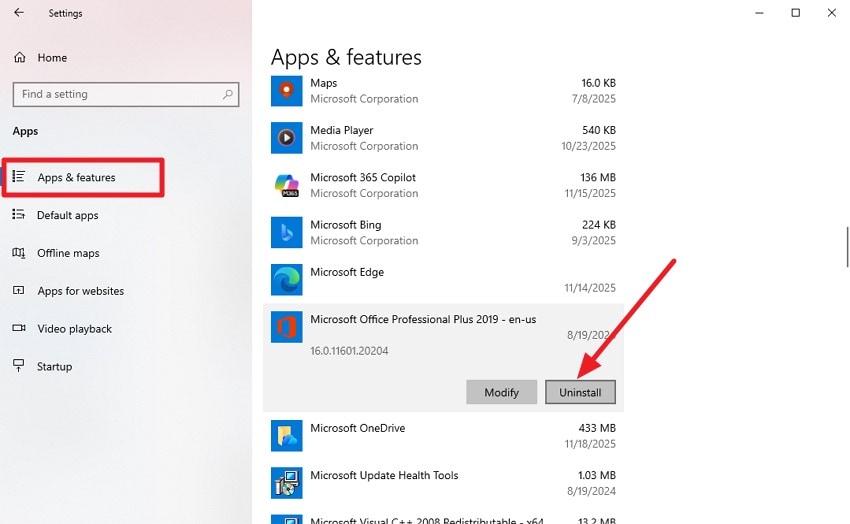
Instructions. After accessing the “App & Features” page from the settings, locate and click on the Microsoft Office or 365 Suite. Press the “Uninstall” button to successfully remove it from your system.
4. Reinstall the Affected App or Game in Windows (Show Uninstall)
Another dependable way to resolve the msvcp140_atomic_wait.dll not found error is to reinstall the specific app or game that’s failing to launch. This method clears out corrupted program files, broken dependencies, and outdated components that may be triggering the DLL issue. By uninstalling and then performing a fresh installation, you ensure the app restores all required files, including DLLs, back to their correct versions and locations. Follow the instructions below to learn how to uninstall a program:
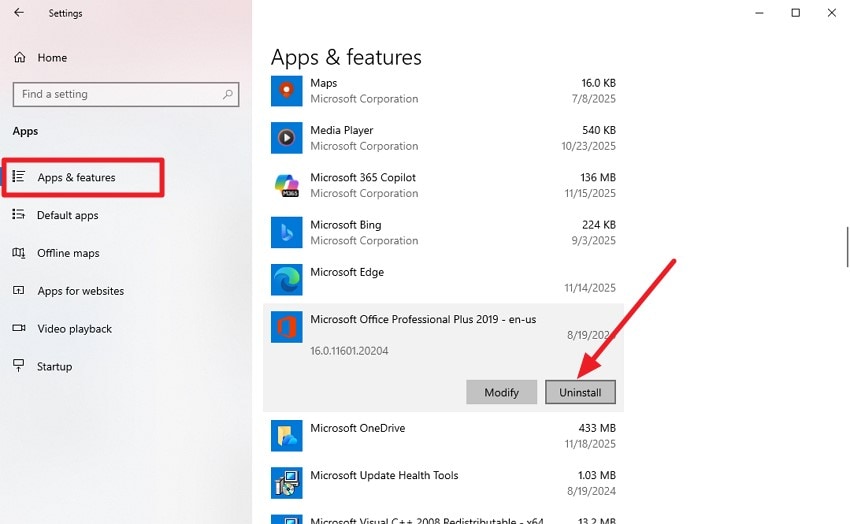
Instructions. Simply go to the “Apps & Features” section in the settings and locate the affected app. Click on the “Uninstall” button to successfully remove it.
5. Run SFC Scan & DISM
System File Checker (SFC) and Deployment Imaging Service and Management Tool (DISM) help repair corrupted or missing system files that may cause the MSVCP140_atomic_wait.dll error. These tools scan your Windows installation, detect damaged files, and automatically restore them to their original, functional versions, ensuring system stability. Provided next are the instructions to perform the mentioned scans using the command prompt to fix the msvcp140_atomic_wait.dll missing:
Run SFC Scan
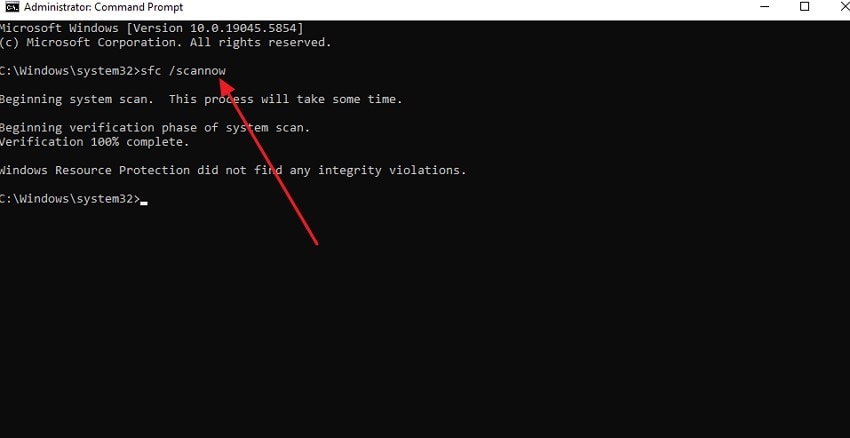
Instructions. Open the Command Prompt and enter “sfc /scannow,” then press Enter. The System File Checker will examine your system for missing or corrupted files. If any problems are found, the tool will automatically fix them to restore system stability.
Run DISM Tool Scan
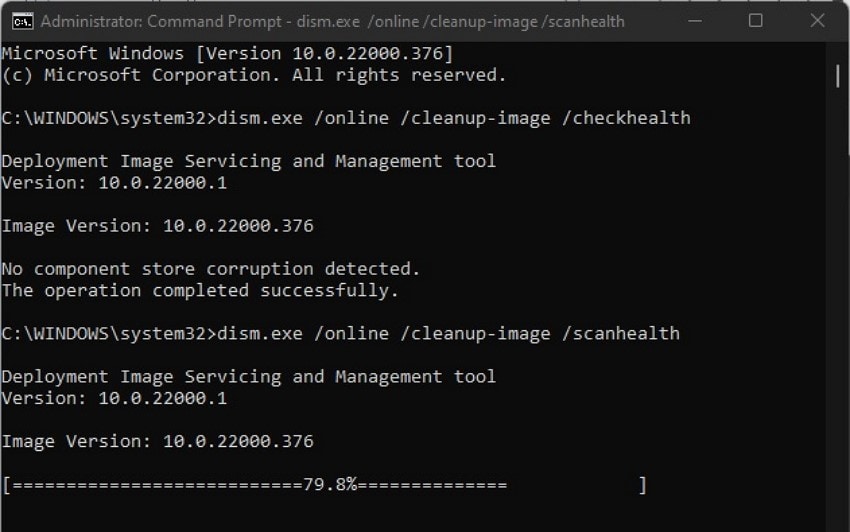
Instructions. In the Command Prompt, enter “dism.exe /online /cleanup-image /healthcheck” and press Enter to assess system health. Then, type “dism.exe /online /cleanup-image /scanhealth” and press Enter to perform a deeper scan for errors affecting DLL files.
Part 4. Recover Different Library Files With Recoverit: Easy Solution
As the most efficient yet reliable tool, Recoverit offers advanced features to restore missing or damaged library files. This tool provides both quick and deep scanning to locate and recover lost DLLs, no matter what caused the msvcp140_atomic_wait.dll not found issue. It is used to recover more than 1000 types of files, such as DLLs, system libraries, program data, and other essential components that become inaccessible.
Users can preview recovered files before restoration to ensure accuracy, and selectively recover only the needed files to save time. Recoverit works seamlessly on Windows 11/10/8.1/7 and macOS 10.10 or later, and guarantees secure recovery without overwriting existing system data or introducing malware.
- Selective Recovery: Choose specific DLLs or library files to recover, avoiding unnecessary restoration of unrelated data.
- Unlimited File Recovery: Restore an unlimited number of corrupted or lost files using the desktop version.
- Wide File System Support: Compatible with exFAT, FAT16, FAT32, and NTFS file systems for broad usability.
Step-by-Step Guide to Recover Library Files Using Recoverit
Having learned about this tool in detail, let us have a look at the step-by-step guide to use this incredible platform for getting back the library files:
1. Launch Recoverit and Select File Recovery
Open Wondershare Recoverit and click on File Recovery from the left-hand menu. Make sure the drive or location containing the missing library files is accessible and detected by your computer before proceeding.

2. Choose the Drive or Folder and Start Scanning
Select the drive or folder where the lost or corrupted library files were stored and click “Recover” to begin the recovery process. You can pause or stop the scan if the required files appear during the process.

3. Preview and Restore Library Files
Once scanning is complete, use the Preview feature to check the files, then click “Recover” to safely save them back to your system.

Part 5. Tips & Best Practices When Fixing MSVCP140_atomic_wait.dll Issues
When attempting to fix the msvcp140_atomic_wait.dll was not found error, following some best practices can make the process safer and more efficient. These tips help prevent further issues, protect your system, and ensure a smoother recovery of missing or corrupted DLL files:
- Backup Important Data: Always create a backup of critical files and system data before making any changes. This ensures you can restore your system if anything goes wrong.
- Use Trusted Sources Only: Download DLLs or repair tools only from official or reputable sources. Avoid third-party sites that may provide corrupted or malicious files.
- Keep Software Updated: Regularly update Windows, Microsoft Office, and other relevant applications. Updates often fix compatibility issues and prevent DLL errors from occurring.
- Run Antivirus Scans: Scan your system to detect and remove malware that could corrupt DLL files. Maintaining a clean system reduces the likelihood of repeated errors.
- Use Reliable Recovery Tools: Employ trusted tools like Recoverit to recover missing or corrupted DLL files safely and efficiently.
Conclusion
To wrap it up, this article provided a complete guide to understanding and fixing the msvcp140_atomic_wait.dll was not found error. By exploring causes, troubleshooting methods, and preventive tips, users can restore system stability effectively. For recovering missing or corrupted DLL files safely, using a reliable tool like Wondershare Recoverit ensures a quick and secure solution.
FAQ
-
1. Why does the MSVCP140_atomic_wait.dll error appear suddenly?
This error can appear if the DLL file is accidentally deleted, corrupted, or overwritten by incompatible software. It often occurs after software updates or system changes. -
2. Can I restore the DLL without reinstalling the application?
Yes, you can recover the missing DLL using recovery tools or by manually placing a verified copy in the system folder. Wondershare Recoverit is a reliable option for safely restoring missing or corrupted DLLs. -
3. Will Recoverit work for other missing library files?
Yes, Recoverit can recover various library and system files, not just MSVCP140_atomic_wait.dll. Its scanning technology ensures efficient retrieval of lost or damaged components from multiple drives. -
4. How long does it take to fix the DLL error?
The time depends on the method you choose and your system speed. Using tools like Recoverit can speed up the process by quickly locating and restoring the missing DLL.


