


 TL;DR:
To successfully email a PDF that exceeds standard attachment limits (such as 25MB for Gmail and Yahoo, or 150MB for Outlook), you must reduce the file's internal footprint or bypass direct attachments using external transfer links.
● Reduce the document's overall size by using iLovePDF for general compression, A-PDF to downsample embedded images to an optimal 150 DPI, or PDFyeah to strip out hidden metadata and unused objects.
● When internal compression is insufficient or impacts document quality, split the PDF into smaller sections via HiPDF, convert it into a ZIP archive with WinRAR, or generate a shareable download link using Google Drive or WeTransfer.
● If a PDF file is accidentally deleted or lost during the optimization and transfer process, Wondershare Recoverit can be utilized to scan storage drives and restore the missing document formats.
Ask AI for a summary
 ChatGPT
 Perplexity
 Gemini
 Claude
 Grok
Grok
In the case of business firms, large files are an obstacle, as they may have the effect of clogging the inbox, slowing down response, and disrupting normal operations. That is not all, it makes communication slow and file handling complex, making it even more essential to find solutions that can be trusted to make PDFs email-friendly. It is convenient to know how to reduce the PDF size without compromising its quality.
Besides, there is a need to identify methods that would not interfere with the readability of the PDF. Read this article to the end to find the best solutions to resolve the "pdf too large to email” issue.
Try Recoverit to Perform PDF Data Recovery
 Security Verified. 3,591,664 people have downloaded it.
In this article

Part 1. Why Your PDF Is Too Big to Email (And How to Spot the Causes)
The following points will help you understand how your PDF file is large, and that is why it is causing your email issues:
- Complex Formatting: If your PDF is embedded with different types or custom fonts, they can increase the file size, thus causing emailing issues.
- Rich Media: When PDF files are filled with various videos, audio clips, and animations, you can't email as much media, which can significantly expand file size.
- Extensive Metadata: Users can hide data within their PDFs, such as author information, application metadata, and more.
- High-Resolution Images: Having images in full color and high resolution drastically increases data size, which causes the "pdf file too large to email” issue.
- Oversized Pages: In case your PDF is created from large-format artwork, it indicates that your file size is too large, and that is why you can't email it.
Part 2. Easy Tricks - How to Fix a PDF File Too Large to Email?
Now, after learning why pdf file is too big to email, you can look for the following solutions to fix it:
1. Check Email Service Limits
Every email provider has a maximum attachment size limit, like between 20 MB and 25 MB. That's why you should check and verify the allowed size before sending your PDF. Checking limits ensures you know whether your file exceeds them, and then you can prevent failed delivery attempts. Go through the following table about some of the services and their file attachment limits:
| Email Services | File Attachment Limit |
|---|---|
|
Gmail |
25MB |
|
Yahoo Mail |
25MB |
|
Outlook |
150MB |
|
Hotmail |
10MB |
|
AOL Mail |
12MB |
|
ProtonMail |
25MB |
|
Mail.com |
50MB |
2. Compress the PDF File
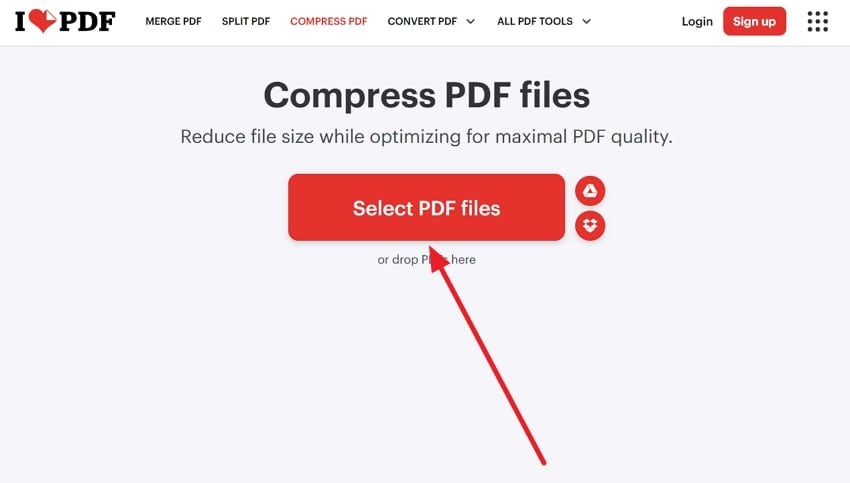
There is more than one online tool that can assist you in compressing your PDF files without compromising the integrity of the internet content. Platforms such as iLovePDF are capable of compressing the size of large PDF files into a manageable size, which you can easily email to your boss. To use this tool in reducing the size of your PDF, following are the simple steps that will assist you:
- Press the "Select PDF Files" button and insert the large PDF into this tool.
- Next, choose one of the “Compression Level,” and hit “Compress PDF.”
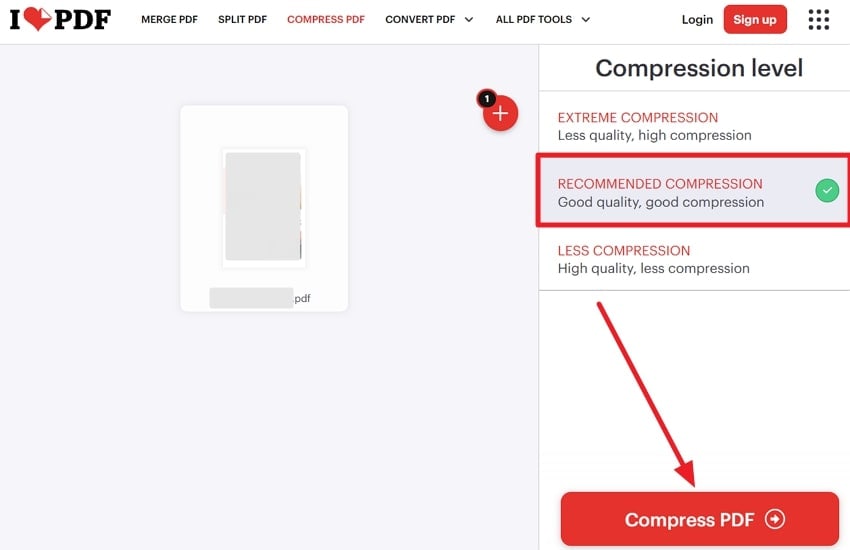
- Wait for it to download the PDF automatically, and if it can't, click the "Download Compressed PDF" button.

3. Adjust Image Resolution in the PDF
As discussed, “pdf file too big for email” is often due to high-quality images, which you can easily reduce. Users can downsample the pictures or their DPI using A-PDF while preserving their display clarity. This technique is ideal when file management is at stake, rather than making your PDF visually appealing. So, follow these steps and learn how to adjust the resolution of the images:
- Install and open the software, and from the main interface, press the “Add” button to choose the large PDF from the dialogue box. After that, click “Settings” to open a small settings menu box.

- From here, check the "Resample Method" section, and choose the way to desample or reduce the resolution of the PDF image. When the changes are made, like the DPI, hit the "OK" button.

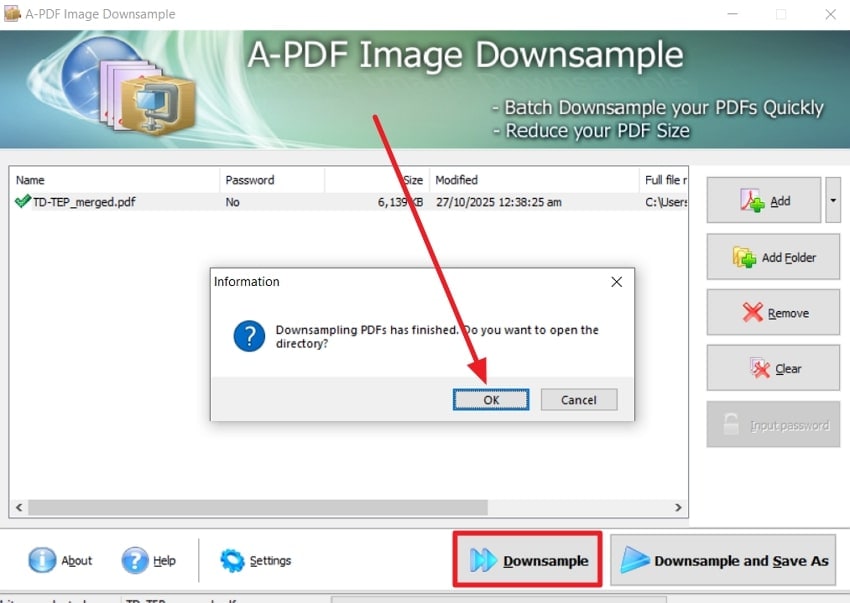
- Press the “Downsample” button, and click “OK” when the small dialogue appears after desampling.
4. Remove Unused Objects and Metadata
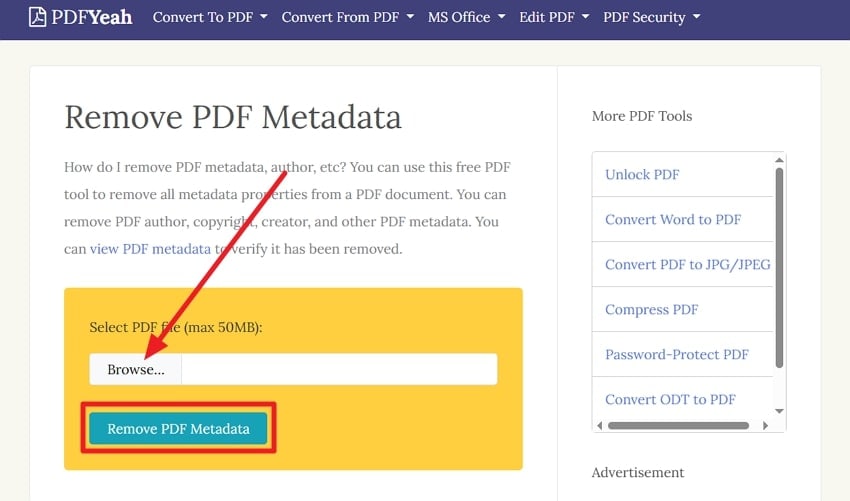
If your PDF is filled with extra data, like bookmarks, annotations, and private metadata, you can experience a large file problem. The solution is here to remove these cluttered elements to reduce the unnecessary bulk using tools like PDFyeah, which is free, protected, and offers a 2-step method. Furthermore, if users want to ensure that only the relevant data stays in their PDF, follow these steps:
- Click the “Browse” button within the “Select PDF File” box and press the “Remove PDF Metadata” button to begin.
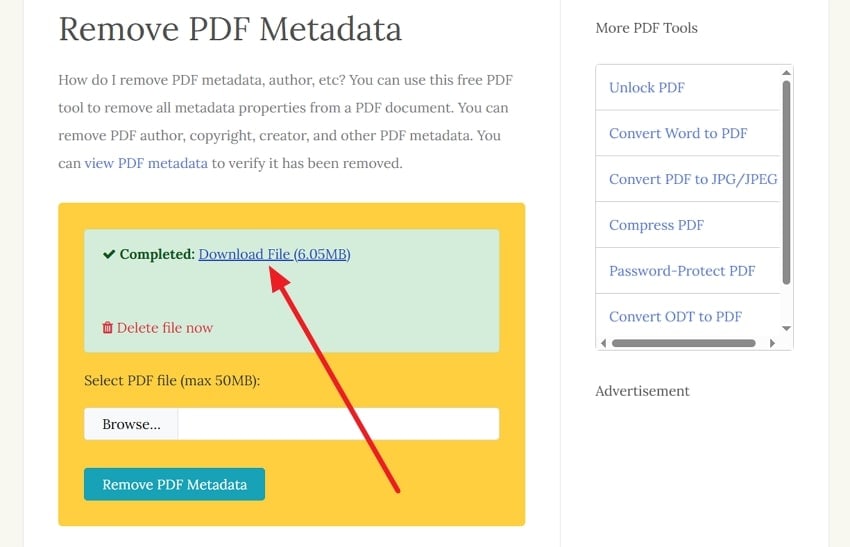
- When the metadata is removed, press "Download File" to save the PDF on your device.
5. Split the PDF into Smaller Parts
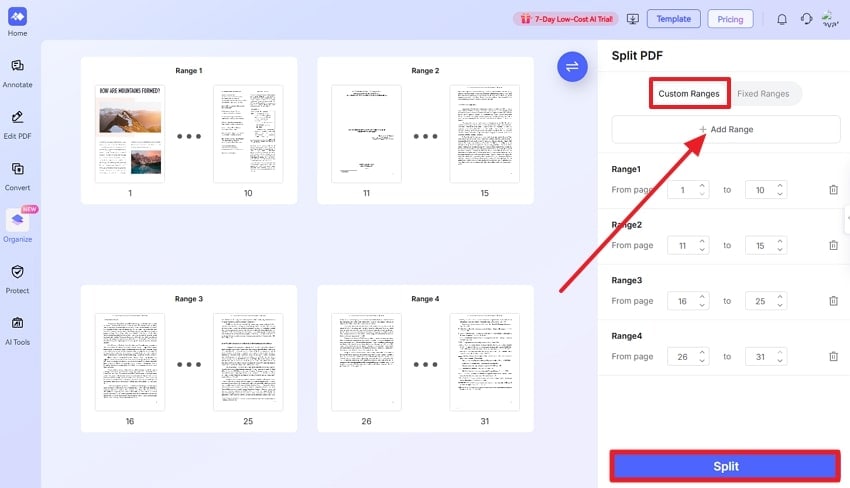
In case you feel that compressing or removing metadata is not enough, split the PDF into smaller sections and manage your email. Therefore, to solve the "pdf too large to email" issue, use an online tool or software, like HiPDF, to split your file by choosing how many pages to split it into. You can even extract, rotate, and add other files to your PDF split, as demonstrated in the following steps:
- Within this website, press the “Choose Files” button, and upload the desired PDF file.

- After the PDF is uploaded, access the "Custom Ranges" tab, click the "+ Add Range" button, and continue to click the "Split" button.
- Next, when the PDF is complete, hit the "Download" button to save it.

6. Convert the PDF to a ZIP File
There may be a case where you can compress your massive PDFs into smaller files by zipping them without any content loss. The users would be in a position to test different software, including WinRAR, which would give them the opportunity to compress, encrypt, and so on. At this point, we shall proceed with the instructions provided on how to convert a big PDF into a ZIP file:
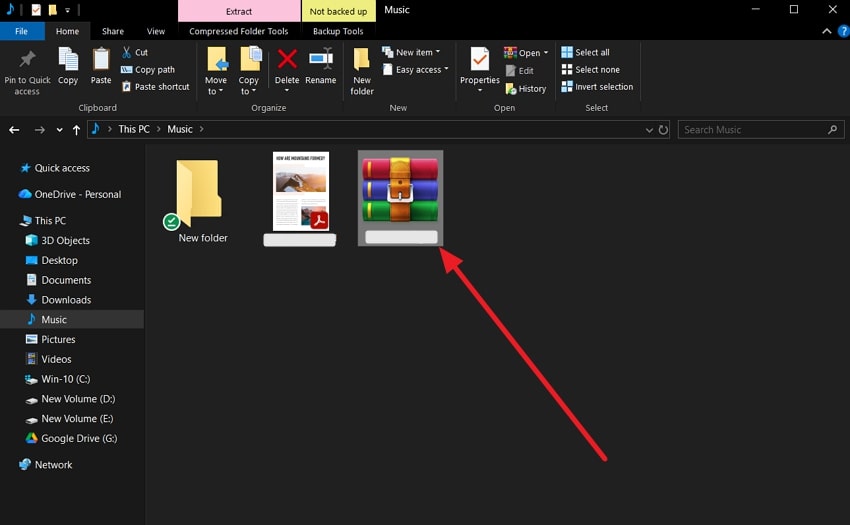
- After you install the software, it’ll automatically get integrated with your File Explorer. Go find the file, right-click on it, and choose “Add to [file name].”

- When the PDF is zipped, you can drag it onto the email site and send it.
7. Upload to a Cloud Storage Service
One of the simplest and efficient methods to solve the “pdf file too large to email" issue is to use one of your Cloud solutions, like Google Drive. It lets you upload large PDFs and share a downloadable link instead of attachments, which helps you email your PDF. Follow the given guidelines and upload a large PDF through the service:
- Go to your Google Drive platform on any browser, press the “New” button, and select the “File Upload” option to insert the PDF.

- When the PDF is uploaded, press the three vertical dots, expand the “Share” option, and click “Share.”
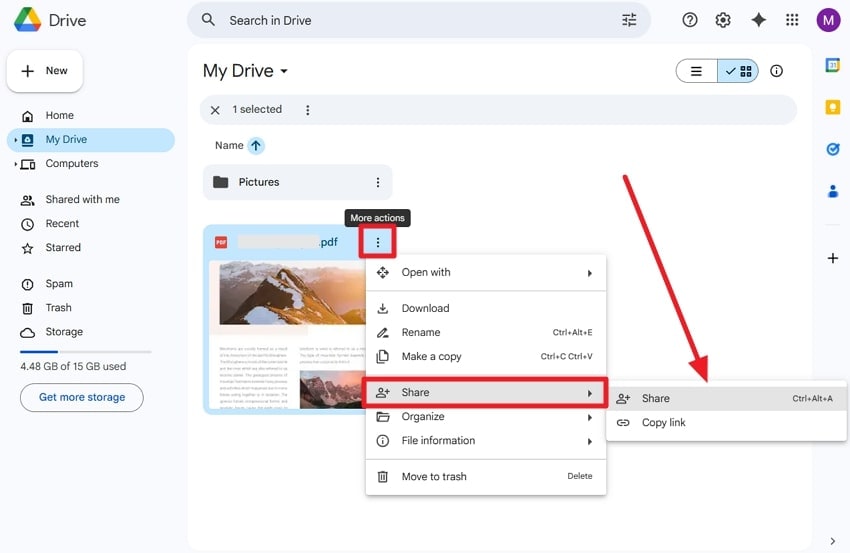
- In the open dialogue box, hit the "Add People, Groups, Spaces, and Calendar Events" box.

- Now, add an email, change the “Editor” choices, and press “Send.”

8. Use Large File‑Transfer Platforms
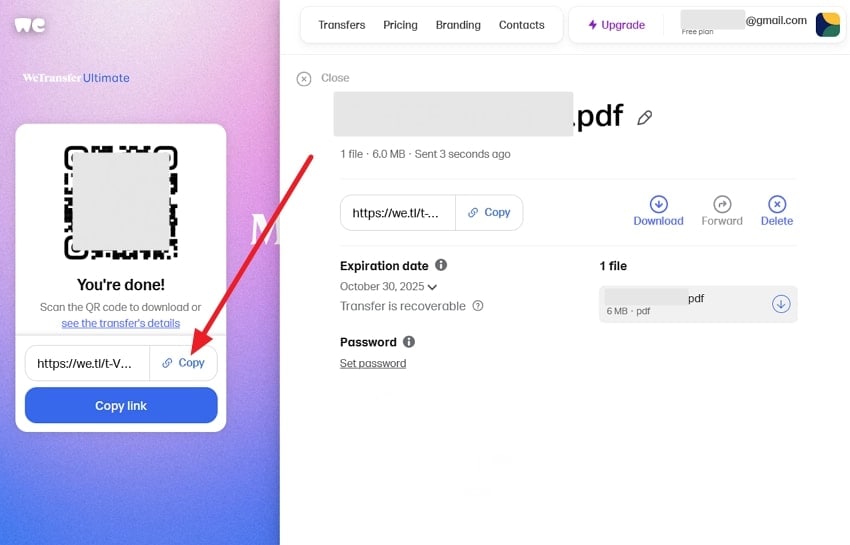
There are multiple file transferring tools, like WeTransfer, which can help you add any size of PDF and even folders of them. It lets you add a message, set accessibility limits from 1 day to forever, and provide you with a link or let you directly send it by email. The steps are provided in the following, which guide you on how to transfer large PDF files:
- From the WeTransfer website, click “Add Files” to upload your large PDF.

- Next, set an accessibility limit, press the three horizontal dots, and make desired changes. After that, click the "Get Link" button to start the transfer.

- Afterward, when the link is created, press "Copy," and attach it to the email.
9. Use Specialized Lightweight PDF Tools
Another method for “pdf file is too big to email” is to try a dedicated PDF optimization software, such as Wondershare PDFelement. Besides that, Wondershare also offers an online PDF management software in the form of HiPDF, which offers reliable features. You can either compress the PDF, adjust the image resolution, or make your file manageable to send via an email application.
Pro Tip: How to Safely Restore Lost PDF Files Using Recoverit - Simple Steps!
Sometimes your PDF files may be lost or accidentally deleted on your computer, which can interfere with the entire process. It is the reason why a stable PDF recovery software like Recoverit is needed. This tool supports over 1,000 file formats, allowing you to recover from any lost situation. Its advanced scanning technology is able to restore files without any content missing seamlessly.
Users can expect a high file recovery rate with everything intact, like videos, pictures, tables, and more. Not only that, Recoverit supports lost PDF data from over 1M different storage devices under the Linux, Mac, and Windows operating systems. You can preview each PDF page after the file has been found to ensure the content is fully recovered.
Key Features
- Recovery Modes: It has various recovery modes, such as the quick scan and deep scan, which can easily recover deleted or corrupted PDFs efficiently.
- High Success Rate: The software has a 99.5% success rate of restoring the lost PDFs without affecting the file integrity and quality.
- Filter Options: To reduce the search results, use filters to select specific file names and more to find the PDF faster.
Comprehensive Guide on How to Recover Lost PDF Files using Recoverit
Now, go through the following easy steps and learn how this tool can efficiently recover accidentally lost PDF files:
1. Choose a Starting Location for Scanning
Open the "Hard Drives and Locations" tab and, from under the "Select a Location to Start Recovery" section, pick one location to initiate the scanning.

2. Scanning through Location
When the scanning starts, all the lost data will appear on the left “File Location” file tab, where you can open the “PDF” section.

3. Preview and Recovery Lost PDF File
Once the desired PDF files are found, select them, preview them, and hit the “Recover” button.

Part 3. Tips to Prevent PDF Files From Becoming Too Large
Users can easily avoid the “pdf too large to email" problem if they follow these points and understand how to do it:
- Scan When Necessary: You should not scan the PDF as its size is significantly larger, which is why you should try exporting it as Word, Excel, or other formats.
- Use Optimized Saves: There are various optimized PDF editors that you should use for large PDFs, as they offer "Save as Reduced Size PDF" options.
- Limit Image Resolution: Users should aim for 150 DPI resolution for images in their documents, and also apply lossy JPEG compression to them.
- Unembed Fonts: Ensure that there are fewer embedded or subset fonts in your PDF to balance quality and size.
- Remove Hidden Data: To avoid a large PDF, delete metadata, thumbnails, and form field layers before saving, as they can make your file larger and unbalanced.
Conclusion
In summary, this article portrayed why users experience the “pdf too large to email" issue and offered various tips to deal with that. Along with that, you looked at the best 9 solutions with their step-by-step guides on how to fix this large PDF problem. Moreover, if for some technical or human error, you lost your precious PDF files, try the ultimate PDF recovery software, Recoverit.
FAQ
-
1. Are PDF compressors safe to use?
You are to have good online PDF compressors that are able to encode your uploads safely and do not store files any longer than is required. Hence, to secure your privacy of data, always utilize the services of a good reputation, like Gmail, Hotmail, etc. -
2. What if my PDF is still too large after compression?
Users can try a stronger compression level using online or offline tools or try splitting the PDF into parts for better PDF management. Alternatively, you can upload their PDF document to a cloud or file transfer service for easy sharing later. -
3. What’s the best tool to safely restore the permanently lost data file?
The best and most efficient tool you can use to restore lost PDF data files is Wondershare Recoverit, with a 99.5% success recovery rate. Moreover, it collects all the missing data in an organized manner, and you can search or filter the scan to narrow it down.


