
 TL;DR:
If you accidentally deleted your Macintosh HD, your Mac will fail to boot due to missing core system files, but you can revive it by reinstalling the operating system via Recovery Mode and retrieving your data using existing backups or recovery software.
● To rebuild the erased system partition, boot into macOS Recovery—using "Command + R" for Intel Macs or holding the Power button for Apple Silicon Macs—and select "Reinstall macOS" targeting the main drive.
● If you maintain external backups, utilize the Migration Assistant during the fresh macOS setup to transfer your apps, configurations, and personal files directly from a Time Machine drive.
● If no backup is available, you must rely on third-party data recovery software like Recoverit to scan the erased volume and extract lost files before the drive is overwritten.
Ask AI for a summary
 ChatGPT
 Perplexity
 Gemini
 Claude
 Grok
Grok
Accidental deletion of Macintosh HD can cause worry, but recovery is still possible. The drive stores macOS files, apps, and user data, so swift action is helpful. With the right steps, you can recover your system, rescue your data, and avoid a full reinstall. This guide helps you understand what happens when the main drive disappears and how to restore everything safely.
Thus, review the listed fixes with a detailed guide for accidentally deleted macintosh hd. Learn how to take control and recover your Mac data after deleting Macintosh HD.
Try Recoverit to Perform Macintosh HD Data Recovery
 Security Verified. 3,591,664 people have downloaded it.
In this article

Part 1. What Happens When You Accidentally Deleted Macintosh HD?
For users who face issues like “I accidentally deleted macintosh hd,” they might worry if it removed everything or not. Well, Disk Utility erases everything on the hard drive once you choose the “Erase” option. It removes all files, apps, and system data from the selected drive. After that, the drive becomes empty and ready for a new setup or installation.
After getting the question for deletion, here are some after effects you face when you accidentally delete Macintosh HD:
- Loss of System Files: When Macintosh HD gets deleted, your Mac loses the core system files that help it run. Without these files, the operating system fails to load or start.
- Data Disappears: All personal files, apps, and user settings stored on the drive vanish instantly. The deleted partition removes both stored work and important configurations.
- Boot Failure: Your Mac fails to start and may show a question mark folder or a black screen. This means the system cannot find a valid startup disk anymore.
- Access to Drive Stops: The drive no longer appears in Finder or Disk Utility as a normal volume. You cannot open or read anything because the structure of the drive is lost.
- Recovery Becomes Needed: You must use macOS Recovery, Time Machine, or recovery tools to fix the issue. These options help rebuild the system or restore deleted data safely.
Part 2. Warning Signs of Accidentally Deleted Macintosh HD?
If you have accidentally removed macintosh hd and haven’t yet, here are some signs you can look for:
| Warning Sign | Description |
|---|---|
| Mac won't boot or is stuck at the Apple logo | System fails to load macOS due to a missing boot partition |
| Disk Utility shows missing or grayed-out Macintosh HD | The main drive is invisible, missing, or marked as inaccessible in Disk Utility |
| Data and files are missing | User files, apps, and personal data are suddenly not available or have disappeared |
| "No startup disk found" or similar errors | Error messages during boot indicate the absence of an essential partition |
| Mac restarts/fails repeatedly during startup | The Mac may display crashing, reboot loops, or freezing if the boot partition is gone |
Part 3. 6 Methods to Fix Accidentally Deleted Macintosh HD
To know how you can resolve the accidentally deleted mac hd issue in simple steps, review this section. Here, you will learn about 6 simple solutions, each with a detailed guide to help you determine which one is effective.
1. Use Disk Utility to Restore
Disk Utility can restore your Mac after the accidental deletion of Macintosh HD. It brings back the exact system from a backup or disk image, so all system files are restored. The process stays fast and reliable and makes your Mac start normally. If the backup has user data and settings, Disk Utility restores files, apps, and configurations with the OS. It is a built-in tool, so no third-party software is needed, as guided:
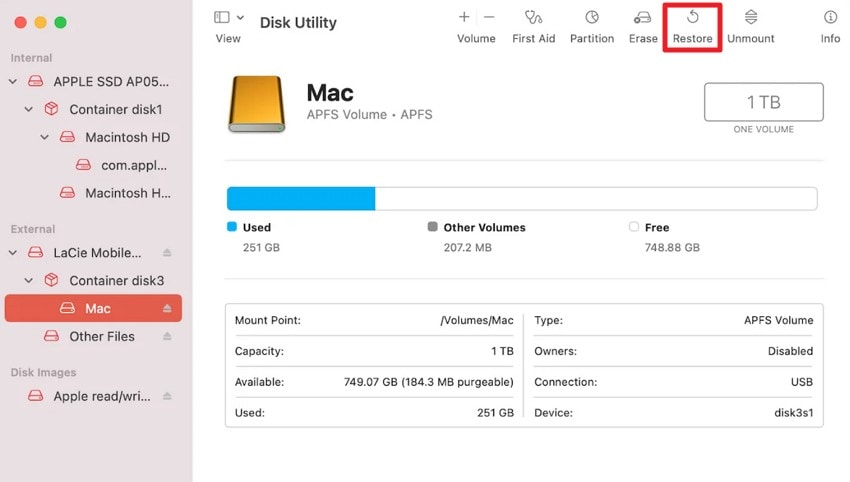
- When you open Disk Utility, select the drive you want to restore from the left sidebar. Upon doing so, select the “Restore” option from the top toolbar.
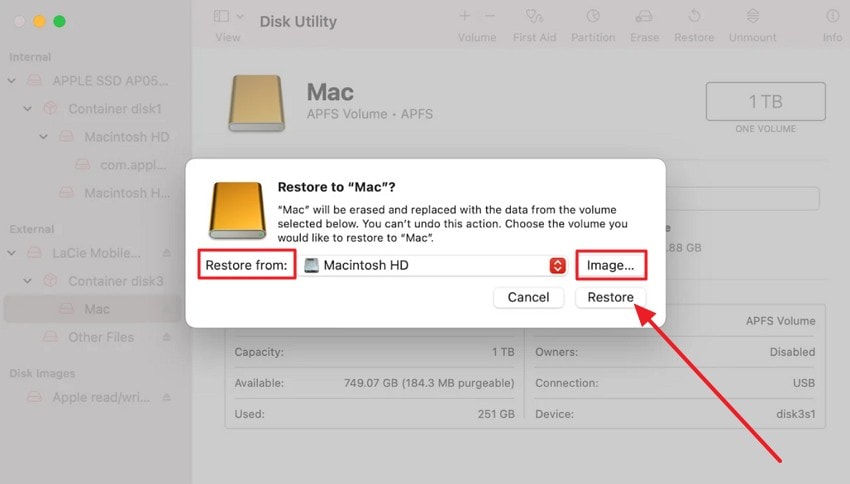
- In the pop-up menu, expand the “Restore From” menu to select the volume you want to recover. You can also click the “Image” button to use a DMG file instead. After that, pick the “Restore” button to commence the recovery process.
2. Reinstall macOS and Recover from Backup
To fix the accidentally deleted macintosh hd in disk utility issue, reinstall macOS and restore from a backup. This process returns all system files and the operating system so the Mac can start normally. The method uses Apple-supported tools like Recovery Mode and Time Machine, which are safe and reliable. You can also choose a fresh macOS installation and restore only the data and apps, as illustrated:
- Use Time Machine or another backup method to save all important files before starting. Turn off your Mac completely before starting the reinstall process.
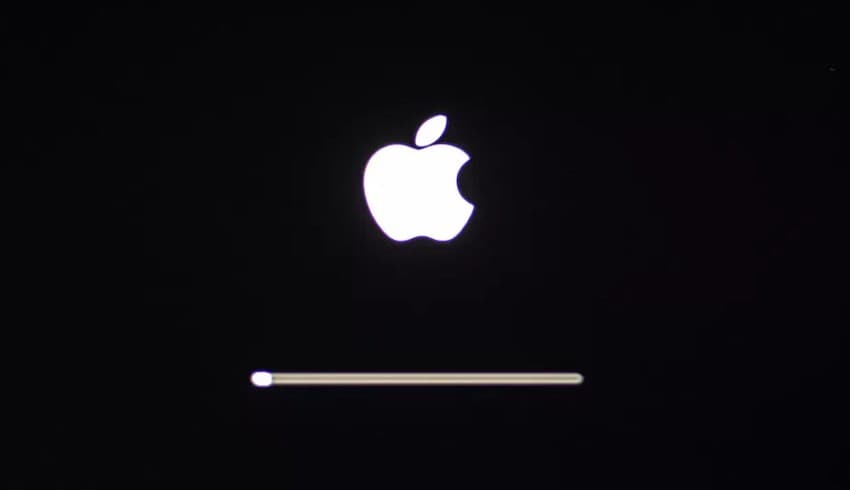
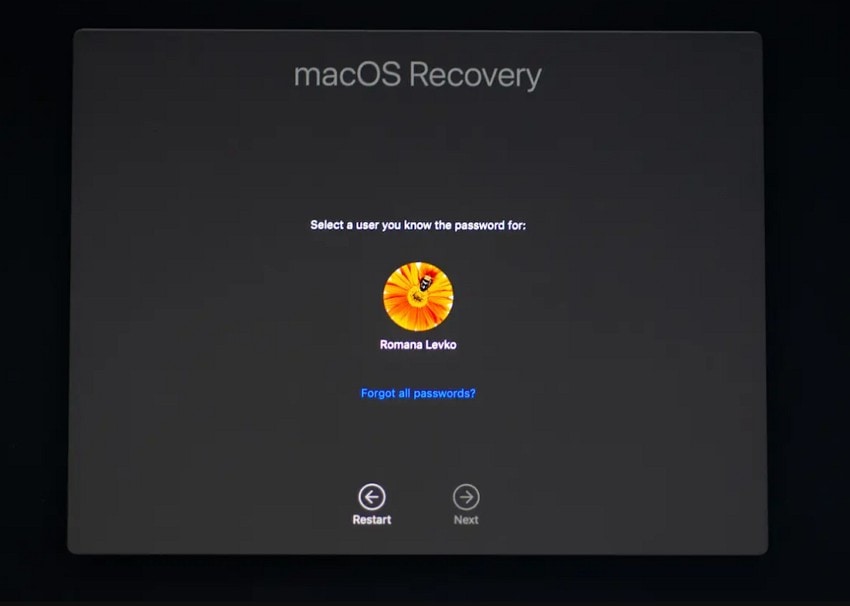
- For Intel Macs: Press the “Command + R” buttons while turning on the Mac.
- For Apple Silicon Macs: Hold the “Power” button until the startup options appear, then select “Options.”
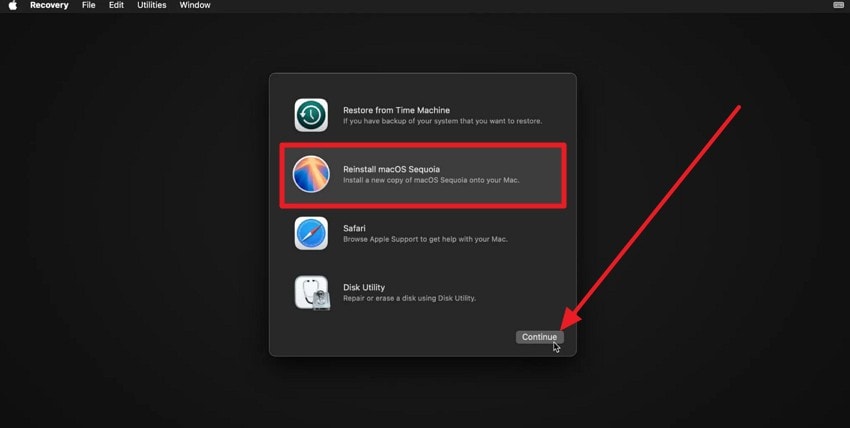
- In the Recovery window, select the “Reinstall macOS..” option and click the “Continue” button.
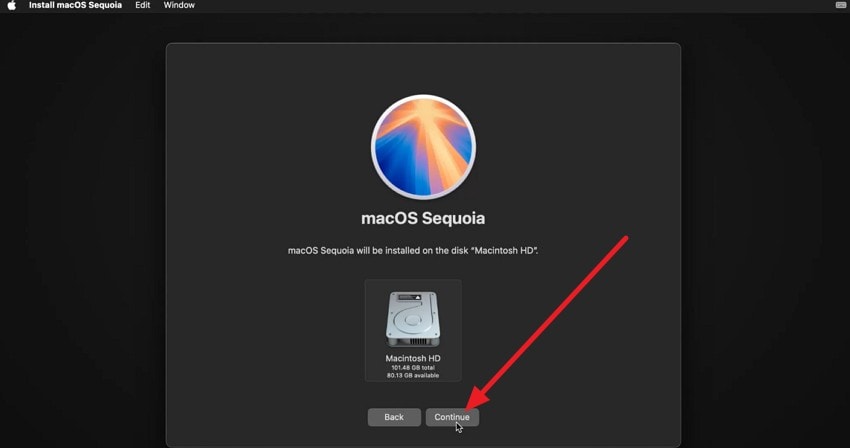
- Select the Macintosh HD or the main system drive where you want to install macOS. Now, follow the on-screen instructions to complete the reinstall by pressing the “Continue” button.
Recover Files from Time Machine
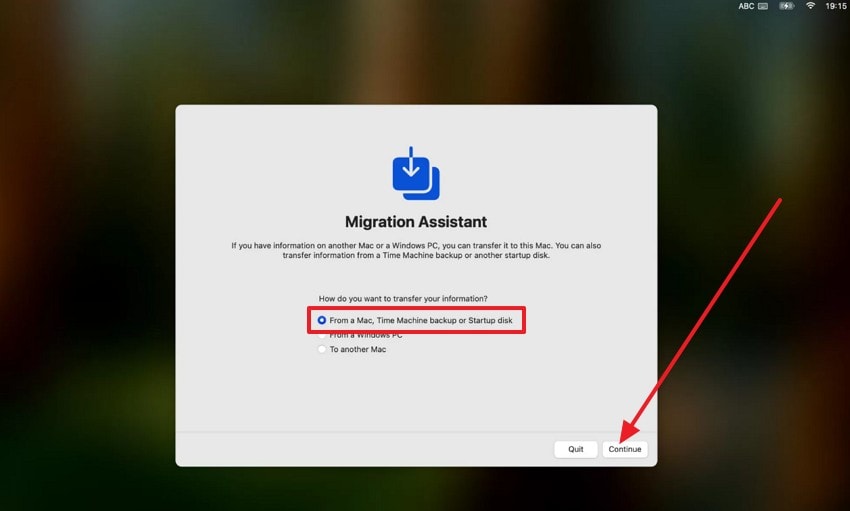
- After installation, use Time Machine or your backup to restore apps, files, and settings. During the first setup after reinstalling macOS, Migration Assistant will ask if you want to move data. Choose the “Transfer from a Time Machine Backup or Startup Disk” option and hit the “Continue” button.
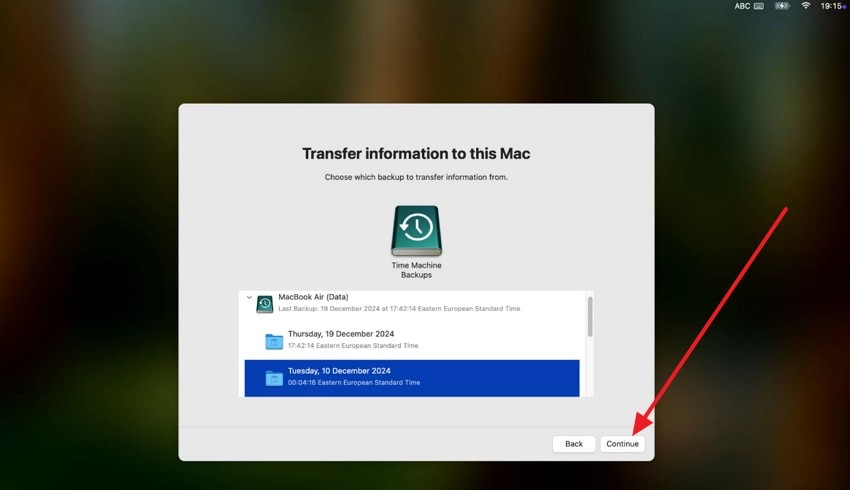
- Select your backup drive, choose the most recent backup or the specific backup you want to restore, then click the “Continue” button.
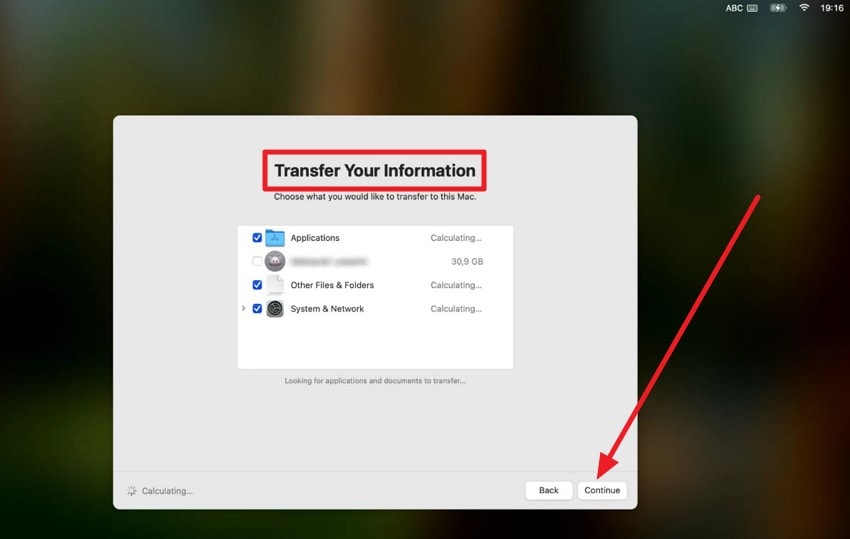
- On the “Transfer Your Information” screen, choose the data types you seek to restore and pick the “Continue” button for the recovery to complete.
3. Use Professional Data Recovery Software - Recoverit
For users who question, “I accidentally deleted macintosh hd, and how can I restore it?” try the innovative data recovery software. Recoverit is the industry’s first AI data recovery solution that supports precise identification of 1 million devices and handles 10,000+ data loss scenarios. From Mac data recovery to External Hard Drive Recovery, the tool handles all and requires zero technical skills.
Additionally, the tool supports the Quick Scan option to recover lost data. In situations where Quick Scan fails, users can try the Deep Scan facility to easily restore the lost data on a Mac. You just have to determine the lost data location, and the tool handles the rest, restoring data in 3 simple steps. So, all these facilities make this tool an ideal option for both professionals and beginners.
Key Features
- Pinpoint Files During the Scanning: The tool comes with various File filters that enable users to pick the desired data during the scanning.
- Pause or Stop the Scanning: Recoverit allows users to pause and resume the scanning process when needed to pay heed to other tasks.
- Preview The Recovered Files: You can also preview the restored data on a Mac to determine if it's worth saving to the device.
Guide to Recover Data From Accidentally Deleted Macintosh HD with Recoverit
To know how you can restore data from an erased hard drive, review the listed steps for Recoverit:
- Access the Tool and Hard Drive or Locations Tab
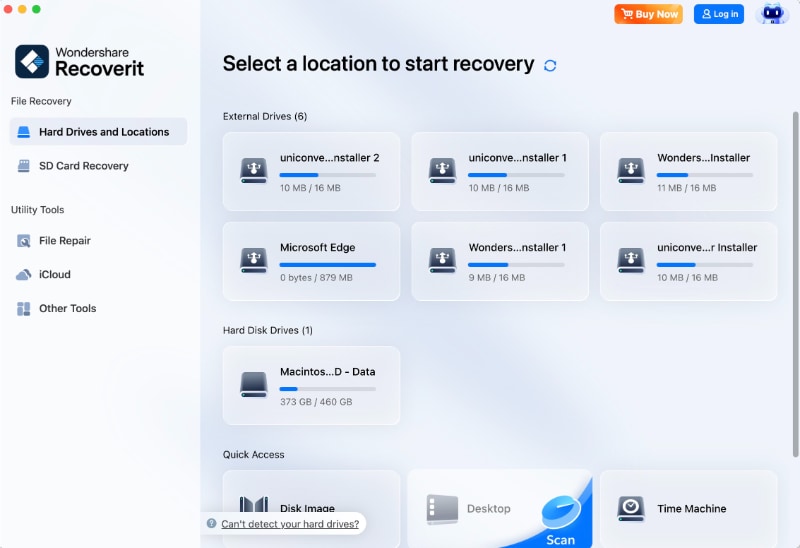
To restore the accidentally deleted mac hd data, head to the “Hard Drive and Locations” tab on Recoverit. There, locate the “External Drive” or “Hard Disk Drivers” location, and pick the exact file path of your lost data.
- Determine the File Size or Location while Quick Scanning
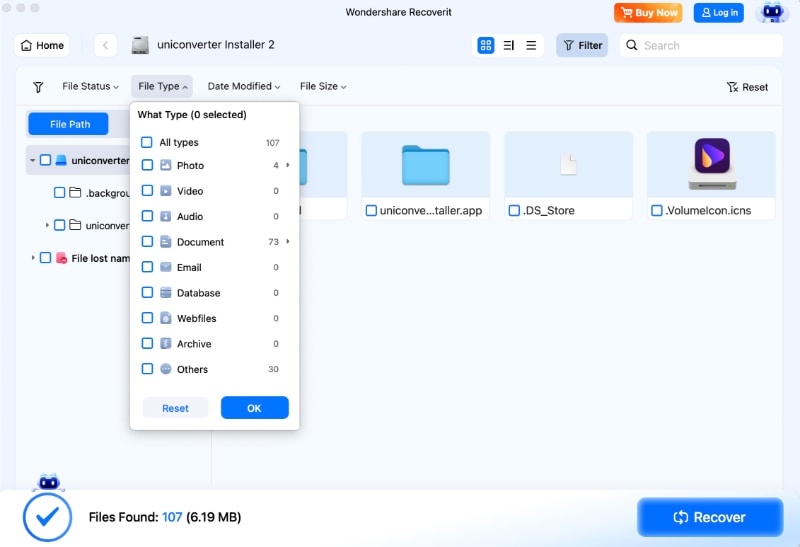
The tool will start the scanning process, which you can resume and pause at any time. You can also select specific files during scanning based on “File Size” or “Date Modified” Status.
- Preview the Restored Data and Save it to Mac
Once you have the desired restored data, preview it, then press the “Restore” button to save it on the Mac.

4. Recover Erased Macintosh HD from Time Machine Backup
To deal with the “accidentally removed macintosh hd” issue, recover a deleted Macintosh HD from a Time Machine backup. Time Machine restores documents, apps, settings, and system files to return your Mac to a working state. The process is simple and guided, and you can select files, folders, or the whole system from a backup timeline.
To return your entire Mac to its state before deletion, follow the steps given in Fix 2 for “Recover Files from Time Machine.” However, if you want to restore only specific folders from your Time Machine backup, follow these steps:
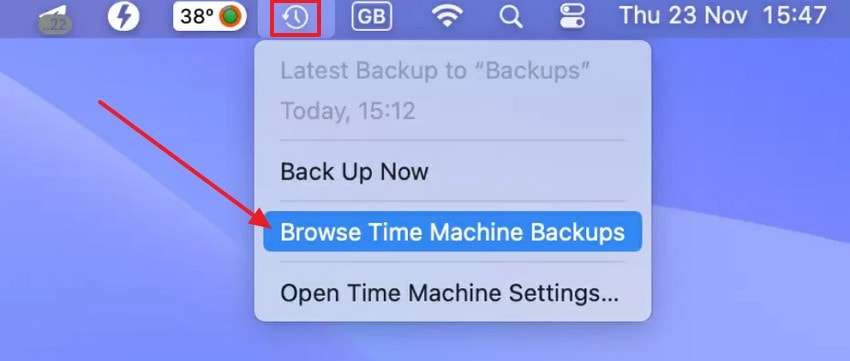
- Click the “Time Machine” icon at the top of your screen and select “Browse Time Machine Backups” from the drop-down menu.
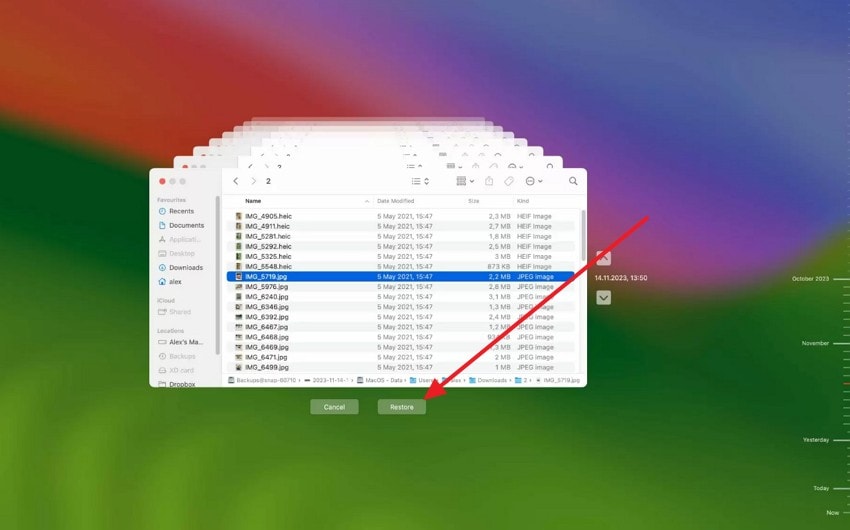
- Use the timeline on the left or the arrows to select the backup version. Select the files or folders you want to recover, then click the “Restore” button to restore them to their original location.
5. Check for Internet Recovery Mode
Internet Recovery Mode helps fix an accidentally deleted mac hd and offers many benefits. Recovery is still possible even if the local recovery partition is missing or corrupted, providing access to repair and installation tools from Apple servers.
macOS can be reinstalled without the use of a USB flash drive or DVD by establishing an internet connection. This mode gives full access to Disk Utility, Time Machine restoration, Safari, and Terminal to facilitate the repair and recovery.
Note: You can follow Fix 2 to reinstall macOS without a USB or DVD drive and recover data using Time Machine.
6. Get Help if Needed
Getting professional help after the accidental deletion of Macintosh HD offers many benefits. Experts use advanced tools to recover system files, apps, and personal data that normal methods cannot reach. They handle drives carefully to prevent further data loss or damage. Professionals have access to specialized software and equipment for repairs beyond home tools.
Part 4. Tips to Prevent Accidentally Deleted Macintosh HD Issue
If you want to bypass the accidentally deleted mac hd issue in the future, follow the listed tips:
- Back Up Your Mac Regularly: Set up automatic backups with Time Machine or a similar tool. This keeps all files, apps, and system settings safe and allows fast recovery if the main disk is deleted.
- Follow the 3-2-1 Backup Rule: Keep three copies of your data on two types of storage. Store one backup offsite, like in the cloud or another location, to protect against failure or theft.
- Avoid Changes to System Partitions: Only modify partitions with Disk Utility or trusted tools when necessary. Always check which volume you select to prevent accidental deletion.
- Protect Disk Utility Access: Always ensures to give administrative privileges only to trusted users. Use passwords or account controls to block access to disk management tools and prevent mistakes.
- Check and Verify Backups: Try to test backups occasionally to confirm data can be restored. Ensure backup jobs complete successfully to avoid surprises in emergencies.
Conclusion
To wrap up, review this guide and learn how you can deal with the accidentally deleted macintosh hd issue and restore the data. For that, adhere to the 6 listed solutions with the detailed guide and learn which one proves to be effective. Ideally, it is recommended to use a data recovery solution like Recoverit if you want a quick and seamless solution.
FAQ
-
1. Is my data permanently lost after deletion?
Data may still exist on the drive and can be restored with proper tools or backup. Permanent loss occurs only if the drive is overwritten or physically damaged beyond repair. -
2. How large is the Macintosh HD partition usually?
The partition size varies by Mac model and storage type, holding tens to hundreds of gigabytes. Newer Macs with larger drives have bigger partitions to store system files, apps, and user data. -
3. Does deletion affect other connected drives?
Only the Macintosh HD partition gets deleted while external drives remain intact and fully accessible. Other drives and partitions are safe unless the user manually selects them for erasure or formatting.


