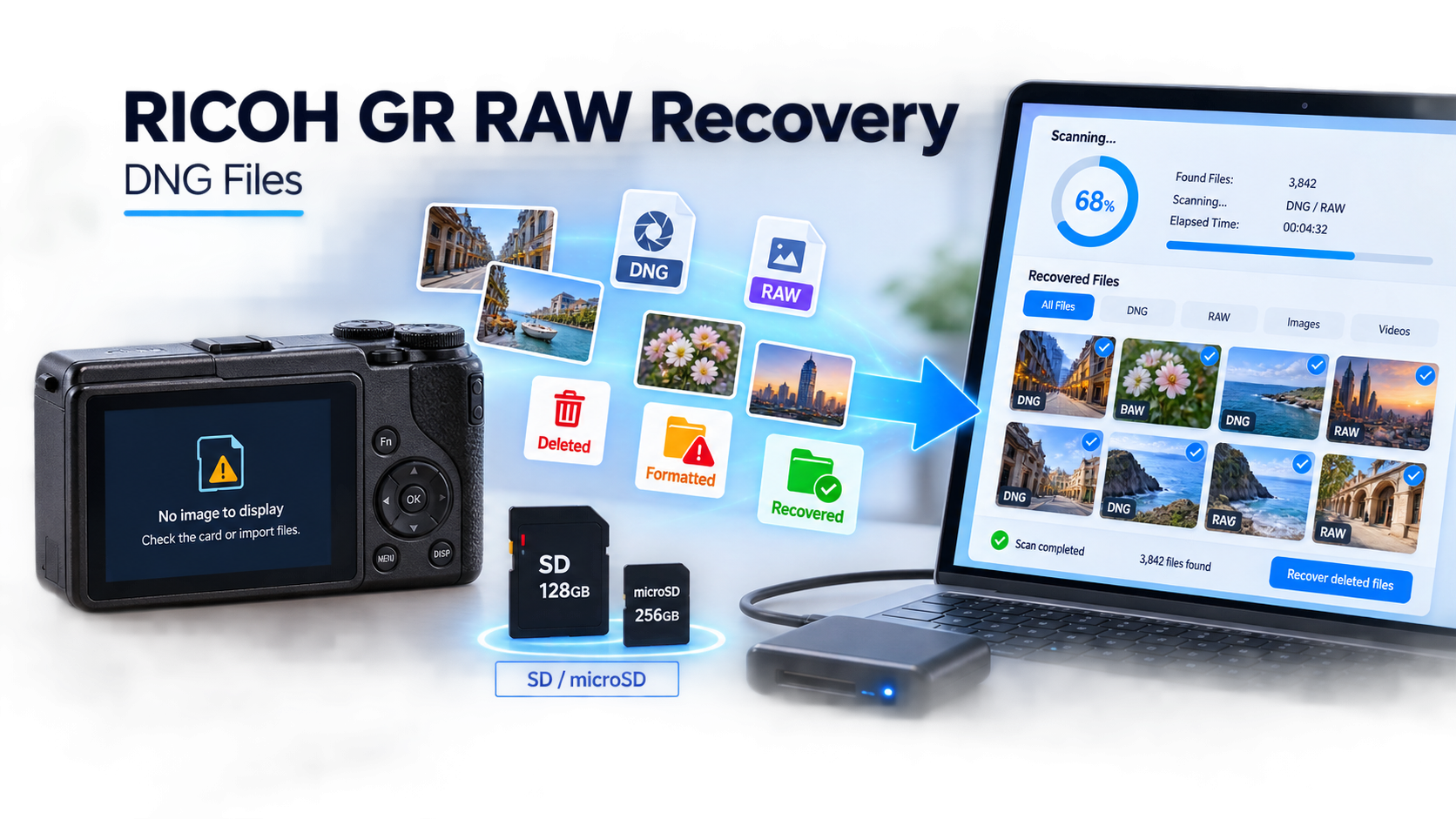
 TL;DR:
Stop using the RICOH GR camera immediately to prevent data overwrite, connect the removable media to a computer via a stable reader, and use data recovery software like Recoverit to scan and save the 14-bit DNG RAW files to a separate destination drive.
● The announced RICOH GR IVx uses microSD cards and approximately 53GB of internal memory, while the GR III/IIIx family uses full-size SD cards and roughly 2GB of internal memory; desktop software can scan these removable cards, but the camera's MTP USB protocol prevents scanning internal memory for deleted files.
● If images display a missing-photo error or exclamation mark in Adobe Lightroom Classic, the DNG files are likely moved or disconnected rather than deleted, requiring the catalog's Locate function to relink the path instead of initiating a card recovery scan.
● A visible thumbnail does not guarantee complete data retrieval because partially overwritten files can still display embedded previews; recovered files must be inspected at full resolution in a compatible RAW editor to verify intact 14-bit DNG decoding.
Ask AI for a summary
 ChatGPT
 Perplexity
 Gemini
 Claude
 Grok
Grok
Quick answer: To recover RICOH GR RAW files from an SD card, stop using the card, connect it through a stable reader, and first check whether the DNG files were merely moved or disconnected from Lightroom. If they are deleted, formatted, or inaccessible, scan the removable card with Recoverit Camera Recovery, filter for DNG images, preview the results, and save them to a computer or external drive—not to the source card.
The RICOH GR III/IIIx family and the announced GR IVx can record 14-bit DNG files, so the RAW file—not a catalog preview or exported JPEG—is the editable original when RAW capture is enabled. Recovery results depend on what happened after deletion, whether new data overwrote the card, and whether the storage device remains readable. No recovery tool can guarantee a file that has been overwritten or a card whose controller no longer presents readable storage.
Fact-checked on September 1, 2026: Camera specifications and release status were checked against RICOH IMAGING. Missing-file behavior was checked against Adobe Lightroom Classic documentation. Recovery links and interfaces were checked against current Wondershare Recoverit pages.
Recover RICOH GR RAW Files With Recoverit
 Security Verified. Over 7,302,189 people have downloaded it.
In This Article
Part 1. What The RICOH GR IVx Announcement Actually Changes
RICOH IMAGING announced development of the RICOH GR IVx on August 27, 2026. The company lists a new 26.1mm F2.8 lens with an approximately 40mm-equivalent angle of view, a 25.74MP APS-C CMOS sensor, 5-axis sensor-shift stabilization, and 14-bit RAW capture in DNG format. RICOH currently plans a winter 2026-or-later release and states that the development specifications may change before launch. The details are available in the official RICOH GR IVx development announcement.
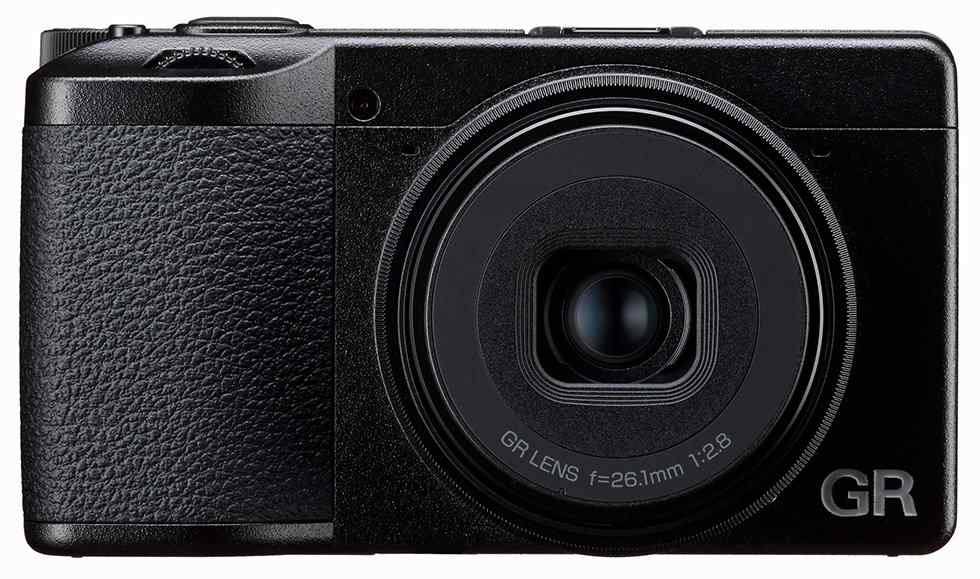
The announcement does not introduce 14-bit DNG to the GR family. Current GR III and GR IIIx cameras already record 14-bit DNG files. The storage change is more relevant to recovery: the published GR IVx specification lists microSD media and much larger internal storage, whereas GR III and GR IIIx cameras use full-size SD cards.
| Official Detail | What It Means | Recovery Relevance |
| 14-bit RAW in DNG format | The camera writes an editable RAW master in addition to JPEG when configured for RAW capture. | Search recovery results for DNG, but verify that the recovered file opens and renders correctly. |
| microSD/microSDHC/microSDXC, UHS-I | The GR IVx development specification uses a smaller removable card than GR IIIx. | Use a compatible microSD reader or adapter and avoid loose, damaged, or counterfeit adapters. |
| About 53GB internal memory | Images may exist inside the camera rather than on the removable card. | A card scan cannot recover files that were stored only in internal memory. |
| GR IIIx-series production expected to conclude with October 2026 shipments | The stated schedule applies to Japan; RICOH says overseas end dates may differ. | It does not change how existing GR IIIx DNG files are recovered. |
The end-of-production note is not a global October discontinuation date. RICOH attributes the expected conclusion to the ending availability of certain parts and explicitly limits that schedule to Japan. Recovery advice should therefore follow the storage device and the symptom, not the camera's retail status.
Part 2. GR IIIx SD Vs GR IVx microSD Storage
“RICOH GR SD card recovery” now describes two physically different card workflows. The current GR III and GR IIIx specifications list SD/SDHC/SDXC UHS-I cards and about 2GB of internal memory. The GR IVx development specification lists microSD/microSDHC/microSDXC UHS-I cards and about 53GB of internal memory.
| Camera | Removable Storage | Internal Memory | RAW Format |
| RICOH GR III / GR IIIx family | Full-size SD, SDHC, or SDXC; UHS-I | About 2GB | DNG, 14-bit |
| RICOH GR IVx under development | microSD, microSDHC, or microSDXC; UHS-I | About 53GB | DNG, 14-bit |
Before scanning, confirm where the missing frame was recorded. A removable card can be attached directly to Windows or macOS and scanned as a storage device. Camera internal memory is different: the GR specification lists USB data transfer as MTP, which does not necessarily expose internal flash as a block device that desktop recovery software can scan. Use the camera's normal playback, Image Copy, or File Transfer functions while the files remain accessible.
Part 3. Diagnose The Symptom Before Recovery
A missing thumbnail does not always mean a deleted DNG. First determine whether the problem is a catalog path, a transfer destination, logical card damage, or a hardware-level failure.
| What You See | What It Usually Means | Best First Action |
| Lightroom Classic shows an exclamation mark or “Photo is missing” | The catalog cannot find the file at its recorded path. The DNG may still exist elsewhere. | Reconnect the drive and use Locate before running recovery software. |
| The card opens, but selected DNG files were deleted | Directory entries were removed while some file data may remain. | Stop using the card and scan it. Save results elsewhere. |
| The camera asks to format the card | The camera cannot mount or trust the current file system. | Do not accept the prompt if photos matter. Connect the card to a reader and recover first. |
| Windows shows RAW or Disk Management shows unallocated space | The file system or partition metadata is damaged. | Scan before CHKDSK, partition creation, or formatting. |
| The card appears in one reader but not another | The reader, adapter, port, or card contacts may be unstable. | Use the most stable direct connection and minimize repeated tests. |
| No camera, reader, Disk Management, or Disk Utility detects the card | The controller, contacts, or flash hardware may have failed. | Stop DIY attempts for valuable photos and consult a flash-recovery specialist. |
| The DNG file exists but does not render in one editor | The app may lack support, the transfer may be incomplete, or the file may be corrupt. | Copy the file safely, test it in a current DNG-compatible application, and compare its size with neighboring files. |
If a DNG exists at a normal size but will not open, that is not the same as a missing-file recovery case. Keep the original untouched and work on a copy. The DNG file guide explains compatible viewers and DNG recovery boundaries.
Part 4. Protect The Source Before Any Recovery Attempt
Every new write can reuse space that belonged to a deleted photo. The safest response is to preserve the source exactly as it is and recover to another device.
- Turn Off The Camera: Stop shooting as soon as you notice missing files, an import failure, or a format prompt.
- Remove The Removable Card: Use the camera's power-off procedure before ejecting SD or microSD media.
- Lock A Full-Size SD Card If Available: Slide the adapter's lock tab to reduce accidental writes. This is a host-level safeguard, not encryption. A bare microSD card has no lock switch.
- Use A Stable Reader: Connect the card directly through a compatible reader. Avoid a loose adapter, unpowered hub, or repeated camera reconnections.
- Decline Repair And Format Prompts: Do not initialize, format, create a new partition, run CHKDSK, or run Disk Utility First Aid before copying or recovering important files.
- Prepare A Different Destination: Recovered files must go to a computer, external SSD, or another healthy drive—not back to the RICOH card.
If the card disconnects during reads, becomes unusually hot, reports a wildly incorrect capacity, or produces increasing I/O errors, stop scanning. Repeated full-card reads can place additional stress on failing hardware.
Part 5. Recover Photos Missing After Import
Start with the least invasive explanation. Lightroom Classic stores catalog references; it does not embed every original DNG inside the catalog. If a file or folder is moved, renamed, disconnected, or assigned a different drive letter outside Lightroom, the catalog can lose the path even though the photo still exists.
Method 1. Relink A Missing DNG In Lightroom Classic
Use this method when Lightroom Classic displays an exclamation mark on a photo or a question mark on a folder. Adobe's current missing-photo guidance recommends locating the original file rather than reimporting it.
- Reconnect the external drive that contains the photo and confirm that it uses the expected drive letter or volume name.
- In Lightroom Classic, choose Library > Find All Missing Photos to collect missing items.
- Click the exclamation icon on a missing image, then click Locate.
- Navigate to the actual DNG file and select it. Enable Find nearby missing photos when other files from the same folder were moved together.
- If an entire folder is missing, right-click the folder in the Folders panel and choose Find Missing Folder.
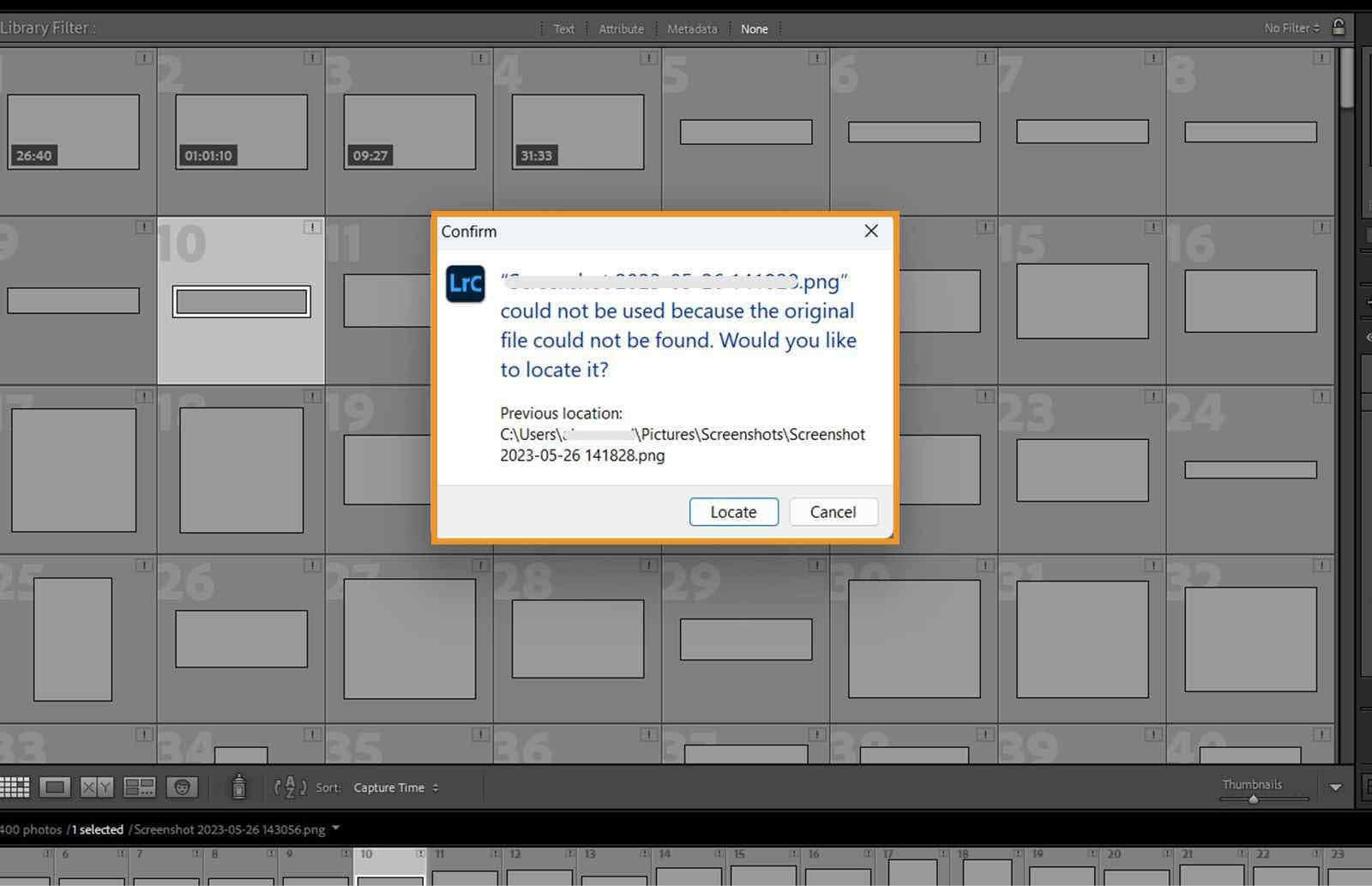
Relinking is preferable when the original exists because it preserves the catalog's edits, flags, ratings, and collection relationships. Do not delete the catalog entry and reimport the file unless you have a separate reason to rebuild that catalog relationship.
Method 2. Check The Import Destination And Source Card
If Lightroom has no record of the shoot, check both sides of the transfer before scanning anything. Adobe's camera and card-reader import workflow states that Lightroom Classic copies photos from a camera card to the chosen destination; Add and Move are not available for that source type. A normal card import therefore should not remove originals from the card.
- Open the destination selected during import and search for *.dng. Sort by capture date or modified date rather than relying only on folder names.
- Check any second external drive, Pictures folder, date-based folder, or custom destination used by the import preset.
- Reconnect the original RICOH card in read-only mode where possible and inspect its DCIM folders without moving or renaming files.
- Open several files from the destination and confirm they are full DNG originals, not previews, Smart Previews, or exported JPEGs.
- If the DNG files are absent from both the destination and source, stop using the card and continue to card recovery.
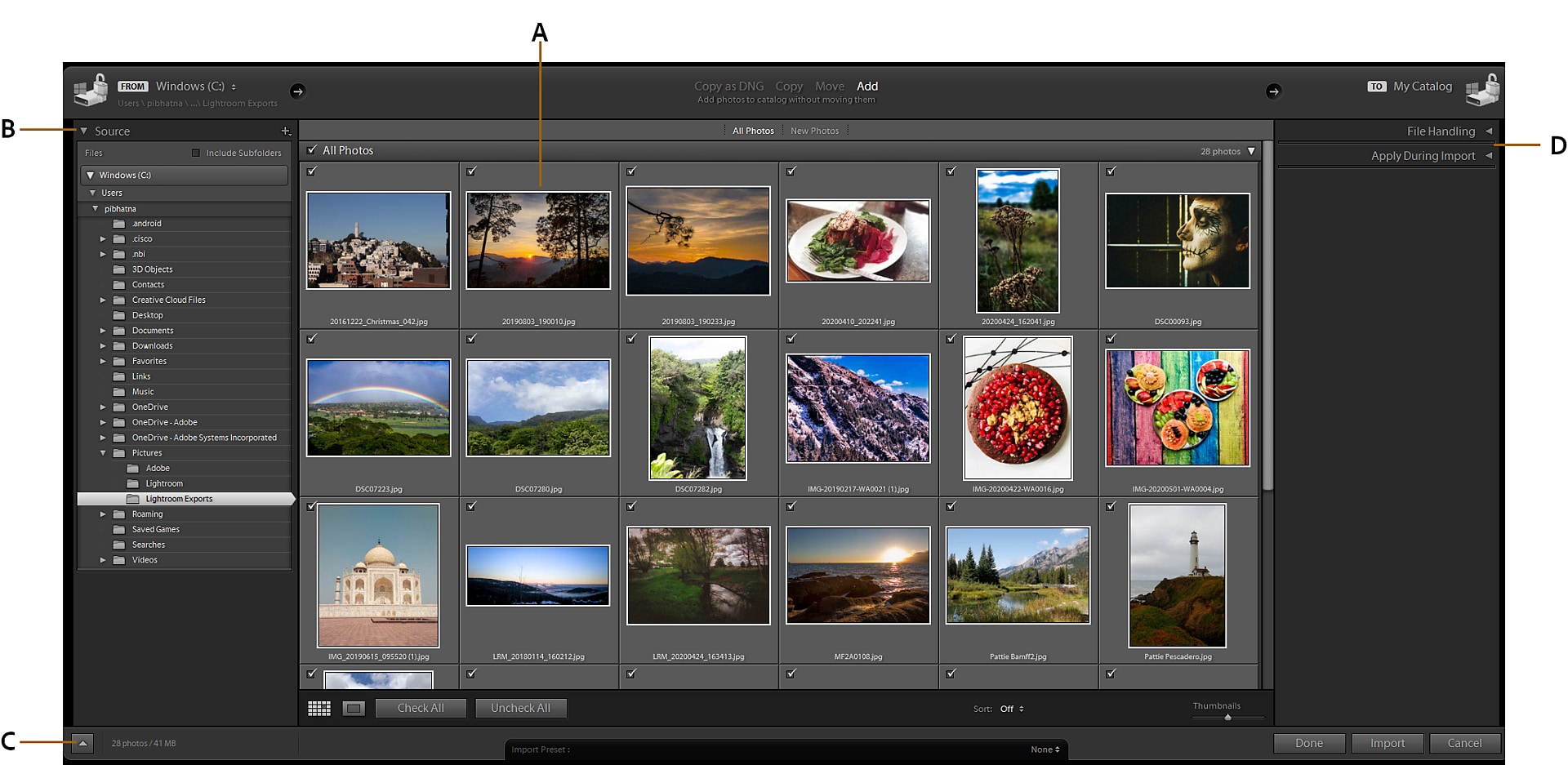
Do not repeat the import into the same destination until you know what happened. A second transfer can create duplicates and make diagnosis harder; shooting new photos on the source card creates the more serious risk of overwrite.
Part 6. Recover Deleted Or Formatted RICOH DNG Files
Use recovery software when the removable card is visible to the operating system but the DNG files are deleted, missing after a failed transfer, inaccessible after a quick format, or hidden behind damaged file-system metadata. Recoverit supports DNG scanning and lets you filter and preview discovered files before saving them.
Method 3. Recover RICOH GR RAW Files With Recoverit

- Connect The Card: Insert the GR III/IIIx SD card or GR IVx microSD card into a compatible reader. Close any format or repair prompt from Windows or macOS.

- Select And Scan The Removable Device: Open Recoverit, identify the card by its capacity and device name, and start the scan. Do not select the computer's system drive by mistake.

- Filter For DNG And Relevant Dates: Use file type, name, size, and date filters to narrow the results. Check reconstructed or lost-file locations when the original folder tree is damaged.
- Preview Before Recovery: Preview supported photos and compare several files from the same shoot. A visible preview is useful evidence, but final validation still requires opening the recovered DNG in a compatible RAW editor.

- Recover To Another Drive: Select the needed DNG and JPEG files, click Recover, and choose the computer or a separate external drive. Never save to the source card.
- Keep The Source Untouched: Do not format or reuse the card until recovered files have been opened, checked, and backed up in at least two places.
Recover RICOH GR RAW Files With Recoverit
Security Verified. Over 7,302,189 people have downloaded it.
A scan may return original filenames and folders when enough file-system metadata survives. After a format or severe directory loss, files may instead be grouped by type or reconstructed with new names. If the folder hierarchy is important, review the folder-structure recovery guide, but do not assume every damaged directory can be rebuilt.
If the RICOH card was already formatted, keep it out of the camera and do not take test shots. The formatted SD card recovery guide explains how quick and overwrite-style formats change the next decision without promising that every formatted file remains recoverable.
Part 7. Handle RAW, Unallocated, Or Unreadable Cards Safely
“RAW” in Windows Disk Management describes an unreadable or unrecognized file system; it is not the same as a RICOH DNG RAW photo. An unallocated card has no usable partition mapped in the current partition table. Both conditions can hide files that still exist in addressable sectors.
| System Status | Can Software Scan It? | Safe Sequence |
| Card mounts and opens | Usually yes | Copy readable files first, then scan for missing DNG files. |
| Card has a device entry but no drive letter or mount point | Possibly, if the physical device is visible | Scan the physical removable device before creating a partition or assigning changes that write metadata. |
| File system appears as RAW | Possibly | Recover first. Use the RAW SD card guide only after protecting data. |
| Space appears unallocated | Possibly | Scan before initializing or creating a new volume. See unallocated storage recovery. |
| Card is absent from system storage tools | No | Test one known-good reader and port. If still absent, stop and seek professional hardware recovery. |
Do not run CHKDSK, First Aid, partition repair, or format merely to make the card mount before recovery. Those tools are designed to change file-system structures, not preserve deleted evidence. After important files are safe, you can decide whether to reformat the card in the camera, test it, or replace it.
Part 8. Recover Files From RICOH GR Internal Memory
Internal memory requires a different decision because it cannot be removed and inserted into a card reader. The published GR IVx development specification lists about 53GB of internal memory and supports Image Copy and File Transfer, but its USB data-transfer mode is MTP.
- If the images remain visible in camera playback, use the camera's Image Copy or File Transfer function to copy them to supported removable media or a computer.
- If the camera connects and exposes files through MTP, copy accessible DNG files to another drive and verify them before deleting anything.
- If internal-memory photos were deleted, do not continue shooting into internal memory. Standard desktop recovery requires low-level access that MTP may not provide.
- If the camera will not start, internal memory is inaccessible, or the device is physically damaged, contact RICOH support or a specialist that handles camera flash storage.
Do not claim a removable-card scan can recover files stored only in the camera. The correct recovery boundary depends on whether the camera exposes internal storage as a readable device, and that behavior can differ from ordinary file transfer.
Part 9. Validate Recovered DNG Files
A recovered filename is not enough. DNG files can be partially overwritten or truncated even when their names and sizes look plausible.
- Work only with copies of the recovered files.
- Open representative DNG files in a current version of Lightroom, Adobe Camera Raw, or another application that supports the relevant RICOH model.
- Inspect the image at 100% magnification for large blocks, color bands, missing regions, or decode errors.
- Check capture time, pixel dimensions, orientation, and exposure metadata against neighboring photos from the shoot.
- Export test JPEG or TIFF copies from several DNG files to confirm full decoding, not just embedded-preview display.
- Back up the validated recovery set to two independent destinations before reusing the original card.
A new camera model can also require an application update before its DNG files render correctly. An “unsupported camera” message is not proof that the file is corrupt. Preserve the original and check the editor's current camera support before attempting repair or conversion.
Part 10. Know When Software Recovery Cannot Help
Software recovery depends on readable storage and data that has not been replaced. Stop DIY work when the problem falls outside those limits.
| Condition | Why Software Is Limited | Next Step |
| New photos were written after deletion | New data may occupy the same logical space as deleted DNG files. | Stop immediately and scan once; expect some files to be partial or absent. |
| The card reports no correct capacity anywhere | The controller or flash translation layer may be failing. | Use a professional service for irreplaceable work. |
| The card disconnects or overheats during reads | Repeated scans may accelerate an unstable hardware failure. | Stop power cycles and avoid another full scan. |
| The card is cracked, bent, corroded, or electrically damaged | Desktop software cannot repair physical media. | Store it safely and obtain a specialist assessment. |
| Deleted files were stored only in non-exposed internal memory | MTP access does not provide the sector-level device access required by normal card recovery. | Use official camera transfer options if accessible or seek specialist help. |
Do not open or resolder a memory card at home. microSD packages are monolithic, and professional recovery may require specialized pinout work and controller-specific reconstruction.
Part 11. Prevent The Next RICOH GR Photo Loss
- Verify Before Formatting: Open multiple DNG files from the computer copy and confirm that the file count matches the card before formatting in camera.
- Keep Two Copies Before Reuse: Maintain the working copy plus an independent backup. This SD card backup workflow explains file-copy and image-based options.
- Rotate Cards: Do not place an entire trip or assignment on one removable card when the shooting plan allows rotation.
- Use The Correct Media: GR III/IIIx requires full-size SD-family cards; the announced GR IVx specification uses microSD-family cards. Check the final GR IVx manual when the camera ships because development specifications may change.
- Wait For Writes To Finish: Do not remove a card, power off the camera, or disconnect a reader while the access indicator shows activity.
- Replace Unreliable Media: A card that repeatedly disappears, corrupts new files, or requests formatting after a verified in-camera format should not be trusted for important photos.
- Preserve Catalog And Originals Separately: A Lightroom catalog backup does not automatically back up the original DNG files. Protect both.
Conclusion
The safest RICOH GR RAW recovery starts with diagnosis. Relink a DNG that still exists, recover a deleted or formatted removable card before repairing it, and escalate hardware or inaccessible internal-memory failures instead of forcing repeated scans.
The GR IVx announcement adds an important storage distinction: its current development specification lists microSD and about 53GB of internal memory, while GR III and GR IIIx cameras use full-size SD media and about 2GB internally. Once you identify the real source, Recoverit Camera Recovery fits naturally when a readable removable card has lost DNG files. Save results elsewhere, validate the RAW data, create two backups, and only then format or reuse the card.
FAQ
-
Can I Recover Deleted RICOH GR DNG Files From An SD Card?
Possibly, if the card is readable and the deleted storage space has not been overwritten. Stop shooting, connect the removable card through a stable reader, scan it, and recover files to a different drive. Recovery is not guaranteed after reuse, overwrite, secure erasure, or hardware failure.
-
Does The RICOH GR IVx Use An SD Card Or A microSD Card?
RICOH's August 27, 2026 development specification lists microSD, microSDHC, and microSDXC cards conforming to UHS-I. Current GR III and GR IIIx models use full-size SD, SDHC, and SDXC UHS-I cards. GR IVx specifications may change before release.
-
Should I Format The Card When My RICOH GR Asks?
Not if the card contains needed photos. A format writes new file-system data and can complicate recovery. Remove the card, recover or copy important files first, verify the copies, and format only afterward.
-
Why Are My RICOH DNG Files Missing In Lightroom But Still On Disk?
Lightroom Classic may have lost the stored path because a file or folder was moved, renamed, disconnected, or assigned a different drive letter. Use Locate or Find Missing Folder to reconnect the existing original instead of scanning the card.
-
Can Recoverit Scan RICOH GR Internal Memory?
Only if the storage is presented to the computer as a scan-capable device. RICOH specifications list MTP data transfer, which commonly exposes files rather than raw storage sectors. Use Image Copy or File Transfer while files remain accessible; do not assume a card scan covers internal memory.
-
What Does A RAW SD Card Mean If RICOH Photos Are Also RAW?
They are different uses of “RAW.” A RICOH RAW photo is a DNG image file. A card shown as RAW in Windows has a file system Windows cannot recognize. Recover files from the card before formatting or repairing its file system.
-
Can A DNG Preview Prove The Recovered RAW File Is Complete?
No. A preview may come from embedded image data while other portions are damaged. Open recovered copies in a current RAW editor, inspect at full resolution, check metadata, and export test files before considering the recovery verified.
-
What If The RICOH Memory Card Is Not Showing Up Anywhere?
Test one known-good compatible reader, cable, and direct computer port. If the card remains absent from Disk Management or Disk Utility and does not report its correct capacity, ordinary recovery software cannot scan it. Stop repeated attempts and consult a specialist for valuable photos.


