

 TL;DR:
Delete leftover `.lck` lock files from your virtual machine's directory to immediately resolve the "Failed to Lock the Main Memory File" error caused by unexpected VMware Workstation shutdowns.
● Remove corrupted memory files by deleting items with the `.vmem` extension, or consolidate problematic snapshots directly through the VMware interface to clear resource conflicts.
● Decrease the allocated virtual machine memory by opening the config file in Notepad and setting `vmmon.disableHostparameters = 'TRUE'` to prevent the VM from requesting more resources than the host can lock.
● Launch VMware Workstation with Administrator privileges to bypass system permission restrictions that block the application from modifying essential memory files.
Ask AI for a summary
 ChatGPT
 Perplexity
 Gemini
 Claude
 Grok
Grok
A sudden virtual machine freeze during a critical task can quickly escalate into frustration, especially when VMware throws the failed to lock the file VMware error. This issue typically appears when VMware Workstation cannot access essential memory or disk files required to launch the VM. In this guide, you’ll learn why this error occurs and how to fix it quickly, ensuring your VMware environment runs smoothly and without interruptions.
Try Recoverit to Perform VMware File Recovery
 Security Verified. 3,591,664 people have downloaded it.
In this article

Part 1. What Causes the “Failed to Lock the Main Memory File” Issue in VMware Workstation
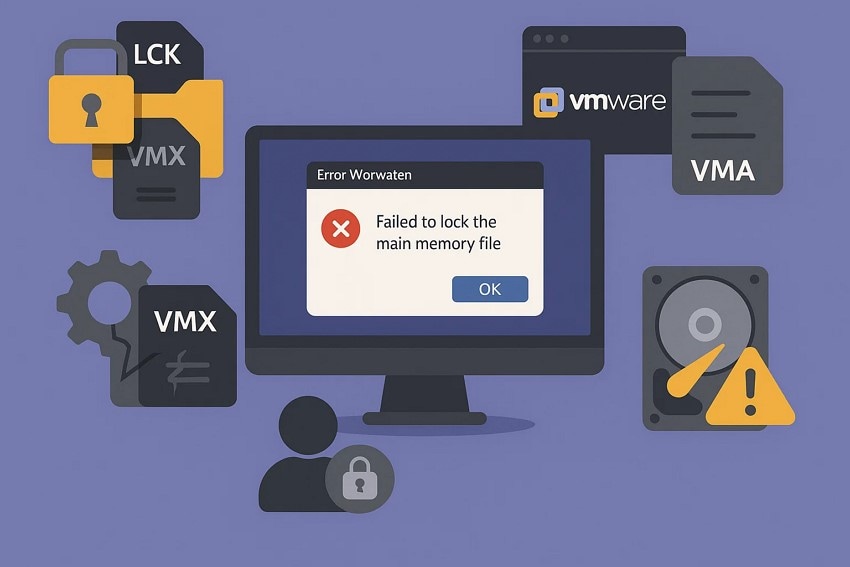
Before applying any fixes, it helps to understand why VMware triggers the failed to lock the main memory file problem. Provided below are some of the root causes why this error occurs in the first place:
- Residual Lock Files: VMware creates temporary .lck files during VM operations, and these may remain after an unexpected shutdown. When VMware detects these leftover files, it assumes the VM is still in use and blocks access.
- Multiple VM Instances Running: When more than one VMware process tries to access the same virtual machine, a file conflict occurs. This simultaneous access prevents the system from locking the required memory files correctly.
- Corrupted VMX or VMDK Configuration Files: If configuration files become corrupted due to abrupt shutdowns or storage issues, VMware cannot correctly assign or lock memory. This corruption often leads to startup failures and memory file errors.
- Insufficient System Permissions: Running VMware without proper administrative privileges can restrict file access. These permission issues prevent VMware from creating or locking essential memory-related files.
- Storage or Disk Errors: Faulty sectors, drive corruption, or low disk space can interrupt VMware’s ability to write or lock memory files. Such storage-related issues often cause repeated file-access errors.
Part 2. Common Scenarios Where VMware Shows the Failed to Lock the Memory File Error
This error typically occurs when VMware’s normal access to virtual machine files is interrupted or compromised. Understanding these scenarios makes it easier to diagnose the failed to lock the main memory file issue and choose the correct troubleshooting method:
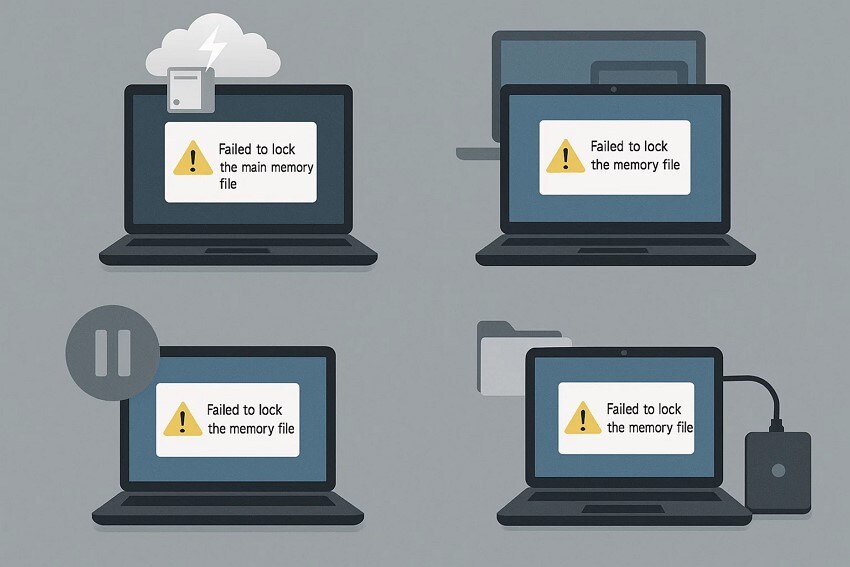
- After an Unexpected System Crash: When the host PC crashes or shuts down abruptly, VMware cannot remove its temporary lock files. These leftover locks then block the VM from starting normally.
- Launching a VM Already Running in the Background: Sometimes a previous VMware process remains active without the user noticing. When you attempt to start the VM again, VMware detects a conflict and triggers the error.
- Restoring a Suspended Virtual Machine: If a VM was suspended instead of shut down, its memory state may remain partially locked. Attempting to resume it can cause VMware to fail when accessing required memory files.
- Copying or Moving VM Files Manually: Moving VMs between drives or systems without proper export/import steps may duplicate lock files. These duplicated files confuse VMware into thinking the VM is still in use.
- Running VMware from an External Drive: External storage can disconnect momentarily, causing file-access instability. When VMware loses connection while reading or writing memory files, it responds with the lock error.
Part 3. Step-by-Step Fixes for How To Fix Failed to Lock the Main Memory File in VMware Workstation
In the next section, you’ll find step-by-step fixes designed to eliminate file conflicts and stabilize your VMware environment:
1. Remove Lock Files
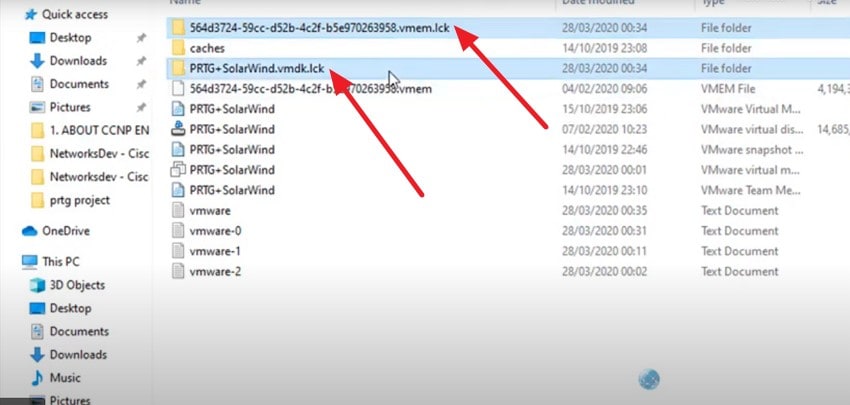
One of the easiest methods to resolve the failed to lock the file vmware error is to remove leftover lock files. These files often remain when a virtual machine crashes or shuts down improperly, preventing memory access. Deleting them frees the locked resources, allowing VMware to start the virtual machine normally. Follow the instructions mentioned below to learn how to remove locked files from your system:
Instructions. After accessing the folder for VMware in the File Explorer, locate the files with the .lck extension and press the "Delete" key on the keyboard to remove lock files successfully.
2. Repair or Delete Corrupt Memory and Suspend Files
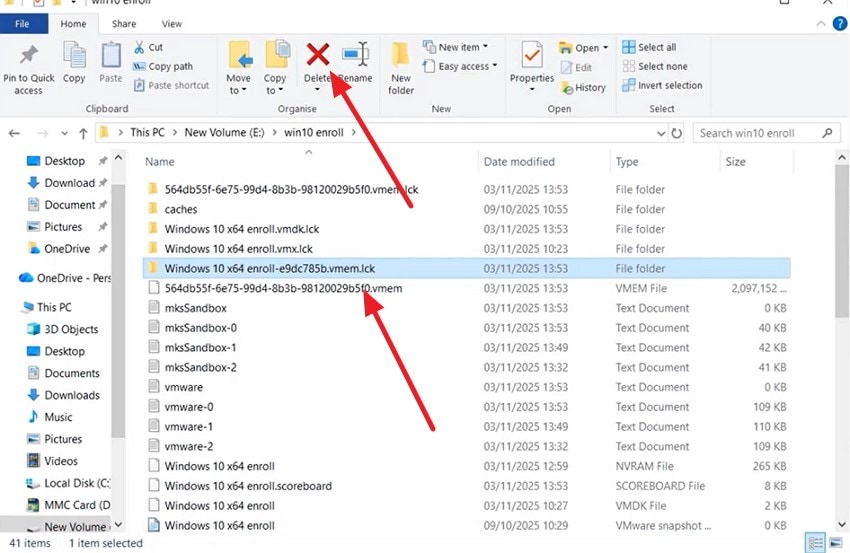
Another effective approach for the failed to lock the main memory file error in VMware is to repair or delete corrupt memory and suspend files. These files can become damaged during improper shutdowns or crashes, blocking VMware from accessing necessary resources. Fixing or removing them restores normal operation and allows the virtual machine to start successfully. Follow the instructions below to delete the corrupt memory files:
Instructions. Open the VMware folder in the file explorer and locate the files with the ".vmem" extension. Now, select all files with this extension and hit the "Delete" button at the top.
3. Fix Snapshot Issues
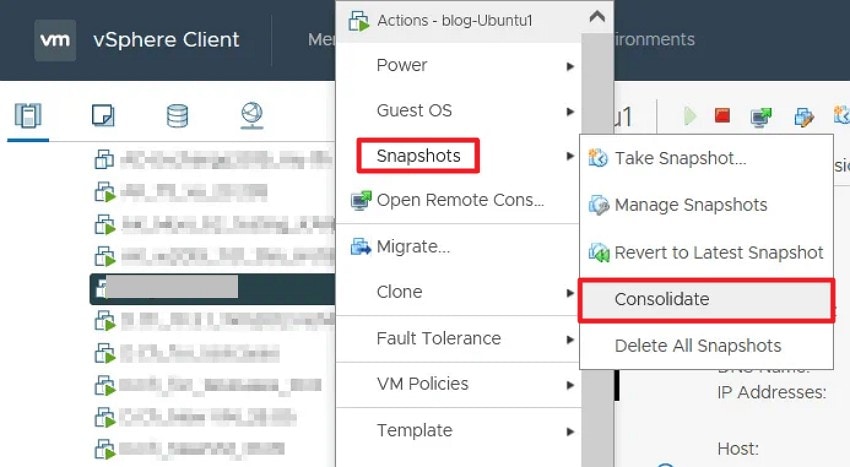
Addressing snapshot issues is a key method to resolve the failed to lock the file error in VMware. Corrupted or incomplete snapshots can prevent the virtual machine from acquiring necessary locks. Identifying and consolidating or deleting problematic snapshots ensures that VMware can manage memory properly, allowing the VM to run without interruption. Mentioned below are the instructions for consolidating the snapshot issues in the VMware system:
Instructions. After launching VMware on your device, access the folder for which snapshots are having issues. Now right-click on it and choose "Snapshots" to further select the "Consolidate" option located on the list.
4. Restart VMware and the Host Machine
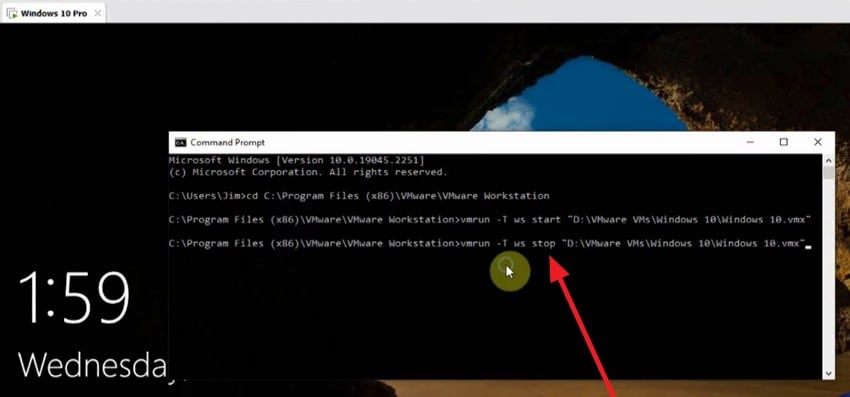
If you restart both VMware and the host machine, it can often resolve the failed to lock the main memory file error. Temporary glitches or lingering processes may block memory access, and a full reboot clears these conflicts and refreshes system resources. This allows VMware to regain control, letting the virtual machine start smoothly. Follow the steps mentioned next to learn how to restart the VMware machine:
- Open CMD and type the command, "ws stop [vm machine destination]" and hit the Enter key. This will shut down the mentioned virtual machine on your system.
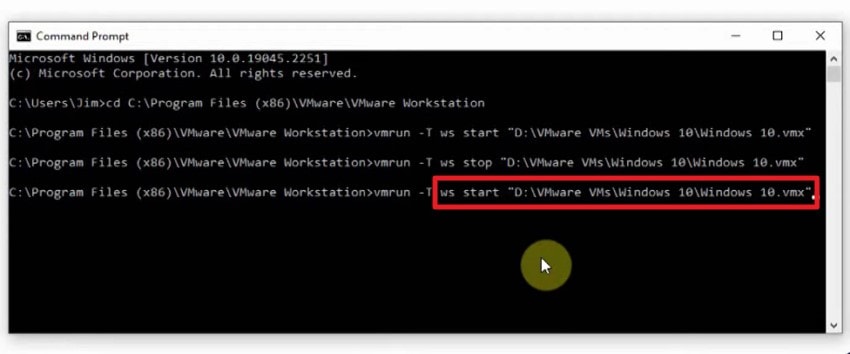
- Access the CMD again and run the command: "ws start [vm machine destination]" to restart the virtual machine and fix the bugs.
5. Run VMware as Administrator
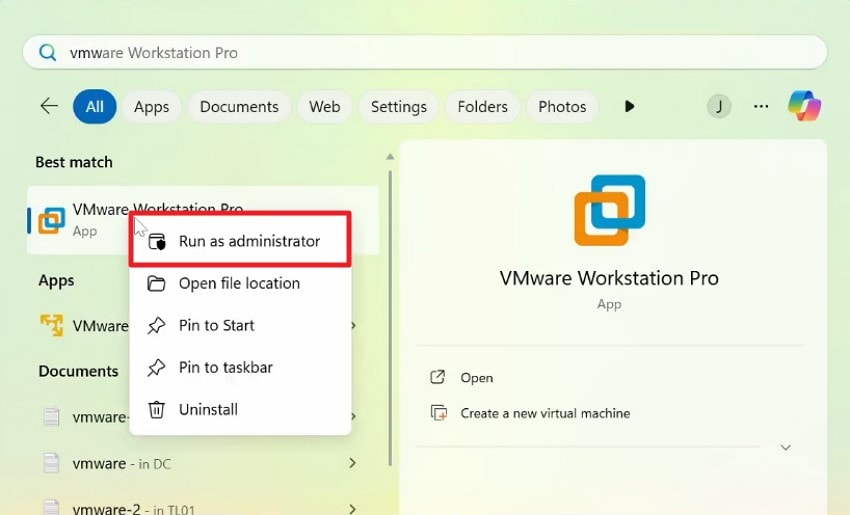
Launching VMware with administrator privileges can resolve the failed to lock the file error. Restricted permissions may block access to essential memory resources, preventing the virtual machine from starting. Running the application as an administrator ensures it has full system access, allowing VMware to manage memory locks and operate the VM smoothly. If you do not know how to run VMware with admin privileges, read the instructions provided next:
Instructions. Open your Start menu and search for VMware using the search bar. As soon as you locate it, right-click on it and press the "Run as Administrator" option located on the list.
6. Decrease VM memory
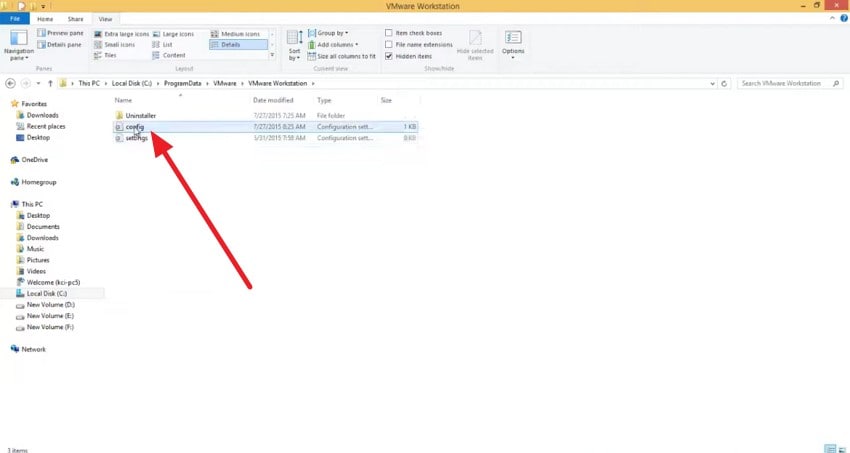
To resolve the failed to lock the main memory file error, decreasing the virtual machine’s allocated memory can be effective. When VM requests more memory than the host can provide, VMware may be unable to lock it. Reducing the memory allocation ensures sufficient resources, allowing the virtual machine to start and operate smoothly. To learn how to minimize the memory in VMware, read the steps provided:
- Open the folder in which the VMware folder is located and access its "config" file.
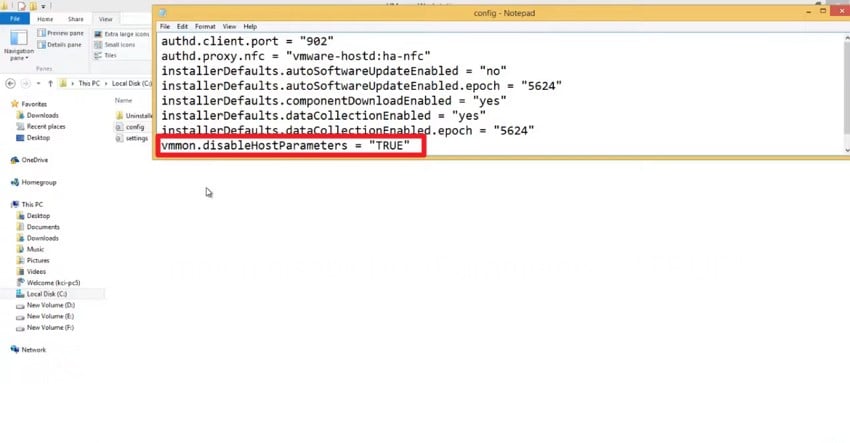
- Once the file is opened in Notepad, change this command "vmmon.disableHostparameters = 'TRUE'" and save the file. Now launch the VMWare again, and you will see that the memory is minimized.
7. Update your VMware
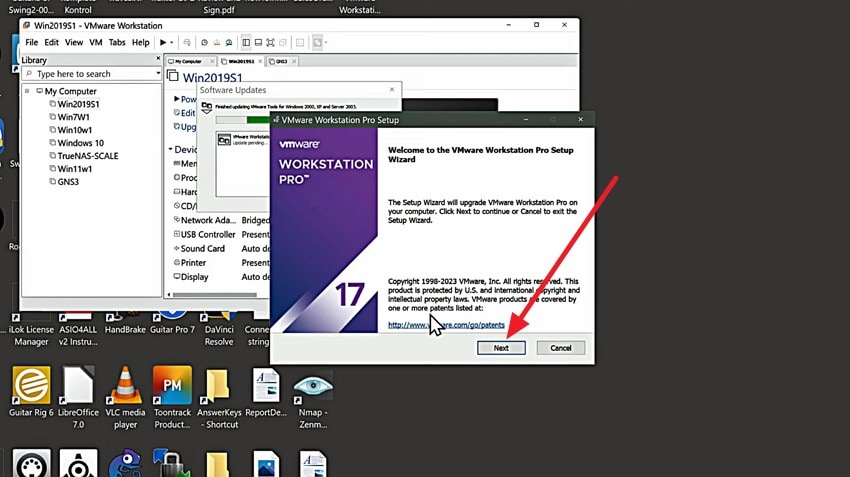
Keeping VMware updated is one of the most reliable ways to prevent file-locking conflicts and memory-related errors. New updates include bug fixes, performance improvements, and compatibility patches that ensure your virtual machines run smoothly across different hardware and operating system versions. To learn how to resolve the failed to lock the file error by updating VMware, read the steps mentioned below:
- After launching VMware Workstation, head to the "Help" section and click on "Software Updates."
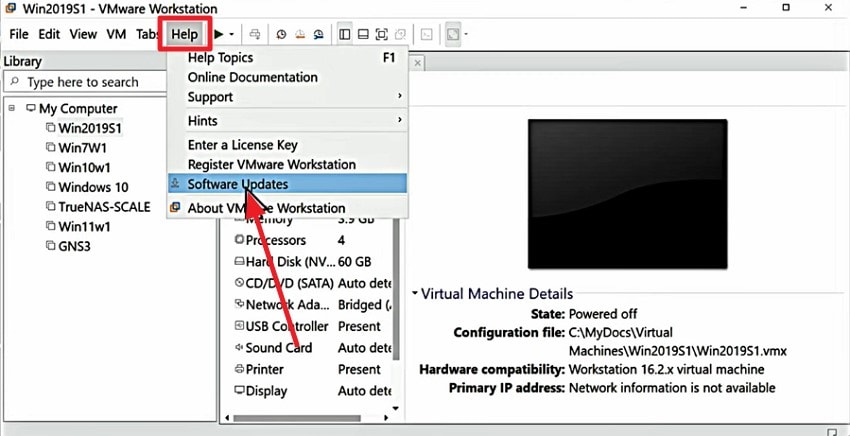
- Once done, follow the instructions on the screen and press the "Next" button to successfully update your software.
Pro Tip. Recover Lost VMware Files Using Recoverit to Fix Memory Lock Errors
If you have missing VMware files due to unexpected issues, there’s no need to stress; your essential data can still be restored with ease. Recoverit allows you to retrieve all types of lost or damaged content, including configuration files, virtual disks, snapshots, and more. Using cutting-edge scanning technology, this reliable tool digs deep into your system to locate and recover missing VMware-related data in a short amount of time.
With Recoverit, you can conveniently preview all scanned items directly within the interface before restoring them to your device. You can also search for specific VMware files and recover them instantly through the tool’s intuitive layout. Depending on the severity of data loss, the platform offers multiple scanning modes to ensure the highest recovery success rate.
Core Features Offered by Recoverit
- Batch Recovery Support: Recoverit enables the restoration of multiple VMware files simultaneously, helping you avoid the hassle of recovering each item one by one.
- Numerous Storage Device Support: This powerful tool supports more than 2000 internal and external storage devices for flexible data retrieval.
- Advanced Recovery Mode: Deep-level scans are performed to retrieve highly damaged or seemingly unrecoverable VMware files using advanced system algorithms.
Step-by-Step Guide on How to Recover Missing VMware Files
After exploring the key features of Recoverit and resolving the failed to lock the file vmware error, here is a simple step-by-step method to recover missing VMware-related data using this dependable tool:
1. Open Recoverit and Select the Target Location
First, launch the Recoverit application on your computer and choose the folder where your lost files were originally stored from the main interface.

2. Scan the Folder to Retrieve Your Missing VMware Files
After selecting the folder, allow the tool to perform a complete scan, displaying all recoverable files. Find the VMware file you need and click the "Recover" button at the bottom to restore it.

3. Save the Recovered Files to Your System
Once the recovery process finishes, a confirmation message will appear. Click "Recover" to confirm and save the retrieved files securely back to your system.

Part 4. Preventing “Failed to Lock the Main Memory File” in VMware Workstation Long-Term
Once you’ve resolved the failed to lock the file error, it’s important to adopt preventive practices to ensure it doesn’t return. Implementing a few long-term habits can significantly reduce file conflicts and unexpected VM interruptions:
- Shut Down VMs Properly: Always close your virtual machines through a full shutdown instead of closing the VMware window. This ensures lock files are removed safely, and memory states are handled correctly.
- Avoid Forced System Restarts: Hard resets or abrupt shutdowns often leave behind corrupted lock files. Keeping your host system stable helps VMware close sessions cleanly.
- Regularly Check Disk Health: Keep an eye on your drive’s health to avoid surprises; faulty storage or low space can easily disrupt VMware’s memory file operations. A quick disk check now and then helps you catch issues before they interfere with your VMs.
- Run VMware as Administrator: Make it a habit to launch VMware with admin rights. This simple step ensures the program can freely create, update, or remove essential memory files without running into permission roadblocks.
- Keep VMware Updated: Don’t skip updates; they often include important fixes for file-access errors, performance glitches, and compatibility issues. Staying updated ensures your VMware environment stays stable and optimized.
Conclusion
To sum it up, we provided a comprehensive guide in this article to resolve the failed to lock the main memory file error in VMware workstations. The article also discussed the root causes, user scenarios, and prevention to avoid this error. However, if you have missing VMware files, you can easily retrieve them using Recoverit without losing the quality.
FAQ
-
1. Why does VMware show the “Failed to Lock the Main Memory File” error?
This error appears when VMware cannot access or lock the required memory or disk files. Common causes include leftover lock files, corrupted configuration data, or multiple active VM processes. -
2. Can updating VMware help prevent this error in the future?
Absolutely, regular updates include fixes for memory conflicts, snapshot issues, and file-locking bugs, making your system more stable. -
3. How do I fix the issue if the VM won’t start after removing lock files?
If removing lock files doesn’t help, the VM’s configuration or snapshot files may be damaged. In such cases, using Recoverit can help restore missing components and repair incomplete file structures. -
4. What should I do if my VM crashes and the memory file becomes unreadable?
Crashes often corrupt temporary or memory-related files. You can attempt manual repair, but if key files are lost, Recoverit offers a reliable method to retrieve them.


