

 TL;DR:
To fix a PS5 that powers on but displays a black screen, bypass resolution mismatches by booting into Safe Mode (hold the power button until the second beep) and changing the video output to 1080p.
● Power cycle the console by unplugging it from the wall for two minutes to clear temporary initialization errors before testing different HDMI ports.
● If resolution adjustments fail, use Safe Mode to rebuild the database or update the system software via a USB drive to repair corrupted system files.
● A factory reset serves as a last resort for persistent software conflicts, while lost media files on connected external USB drives or SSDs can be restored using Recoverit.
Ask AI for a summary
 ChatGPT
 Perplexity
 Gemini
 Claude
 Grok
Grok
Your PS5 may power on, yet your TV stays completely black. This no-signal problem often starts after updates, cable swaps, or travel moves. You might hear menu sounds, but see no picture or warning screen. Many players call this the PS5 Black Screen, and it feels frustrating.
The cause can sit between the console, the TV, and the HDMI handshake process. Other times, the display mode chosen earlier no longer matches the settings now. This guide explains symptoms, likely triggers, and safe checks without data loss. Moreover, you will learn when hardware repair becomes a better option.
Try Recoverit to Perform PS5 Data Recovery
 Security Verified. 3,591,664 people have downloaded it.
In this article

Part 1. What Causes PS5 Black Screen Or No Video Signal Issues
Before fixing anything, you must know what triggers PS5 no video signal issues.
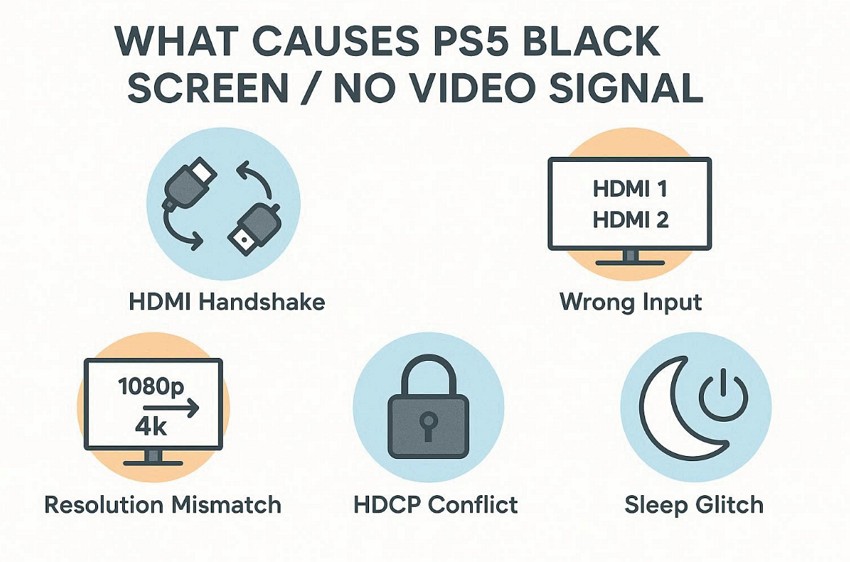
- HDMI Handshake: The TV and console may fail to agree on video timing properly. This mismatch can leave the display black while the audio continues playing.
- Wrong Input: The TV may be set to a different HDMI source port. You will see a blank screen despite the PS5 running normally.
- Resolution Mismatch: The console may output a resolution that your TV cannot show correctly. After a change, the screen stays black until the settings match again.
- HDCP Conflict: Copy protection checks can fail between PS5, TV, and receiver devices. When HDCP fails, video may disappear while the system remains on.
- Sleep Glitch: A wake from rest mode can confuse the display output state. The console stays active, but the screen does not refresh fully.
Part 2. Step-By-Step Solutions For PS5 Black Screen Problems
Upon understanding the causes of the black screen issue on your PS5, let's move forward to the following fixes for PS5 black screen problems:
1. Check And Reconnect the HDMI Cable and Ports
A loose or damaged HDMI connection often causes sudden display interruptions on consoles. Reconnecting the cable restores proper signal transfer between the PS5 and the television. This simple fix resolves handshake failures that trigger the PS5 black screen unexpectedly. It ensures stable communication before trying advanced troubleshooting, so follow the guide below:
- To start, turn off the PS5 fully, then switch off the TV, then locate the "HDMI" cable connected to the PS5 HDMI port.
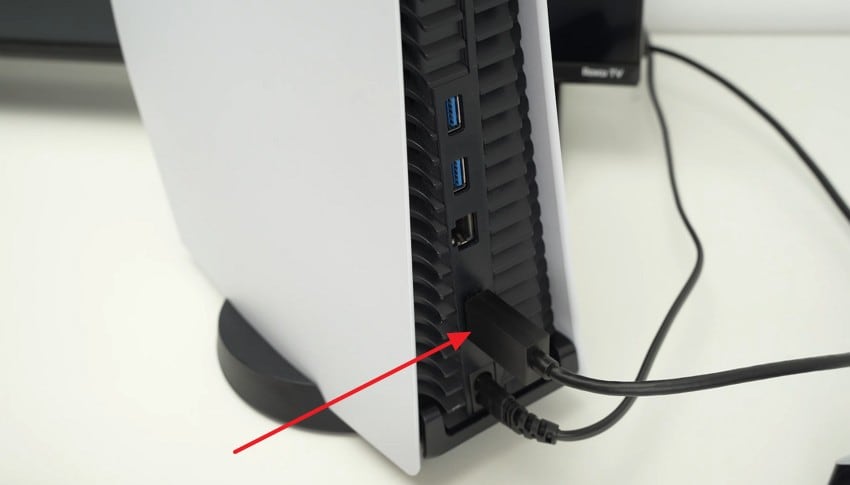
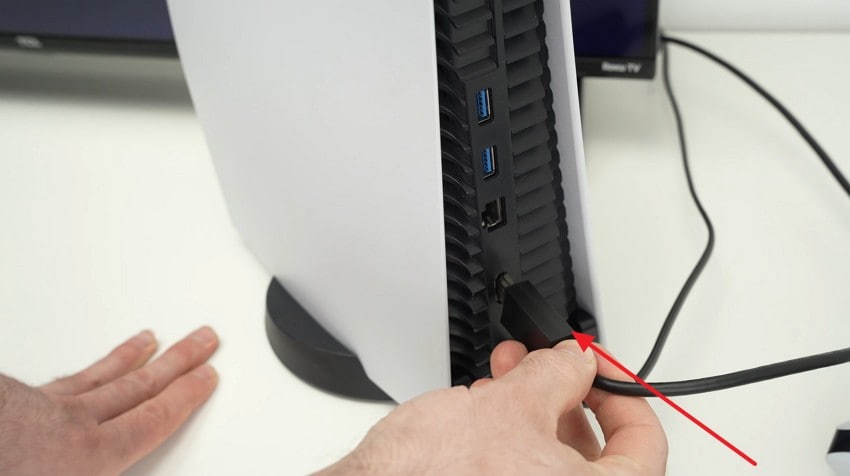
- Next, unplug the HDMI cable carefully, then plug it back in firmly again.
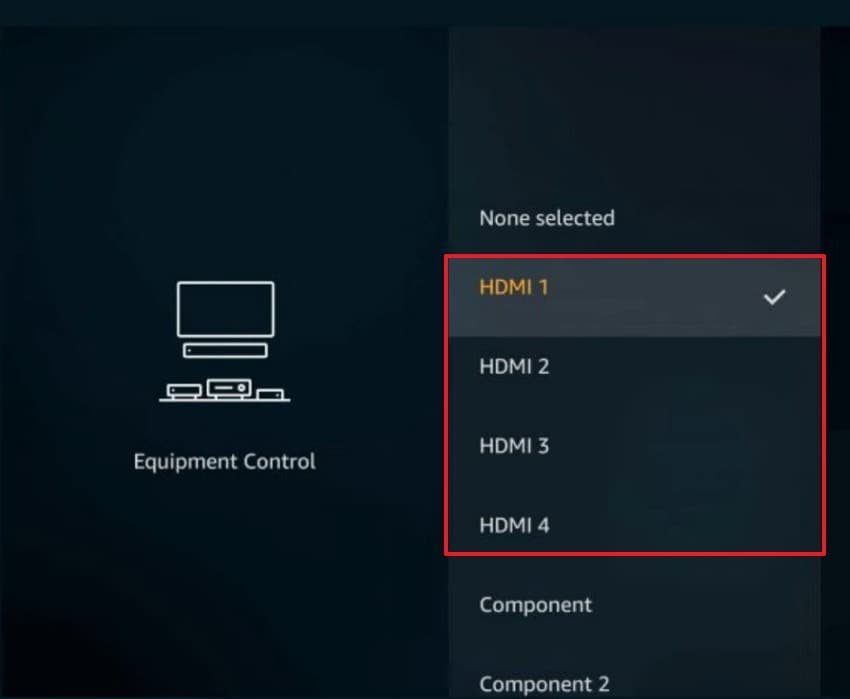
2. Switch to Another HDMI Port or TV
Sometimes the active HDMI port stops responding due to hardware or signal faults. Switching to another port helps the console establish a fresh display connection properly. Thus, this fix isolates whether the problem comes from the console or the television input. It often resolves PS5 no video signal issues quickly. Now, adhere to the guide below to try switching to another HDMI port:
- Start by pressing the "Menu" button on your TV remote to access the input source list.

- Afterwards, select a different "HDMI" option, like HDMI 2 or HDMI 3, then confirm the selection.
3. Power Cycle PS5: Turn Off, Unplug, Wait 1-2 Minutes, Restart
Power cycling clears temporary system glitches affecting video output during console startup sequences. So, turning off and unplugging removes residual electrical charge stored inside internal components. This process resets hardware communication and resolves many display initialization errors. It often fixes the PlayStation 5 black screen without changing settings. Let's stick to the steps below to see how it works:
- First, navigate to the PS5 home screen and press the "PS button" to open Control Center options.
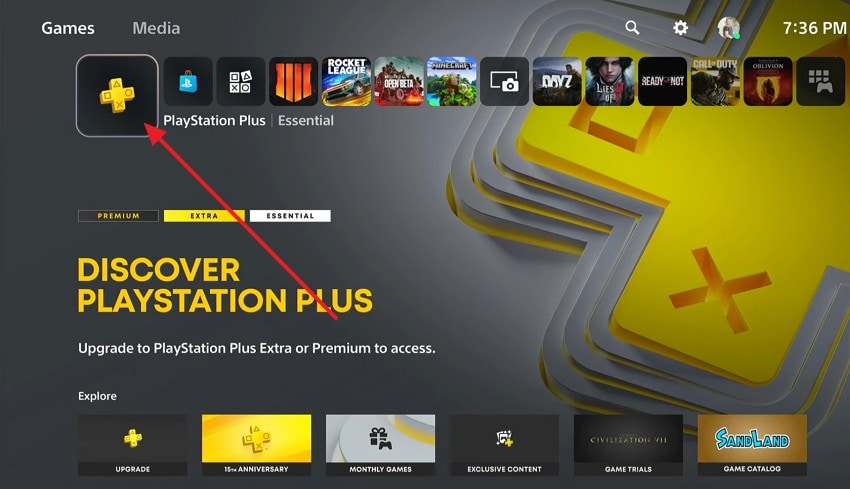
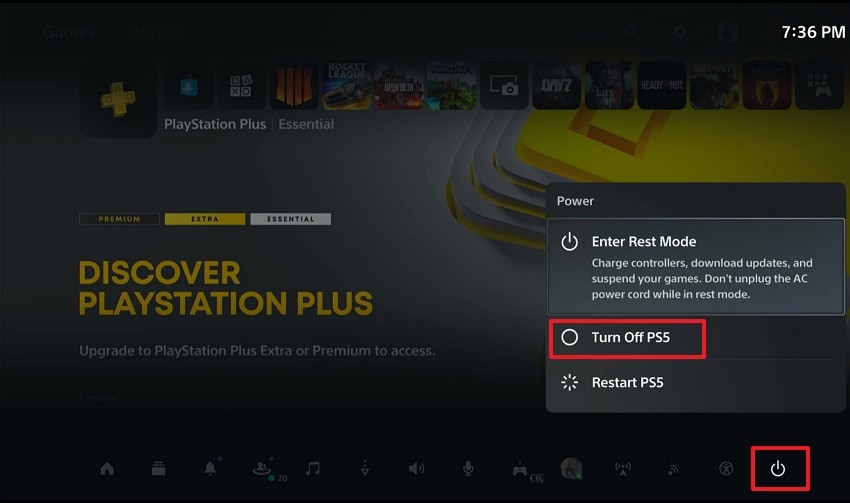
- After that, choose the "Power" icon shown on the screen and select "Turn off PS5" from the menu.
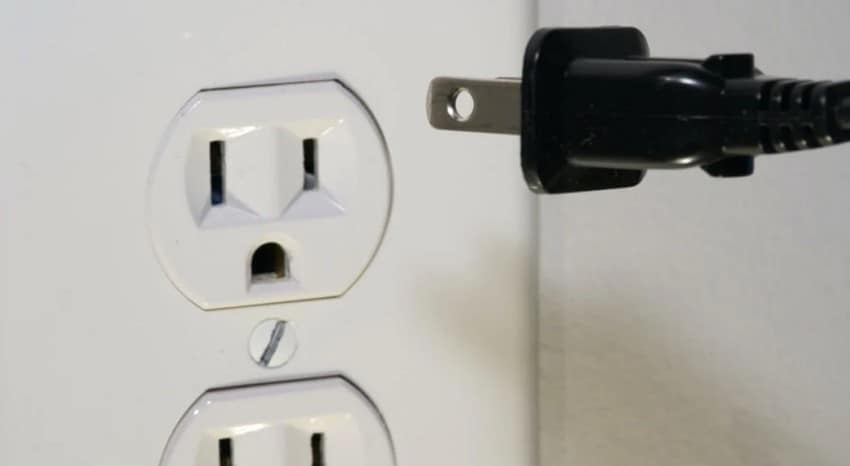
- Next, unplug the power plug from the wall socket, wait one to two minutes, then reconnect.
4. Boot PS5 in Safe Mode and Select "Change Video Output"
Safe Mode loads essential functions while bypassing normal video output configuration settings temporarily. Therefore, changing video output here forces the console to renegotiate display compatibility. This helps when previous resolution settings cause startup conflicts or blank displays. It can resolve persistent PS5 black screen symptoms safely. Follow the guide mentioned below to changing video output in safe mode:
- To start, turn off the PS5 fully and confirm the rest mode is not active by pressing the "Power" button.
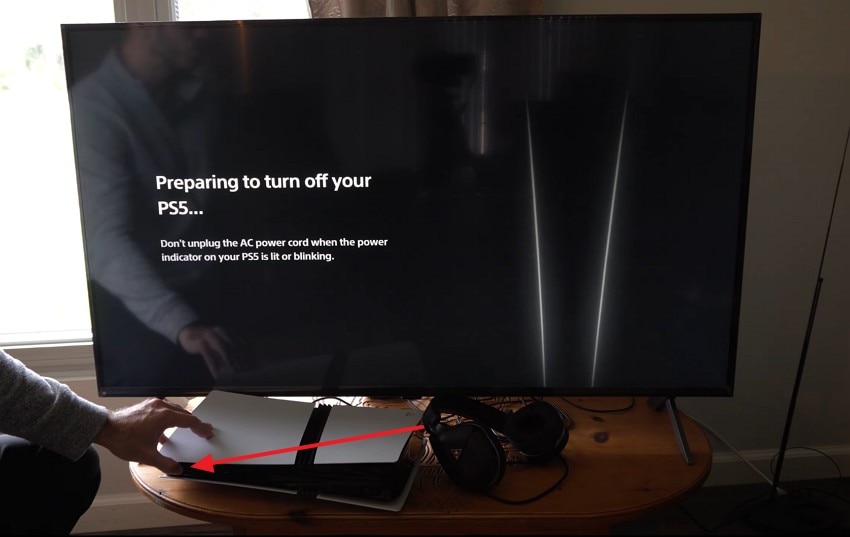
- Now, hold the "Power" button until you hear the second beep sound. After that, connect the controller using a USB cable and press the PS button. Then select the "Change Video Output" from the Safe Mode list shown. If your PS5 is stuck in safe Mode and refuses to return to normal, check to learn more.
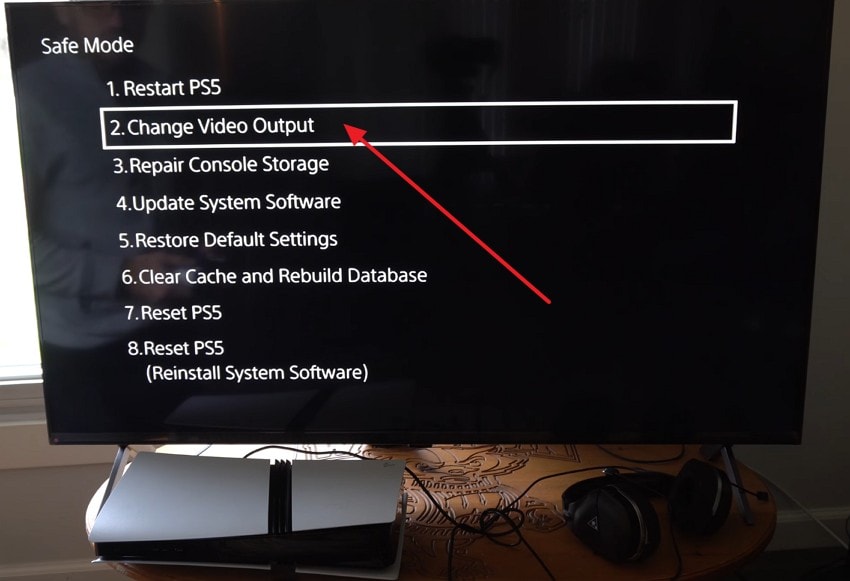
5. Reset Video Output to 1080p or Default Resolution
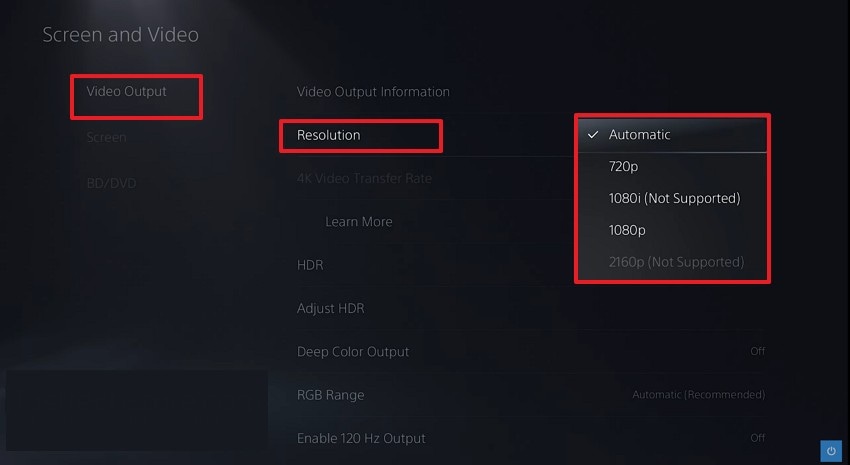
Incorrect resolution settings may exceed what your television supports during normal operation startup. That is why resetting resolution forces the console to use universally supported display output standards. Moreover, this restores visible menus and prevents future compatibility conflicts between devices easily. It directly addresses common PS5 no video signal problems effectively. To reset the video output, follow the instructions given below:
Instructions. First, pick the "Video Output" and select the "Resolution" option. Later, choose "1080p" from the list if your TV supports it. Next, select the default resolution option if the screen stays black. Lastly, restart the PS5 normally and confirm the display returns.
Part 3. Hardware And Factory Reset Solutions For PS5 Video Problems
If basic fixes fail, move to hardware checks and factory reset options for PS5 video problems.
1. Update PS5 System Software via USB or Safe Mode
Sometimes system files break after updates or sudden shutdowns. This can stop the video from loading even when the console powers on normally. Thus, updating through USB or Safe Mode replaces damaged files safely. This often resolves a PS5 black screen linked to firmware errors. So, follow the guide below to update correctly now:
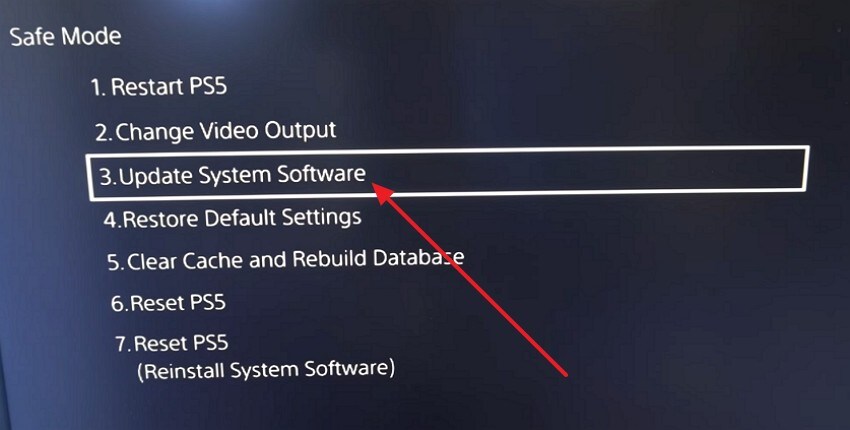
- First, hold the "Power" button for two beeps, then connect the controller with a USB cable and press the "PS button."
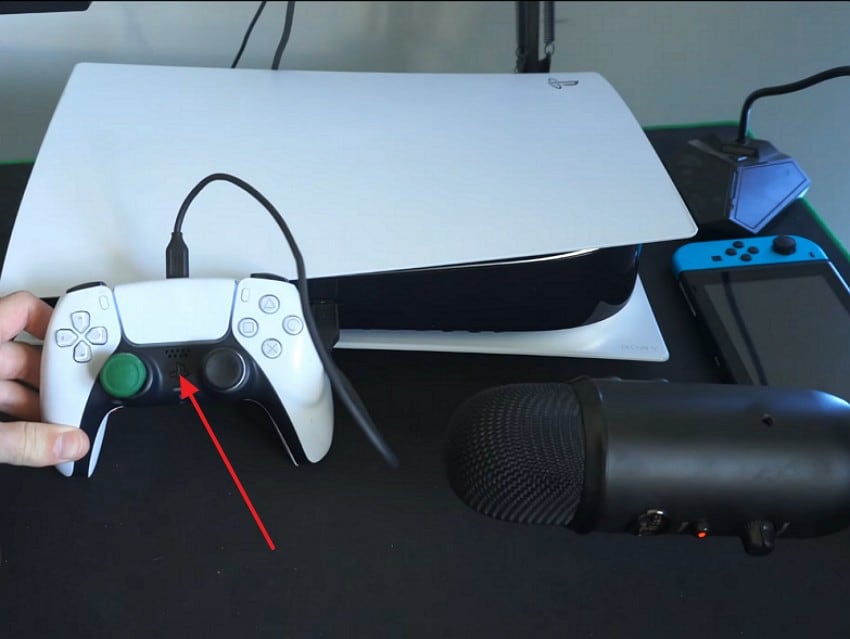
- Now, in Safe Mode, choose the "Update System Software" option from the list to proceed.
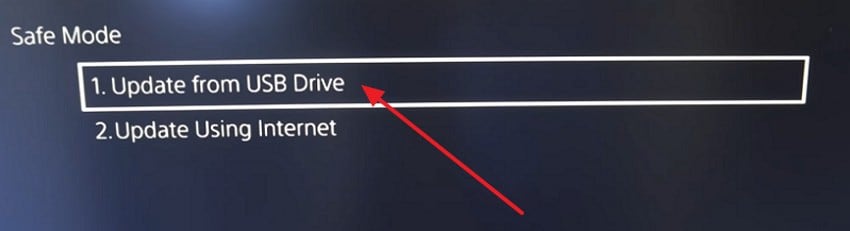
- Afterwards, in Update System Software, pick the "Update from USB Drive" option to continue.
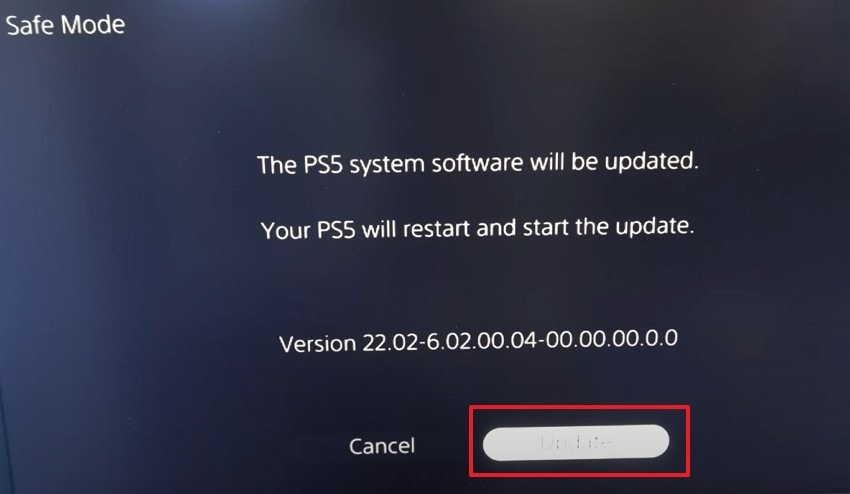
- Next, follow the on-screen prompt and finally pick the "Update" button to start the update.
2. Rebuild PS5 Database in Safe Mode
Over time, stored data can become disorganized and affect how the system loads. This may delay startup or prevent proper video output during boot. Rebuilding the database refreshes the internal file structure safely. This helps when the PS5 shows no video signal after freezes or storage conflicts. Adhere to the instructions given below to rebuild safely now:
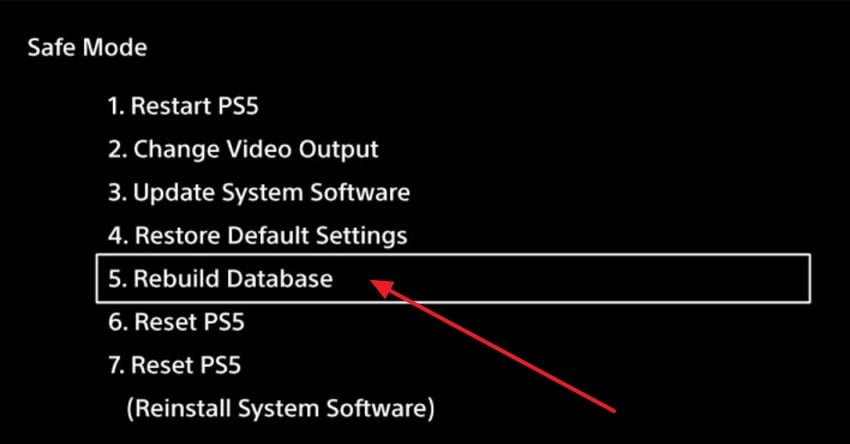
Instructions. First, turn off the PS5 fully, then hold the power button for two beeps. Next, connect the controller with a USB cable, then press the "PS button." After that, choose "Rebuild Database" from the Safe Mode options list.
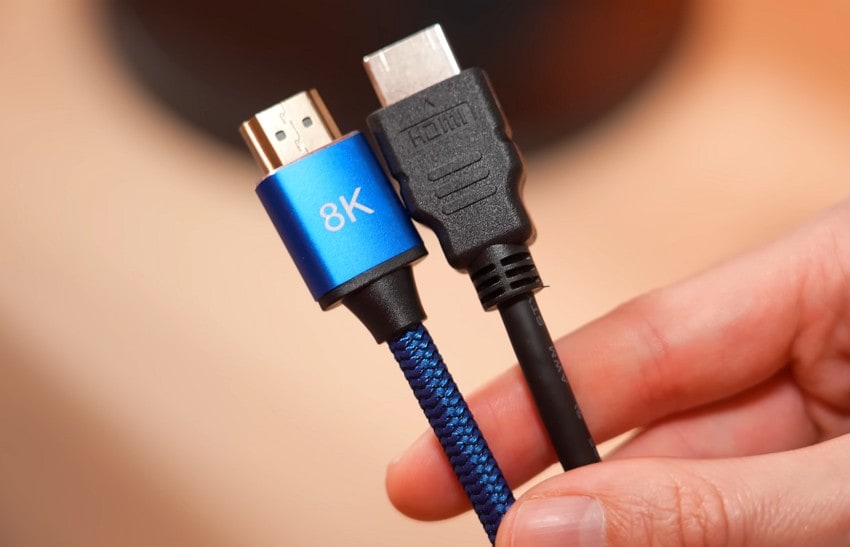
3. Test with Another HDMI Cable or TV
External display equipment can fail without clear physical damage or visible warning signs. A weak HDMI cable or faulty port can block video output completely. So, testing another cable or television helps confirm the source of failure quickly. This step often explains a PlayStation 5 black screen without changing console settings. Stick to the instructions mentioned below to try this fix:
Instructions. Power off the PS5 and the TV before changing any HDMI connections. Then, replace the HDMI cable, or move the PS5 to a different TV. Next, turn everything back on, then check whether the display returns to normal.
4. Reset PS5 to Factory Settings as a Last Resort
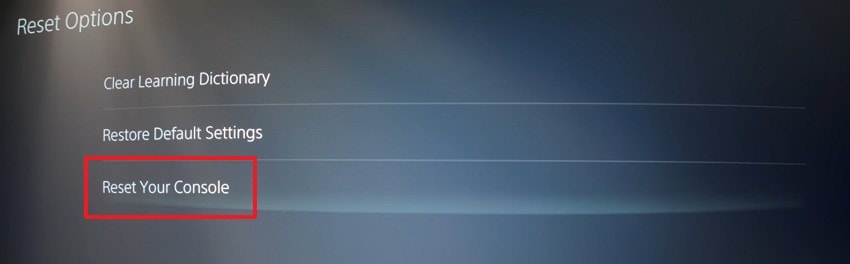
When settings become corrupted, normal fixes may not restore proper video output. Therefore, resetting returns the console to its original software condition without leftover configuration conflicts. This removes hidden system problems that block display initialization during startup. It can fix a persistent PS5 black screen when other solutions fail. Follow the steps below carefully to reset the PS5 to factory settings:
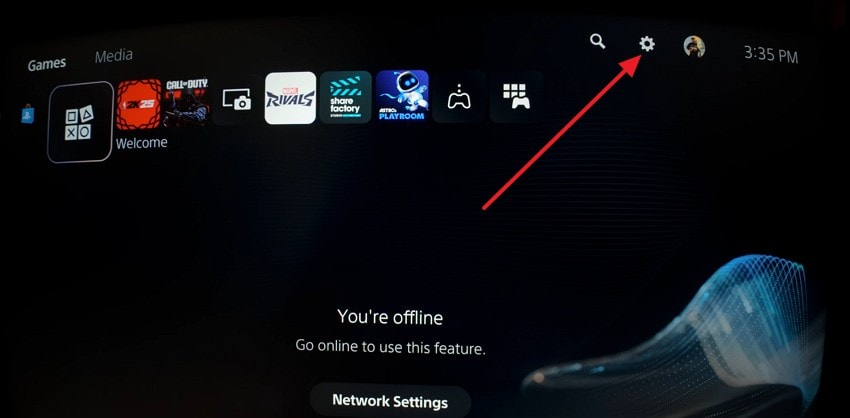
- First, open the PS5 home screen and navigate to the "Settings" icon to proceed.
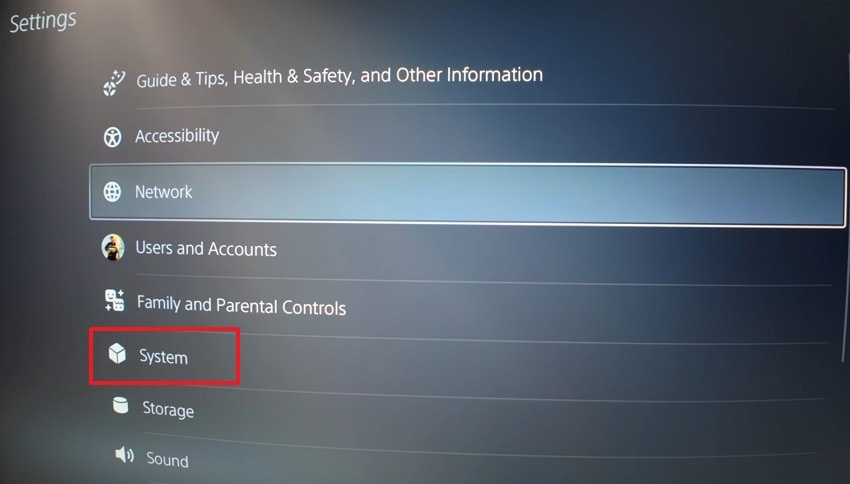
- After that, scroll down in the Settings and choose the "System" option.
- Next, in the system menu, pick "Reset Options" from the list.
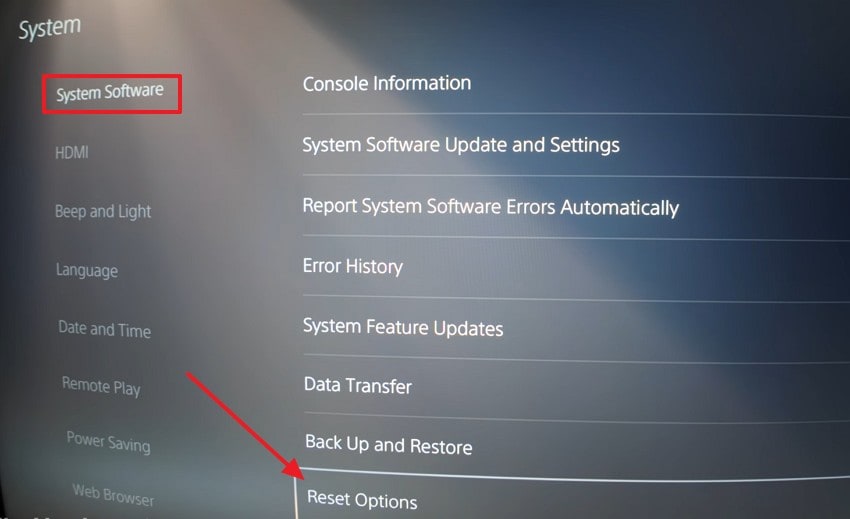
- Now, choose "Reset Your Console" to start the factory reset process.
5. Contact PlayStation Support If Hardware Failure is Suspected
Hardware damage can stop video, even when the software works correctly on the console. This includes damaged HDMI ports, GPU faults, or internal motherboard signal problems. Thus, support teams can confirm faults and guide repair or replacement options safely. This is important when the "PS5 no video signal" occurs after all troubleshooting steps.
Pro Tip: Safeguard PS5 Progress And Restore Files After Black Screen
A PS5 issue can feel even worse when important files go missing as well. Game clips, screenshots, and downloaded installers can disappear after crashes or storage errors. Therefore, Recoverit focuses on bringing back lost files from drives and external storage. During a PS5 black screen, it can help protect the content you already saved.
Moreover, Recoverit is useful when files vanish from USB drives or SSDs used with consoles. It can recognize media files and game-related folders stored on connected storage. This matters when you keep large captures or backups outside the console. It also helps when a drive shows missing items after sudden disconnects.
Key Features
- Bootable Media: Help users recover files from a crashed computer, creating a bootable USB drive
- NAS Recovery: Recover lost data from NAS storage systems over the same network connection, scanning shared folders remotely.
- Video Repair: Repair corrupted MP4 or MOV game clips that will not play, using advanced AI technology.
Guide to Restore Files After PS5 Black Screen With Recoverit
Let's walk through the steps below to recover files after a PS5 black screen with Recoverit:
1. Connect the PS5 Storage Drive to Proceed
Upon entering Recoverit, stay on the "Hard Drives and Locations" screen. After that, select the correct place, such as USB Drive, Local Disk, or Select Folder, to start recovery.

2. Review Scan Results List
Now, wait while Recoverit scans the selected location and loads the found files. Later, use the left "File Location" panel and the top "Search File" bar to narrow results, then select the files you need.

3. Preview and Recover Files
Lastly, double-click a file to open the preview window and confirm it is correct. After that, select the needed items, then click "Recover" and save them to a different folder location.

Read this article to understand why this happens and how to fix it with top methods.

Part 4. Best Practices To Keep Your PS5 Video Output Stable
To prevent PS5 no video signal issues, follow the following habits for stable video output:
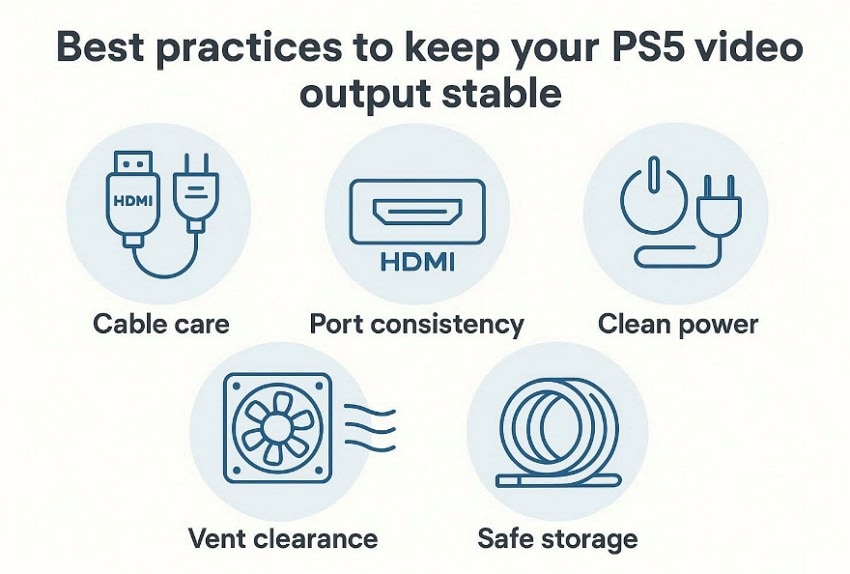
- Cable Care: Use a certified HDMI cable and seat both ends firmly. Check cable jackets for bends, and replace them when cracks appear.
- Port Consistency: Keep the console on one HDMI port for every gaming session. Frequent port changes can confuse the TV and console connection process.
- Clean Power: Turn off the PS5 before unplugging power from wall outlets always. Sudden shutdowns can disrupt video startup checks after the next boot.
- Vent Clearance: Keep vents clear so heat does not affect internal video circuits. Blocked airflow can raise temperatures and cause unstable screen output issues.
- Safe Storage: Avoid tight bends behind the TV that strain HDMI connectors hard. Store cables loosely to prevent damage to pins and shielding layers.
Conclusion
To conclude, a black display can come from cables, ports, settings, or system glitches. This guide helped you spot causes, then apply safe fixes in order. If symptoms continue, hardware checks and support become the next step. Moreover, keep good habits to reduce repeat issues and protect your progress. For missing files after PS5 black screen, Recoverit is a helpful recovery option.
FAQ
-
1. Why does my PS5 turn on but show a black screen?
Video output can fail due to handshake errors, wrong input, or resolution mismatch. Audio may still play, but the TV cannot display a compatible signal output. -
2. What is the safest first fix for PS5 with no video signal issues?
Start by checking HDMI cable connections and ensuring both ports are clean. Then switch inputs, because the TV may be on the wrong source. -
3. When should I use Safe Mode to fix PS5 display problems?
Use Safe Mode when the screen stays black after basic HDMI checks. It lets you change video output settings without loading normal menus. -
4. Can I recover missing PS5 clips or downloads after a black screen problem?
Yes, files can sometimes disappear after crashes or sudden storage disconnections. Recoverit can help restore screenshots, clips, and downloads from external drives.


