

 TL;DR:
To fix the "MBR2GPT Disk Layout Validation Failed for Disk 0" error, you must adjust your drive to have three or fewer primary partitions, remove any extended or logical partitions, and disable BitLocker encryption so the tool can successfully create the required EFI System Partition.
● Ensure your system runs Windows 10 version 1703 or later and supports UEFI boot mode, keeping in mind that MBR2GPT is explicitly designed to convert only system disks and will fail on purely data-storage drives.
● Use Disk Management to free up a small amount of unallocated space for GPT-specific metadata, and run CHKDSK beforehand to repair any corrupted file systems or bad sectors that halt the validation process.
● If partition modifications or the conversion process result in lost files, third-party recovery software like Recoverit can be utilized to locate and restore the missing documents.
Ask AI for a summary
 ChatGPT
 Perplexity
 Gemini
 Claude
 Grok
Grok
MBR-to-GPT disk conversion can help improve system disk performance, allow UEFI booting, and allow drives over 2 TB to be used. However, countless users are stopped by the aggravating error of the MBR2GPT disk layout validation failed for disk 0. Understanding the operation of the MBR2GPT tool and the factors that influence disk conversion lets you achieve a successful, error-free conversion to GPT.
This error can be eliminated in several ways. The following article is a complete breakdown of these methods and why they happen in the first place.
Try Recoverit to Perform Data Recovery
 Security Verified. 3,591,664 people have downloaded it.
In this article

Part 1. Overview of “MBR2GPT Disk Layout Validation Failed for Disk 0”
Converting a disk from MBR to GPT can sometimes trigger errors that confuse many Windows users. One of the most common is the “mbr2gpt disk layout validation failed for disk 0” message. The following section reveals more details:
Why This Error Occurs When Converting MBR to GPT
Understanding what the validation error means and why it appears during MBR-to-GPT conversion helps you diagnose compatibility or layout issues. Check out the following points for finding out the reasons for the mbr2gpt validation failed error:
- Invalid Partition Layout: The disk contains unsupported partitions or too many partitions for GPT conversion.
- System Partition Issues: Your system or boot partition may be missing, incorrectly formatted, or not marked as active.
- Corrupted MBR Structure: Damage or inconsistencies within the MBR prevent proper validation by the MBR2GPT tool.
- BitLocker or Encryption Conflicts: Active disk encryption can block MBR2GPT from modifying partition structures.
Difference Between MBR and GPT Partition Styles
Understanding the difference between the MRB and GPT pathways encourages easy diagnosis of the layout issues. It also helps you fix the mbr2gpt disk layout validation failed error effectively. The following points elaborate on the difference between MBR and GPT partition styles:
MBR Partition Style
- The MBR partition style uses a 32-bit partition table, supporting disks up to 2 TB.
- It allows a maximum of 4 primary partitions (or 3 primary + 1 extended).
- This style stores boot data in a single MBR sector, making it vulnerable—if that sector is corrupted, the disk may not boot.
- With older standards, the MBR partition style is mainly suited for Legacy BIOS systems.
GPT Partition Style
- The GPT partition style uses 64-bit addressing, supporting disks far larger than 2 TB.
- It allows up to 128 partitions without needing an extended partition.
- This style stores multiple copies of boot and partition data across the disk, offering higher reliability and corruption recovery.
- With modern standards, the GPT partition style is designed for UEFI boot systems.
Part 2. Common Causes of “MBR2GPT Disk Layout Validation Failed for Disk 0”
Converting a disk from MBR to GPT often fails due to layout or system incompatibilities. Understanding the exact cause helps you fix the error quickly and retry the conversion safely. The following list explains the common causes of the mbr2gpt disk layout validation failed for disk 0 error:
- Unsupported Partition Layout: The disk may have more partitions than GPT allows for conversion or includes types MBR2GPT cannot process. This prevents the tool from reorganizing the layout into a GPT-compatible structure.
- Missing or Misconfigured System Partition: If the system or boot partition isn’t marked correctly or is formatted improperly, MBR2GPT cannot validate it. This stops the tool from preparing the required EFI System Partition.
- Corrupted MBR or Partition Table: Damage in the master boot record or inconsistencies in partition entries block proper validation. The tool halts to avoid converting a disk with structural errors.
- Active Encryption: Encryption locks essential disk areas, making them inaccessible to MBR2GPT during conversion. The tool cannot modify or relocate encrypted partitions, causing validation to fail.
Part 3. Preliminary Checks Before Fixing the Disk Layout Validation Error
Before troubleshooting the disk layout validation failed for disk 0 mbr2gpt error, it's essential to ensure your disk and system meet all basic requirements. These early checks help prevent repeated failures during the MBR-to-GPT conversion:
- Confirm BIOS Mode: Verify whether your system supports UEFI, because GPT requires UEFI boot mode. If the system only supports Legacy BIOS, conversion will fail.
- Check Partition Count: Ensure the disk has three or fewer primary partitions before converting. Extra or unsupported partitions prevent MBR2GPT from reorganizing the layout.
- Disable BitLocker or Encryption: Make sure the disk is not encrypted, as encryption blocks changes to the partition structure. Turning off BitLocker allows MBR2GPT to access and modify required regions.
- Run CHKDSK for Disk Errors: Scan the disk for file system corruption or bad sectors using CHKDSK. Any structural damage can stop the validation process from completing.
Part 4. Step-by-Step Solutions to Fix the Error “MBR2GPT Disk Layout Validation Failed for Disk 0”
Now that we know about the potential causes of this error, let's see how it can be fixed. The following section explores the ways disk layout validation failed for disk 0 error can go away:
1. Remove Extended or Logical Partitions
Removing extended or logical partitions helps the conversion tool work with a clean, compatible structure. MBR2GPT can only convert disks that use primary partitions because GPT does not support the extended-partition architecture. Logical volumes often create layout complexities that prevent the tool from mapping partitions to the new format.
Clearing them ensures the disk layout is simple, predictable, and ready for a smooth transition to GPT without structural conflicts. To learn how to use this process for error recovery, follow the guide below:
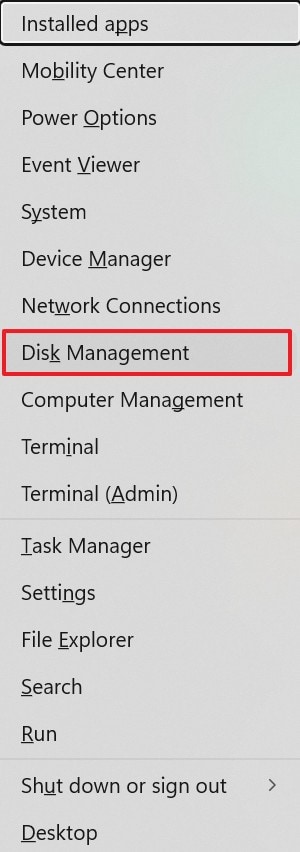
- To start, enter the “Win+X” keys on the keyboard and select the “Disk Management” option from the pop-up menu.
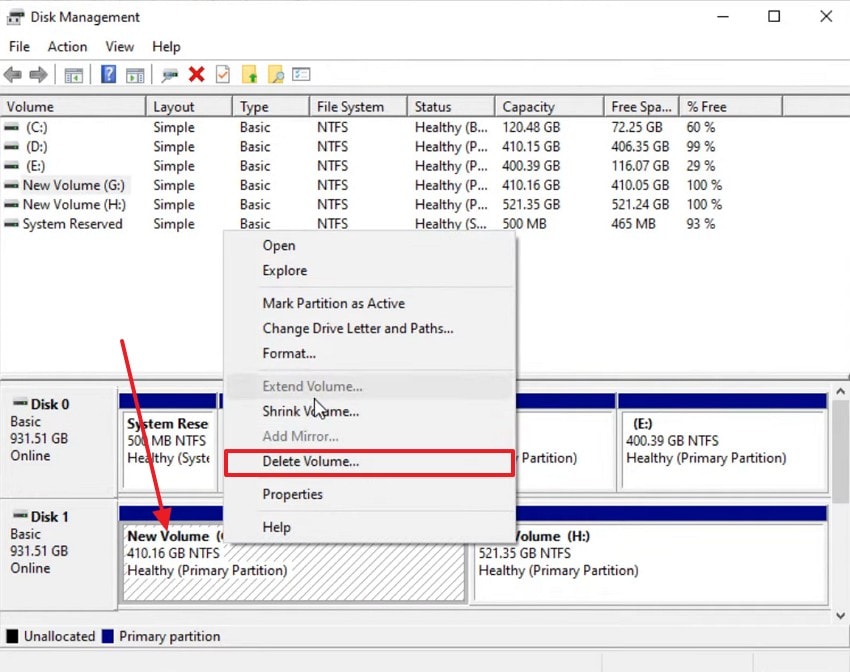
- From the “Disk Management” window, locate the extended drive and right-click on it. Using the pop-up menu, select the “Delete Volume” option to remove the extended partition.
2. Ensure You Have 3 or Fewer Primary Partitions
Keeping the primary partition count at 3 or fewer allows space for the new EFI System Partition required by GPT. MBR disks can hold 4 primary partitions, but if all 4 slots are already taken, the tool cannot create the necessary EFI structure. Reducing the count ensures the system can place essential boot components properly.
This avoids layout conflicts and enables the conversion process to proceed without partition-limit errors. The following guide explains how this method resolves the mbr2gpt validation failed issue:
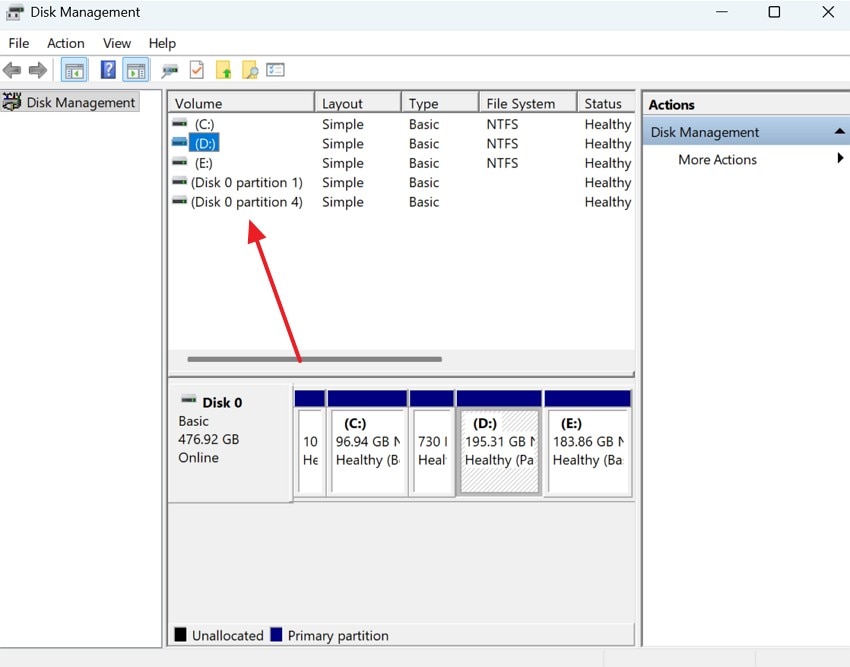
Instructions. In the “Disk Management” window, find the “Volume” section and count the primary partitions to ensure they are 3 or fewer. If you find more than 3 partitions, delete the necessary disk that has the least amount of data.
3. Free Up Space for GPT Structures
A small amount of unallocated space is necessary for the conversion process to create GPT-specific metadata and the EFI System Partition. Without available space, the tool cannot build the updated layout or store system boot files. Ensuring free space prevents failures caused by tightly packed partitions.
This extra room helps the system reorganize data cleanly, reduces the risk of file overlap, and supports a reliable transition to the GPT architecture. To learn how to execute this method for the mbr2gpt disk layout validation failed error recovery, follow this guide:
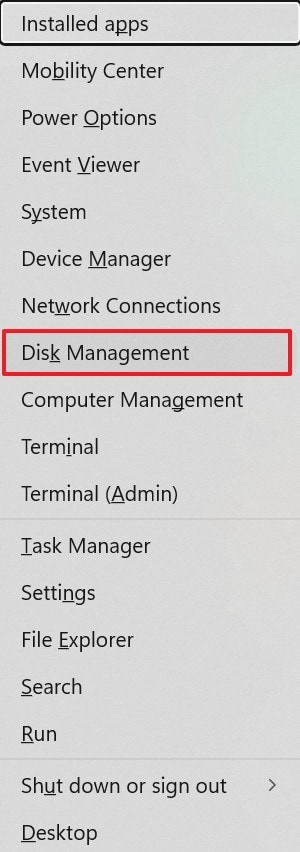
- To begin with, enter the “Win+X” keys to open a pop-up menu. Here, select the “Disk Management” option to move forward.
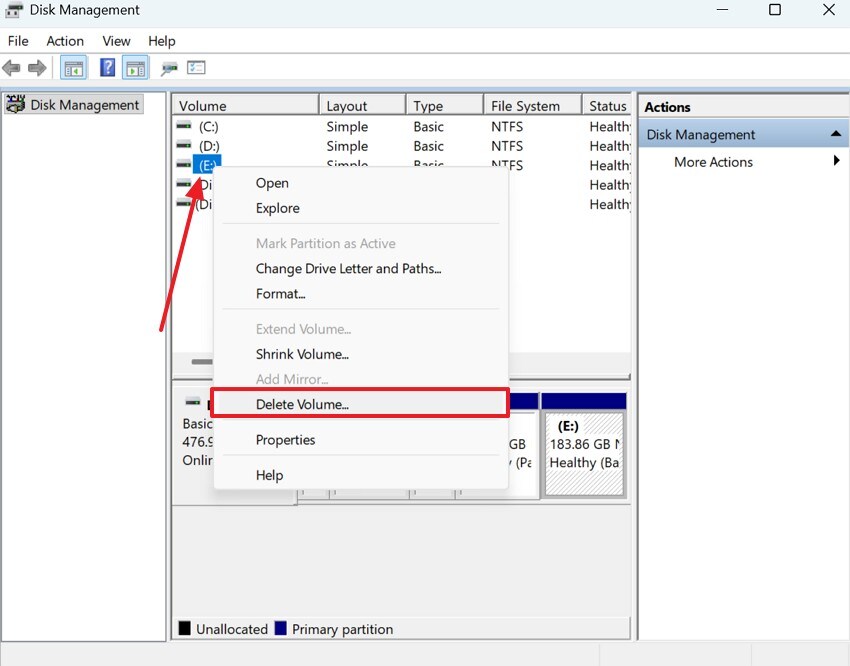
- From the next window, right-click on the specific drive and select the “Delete Volume” option to free up space.
4. Convert Only System Disks
MBR2GPT is explicitly designed to convert system disks, not external or purely data-storage drives. The tool relies on locating system files, boot records, and operating-system alignment before rewriting the partition scheme. Converting non-system drives can cause errors because they lack the required boot structures.
Focusing only on system disks ensures that the necessary operating-system components are present, allowing the tool to build the EFI partition and configure UEFI boot settings properly. The steps below are detailed instructions on how to convert only system disks to solve the mbr2gpt disk layout validation failed for disk 0 error:
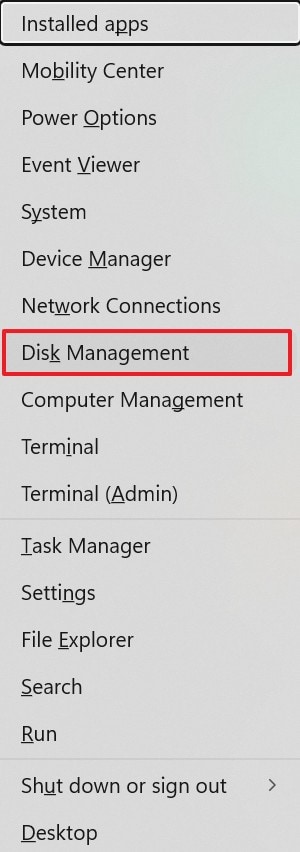
- From the “Win+X” menu, pick the “Disk Management” option to open a new window.
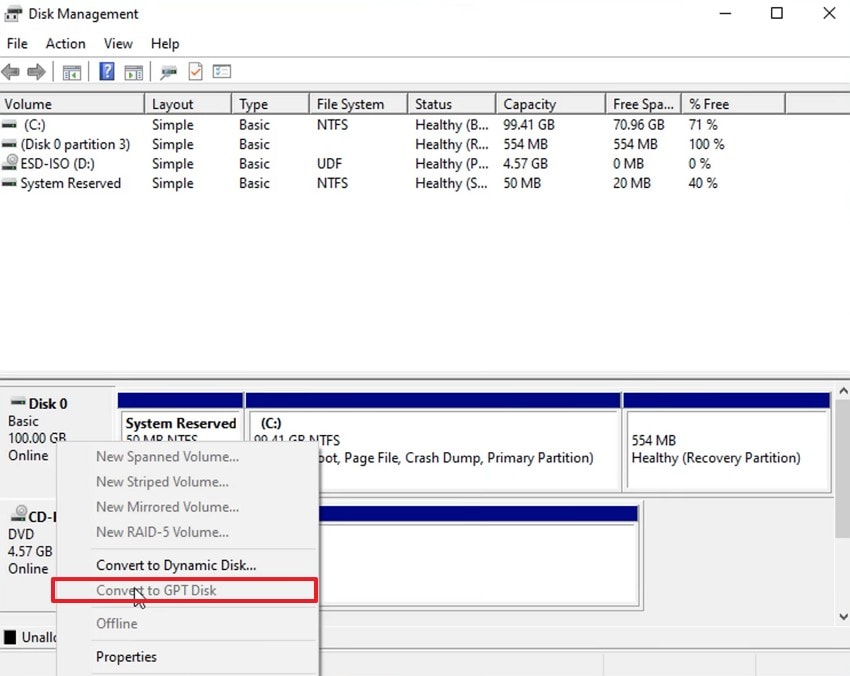
- From the next window, locate the desired disk and right-click on it to select the “Convert to GPT Disk” option. This will convert only the system disks to GPT.
5. Update Windows to Version 1703 or Later
Windows 10 version 1703 introduced official support for MBR2GPT, meaning older versions cannot run the tool reliably. Updating ensures you have the latest compatibility, bug fixes, and command improvements that support safe conversion. Newer builds also offer improved handling of disk layouts and UEFI boot configurations.
Running an outdated system risks failed conversions and missing features, so updating guarantees that the necessary system utilities and dependencies are available. If you want to learn how to update Windows to version 1703 or later, follow the steps below:
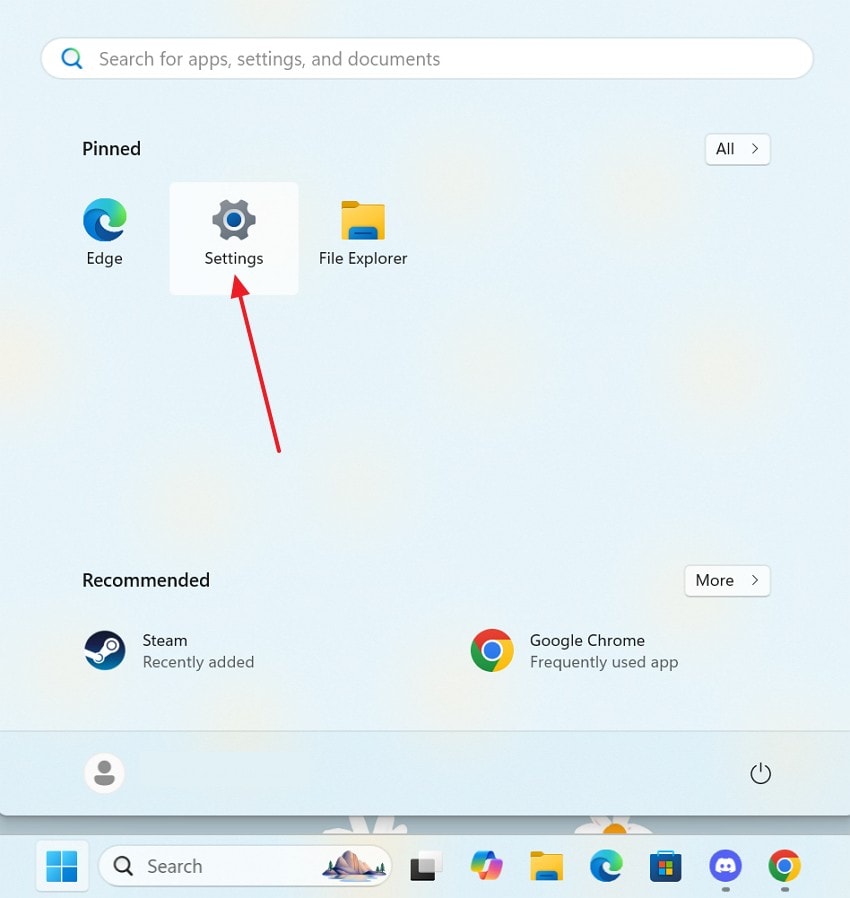
- To begin with, navigate to the taskbar and enter the “Start” menu. Using this menu, select the “Settings” option to proceed.
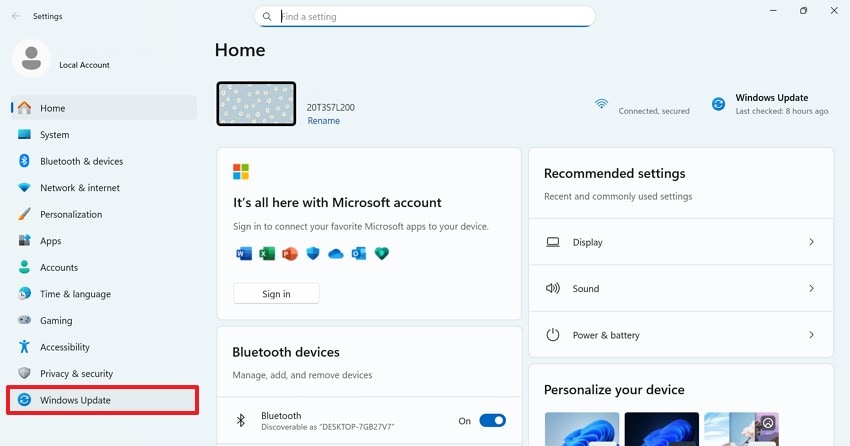
- Using the left panel, enter the “Windows Update” tab and check for any updates in the next interface.
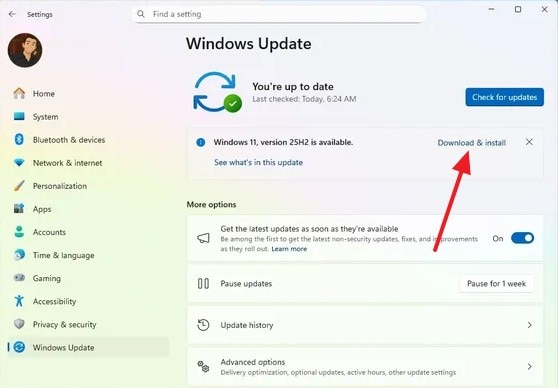
- If there are any updates available, select the “Download & Install” option to install the latest version of Windows on your PC.
6. Remove/Disable BitLocker or Volume Encryption
Turning off BitLocker or any form of disk encryption ensures the system can freely modify partitions during conversion. Encrypted volumes block access to critical areas and prevent the tool from relocating data or building the EFI partition. Disabling encryption unlocks these regions, allowing structural changes without conflicts.
This avoids corruption, ensures predictable data movement, and allows MBR2GPT to safely rewrite the disk layout while maintaining the integrity of the operating system. The steps below are detailed instructions on resolving the disk layout validation failed for disk 0 mbr2gpt error using this method:
- From the “Control Panel,” select the “System and Security” tab and move ahead.
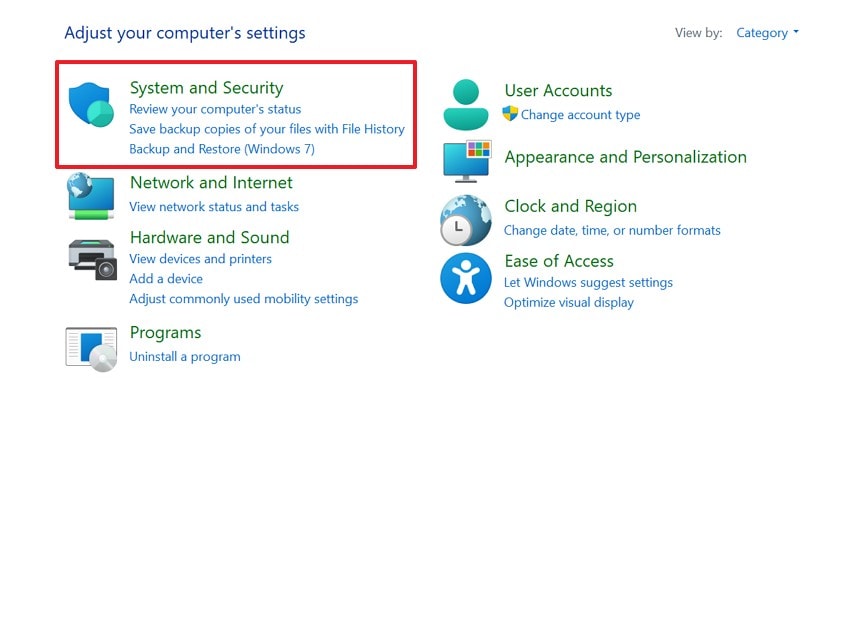
- From the following window, open the “BitLocker Drive Encryption” window.
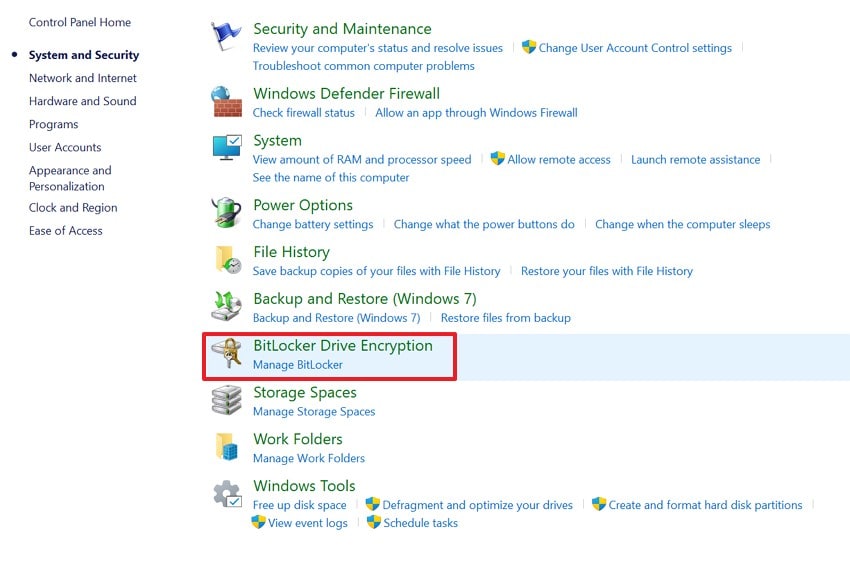
- When the new window opens, turn the BitLocker settings off.
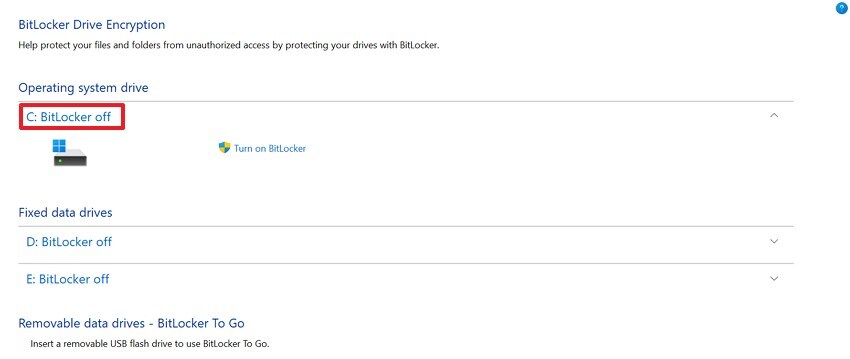
7. Check for Disk Errors and Corruption
Running a disk-error scan ensures the file system and partition tables are healthy before any significant structural modification. Corruption, bad sectors, or inconsistent metadata can cause the conversion process to break mid-operation, potentially leaving the disk unbootable. Fixing errors first creates a stable foundation for layout changes.
This step protects data, reduces the risk of failed operations, and helps the conversion tool interpret the disk’s structure accurately and safely. If you want to learn how to execute this technique to solve the disk layout validation failed for disk 0 error, the following steps will help:
- To start, right-click on the “C” drive and select the “Properties” option.
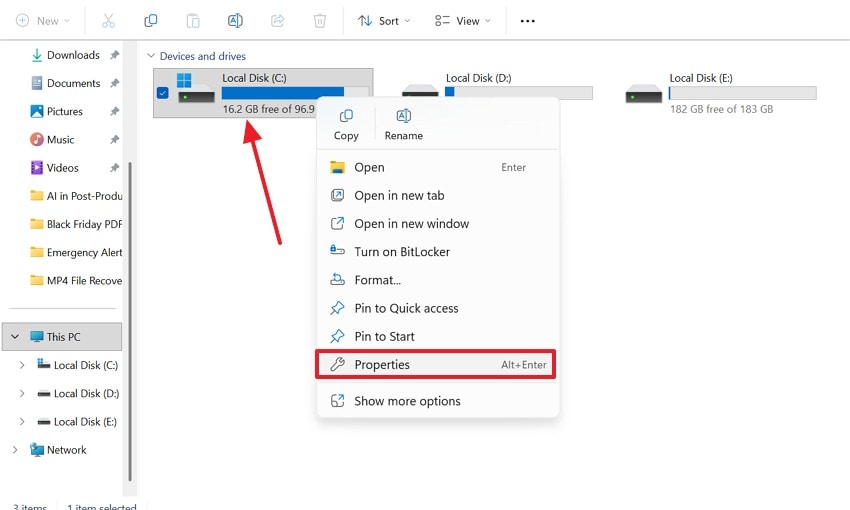
- Using the next window, enter the “Tools” tab and select the “Check” button from the Error Checking section. If the system has any corrupt files, follow the on-screen instructions for a diagnosis.
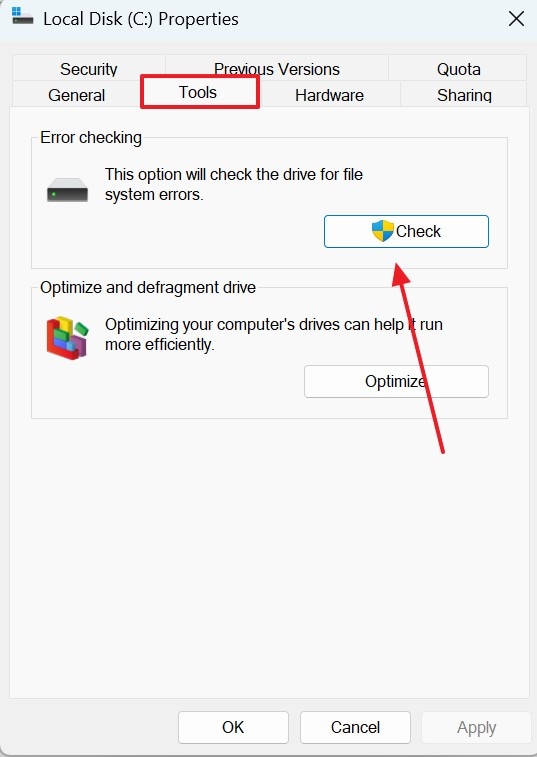
Pro Tip: Safely Restore Lost Files During Disk Conversion with Recoverit Data Recovery
Resolving the mbr2gpt validation failed error is tedious and might result in lost files. To get back access to these important files, you will need a third-party recovery tool. Recoverit is a robust recovery tool that caters to over 10,000 lost file scenarios. With a success rate of 95%, Recoverit ensures effective results. For maximized productivity of the process, Recoverit offers a batch recovery option and caters to multiple files per task.
It can be used with increased flexibility as it supports both Windows and Mac. Although the file scan process is automated, the users are free to add a custom search filter. In case you are not able to find the intended file through the Quick Scan, then find it through Deep Scan. When the file recovery process is finished, your retrieved documents will have a preserved quality.
Key Features
- File Preview Feature: Before you save the recovered file in a secure location, use the preview feature to verify the results.
- Format Support: You can retrieve more than 1,000 types of documents and multimedia files in order to get the most productivity.
- Compatible Devices: Recoverit supports over 20,000 storage devices, including hard drives, memory cards, and flash drives.
Using Recoverit to Retrieve Missing System Files
Now that we know Recoveit's capabilities, let’s see how it can help you restore files lost due to the mbr2gpt disk layout validation failed error. The steps below feature a guide on using this tool to recover a system file lost to the error-solving process:
1. Select the Location of a Missing System File
To begin with, open Recoverit and select the location of your missing system file from the left panel.

2. Choose the Missing Files and Recover
When the missing files appear on the next interface, select them and click “Recover” to retrieve them.

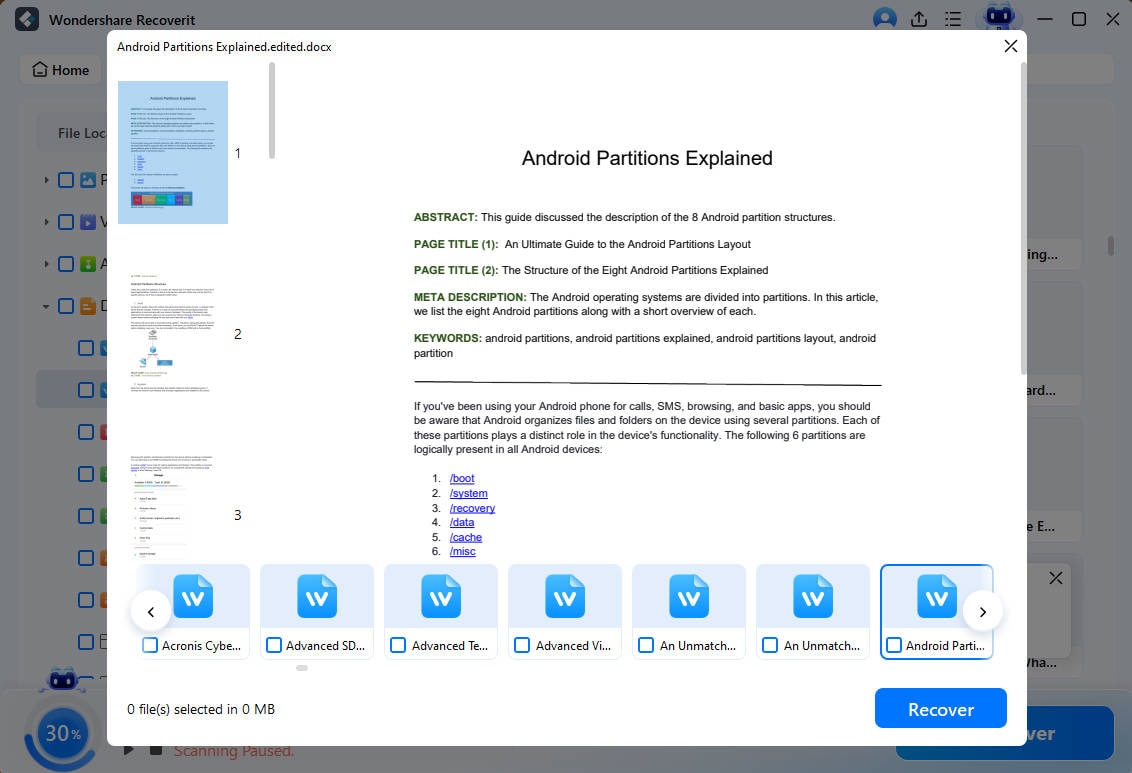
3. Preview the Recovered File
As the system files are recovered, preview them and hit the “Recover” button to save them.
Conclusion
In essence, the disk layout validation failed for disk 0 occurs when Windows cannot convert a disk from MBR to GPT due to structural or layout issues. This article explored various steps to resolve this error. It is common to lose system files while solving this error on your computer.
If you go through a similar situation, use Recoverit to regain access to the deleted documents. This platform is compatible with over 1 million storage devices to recover missing files.
FAQ
1. What does the “MBR2GPT Disk Layout Validation Failed for Disk 0” error mean?
It indicates that Windows cannot convert the selected disk from MBR to GPT due to layout issues. This may involve extra partitions, missing system partitions, or structural corruption preventing validation.2. How many primary partitions are allowed for conversion?
MBR2GPT requires three or fewer primary partitions. Exceeding this limit prevents the creation of the EFI System Partition needed for GPT.3. What to do if my system files went missing after resolving the MBR2GPT error?
If you have lost your system files after solving the MBR2GPT error, use Recoverit. This platform caters to more than 10,000 causes of lost files and retrieves the documents effectively.4. How can I retrieve multiple system files that I lost during the process?
To regain access to your multiple missing system files, use Recoverit. Its batch processing feature successfully locates and recovers bulk system files from your devices.


