

 TL;DR:
You can restore corrupted Excel files without data loss using built-in Microsoft features, free cloud workarounds, or dedicated repair software like Repairit Online.
● Uploading the damaged file to Google Sheets often bypasses Excel's read errors so you can redownload the data as an .xlsx file, while OneDrive and Google Drive allow you to revert to a previous uncorrupted state using the "Version History" feature.
● If the file was corrupted due to an unexpected software crash, reopen Microsoft 365 immediately and check the Auto-recovery pane or navigate to Info > Manage Workbook to retrieve the last auto-saved version.
● For severe corruption or offline recovery scenarios, Wondershare Recoverit can retrieve lost files directly from local drives and external storage, while Repairit Online offers batch processing to repair multiple corrupted files simultaneously.
Ask AI for a summary
 ChatGPT
 Perplexity
 Gemini
 Claude
 Grok
Grok
When an Excel workbook becomes corrupted, it can feel like a disaster, especially when it holds crucial data. File corruption can be caused by various reasons, from abrupt system shutdowns to software crashes. Fortunately, modern online tools and recovery services now make it possible to repair and restore damaged Excel files without losing valuable data.
In this guide, we will provide you with all efficient Excel corrupted file recovery online solutions along with their step-by-step guides. Furthermore, you will also get to know some tips to avoid Excel file corruption.
Try Recoverit to Perform Excel Data Recovery
 Security Verified. 3,591,664 people have downloaded it.
In this article

Part 1. What Causes Excel Files to Get Corrupted
To make the most of online corrupted Excel file recovery tools, you should first know the common reasons your files get damaged:

- Unexpected PC Shutdowns: In most cases, users are working on their Excel file, and their PC shuts down due to a power outage or some error leading to file damage.
- Large file Sizes: One of the common reasons is that larger files —especially those with excessive data, complex formulas, or multiple links —can make workbooks unstable.
- Virus or Malware Attacks: Sometimes files are targeted with a virus attack, which can lead to file corruption eventually.
- Faulty or Outdated Excel Software: If your Excel software is not up-to-date or if it has compatibility issues with the system, it will lead to errors.
- Shared Workbooks: Using Excel workbooks that have multi-user access without reliable hosting can mostly lead to file corruption.
Part 2. Why You Need Excel Corrupted File Recovery Online
As you are aware of the reason behind Excel file corruption, now let's explore why you need Excel corrupted file recovery online tools:
- Convenience and Speed: Online services let you restore corrupted Excel files instantly, directly from your browser, without the need for downloading software.
- Cross-Device Accessibility: Users can access these online recovery tools on any software, including Windows and Mac, by simply using internet access.
- Cost Effectiveness: Many online tools offer free or affordable recovery options, eliminating the need to pay an insane amount of money for recovering data.
- User-Friendly Process: These web-based tools provide an intuitive interface with straightforward steps, making them an ideal option for beginners, specifically.
- Wide File and Format Support: Online Recovery tools support almost all standard file formats, including all Excel file types.
Part 3. Best Methods for Excel Corrupted File Recovery Online
Ready to fix your damaged workbook? Here are the most effective methods for online corrupted Excel file recovery that you can try:
1. Use an Online Excel File Repair Tool (Repairit Online)
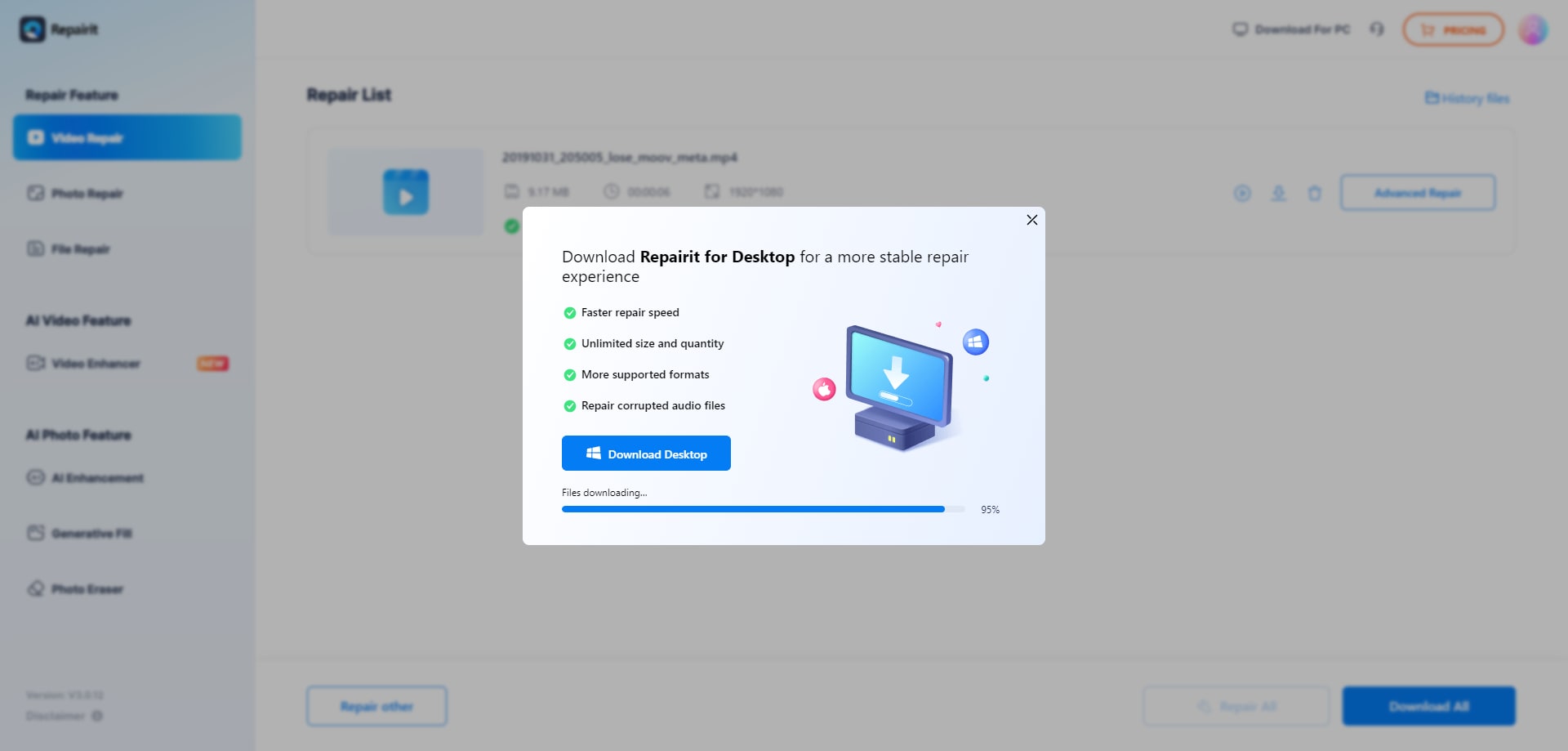
Suppose you spent your weeks on the completion of the sales data for your company. However, one day you open your file for final check just to find out that the file is corrupted. Instead of panicking in this situation, we recommend using Repairit Online, which provides maximum file accuracy. Users simply upload their files in this tool, and it will repair the file automatically within a matter of minutes.
This tool is capable of recovering multiple file formats, such as Word, Excel, PDF, RAR, and many more. Furthermore, this tool can be easily accessed from any operating system, including Windows, Linux, and macOS. Repairit lets you preview the repaired file and access its batch processing system to repair all the essential files simultaneously.
Key Features
- AI Photo Enhancer: This feature upscales the overall image quality by sharpening its details, enhancing the color palette, and removing extra noise.
- AI Photo Generative Tool: By using AI, Repairit lets you extend the image to add depth without losing the original quality.
- Old Photo Restoration Tool: It effortlessly restores the original quality of old monochrome and pixelated images to make them reusable.
Detailed Guide To Use Repairit Online
While exploring its features, if you are eager to use this corrupted Excel file recovery online free tool, then read the following section:
- Select the File Repair Option and Add the Damaged File
As you access this tool, click on the “File Repair” option from the left tab and select the "Add Files" button to insert a damaged Excel file.

- Click on the “Repair All” Button to Initiate the Procedure
Upon inserting the desired Excel file, click on the "Repair All" button to start the repair procedure. At this point, you can even add more files to repair by clicking on the "+Add File" button located at the bottom left of the screen.

- Preview and Save the Repaired Excel Files
Finally, the Excel file is repaired, now, click on the "Preview" icon to examine the accuracy of the repaired file. Afterwards, tap on the "Download" icon to save the repaired Excel file to the designated folder of the device.
2. Recover Through Google Sheets
This is one of the easiest yet free methods to recover corrupted Excel files by using its simple steps. Within this method, users simply upload their corrupted files using Google Sheets on any device, including computers, tablets, or smartphones. Sometimes Excel apps fail to open a file, but Google Sheets uses another reading procedure to recover lost data. So, let's explore a detailed stepwise guide to recover a corrupted Excel file online for free:
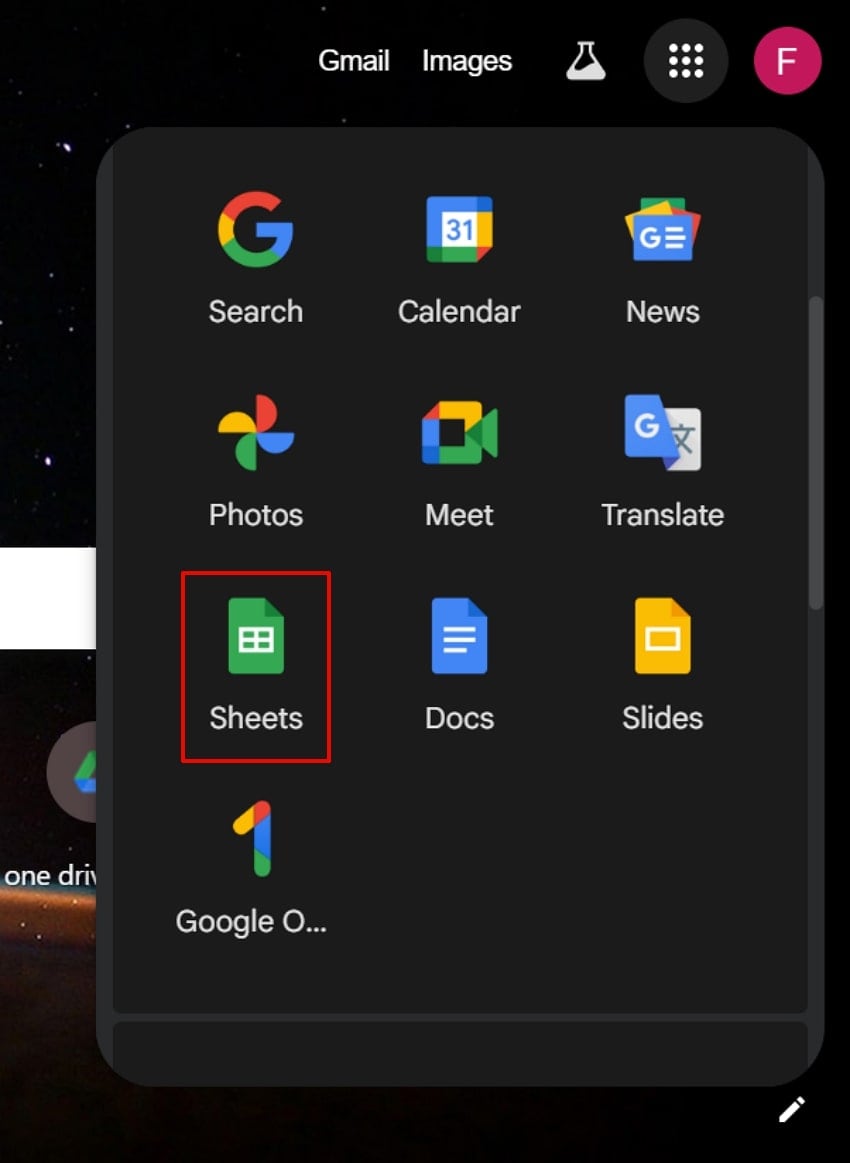
- Navigate into Google’s main webpage and click on the "9 Dots" menu from the top right of the interface. Navigate to the "Sheets" app to access further procedure.
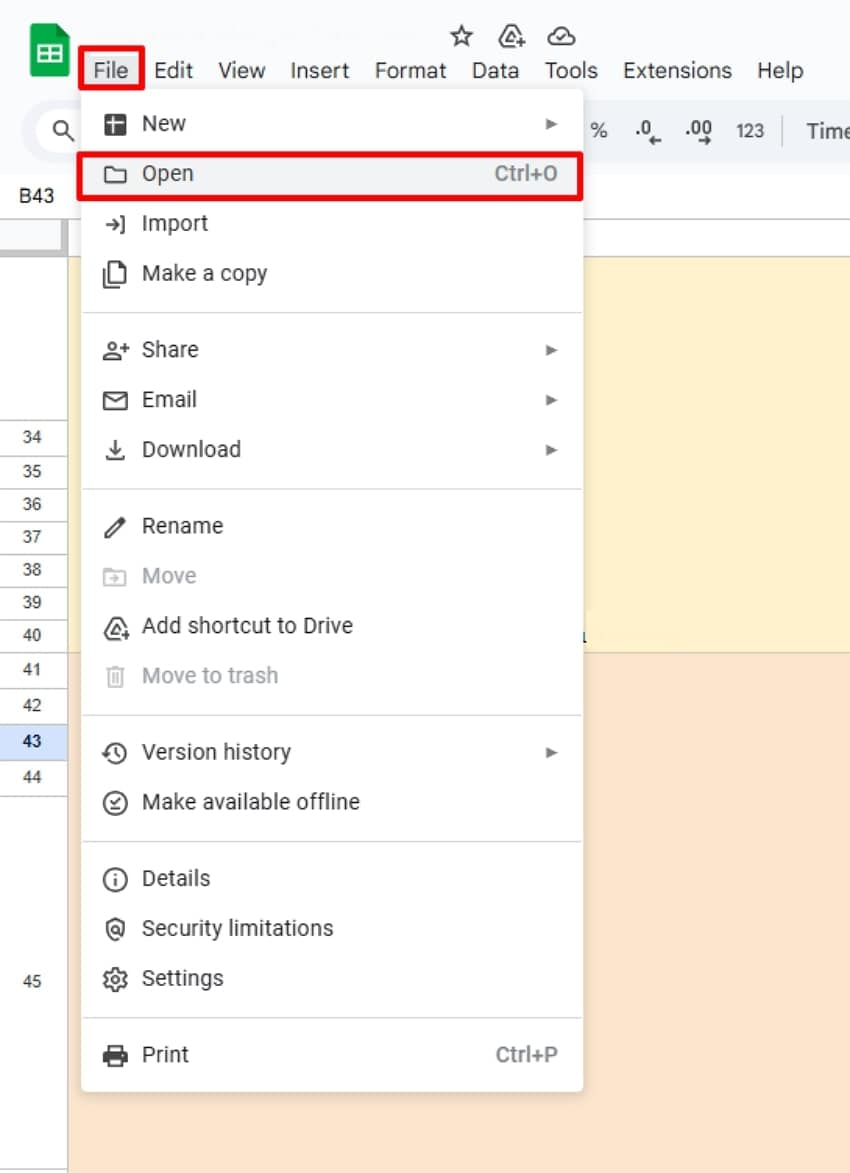
- Upon entering the Google Sheets, choose the "File" tab and select the "Open" option from its drop-down menu.
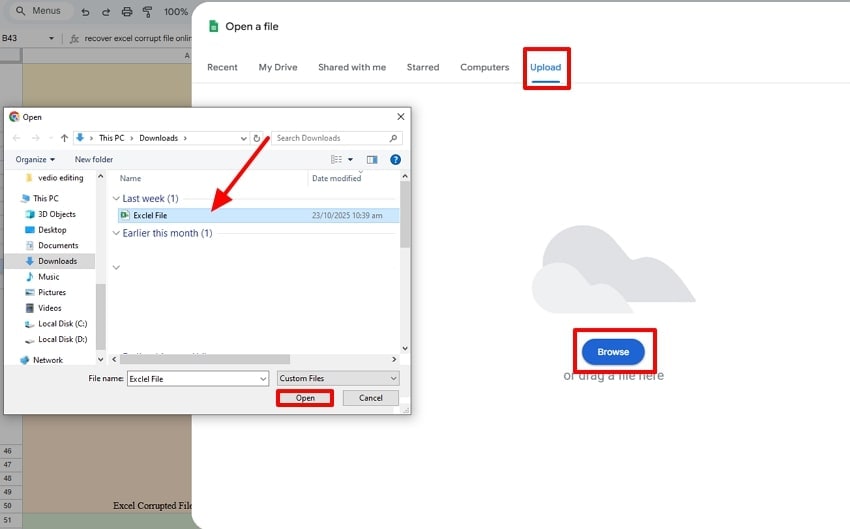
- Here, click on the “Upload” tab and then select the “Browse” button. Following this, choose the desired corrupted Excel file and hit the “Open” button.
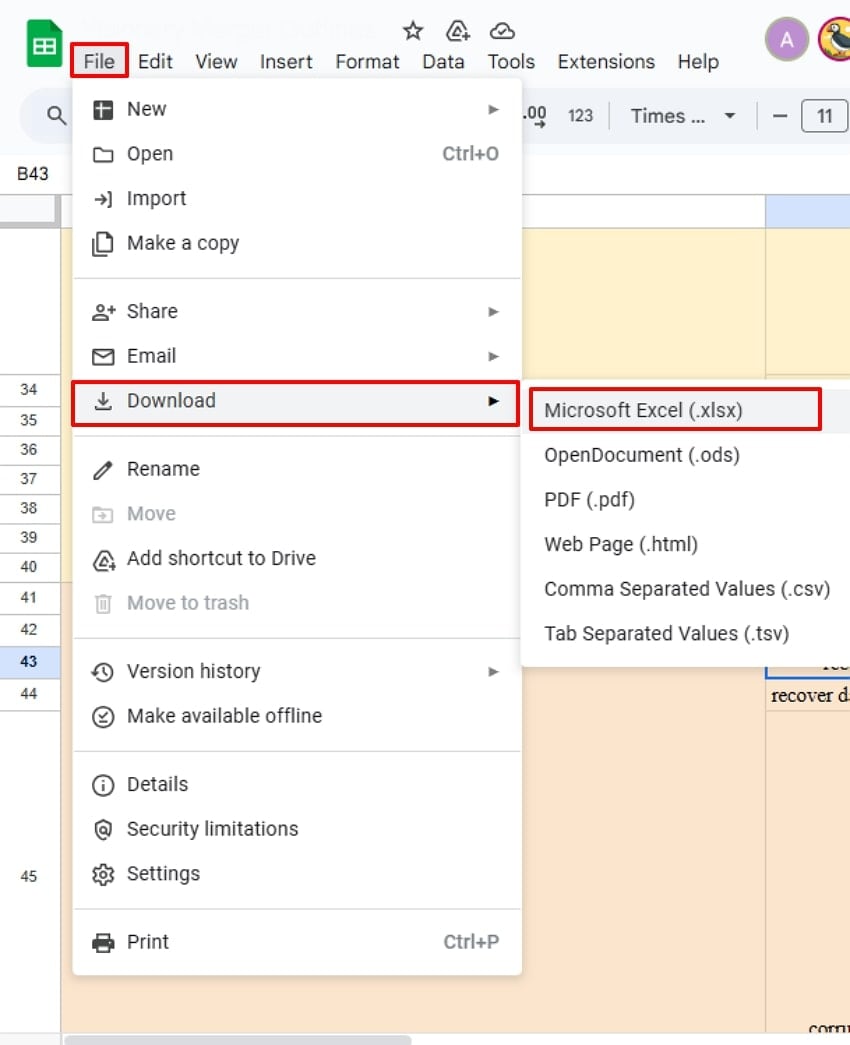
- Here, review the content to check if all the elements are complete. Then, expand the "File" menu, hit the "Download" button, and choose the "Microsoft Excel(.xlsx)" option for saving it.
3. Try Microsoft 365 Auto-Recovery Feature
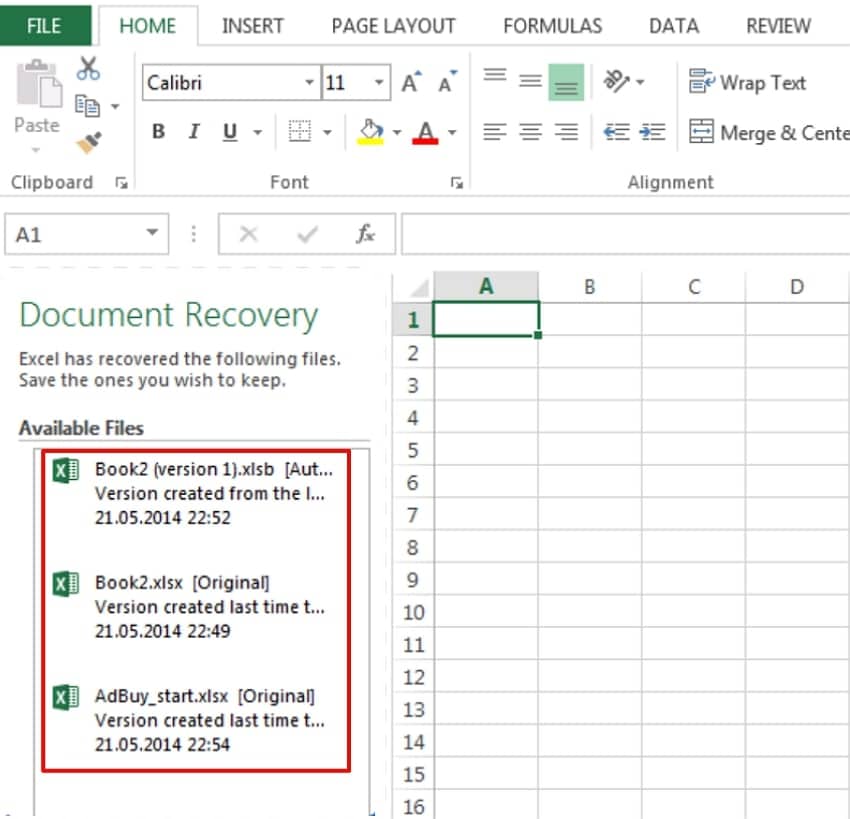
To recover data from a corrupted Excel file online for free, this is an efficient method as Microsoft saves a backup at regular intervals. Within this method, when users open the Excel app again, it opens an Auto-recovery pane instantly after a crash. This is beneficial as users can access a list of previously saved automatic versions, making it easy to choose. Furthermore, it is a built-in part of Microsoft 365, so let's explore its detailed stepwise guide below:
Instructions. After a crash, when you open the Excel app again, it will show an Auto-recovery pane from which you click on the required file you want to recover. However, in case your Excel doesn't show the "File" menu, choose the Info option to further select the "Manage Workbook."
4. Use an Online Backup or Cloud Service
Using an online backup or cloud service is highly recommended to recover data from a corrupted Excel file online for free. Cloud platforms like OneDrive and Google Drive automatically save multiple historical versions of files, allowing users to easily restore them later. Furthermore, cloud syncing lets multiple users access the same file, so let's explore its detailed guide:
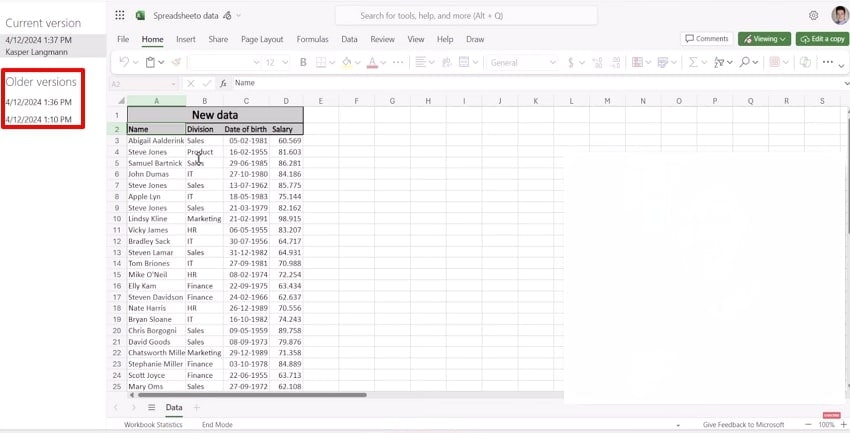
- Go to the "OneDrive" website and log in with your credentials to get into its interface. Now, go to the "Files", navigate to the desired folder, and hit the "3 Dots" button next to it. Here, click on the "Version History" option from its drop-down menu.
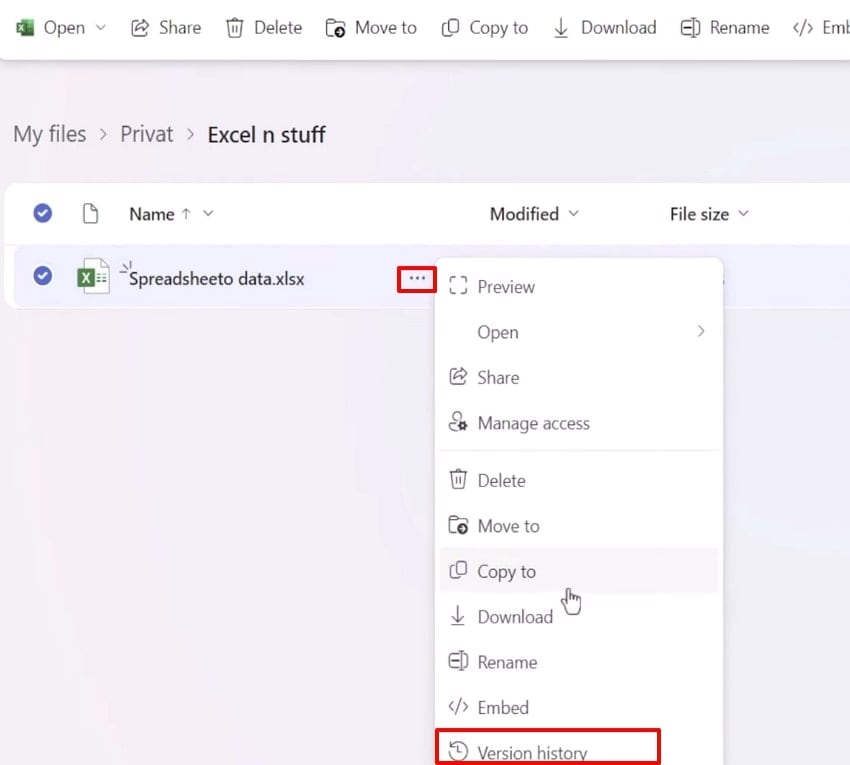
- The desired file is opened, and it will show all versions of this file in its left panel. Click on the "Desired Version" of that file and hit the "File" menu to download the Excel file to the device.
Pro Tip: Use Recoverit to Restore Damaged Excel Files Without Internet Access
Imagine there is a financial analyst visiting a rural area for some audit work, but during his work, his laptop suddenly shuts down. When he restarts the laptop, the file is gone, and he doesn't even have internet access to use online tools. In this situation, we recommend using Wondershare Recoverit, which is an efficient offline solution to recover your lost audit files.
This tool provides massive support to up to 1000+ file formats, including PDFs, images, and videos. Recoverit claims to provide 99.5% of data accuracy while being compatible with Linux and NAS devices. Users can easily access this tool from any storage device, including a PC, a laptop, a USB, or an SD card. Furthermore, you can even preview the recovered files to ensure that the file contains all accurate data and formatting.
Key Features
- Scanning Options: This tool provides both Quick scanning options for easy data retrieval and Deep Scanning for recovering data from complex scenarios.
- Filter Search Availability: There are various filter search options, like "File Name or File Type" search, available, making it easy for users to find lost files.
- Batch Processing: Users can access the batch processing system to restore all their files at once, making it an ideal option for both beginners and professionals.
Detailed Guide on How to Use Wondershare Recoverit
After exploring Excel corrupted file recovery online tools, now if you want to learn more about these tools so go ahead:
- Choose the Location for the File Recovery
In the "File Recovery" section, select the "Hard Drives and Locations" option from the left tab. Following this, choose the desired location of the lost file under the "Quick Access" tab available in this interface.

- Initiate the Process with Desired Scanning Mode
Upon selecting the location of the file, it will automatically start the “Quick Scanning” mode to instantly recover lost files. Here, you can also pinpoint files by “File Type” or “File Location” to find and recover files easily.

- Preview and Render the Recover File
Once your files are recovered, you can preview the files by clicking on the Preview button. After previewing the outcome, tap on the “Recover” button to save the desired file to the device.

Part 4. Proven Methods to Prevent Excel Files from Getting Corrupted Again
After successfully recovering your data, it’s equally important to take steps to prevent future issues. Here are some proven methods to stop Excel files from getting corrupted again:

- Avoid Sudden Shutdowns: Make sure Excel files are not open when you are not using the system, and prevent abrupt power cuts to save Excel files.
- Use Reliable Storage: Ensure you regularly back up your files on multiple devices or cloud platforms to safeguard against hard disk failures.
- Keep Antivirus Updated: Protect your computer from malware or virus attacks that can target and damage Office files, specifically Excel spreadsheets.
- Limit File Size and Complexity: Avoid using large file sizes and more complex elements within the file, as they are one of the most common reasons for Excel file corruption.
- Regularly Update Excel Software: Keep Microsoft Excel and related applications updated to the latest versions to benefit from bug fixes.
Conclusion
Summing up, in this article, we have narrowed down the most efficient methods for Excel corrupted file recovery online. Among these methods, we recommend using Recoverit, which lets users recover lost files by ensuring 99.5% accuracy. Furthermore, we have narrowed down some tips to avoid file corruption issues for next time.
FAQ
-
1. What should I do when Excel says my file is corrupted or cannot be opened?
In case your file gets corrupted, first try to repair it with Excel's built-in repair option by clicking the "Open and Repair" option. If this method doesn't work, we recommend using Repairit to recover a corrupted Excel file online for free with 99.5% accuracy. -
2. What if I lost my Excel file after a crash and never saved it?
After a crash, you can opt into its auto recovery feature by simply opening the Excel app again. It will provide you with a list of the last opened files from which you can easily access them. -
3. Can I recover a deleted Excel file?
Yes, it is completely possible by using a reliable and advanced data recovery tool like Wondershare Recoverit. This tool provides you with various advanced features to recover almost every type of file format by supporting all major operating systems. -
4. What are my options if none of these methods restore my file?
If you have lost a file due to a complex scenario and no built-in or third-party tool is working, then opt for professional help. These professionals use advanced data recovery tools and have great experience in recovering lost data.


