


 TL;DR:
To resolve the "appvlsvsubsystems64.dll was not found" error that blocks Microsoft Office and App-V virtualized applications from launching, run the Microsoft Office Repair tool or use Windows command utilities to safely restore the missing system file.
● Use the "Quick Repair" or "Online Repair" option under Settings > Apps > Microsoft Office Professional Plus > Modify to rebuild the missing DLL component without reinstalling the entire software suite.
● Run the System File Checker (`sfc /scannow`) and DISM commands in the Command Prompt to let Windows automatically detect and replace corrupted or missing system dependencies.
● If the error persists due to an unresponsive installer, refresh the Windows Installer service by running `msiexec /unregister` followed by `msiexec /regserver` in the Run dialog, or recover an accidentally deleted DLL using data recovery software like Recoverit.
Ask AI for a summary
 ChatGPT
 Perplexity
 Gemini
 Claude
 Grok
Grok
Imagine opening an important program only to be stopped by a pop-up saying appvlsvsubsystems64.dll was not found. This frustrating error often appears when a required system file is missing or blocked. The good news is that you can fix it without advanced technical skills.
In this guide, you’ll learn exactly why this error occurs and the safest methods to restore the missing DLL. From basic checks to reliable repair tools, each method is designed to help you get your system working smoothly again without any errors.
Try Recoverit to Perform Missing DLL File Recovery
 Security Verified. 3,591,664 people have downloaded it.
In this article

Part 1. What is appvlsvsubsystems64.dll and Why It’s Important
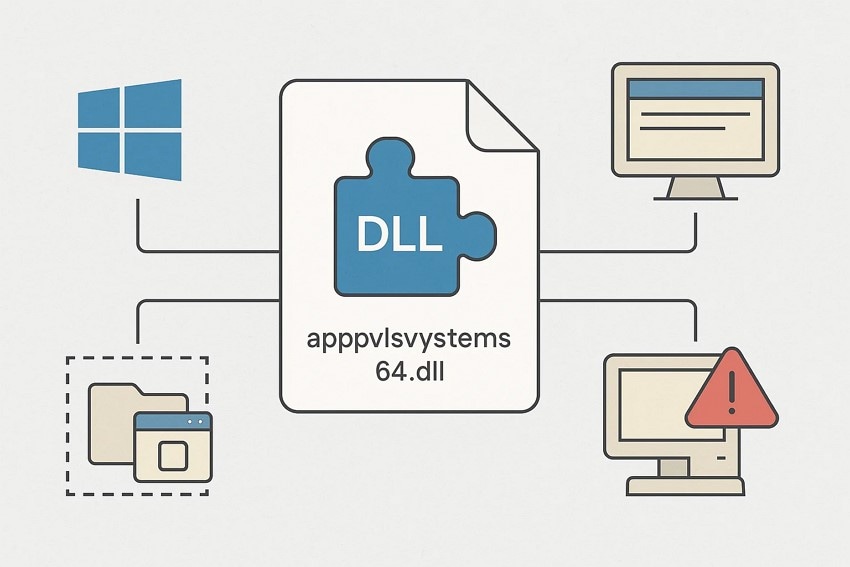
The appvlsvsubsystems64.dll file is a core component of Microsoft’s App-V (Application Virtualization) system, responsible for helping virtualized applications run smoothly on Windows. It manages subsystem functions that allow programs to operate in isolated environments without traditional installation. When this DLL is missing or damaged, virtualized or dependent applications fail to launch, triggering the appvlsvsubsystems64.dll missing error. Restoring or repairing the file usually resolves the issue quickly.
Why Is It Important?
- Essential for running Microsoft App-V–based virtualized applications on Windows.
- Provides subsystem instructions required for smooth app execution.
- Supports isolated application environments without traditional installation.
- Maintains stability and compatibility for programs relying on App-V components.
- Prevents app launch failures by ensuring required DLL functions are available.

Part 2. Common Causes of appvlsvsubsystems64.dll Was Not Found
Before you can fix the appvlsvsubsystems64.dll download was not found error, understanding what triggers it makes troubleshooting much easier. Several common issues can cause this DLL to disappear or break. Mentioned below are some of the most common causes that make the DLL error occur:
- Accidental File Deletion: Users sometimes remove the DLL while cleaning system files or uninstalling software. When the file is missing, any App-V–dependent application immediately fails to start.
- Corrupted DLL File: Corruption can occur due to interrupted updates, improper shutdowns, or disk errors. A damaged DLL becomes unusable, leading Windows to report it as “not found.”
- Malware or Virus Infection: Malicious programs often target system DLLs to disrupt normal functionality. Once the file is infected or quarantined, Windows blocks access and triggers the error.
- Registry Errors: Invalid or broken registry entries prevent Windows from linking applications to the correct DLL path. These misconfigurations lead Windows to believe the file is missing when it's not.
- Damaged System Files: Core Windows files may become corrupted due to system crashes or hardware issues. When essential dependencies break, the appvlsvsubsystems64.dll file fails to load even if intact.
Part 3. Fix appvlsvsubsystems64.dll Was Not Found - 6 Ways!
If you are facing the appvlsvsubsystems64.dll was not found error, there are multiple ways to fix it. The following 6 methods cover solutions, helping you restore the missing DLL and get your applications running smoothly again:
1. Run Office Repair (Quick or Online Repair)
This method uses Microsoft Office’s repair tool to find and fix missing or damaged files. Using Quick or Online Repair restores all key components, appvlsvsubsystems64.dll, without reinstalling the whole suite. Follow the steps indicated next to learn how to perform this method:
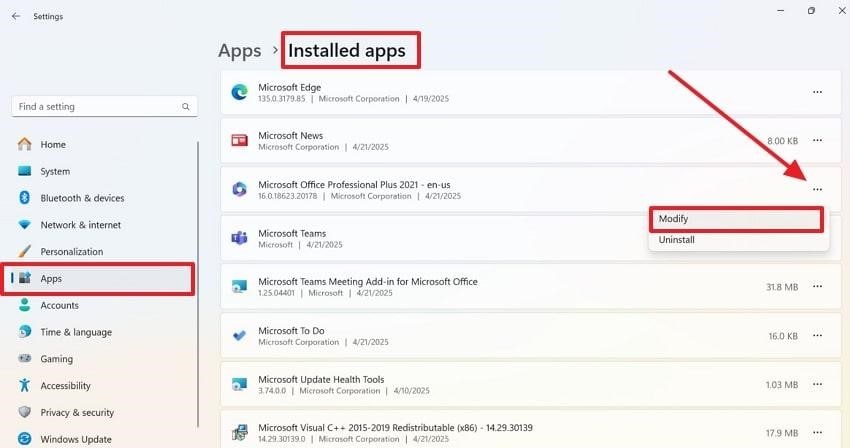
- Start by heading to the Settings and selecting “Apps” from the left-hand panel. Under “Installed Apps,” locate Microsoft Office Professional Plus, click the “Three Dots” next to it, and choose “Modify.”
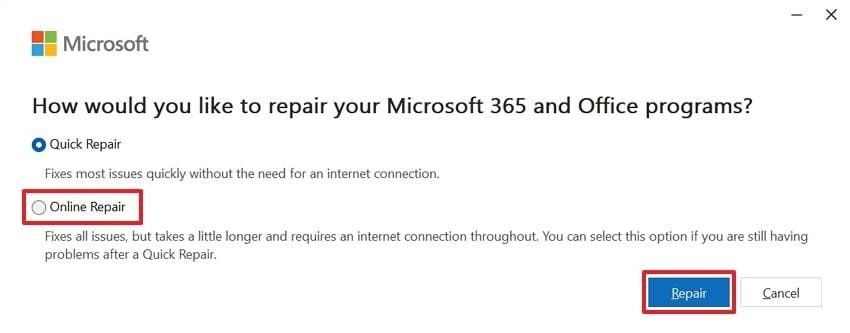
- In the following window, enable the “Online Repair” or “Quick Repair” option and press the “Repair” button to proceed.
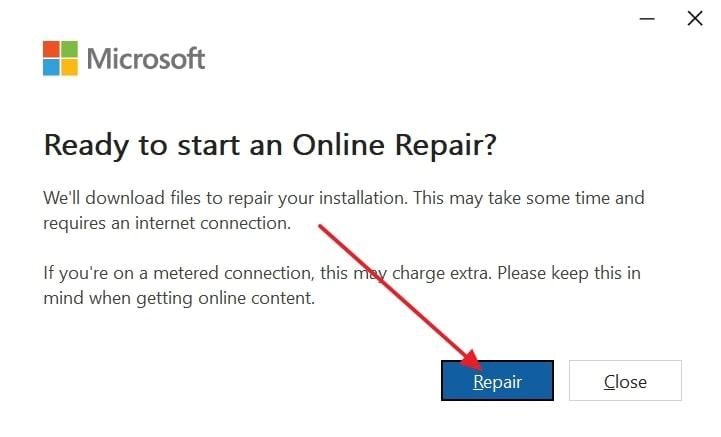
- When prompted for confirmation, click “Repair” again on the pop-up to initiate the repair process.
2. Update Windows and Microsoft Office
Keeping both Windows and Microsoft Office up to date ensures all system files and application components are current. This method automatically replaces missing or outdated DLLs, including appvlsvsubsystems64.dll downloads, helping maintain smooth application performance without requiring manual file repairs. Follow the steps mentioned next to learn how to perform this fix:
Update Windows
- Open the “Settings” app on your computer device and navigate to the “Update & Security” section.
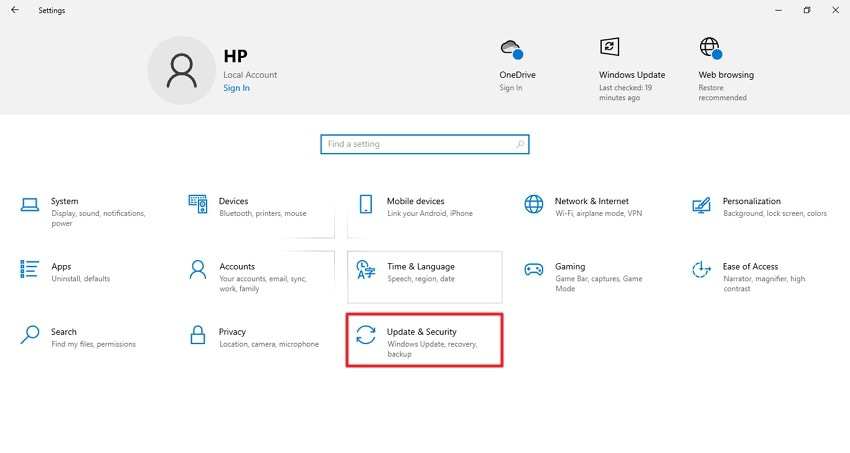
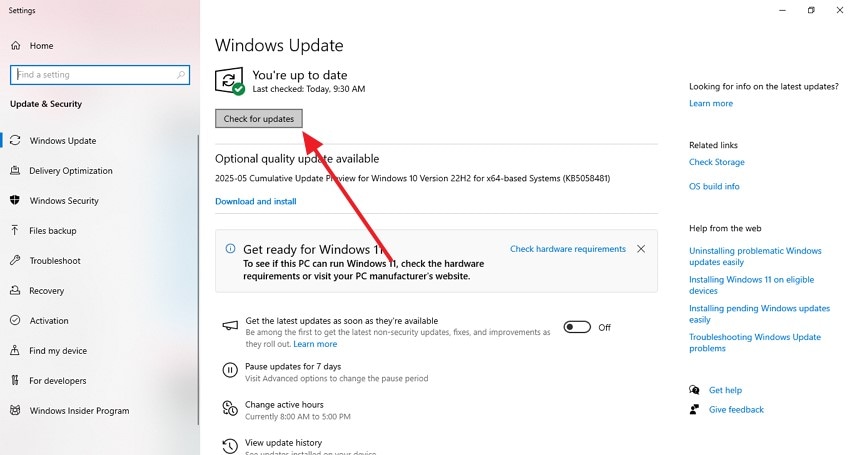
- Select “Check for Updates” to begin downloading and installing any available Windows updates automatically.
For MS Office
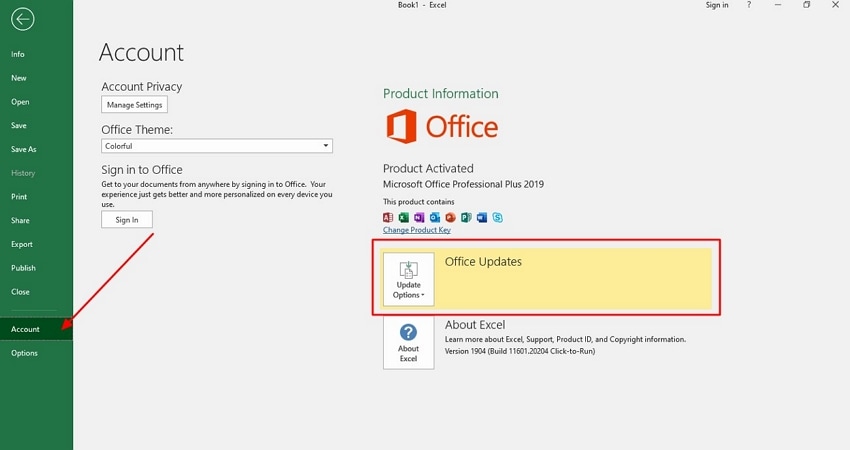
Instructions. To perform the MS Office update, open any software of the suite, such as Excel, Word, or PowerPoint, and head to the “Account” section on the left. Now, locate the “Office Updates” option and click on it to get the latest software update.
3. Restore the DLL From a Trusted Source
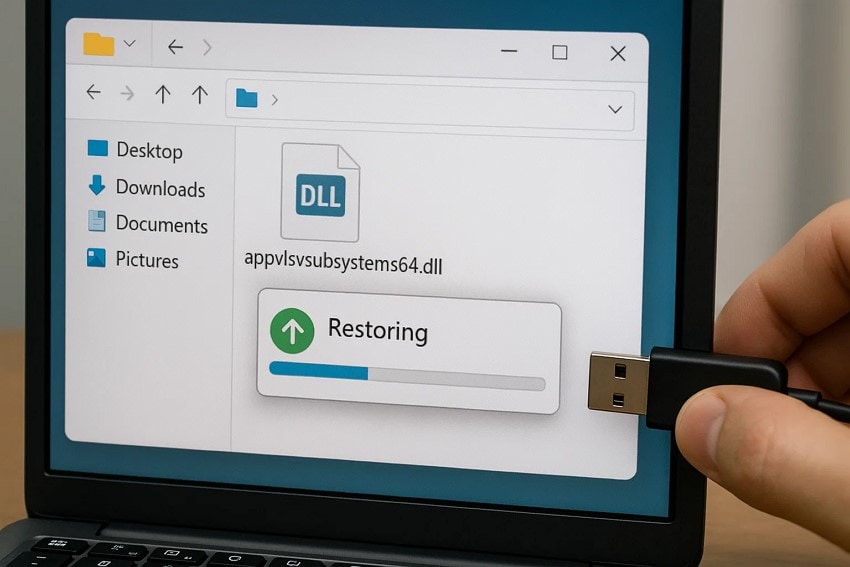
Restoring the appvlsvsubsystems64.dll missing file from a trusted source provides a safe way to replace the missing or corrupted component. You can obtain a clean version by extracting it from official installation packages, such as Microsoft App-V or Windows setup files. This ensures full compatibility with your system and avoids the security risks associated with downloading DLLs from third-party websites. Once restored, affected applications can run smoothly again.
4. Reinstall Microsoft Office
The fix replaces all program components, including missing or corrupted DLL files like appvlsvsubsystems64.dll downloads. This method ensures a clean installation with properly registered system files, restoring full functionality to applications that rely on Office-related services without requiring advanced troubleshooting. To learn how to uninstall the MS Office from your system and then install it, read the steps mentioned next:
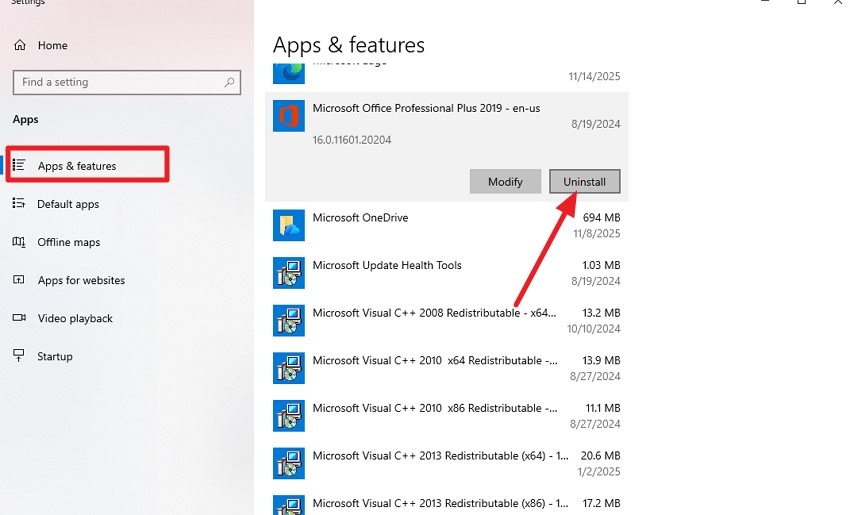
- Head to your system settings and access the “Apps & Features” section. Next, scroll through the list of programs to find MS Office. Click on it to locate the “Uninstall” option and press it to successfully uninstall the program from your system.
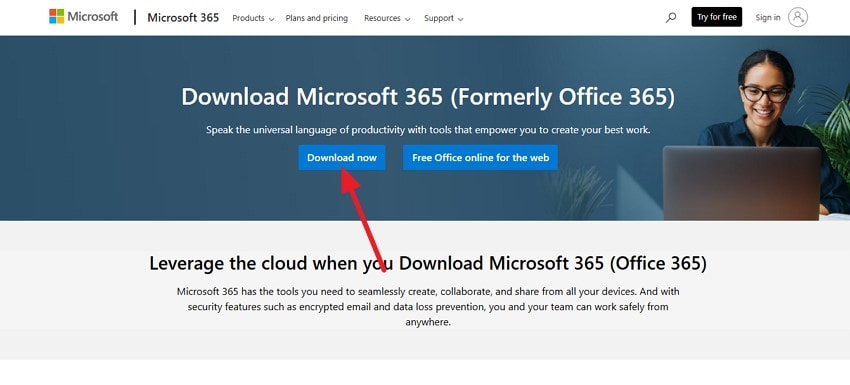
- Now go to the official Microsoft website and look for the Microsoft 365 program. Click on the “Download Now” button to successfully install it on your system.
5. Run System File Checker and DISM Tools
Using the built-in System File Checker (SFC) and Deployment Imaging Servicing and Management (DISM) tools helps repair damaged or missing system components, including DLL files. These utilities scan Windows for integrity issues and automatically replace corrupted entries with clean versions. Together, they rebuilt a stable environment, reducing errors linked to appvlsvsubsystems64.dll, which were not found. Learn how to perform these system-oriented checks to fix appvlsvsubsystems64.dll was not found error:
Run SFC Scan
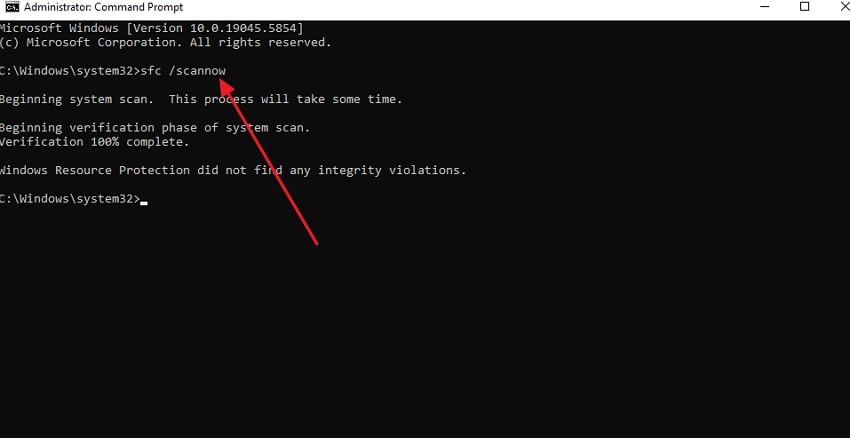
Instructions. After opening the command prompt, type “sfc /scannow" and press Enter. The System File Checker will then scan your system for any corrupted or missing files. If it detects any issues, the utility will automatically repair them to help maintain stability.
Run DISM Tool
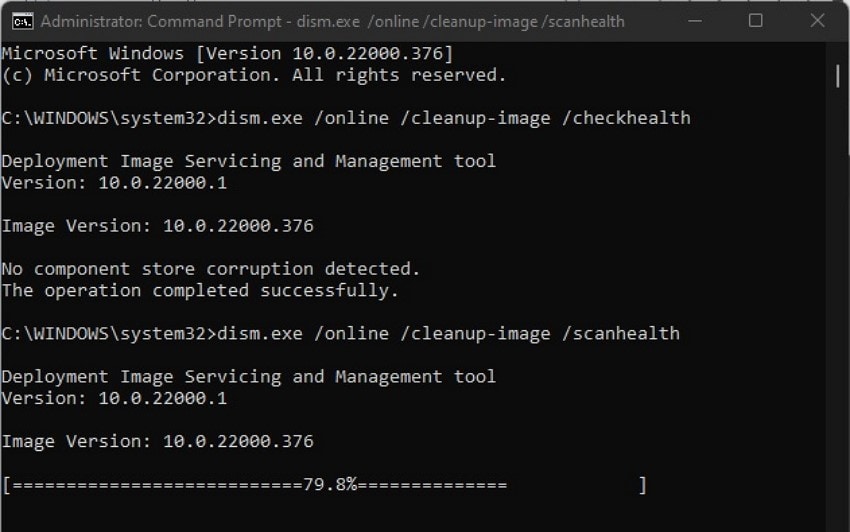
Instructions. In the command prompt, type the command “dism.exe online/cleanup - image/ healthcheck” and press “Enter” to check the health. Next, enter the command “dism.exe online/cleanup - image/ scanhealth” to scan in depth for errors within the DLL files.
6. Re-Register Windows Installer (If Installation Issues Persist)
This method helps restore the proper functioning of the Windows Installer service, which is essential for handling software installations and updates. Re-registering it ensures that corrupted or unresponsive installer components are refreshed, allowing applications that rely on installation services to access required DLLs. Follow the steps to re-register the Windows Installer and resolve the appvlsvsubsystems64.dll missing error:
- Press the “Windows + R” keys on your keyboard to open a dialog box. Enter the command “msiexec /unregister” and press the “OK” button located at the bottom.
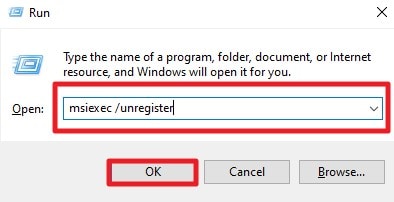
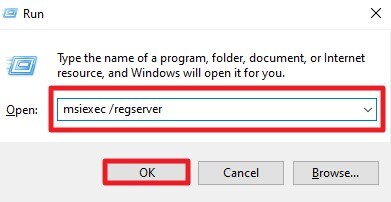
- Next, access the same dialogue box again and type “msiexec /regserver” to hit the “Ok” button. You may briefly see an hourglass, but the operation is complete once it disappears. After completing these steps, try reinstalling the MS Office again to successfully remove the error.
Pro Tip: Recover Missing DLL Files Effortlessly with Recoverit
With the above solutions, you might successfully fix the appvlsvsubsystems64.dll was not found error, but what if a critical application stops working entirely? This could happen due to accidental deletion or corruption of an essential DLL. We have the ideal solution for such situations, a powerful recovery tool called Recoverit. This software supports all major storage devices, including internal drives and external SSDs.
There is extensive support for over 1000 file types, covering DLLs, system files, and application data. You can restore your lost or corrupted files safely and reliably. The program claims an impressive 99.5% success rate for file recovery while being compatible with Linux and NAS devices. Full security is ensured for your recovered files to protect them from accidental deletion or corruption.
Coherent Features
- Built-in Deep Scanning: Performs a thorough scan of your entire system to ensure no DLL or critical file is missed.
- Preview Options: The tool allows you to view files after recovery to verify integrity before saving them.
- Filter Search Availability: It provides multiple filters to narrow down search results for faster, more precise recovery.
A Step-by-Step Guide to Recovering Missing DLL Files with Recoverit
To address the missing DLL files within your computer, follow these steps using Recoverit:
1. Select the Recovery Location
From the homepage, choose the drive or folder where the missing DLL or system files were located. The scanning process will begin automatically for locating lost files.

2. Run the Scan or Narrow the Search
While scanning, use filters like “File Type” or “File Location” to pinpoint your missing DLL files for quicker recovery.

3. Preview the Found Files
Once the scan completes, you can preview all recoverable DLL and system files. This ensures you select the correct appvlsvsubsystems64.dll before restoring it to your system. Press the “Recover” button to save them to your device.

Part 4. Tips to Prevent DLL Errors in the Future
Before encountering another appvlsvsubsystems64.dll is missing error, taking preventive measures can help. Here are practical tips to help you avoid such errors in the future:
- Regular System Updates: Keep Windows and all installed applications updated consistently. Updates often replace outdated or missing DLL files, reducing the chances of errors.
- Reliable Antivirus Protection: Install trusted antivirus software and run regular scans. This helps prevent malware from corrupting or deleting important DLL files.
- Avoid Accidental Deletion: Be careful when cleaning system files or uninstalling programs. Accidentally removing DLLs can stop applications from functioning correctly.
- Backup Important Files: Create regular backups of critical system files and application folders. This ensures you can restore missing DLLs quickly without disrupting your workflow.
- Safe Software Installation: Only download and install software from verified, trusted sources. Unofficial programs may overwrite or conflict with essential DLL files.
Conclusion
All in all, resolving the appvlsvsubsystems64.dll was not found error is achievable with careful fixes. Following the step-by-step fixes outlined above can restore your system’s stability quickly. For added security and peace of mind, using Recoverit ensures that any deleted DLL files are recovered.
FAQ
-
1. What does the appvlsvsubsystems64.dll was not found error mean?
This error indicates that the Windows system cannot locate the required DLL file. Without this file, any application relying on it will fail to launch. -
2. How can I manually fix the missing DLL?
You can restore the file by reinstalling the application from a trusted source. Always ensure the DLL matches your system architecture (64-bit or 32-bit). -
3. Can I recover a deleted DLL file?
Yes, deleted DLL files can often be recovered using data recovery software. Wondershare Recoverit is recommended because it restores missing system files in no time. -
4. Is it safe to download the DLL from the internet?
Downloading DLLs from unofficial sources is risky and may introduce malware. Using Wondershare Recoverit to restore the original DLL is a reliable option.


