

 TL;DR:
Photoshop automatically creates crash recovery backups that are stored in a hidden AutoRecover folder within your computer's user directory.
● On Windows, the default path is C:\Users\[Name]\AppData\Roaming\Adobe\Adobe Photoshop [version]\AutoRecover, whereas Mac users must use Finder to access ~/Library/Application Support/Adobe/Adobe Photoshop [version]/AutoRecover.
● These backup files are permanently cleared when Photoshop closes normally and will only exist if the "Automatically Save Recovery Information" option is enabled in the File Handling preferences.
● If the autosave file is corrupted or will not open, you can manually restore the project by locating the temporary system backups and changing the .tmp or .psb file extension to .psd.
Ask AI for a summary
 ChatGPT
 Perplexity
 Gemini
 Claude
 Grok
Grok
However, I can't find any of the autosave files. Any ideas what's going on? Any suggestions on how to get my work back? Will I need to start over?” - Reddit
Do you know anything more devastating than watching Photoshop crash right before you hit save? All those layers, touch-ups, or effects are gone in a blink, and you’re left helpless, wondering about the photoshop autosave location. Photoshop automatically creates backup files as you work, but if you don’t know where they're saved, you could easily miss the chance of recovery.
Take it as a place that guards your designs when things go wrong. For your progress rescue, continue reading the guide and reveal the default Photoshop autosave location on Windows/Mac. Along with this, you’re guided on how to recover unsaved photoshop files for your peace of mind.
Try Recoverit to Perform PSD File Recovery
 Security Verified. 3,591,664 people have downloaded it.
In this article

Part 1. What Is Photoshop Autosave Location: Where Is It
The photoshop recovery file location is a folder where the program automatically saves your progress to help preserve your work in case of a crash. Once the feature is enabled, the platform captures snapshots of your document’s progress and stores backup copies in a separate AutoRecover folder. The default locations for these files are usually in your operating system's user directory, on your working device.
This autosave system operates in the background, and designers can set their preferred save intervals, such as every 10 or 30 minutes. Photoshop prompts the software to check AutoRecover location and attempt a restore whenever an uncertain crash occurs. Remember that these autosave files are not kept indefinitely; they are cleared once Photoshop closes normally. In fact, it reduces the risk of losing progress but doesn’t replace the need for regular manual saves.
Part 2. Default Photoshop Autosave Location: Where Is It on Windows and Mac
On Windows, the default location where Adobe Photoshop stores autosave recovery files is within the user's AppData directory. Whereas these files are stored in a hidden directory on Macs and often require using Finder’s “Go to Folder” feature to access them. For better understanding, explore the paths and discover “where are photoshop autosave files stored” on Windows/Mac:
- Windows: C:\Users\ [Name]\AppData\Roaming\Adobe\Adobe Photoshop [version]\AutoRecover
- Mac: ~/Library/Application Support/Adobe/Adobe Photoshop [version]/AutoRecover
Part 3. How to Recover Unsaved Photoshop Files from the Autosave Location
Once you know that the software generates recovery files and stores them in a dedicated photoshop autosave location, recovery becomes much easier. The section below will walk you through exactly how to find, open, and restore your projects under any condition:
How to Reopen Autosaved PSD Files
Whether you’re working on high-resolution images or designing complex layers, access to autosaved PSD files provides much relief. This ensures unexpected errors don’t compromise your creativity and takes only a few seconds to recover unsaved photoshop files. For this, follow the provided guidelines to understand where to look and how to reopen autosave PSD files on Windows/Mac:
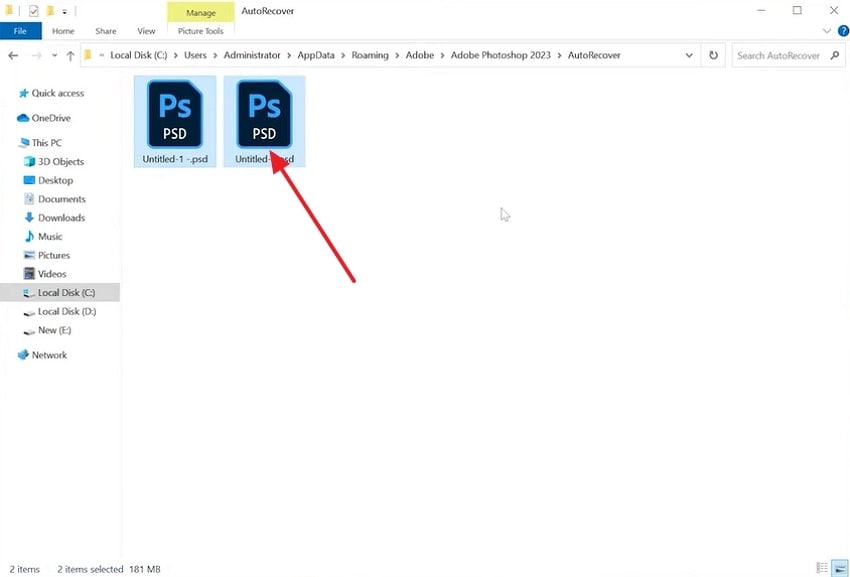
Windows Tutorial
Instructions. Open the File Manager and follow the path “Local Disk (C) > Users > Administrator > App Data > Roaming > Adobe > Adobe Photoshop > AutoRecover”. Once located, double-click the PSD files to reopen them on your Windows.
Mac Tutorial
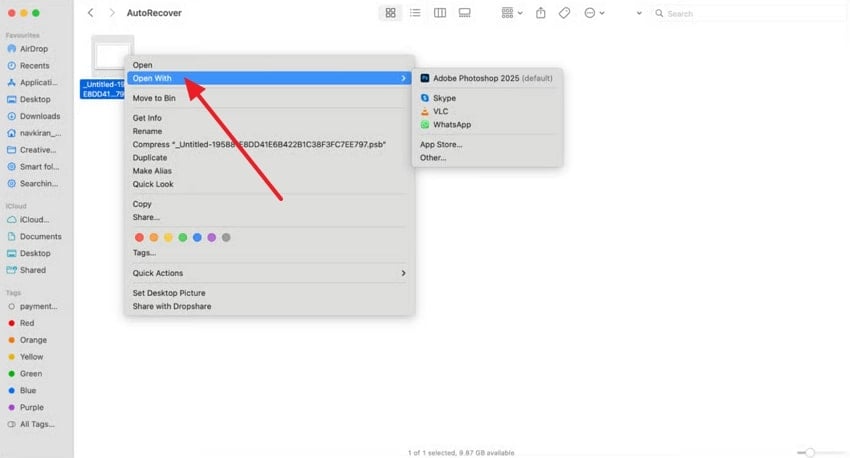
- Access the “Finder”, navigate to “Go to Folder” and paste the “~/Library/Application Support/Adobe/Adobe Photoshop 2025/AutoRecover.” Now, hit the “Go” button to locate PSD files on your MacBook.
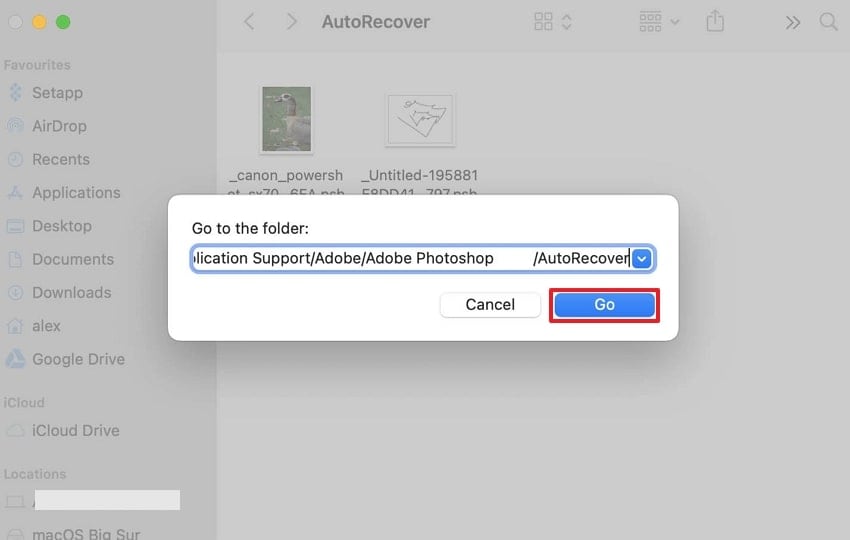
- Once found, right-click the unsaved PSD file and select “Open With” to reopen it.
What to Do If the Autosave File Won’t Open
Suppose your autosave file won’t open in Photoshop; it might indicate the file is corrupted or incomplete. In such circumstances, try to reopen Photoshop and check files in the “Open Recent” option from the File menu. If the application still cannot open the file, you should either refer to a file recovery program or rename the temporary. psb or .tmp files.
Steps to Rename and Restore Temporary. psb or .tmp Files
Windows Guidelines
- First, navigate through the path “C:\Users\ [Name]\AppData\Roaming\Adobe\Adobe Photoshop [version]\AutoRecover” and locate the file. After this, make a right-click and choose the “Rename” option from the menu.
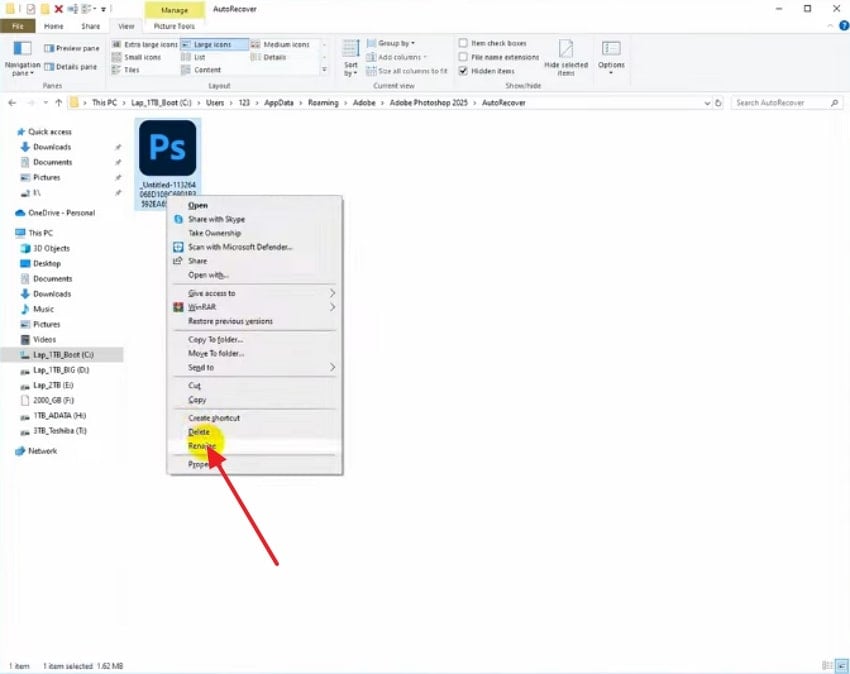
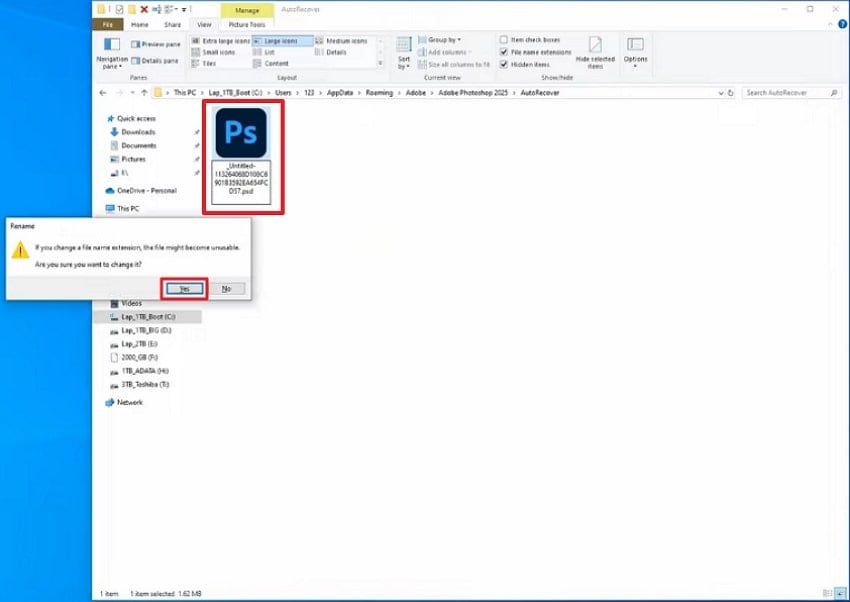
- Rename your temporary file from Photoshop backup to “PSD or PSB” and press the “Yes” button to confirm. Following this, you’ll be able to restore your Photoshop temp. files on Windows.
Mac Guidelines
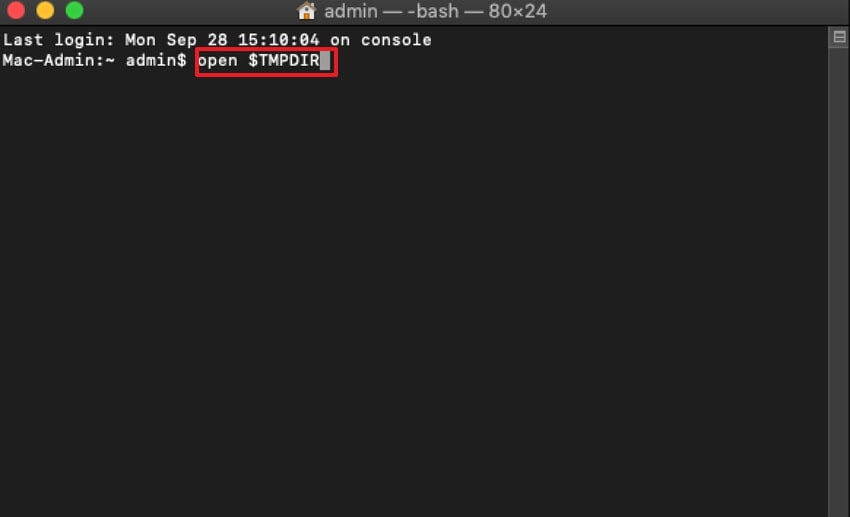
Instructions. At first, open the “Finder,” navigate to “Utilities” to launch Terminal. Later, type the command “open $TMPDIR” in the provided space and press “Return” to locate the temporary files. Once found, rename the file extension from “.tmp” to “.psd”, then attempt to open the renamed files directly with Photoshop.
Part 4. Photoshop Autosave Location: Where Is It When Autosave Fails
Whenever autosave fails in Photoshop, it is essential to confirm and recheck your photoshop auto save location and settings. It's beneficial if autosave does not activate the usual recovery prompt after a crash. This assurance, or enabling automatic save recovery every minute, creates a safety net for your projects and lessens the risk of unpredictable interruptions. Adhere to the stepwise manual to ensure your autosave settings are adjusted accordingly in Photoshop:
On Windows
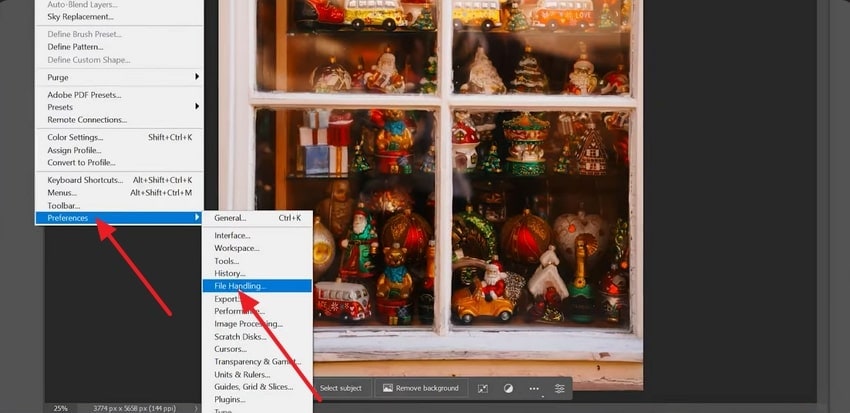
- Access Photoshop to begin, press the “Edit” option from the toolbar, and scroll down to the “Preferences” option. From the Preferences submenu, choose the “File Handling” option and proceed ahead.
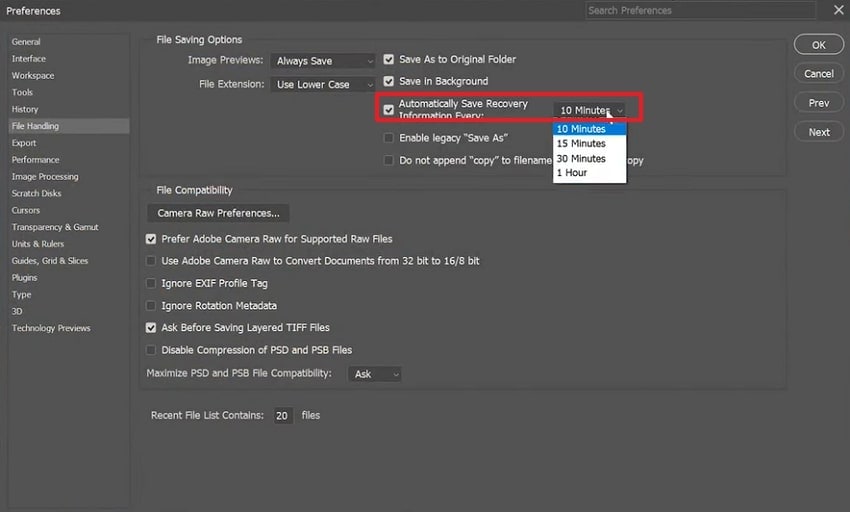
- Next, expand the “Automatically Save Recovery Information Every” menu and set the per-minute autosaving time.
On Mac
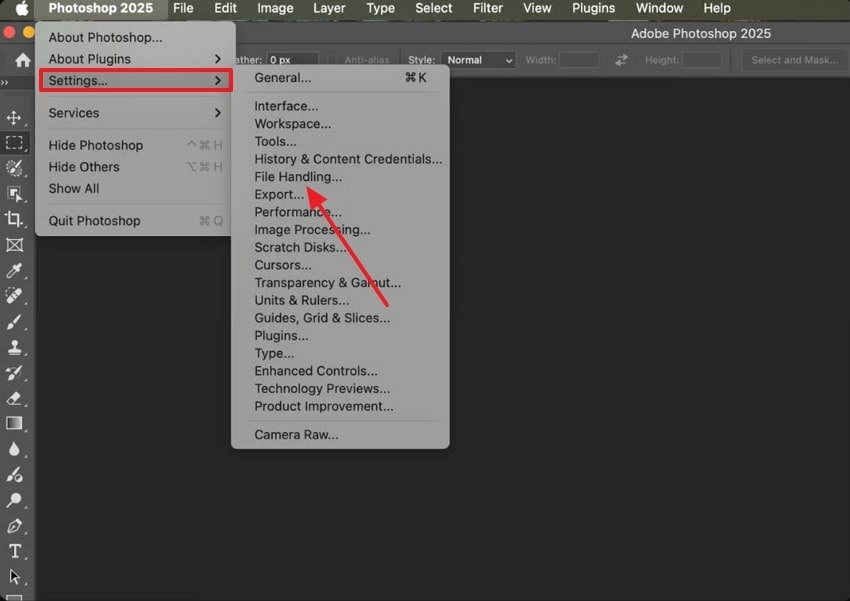
- To initiate on Mac, press “Photoshop 2025” from the top menu and expand the “Settings” menu. Move forward and choose the “File Handling” option from the submenu for Settings.
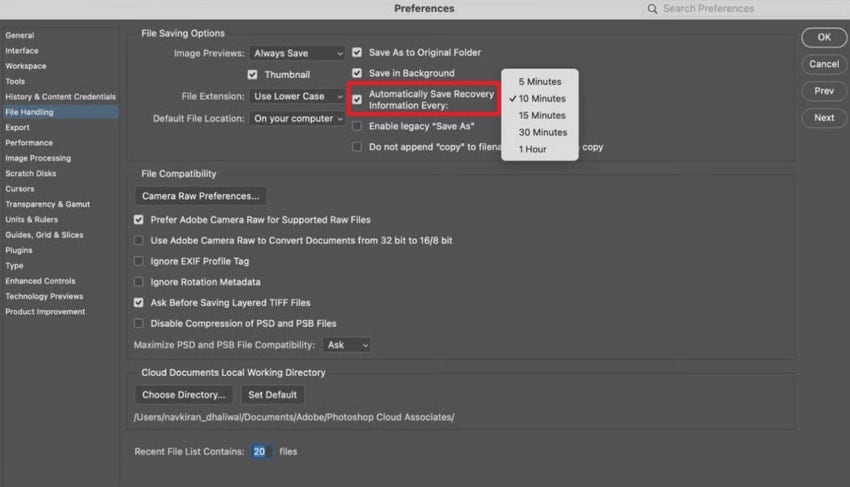
- Later, check the box labeled “Automatically Save Recovery Information Every” and set the interval time.
Part 5. Alternative Method to Recover Unsaved Photoshop Files Using Recoverit
When Photoshop’s autosave doesn’t come to the rescue, the only workaround is to utilize file recovery through Recoverit. The program dives deeper into your computer’s memory to locate hidden photoshop file location and restore them with precision. More impressively, it restores over 1000 file types which is either permanently deleted or lost somewhere on your device. It further facilitates individuals in retrieving files from more than 1M devices, including memory cards.
Besides files, the program excels in restoring lost videos, photos, and even deleted emails. The possibilities are endless when you’re allowed to restore files lost due to hardware or software failure. Not only this, but system corruption or a virus attack on files can be easily recovered using the program. It is one of the top-ranked platforms, with a high recovery success rate and the ability to retrieve files with minimal hassle.
Key Features
- Review Files After Recovery: The platform allows users to preview their files entirely, so they can decide before saving them.
- Linux Data Recovery: You can recover Linux data from more than 10000 loss scenarios, including disk formatting and improper shutdowns.
- Recovers Data from NAS Drives: It allows recovery from NAS drives, supporting all file types and formats, including music files and PPT.
Comprehensive Guidelines to Recover Unsaved Photoshop Files
Follow the given tutorial and retrieve unsaved files from the photoshop autosave location without any data loss:
1. Specify the Location to Begin Recovery
For a quick recovery, open the “Hard Drives and Locations” tab and select the hard disk under the “Hard Disk Drives” tab.

2. Scan the Selected Location
Now, you’ll see the real-time scanning results on the interface, allowing you to preview results at any time.

3. Examine Recovered Photoshop Files
Afterward, double-click the file to “Preview” it and hit the “Recover” button once you’re satisfied with the content.

Part 6. How to Prevent Losing Photoshop Files in the Future
Along with learning how to recover unsaved photoshop files, let’s make sure you never have to go through that stress again. For this, adapt the provided habits and quick setting tweaks to safeguard your work against future mishaps:

- Enable AutoSave and Set Short Intervals: Keep your Photoshop AutoSave feature turned on and set it to every 5 or 10 minutes for maximum safety. This guarantees your progress is captured every few minutes without you even thinking about it.
- Save Versions Manually: Even with autosave running in the background, it's wise to save different versions of your work manually. If something goes wrong with one file, you can easily navigate to a previous version without starting over.
- Store Projects in Cloud or External Drives: A Photoshop project saved on Google Drive or Dropbox guarantees that it’s safe even if your computer fails. For additional protection, keep a copy on an external hard drive as well, for a dual backup system.
- Keep Photoshop and Plugins Updated: Often, Photoshop crashes due to outdated versions or incompatible third-party plugins, leading to lost files. A regular update of Photoshop and its extensions minimize these risks while improving file recovery capabilities.
- Don’t Overload Your System: The best software can also struggle when your system is under too much pressure from huge file sizes. Have your computer optimized by clearing the cache, closing unnecessary apps, and organizing your workspace for fewer crashes.
Conclusion
In summary, every Photoshop project demands time, precision, and inspiration, making their loss even more stressful. Which is why any designer working on Photoshop knows the importance of photoshop autosave location, a silent safeguard. Yet when autosave alone isn’t enough or files are beyond reach, Recoverit offers the most reliable path to complete PSD recovery.
FAQ
-
1. What’s the difference between autosave and temporary Photoshop files?
Photoshop’s recovery system creates autosave files and usually stores them in the AutoRecover folder. Whereas the Temporary files are system-generated backups found in your Temp directory, often helpful when autosave won’t work. -
2. How can I make sure my autosave feature is working properly?
For this, create a quick test file and leave it open for a few minutes past your autosave interval. Once done, check the photoshop recovery file location on your device to confirm it's there. If the file doesn’t exist, enable autosave or update Photoshop to the latest version to fix potential issues. -
3. Do autosave files include all layers and effects?
Indeed, the autosave files preserve the whole structure of your project, including layers, masks, and adjustment effects. A crash occurs during a heavy process; the latest changes made at that moment might not be captured in the autosave version.


