

 TL;DR:
Resolve the Windows 10 "There was a Problem Resetting Your PC: No Changes Were Made" error by repairing corrupted system components using command-line tools, bypassing software conflicts in Safe Mode, or performing a clean OS installation.
● Run Command Prompt as an administrator and execute `sfc /scannow` along with `dism.exe /online /cleanup-image /scanhealth` to detect and replace the damaged system files blocking the reset process.
● Refresh a malfunctioning Windows Recovery Environment (WinRE) by typing `reagentc /disable` followed by `reagentc /enable` in the Command Prompt, or avoid third-party software interference by holding the Shift key while clicking Restart to execute the reset from the Advanced Startup environment.
● If local recovery options fail, boot from a Windows 10 installation USB via BIOS/UEFI settings to perform a clean install, and consider using tools like Wondershare Recoverit (which offers a 500 MB free data recovery limit) to salvage inaccessible files before overwriting the system partitions.
Ask AI for a summary
 ChatGPT
 Perplexity
 Gemini
 Claude
 Grok
Grok
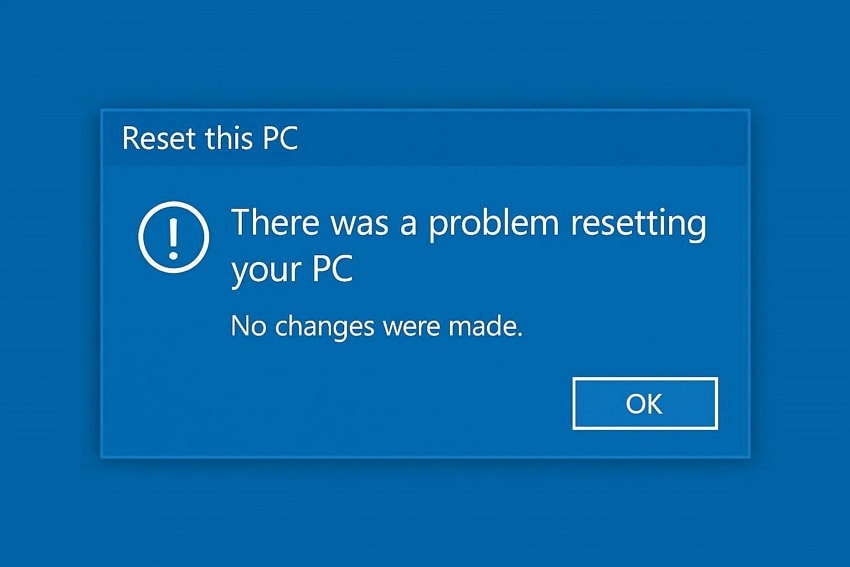
After clicking the reset button to refresh your system, the process runs for a few minutes before stopping abruptly. Instead of completing the reset, your screen displays the message: "There was a Problem Resetting Your PC: No Changes Were Made." Now your computer is stuck in the same state, and the issue you were trying to fix is still there.
It can feel frustrating when a built-in Windows recovery option fails without warning. This error prevents your PC from restoring default settings, leaving you searching for a reliable way to successfully complete the reset process. If you have gone through a similar situation, read the article till the end to learn how to solve this issue.
Try Recoverit to Perform Data Recovery
 Security Verified. 3,591,664 people have downloaded it.
In this article

Part 1. Overview of Windows 10 Reset Errors and Their Impact
When attempting a system refresh, many users encounter the message "There was Problem Resetting Your PC: No Changes Were Made," which indicates the reset process failed before completion. This error can prevent Windows from reinstalling system files properly, leaving the system unstable. Understanding the specific reset errors and their impact helps determine the correct recovery strategy.
Impact of This Error
- System Inaccessibility: Users cannot restore Windows to its default state, leaving the system stuck. This limits troubleshooting and makes it more difficult to resolve issues.
- Data Recovery Challenges: Personal files and settings may remain inaccessible during a failed reset. Recovering or backing up important data becomes more complicated.
- Software Instability: Malfunctioning apps or drivers continue to operate incorrectly. Users may experience repeated crashes or system errors as a result.
- Extended Downtime: Troubleshooting a failed reset consumes significant time. Users often need extra effort to find alternative repair methods.
- Security Vulnerabilities: Pending Windows updates or corrupted configurations remain unresolved. This can leave the computer exposed to malware or other security threats.

Part 2. Common Causes of Reset Failure: No Changes Were Made Error
Before diving into solutions, it's important to recognize the common causes behind the "No Changes Were Made Windows 10 Reset" issue. Understanding why the reset fails helps in applying the right fix and prevents repeated errors:
- Damaged System Files: Corrupted or missing Windows system files prevent the reset process from completing successfully. This can halt file restoration and trigger the "no changes were made" message.
- Corrupted Recovery Partition: If the local recovery partition is damaged, Windows cannot access the necessary files for resetting. This blocks the reset operation entirely.
- Third-Party Software Conflicts: Antivirus programs or system utilities may interfere with reset operations. Conflicting software can lock critical files, causing the process to fail.
- Insufficient Disk Space: Resetting Windows requires extra space for temporary files and backup data. Low storage availability can abruptly terminate the reset attempt.
- Disabled Windows Recovery Environment: If WinRE is turned off or misconfigured, Windows cannot launch the reset environment, leading to failure notifications.

Part 3. How To Resolve "No Changes Were Made" During PC Reset - 6 Ways
Facing the message "Problem Resetting Your PC, No Changes Were Made" can be frustrating, but there are multiple ways to resolve it effectively. The following section walks you through 6 practical solutions, helping you complete the reset process:
1. Run SFC and DISM To Repair System Files
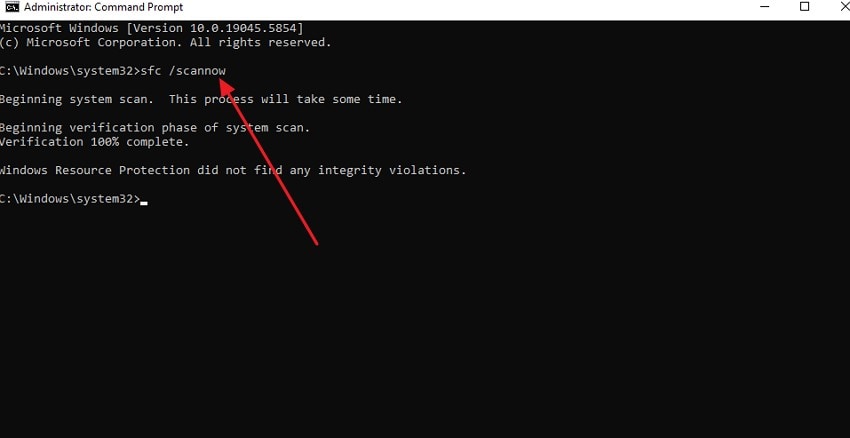
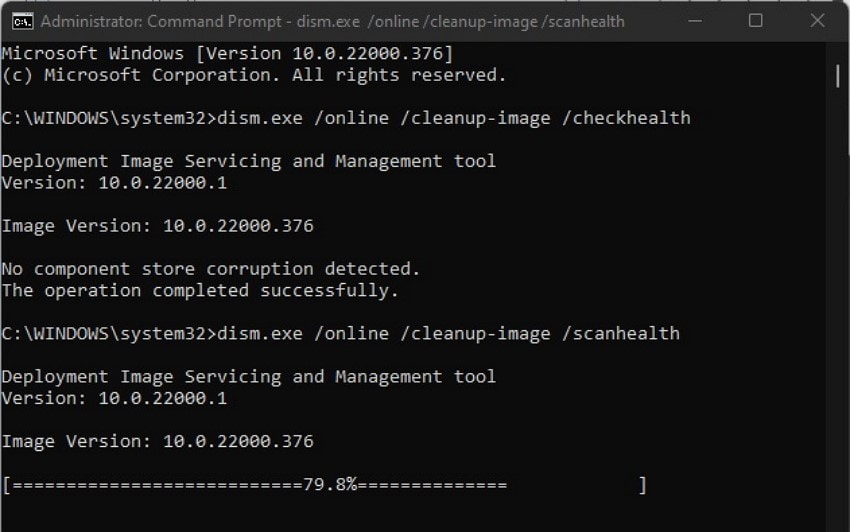
Executing the SFC and DISM tools repairs corrupted or missing system files that trigger the "Problem Resetting Your PC: No Changes Were Made" error. SFC scans and replaces faulty Windows files, while DISM restores the system image. Combined, they ensure Windows recovery components are intact, resolving conflicts that prevent successful resets. To learn how to perform this fix, read the instructions provided next:
Run SFC Scan
Instructions. Once Command Prompt is launched with administrator rights, enter the command "sfc /scannow," and press Enter. The System File Checker tool will begin scanning the system for corrupted or missing Windows files.
Run DISM Scan
Instructions. In Command Prompt, input "dism.exe /online /cleanup-image /healthcheck" and press Enter to evaluate the current state of the system image. Then type "dism.exe /online /cleanup-image /scanhealth" and press Enter to run a deeper analysis that detects corruption or issues impacting files.
2. Disable And Re‑enable Windows Recovery Environment (WinRE)
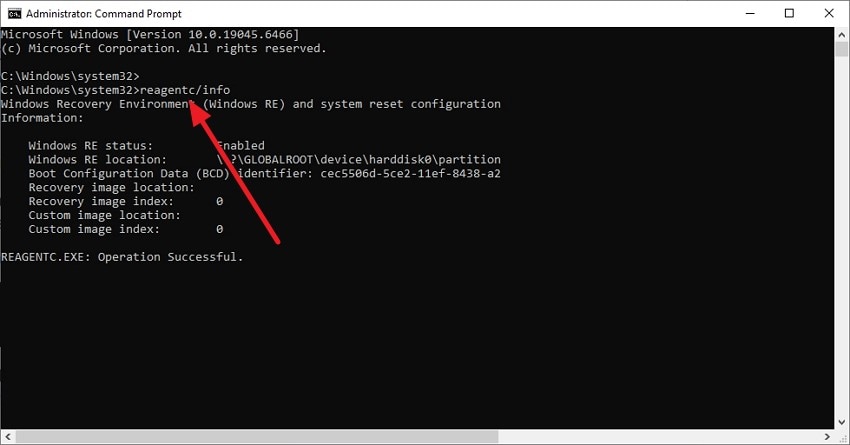
Modifying WinRE by disabling and re-enabling it refreshes the recovery environment. This resolves registry misconfigurations or missing files, causing "No Changes to be Made to Windows 10 Reset" errors. Reinitializing WinRE restores critical boot and recovery partitions, allowing reset operations to execute properly and eliminating issues that block the reset process. To learn how to perform this fix, read the steps provided next:
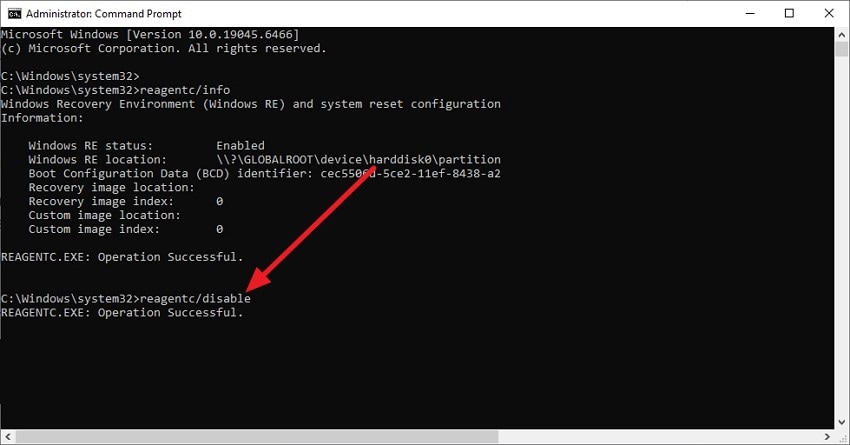
- Open the Command Prompt and run it as admin to grant elevated permissions required for modifying recovery settings. In the Command Prompt window, enter "reagentc /info" and press Enter. The system will display detailed information showing whether the Windows Recovery Environment (WinRE) is currently enabled or disabled.
- Type "reagentc/disable" and press Enter to deactivate the Windows Recovery Environment. A confirmation message stating that the operation completed successfully indicates WinRE has been disabled.
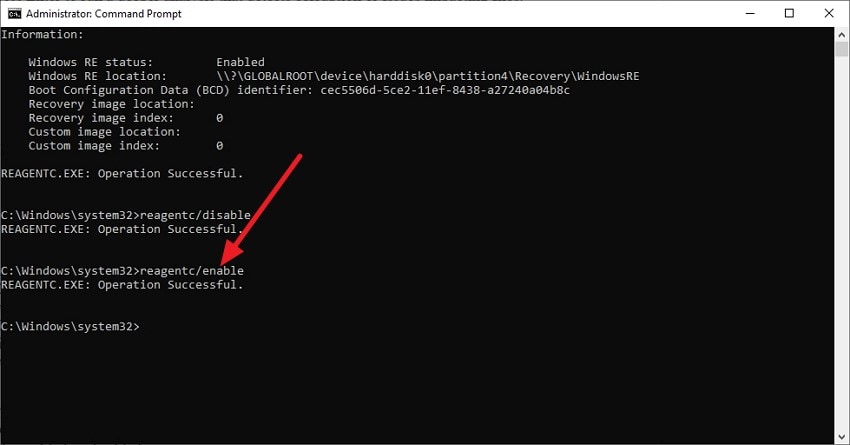
- To enable it again, type "reagentc/enable" and press Enter. Once the system confirms successful execution, WinRE will be restored and ready for use.
3. Try Resetting From Safe Mode
Booting Windows in Safe Mode limits active drivers and startup processes, reducing interference during resets. Attempting a reset here addresses the "Problem Resetting Your PC: No Changes Were Made" error caused by software conflicts. Safe Mode provides a minimal environment where the system can complete recovery tasks without third-party applications or background processes obstructing file replacement. Read the steps provided next to learn how to reset the PC in Safe Mode:
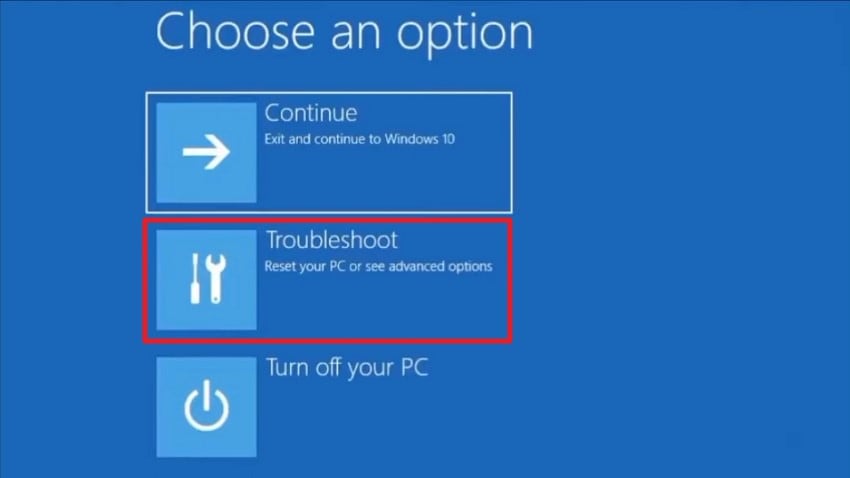
- First, open the Start menu, click "Power," then hold the Shift key and select "Restart" to enter the Advanced Startup environment. From there, choose "Troubleshoot" by clicking on it.
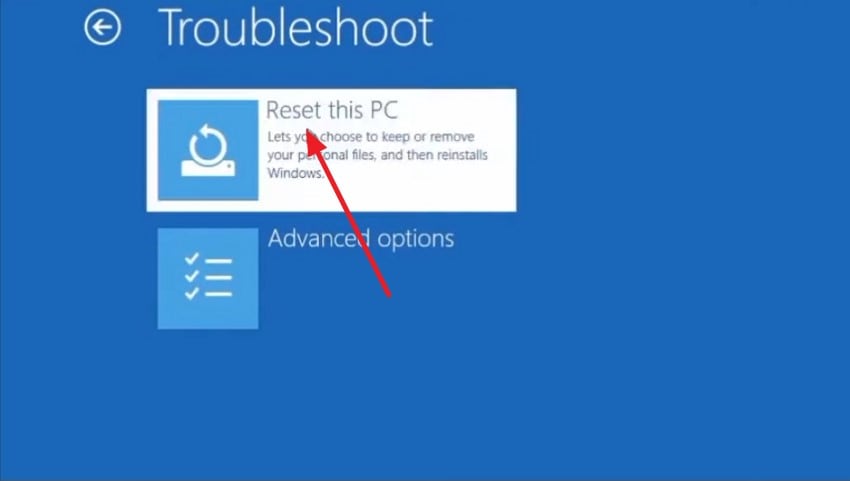
- In the following interface, choose "Reset this PC" to attempt the reset again.
4. Make Sure Windows Is Fully Updated
Applying all available updates ensures the latest patches, security fixes, and system components are installed. Updates often correct known bugs that trigger the "There was a Problem Resetting Your PC: No Changes Were Made" issue, including WinRE failures and file corruption. Maintaining an updated Windows environment stabilizes system services, enabling the reset process to execute successfully. To learn how to check if Windows is updated, read the steps provided below:
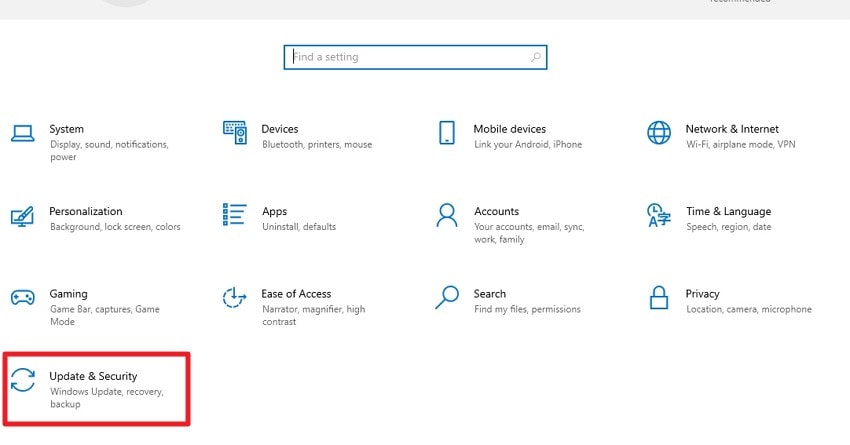
- Open system settings and access the "Update & Security" option located within the interface.
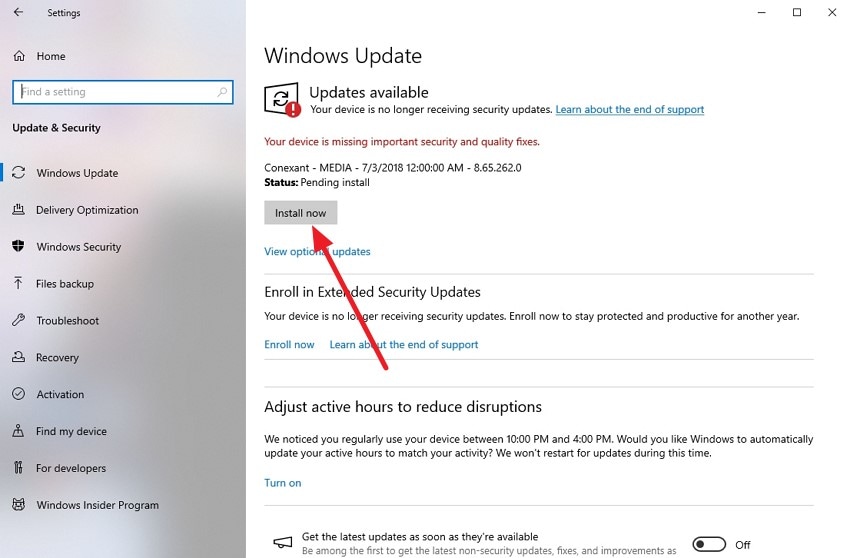
- In the following interface, check whether any updates are available. If yes, press the "Install Now" button to install the latest Windows update.
5. Use System Restore or Registry Rename (Advanced)
Restoring to a previous system point or renaming problematic registry keys can bypass corrupted configurations, causing "No Changes Were Made to Windows 10 Reset" errors. System Restore reinstates working system files, while targeted registry edits eliminate entries that block recovery operations. Both techniques require administrative privileges and careful handling to prevent additional system instability. To learn how to perform System Restore, read the instructions provided below:
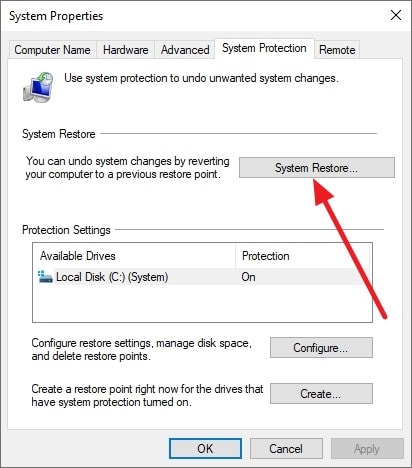
Instructions. Open the Start menu, search for "Create a restore point," and open it. In the "System Properties" window, click "System Restore," then choose a restore point created before the reset issue occurred. Confirm the selection and allow Windows to restart and restore system files and settings automatically.
6. Perform a Clean Install With a Bootable USB
Deploying a bootable USB with the Windows installation image replaces the existing OS and resets system partitions. This method resolves the "Problem Resetting Your PC: No Changes Were Made" error when standard resets fail. A clean install overwrites corrupted files, repairs boot configurations, and ensures a fully functional Windows environment from scratch. To learn how to perform this fix, read the steps provided next:
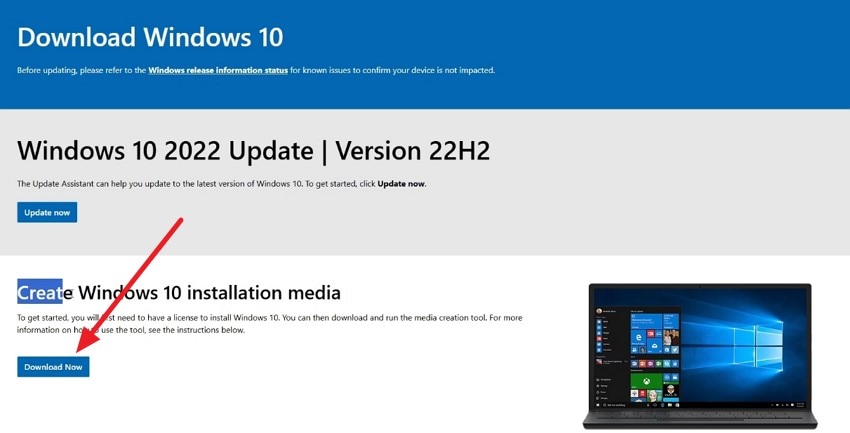
- Connect a USB drive to your system and head to the Microsoft website to access the latest Windows 10 update. Press the "Download Now" button to download the update.
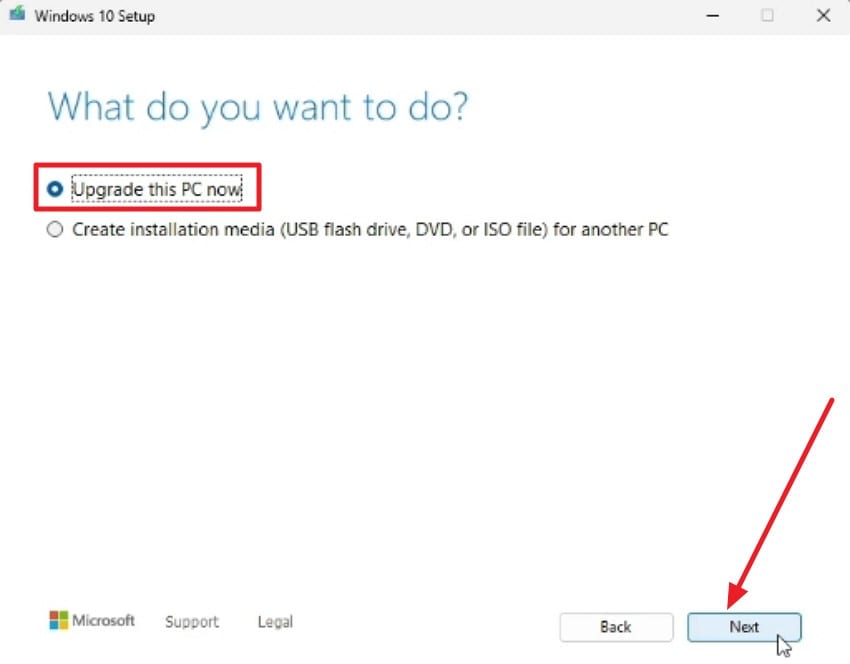
- Choose the "Upgrade This PC Now" option and press "Next" to continue.
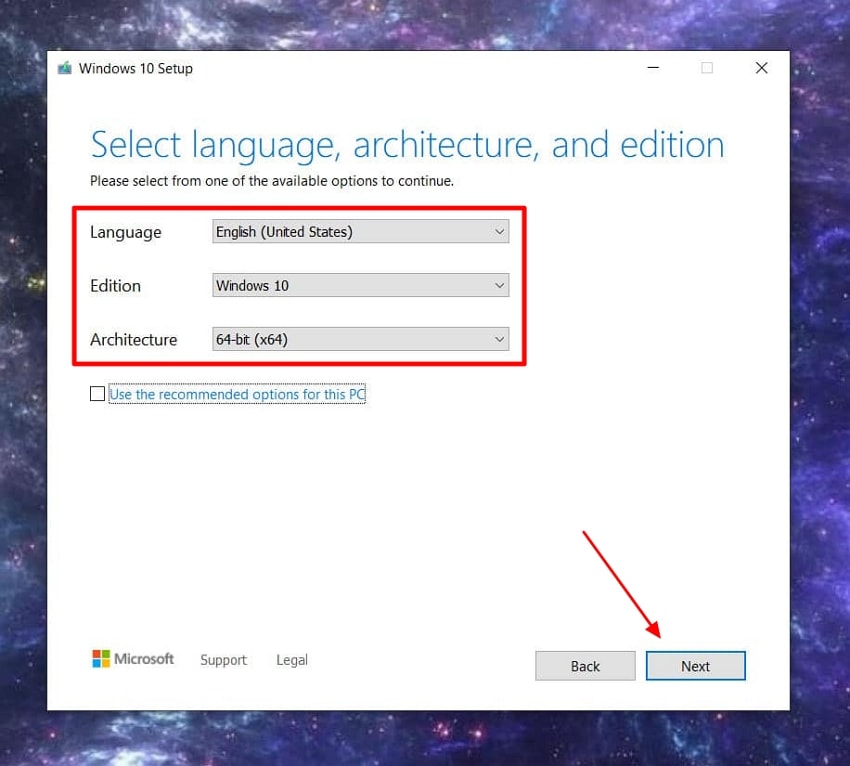
- Select the "Language" and configure other settings, such as architecture, from the options provided, and hit the "Next" button.
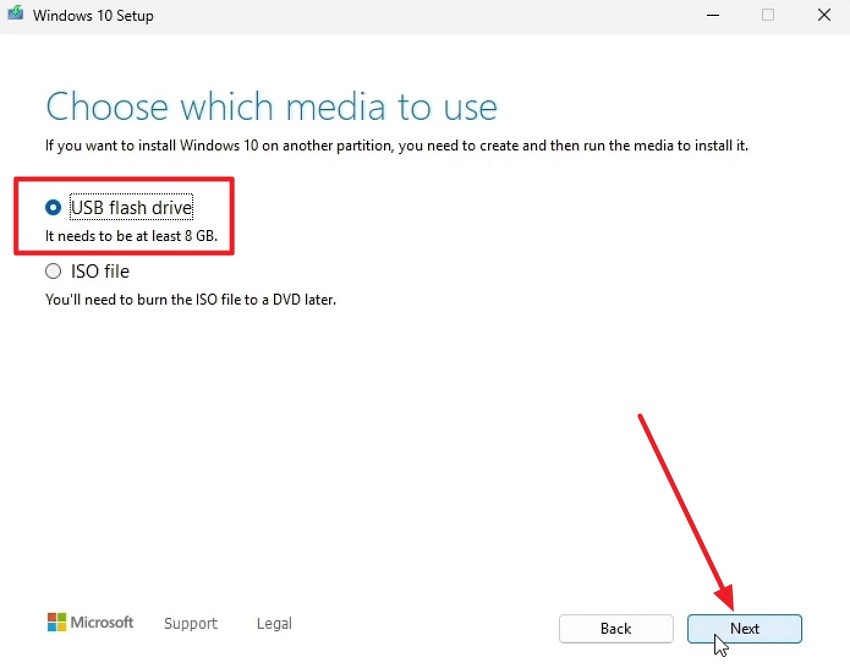
- In the following interface, choose the "USB Flash Drive" option and click on "Next" to proceed.
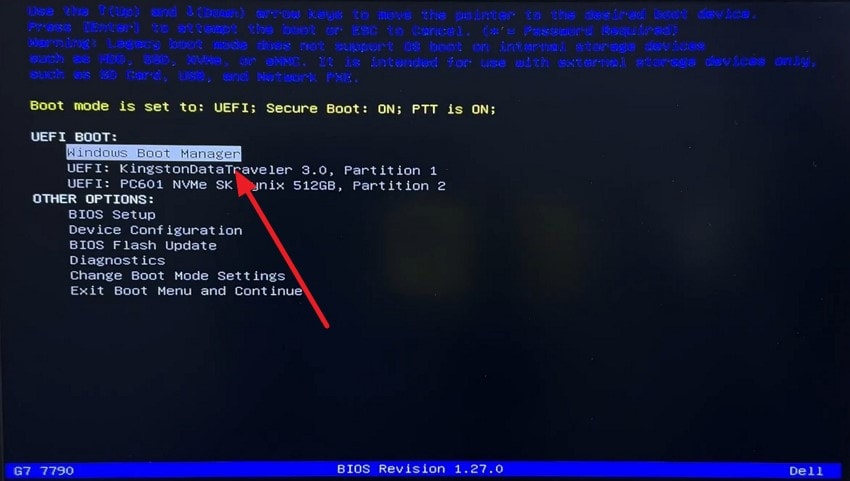
- Now, enter the BIOS/UEFI settings (usually by pressing F2, F12, DEL, or ESC during startup) and set the USB drive as the primary boot device.
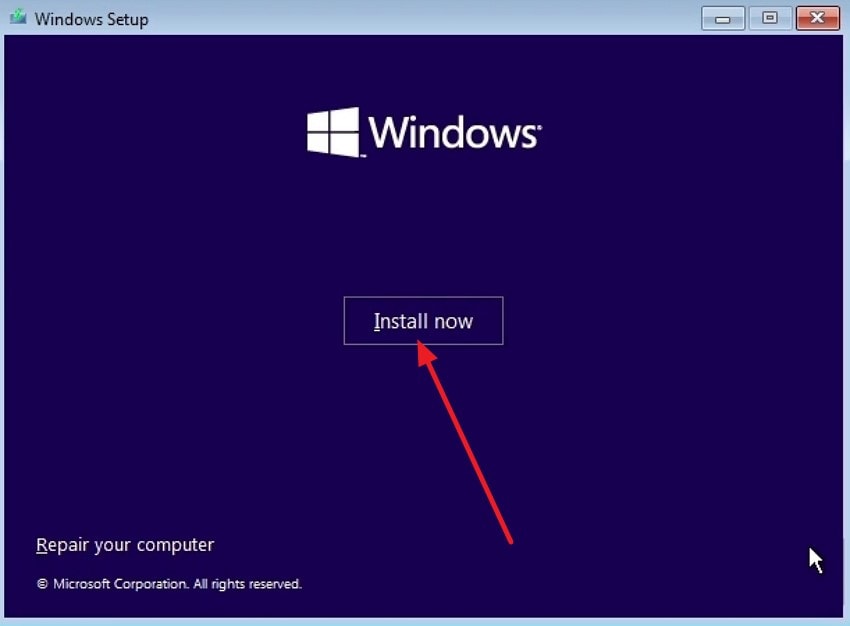
- Once the Windows Setup screen appears, select your language and click "Install Now." Choose "Custom: Install Windows only (advanced)" when prompted. Select the system partition and successfully begin the update.
Pro Tip: Recoverit Guide: Protect Your Files From Windows Reset Failures
When a Windows reset fails with the message "There was a Problem Resetting Your PC: No Changes Were Made," Recoverit helps protect valuable files from being lost. It scans both internal and external drives, including damaged or inaccessible partitions, to locate lost data. Its advanced scanning engine can recover documents, images, videos, and system files, ensuring critical information is preserved even after a reset failure.
Recoverit also ensures recovered files maintain their original structure and quality during restoration. Compatible with USB drives, SD cards, and external hard disks, it offers a versatile solution for multiple storage devices. In scenarios where there was a problem resetting your pc no changes were made, Recoverit serves as a reliable safeguard. Moreover, it lets users recover 500 MB of data for free.
Coherent Features Offered by Recoverit
- Batch Recovery: Recoverit allows users to select and recover multiple files at once, saving time and effort during large-scale data restoration.
- Preview Before Saving: Users can view recoverable files before restoring them, ensuring only the needed data is recovered.
- Advanced Recovery Mode: This mode performs a deeper scan to recover severely corrupted or lost files that standard recovery cannot detect.
Step-by-Step Guide to Recover Files From Windows Reset Failures
Read the steps provided below to learn how to use Recoverit to recover important documents after reset failures:
1. Choose the Storage Location
Open Recoverit and navigate to the main dashboard, then select the drive or folder where your lost files were stored.

2. Initiate the Scan and Locate Files
Once the location is selected, let Recoverit perform a thorough scan to detect all retrievable files. Browse the results and select the files you wish to recover using the "Recover" button.

3. Review and Restore Files
Preview the contents of the recovered files to confirm they are correct. After verification, click "Recover" to save them securely to a safe location on your device.

Part 4. How To Avoid "No Changes Were Made" During PC Reset
Preventing the "No Changes Were Made Windows 10 Reset" error during a Windows reset is often easier than fixing it afterward. By adopting proactive measures, you can maintain system stability, ensure recovery tools work correctly:
- Maintain Updated System Files: Regularly installing Windows updates ensures system components and recovery tools function correctly. Outdated files can cause conflicts that block the reset process.
- Keep Recovery Environment Healthy: Verifying WinRE and recovery partitions remain intact prevents errors during resets. A damaged or misconfigured recovery environment often triggers reset failures.
- Backup Important Data Regularly: Storing files externally or in the cloud protects them if a reset fails. Regular backups reduce the risk of permanent data loss.
- Avoid Third-Party Interference: Unnecessary software, drivers, or security tools can interfere with the reset process. Disabling or uninstalling them ensures a clean environment for system restoration.
- Perform Routine Disk Maintenance: Running disk checks and repairing corrupted files prevents system errors. Bad sectors or damaged storage media can block Windows from completing a reset.
Conclusion
To wrap it up, this article provided a detailed guide on understanding the "There was Problem Resetting Your PC: No Changes Were Made" error, covering causes, impacts, and practical fixes. From running system repairs to performing clean installs, each method helps restore Windows efficiently. For added security, using Recoverit ensures your files remain safe throughout the process, offering reliable recovery in case of reset failures.
FAQ
-
1. What does "there was a problem resetting your pc no changes were made" mean?
This message appears when Windows fails to complete a reset operation, leaving your system in its current state without applying changes. -
2. Can I fix this error without losing my files?
Yes, many solutions like SFC/DISM scans, Safe Mode resets, or WinRE reinitialization can repair the system while keeping your data intact. Using a tool like Recoverit is recommended to safeguard files before attempting any reset. -
3. How can Recoverit help if my reset fails?
Recoverit can recover inaccessible or lost files from internal drives, external storage, or corrupted partitions. It ensures important documents, photos, and system files are safely retrieved even after a failed reset. -
4. How do I prevent this reset error in the future?
Keep Windows fully updated, maintain a healthy recovery environment, perform regular disk maintenance, and back up your files. Tools like Recoverit provide an extra layer of protection for important data.


