

 TL;DR:
The Windows 11 "the file you are attempting to preview could harm your computer" warning is a security block for potentially unsafe or unsupported Outlook and File Explorer attachments that can be bypassed by modifying file properties, registry settings, or preview handlers.
● Unblock individual files by checking "Unblock" in the file's Properties menu, or clear security markers in bulk by right-clicking the folder and selecting "Open PowerShell Window Here".
● Restore system-wide preview functionality by enabling "Show Preview Handlers in Preview Pane" under folder View options, updating your PDF application via the Microsoft Store, or running the `WUSA Uninstall KB: [update number]` command in PowerShell to remove conflicting updates.
● Do not bypass the warning for unverified internet downloads or encrypted attachments; if troubleshooting deletes essential system data, Wondershare Recoverit (Windows/macOS 10.10+) can be used to restore missing library files.
Ask AI for a summary
 ChatGPT
 Perplexity
 Gemini
 Claude
 Grok
Grok
Seeing the warning "the file you are attempting to preview could harm your computer" while trying to preview PDF ,Word or Excel files in File Explorer on Windows 11 can be unsettling, and for good reason. This alert highlights potential risks such as malware infections, data corruption, and compromised personal information. Ignoring it may lead to performance issues, security breaches, or irreversible damage to your device.
Understanding why this message appears helps users avoid unsafe files and maintain system protection. The following article explains the meaning of this warning and how you can protect your data.
Try Recoverit to Perform Missing File Recovery
 Security Verified. 3,591,664 people have downloaded it.
In this article

Part 1. What This Windows 11 Warning Means and Why It Appears
The "this file can’t be previewed pdf" warning appears in Windows 11. It indicates that the system considers the file potentially unsafe due to security or compatibility concerns. This alert prevents users from opening attachments or documents that may contain malware, corrupted data, or unsupported formats. By triggering the warning, Windows protects the device, user information, and system stability from potential risks.
Why It Appears
- Corrupted Email Attachments: Damaged or partially downloaded files cannot be previewed properly in Outlook. Windows flags these attachments to prevent potential data corruption or malware exposure.
- Unsupported File Formats: Certain file types are not compatible with Outlook’s in-app preview feature. When attempted, the system blocks them and displays the warning message.
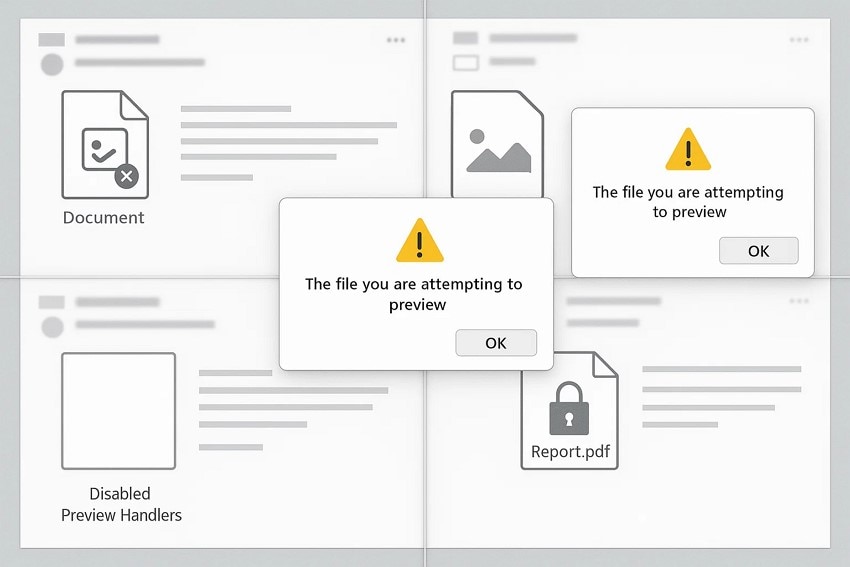
- Disabled Preview Handlers: Preview handlers are required to render attachments within Outlook. If they are disabled or malfunctioning, Windows shows the alert instead of opening the file.
- Conflicts with Third-Party Add-ins: Some add-ins interfere with Outlook’s normal preview functionality. These conflicts can prevent attachments from loading and trigger the warning.
- Permission or Access Restrictions: Limited file or folder permissions prevent Windows from verifying the file safely. As a result, the system warns the user before previewing.
Part 2. Common Situations Triggering “The File You Are Attempting To Preview” Alert
This "pdf this file can't be previewed" alert often appears when the system encounters issues inside Outlook. Several common situations can interrupt the preview process, causing Outlook to display this message instead of loading the file normally.
- Corrupted Email Attachments: If the attachment is damaged or partially downloaded, Outlook cannot process it for preview. This forces the program to show the alert instead of rendering the file.
- Unsupported File Formats: Outlook may not recognize certain file types for in-app previewing. When this happens, it displays the alert to indicate that the file must be opened externally.
- Disabled Preview Handlers: Preview handlers are required to load attachments inside Outlook. If they are disabled or malfunctioning, the preview fails and triggers the alert.
- Conflicts with Third-Party Add-ins: Some add-ins interrupt Outlook’s normal preview functionality. These conflicts block file processing and prompt a warning.
- Permission or Access Restrictions: Limited access rights prevent Outlook from reading the file securely. In such cases, Outlook displays the alert because it cannot verify or open the attachment.
Part 3. Step-by-Step Fixes When Preview Is Blocked by Windows 11 Warning
Once the underlying cause has been identified, you can move on to practical solutions that restore normal preview functionality. The following step-by-step methods will help you resolve the issue:
1. Unblock the File via Properties
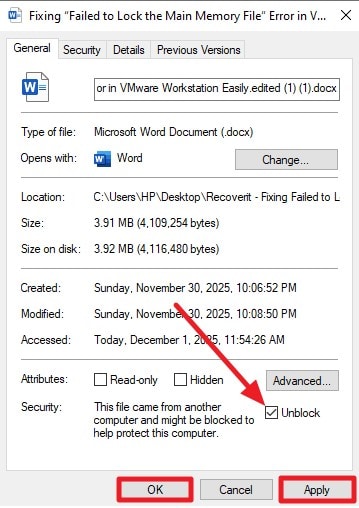
One of the simplest ways to remove this warning is to unblock the file via its Properties, which lifts Windows 11’s security restrictions on items flagged as unsafe. This approach helps Windows recognize the attachment as trusted content. This allows Outlook or File Explorer to preview it normally when the alert is triggered. Here is how you can resolve the "the file you are attempting to preview could harm your computer" error:
- Select the file that is showing an error in the File Explorer and right-click on it to enable the list of options. Locate the "Properties" option and click on it to proceed.
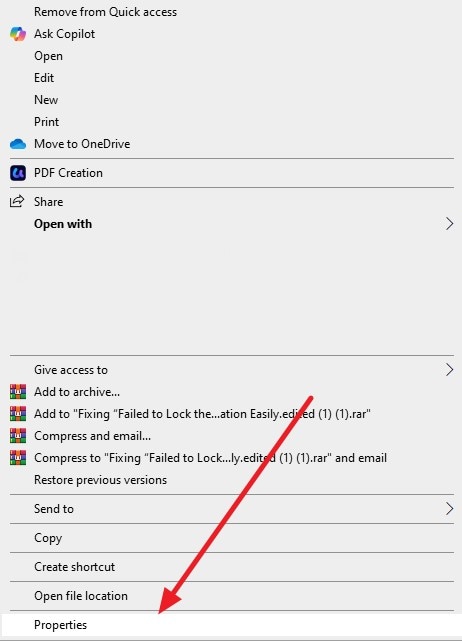
- In the following small window, tick the checkbox for the "Unblock" option and press "Apply" then "OK."
2. Unblock Multiple Files Using PowerShell
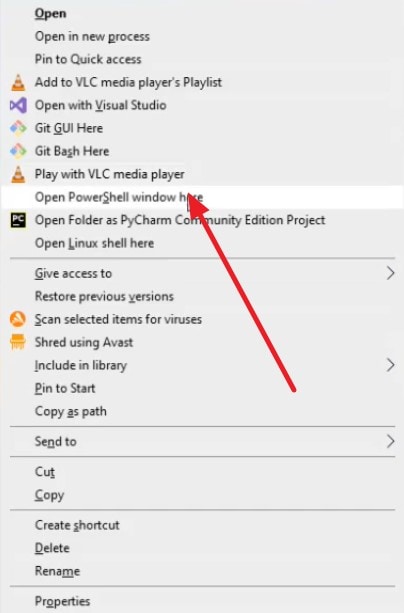
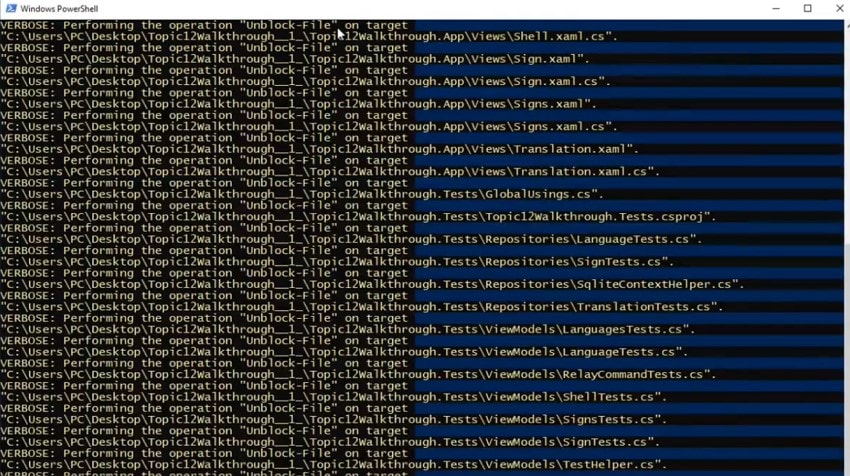
A practical solution for "this file can’t be previewed pdf" is using PowerShell to remove Windows 11’s security flags in bulk. This method is ideal when multiple attachments or downloads trigger the preview warning due to being marked as unsafe. By clearing these security markers, Windows can recognize the files as trusted and restore normal preview functionality. Follow the steps mentioned below to learn how to unblock files using PowerShell:
- Right-click on the file and press the "Open PowerShell Window Here" option from the expanded list.
- In the PowerShell window, all the files and folders will be unblocked successfully.
3. Edit the Registry to Control Attachment Blocking
Editing the Registry offers a deeper way to control how Windows 11 handles attachment blocking when the preview warning appears. By adjusting specific security values, you can loosen overly strict file restrictions that prevent Outlook from rendering attachments. This method is useful when default security settings constantly flag safe files. To learn how to use this fix for "pdf this file can't be previewed", read the steps provided next:
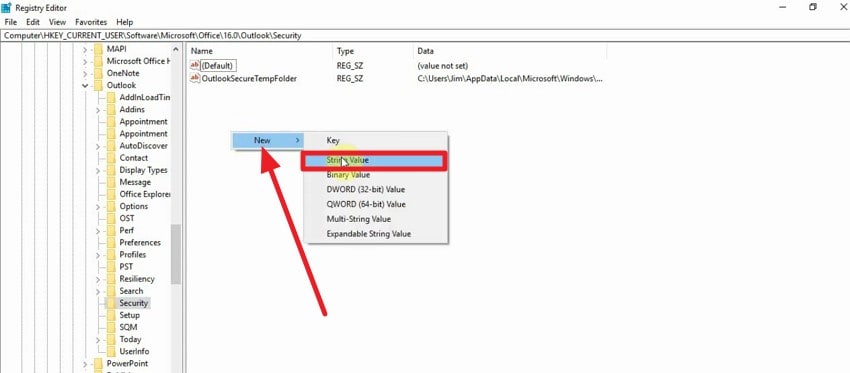
- Open Registry Editor and look for "HKEY_CURRENT_USER" and then open the Outlook folder.
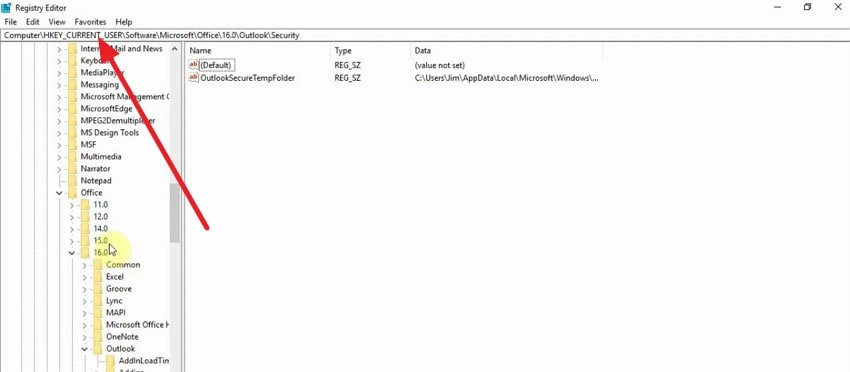
- Right-click to choose "New" from the options and press the "String Value" option.
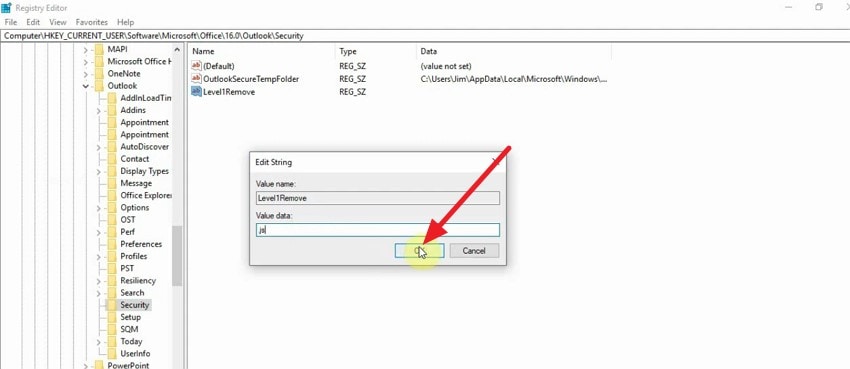
- Create a new String, name it, add value data, and press the "OK" button.
4. Remove Problematic Windows Security Updates
Removing problematic Windows security updates can resolve preview warnings caused by recent patches that interfere with Outlook’s ability to load attachments. When certain updates introduce compatibility issues, they may trigger false alerts. Rolling back the affected update helps restore stable preview functionality and prevents the "this file can’t be previewed pdf" error. Follow the steps mentioned next to learn how to remove problematic Windows updates:
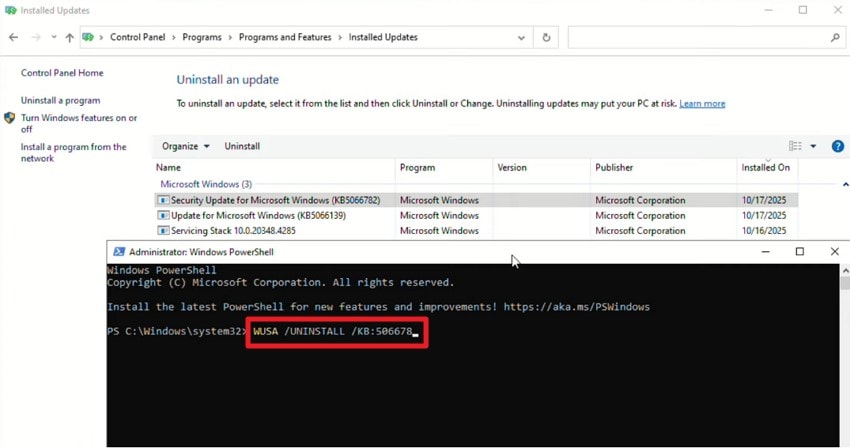
- Open the Control Panel and look for the problematic updates. Now open the Windows PowerShell and type in the command: "WUSA Uninstall KB: [update number]."
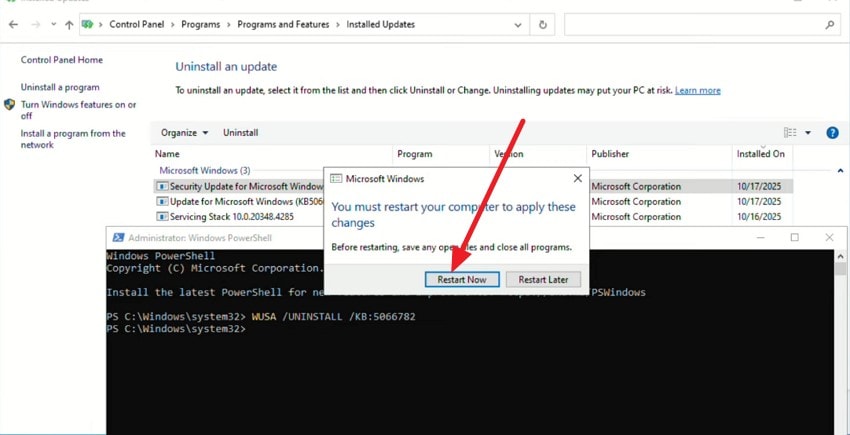
- As soon as you hit the Enter key, the system will ask you to restart your PC. Press the "Restart" button to successfully execute this fix.
5. Re‑enable and Configure the Preview Pane
Another effective way to address this warning is by re-enabling and configuring the Preview Pane, especially if Outlook or File Explorer has trouble. When the pane is disabled or misconfigured, Windows may show alerts instead of loading file content. Restoring its proper functionality ensures supported files preview smoothly without triggering "pdf this file can't be previewed" warnings. If you do not know how to perform his fix, read the steps mentioned next:
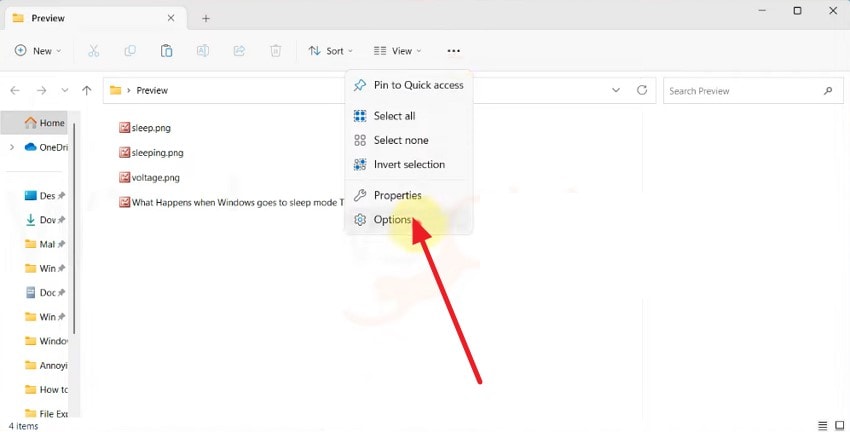
- Open the folder and press the "Three Dots" icon. Now, click on the "Options" option from the expanded list.
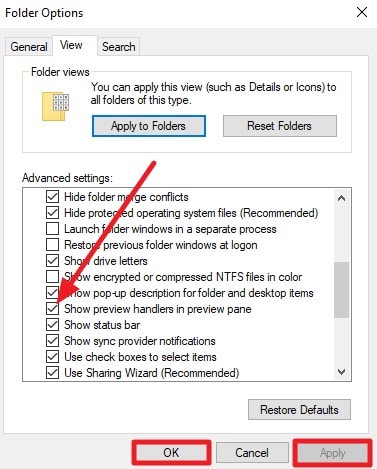
- Enable the "View" section and select the check box for the "Show Preview Handlers in Preview Pane" option. Now, hit the "Apply" button and then "OK" to save the changes made.
6. Verify and Update Your PDF Viewer or Handler
Lastly, verifying and updating your PDF viewer or handler ensures that Outlook or Windows 11 can properly preview PDF attachments without triggering warnings. Outdated or incompatible PDF handlers often cause the "the file you are attempting to preview could harm your computer" alert. Keeping your viewer up to date restores smooth functionality and improves overall file compatibility. Read the instructions to learn how to update the PDF application in your system:
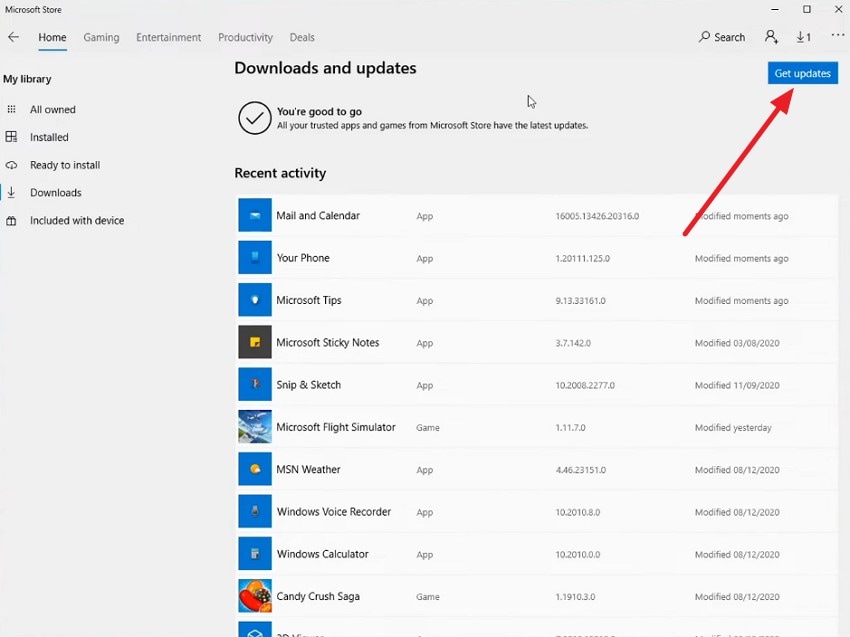
Instructions. Open the Microsoft Store, and the PDF apps that need to be updated will appear within the window. You can press the "Update" button to start updating them. If the updates are not available, press the "Get Updates" button.
Pro Tip: Bring Your Missing Files Back to Life with Recoverit Before Fixing Preview Warnings
Before addressing any "this file can’t be previewed pdf" alerts, you can rely on Recoverit to restore lost or damaged library files with precision. Packed with powerful scanning technology, it performs both quick and deep scans to recover missing files. The tool supports restoring over 1000 file types, including DLLs, system components, program data, and other essential files that may become unreadable.
It also lets you preview items before final recovery to ensure accuracy, while allowing you to retrieve only the required files for efficient restoration. Fully compatible with Windows, macOS, and other operating systems, 10.10 or later, Recoverit ensures safe recovery without overwriting current data or exposing your system to security risks.
Amazing Features Offered by Recoverit
- Selective Recovery: Users can recover only the files that they want from the storage, skipping unnecessary items.
- Unlimited File Recovery: It provides you the ability to recover as many lost or corrupted files as required using the desktop version.
- Wide File System Support: Works smoothly with FAT16, FAT32, exFAT, and NTFS for maximum flexibility.
Step-by-Step Guide to Recover Library Files Using Recoverit
Now that you know what the tool offers, here’s how to use Recoverit to restore your missing library files:
1. Launch Recoverit and Select File Recovery
Open Wondershare Recoverit and choose File Recovery from the left panel. Ensure that the drive containing the missing library files is connected and detectable by your system.

2. Choose the Drive or Folder and Start Scanning
Pick the specific drive or folder where the corrupted or deleted library files were located, then click "Recover" to begin scanning. You may stop or pause the process if the needed files appear early.

3. Preview and Restore Library Files
After the scan finishes, use the Preview option to verify file integrity, then hit "Recover" to save the selected items safely back to your computer.

Part 4. When You Should Not Ignore This Windows 11 Warning
Although some preview warnings may seem overly cautious, ignoring them can put your files and system at risk. Here are key situations when you should act immediately for the "file you are attempting to preview could harm your computer" error:
- Network or Cloud Storage Issue: Files stored on network drives or cloud services may fail to load fully. Interrupted connections can trigger Windows to block previews as a precaution.
- Antivirus or Security Software Interference: Overactive antivirus programs may flag legitimate attachments as risky. This causes the preview to fail until the file is verified or exceptions are added.
- Files Downloaded from the Internet: Windows treats files downloaded from external websites as potentially unsafe. Until marked as trusted, previews may be blocked to protect your system.
- Encrypted or Password-Protected Attachments: Encrypted files cannot be previewed directly in Outlook or Windows. The system shows the warning because it cannot verify or open the content securely.
- Temporary or Cached File Corruption: Temporary files created during attachment download or preview can become corrupted. When this happens, Windows blocks the preview to avoid potential damage.
Conclusion
To sum it up, this article provided a complete guide on how to understand, diagnose, and fix the "the file you are attempting to preview could harm your computer" warning. Additionally, we discussed the importance of not ignoring Windows 11 security requirements, especially when key protections are missing. And if your essential library files become damaged during troubleshooting, a trusted recovery tool like Recoverit can help you restore them.
FAQ
-
1. Why does Outlook show the “The File You Are Attempting to Preview Could Harm Your Computer” message?
This warning appears when Outlook cannot safely render an attachment due to issues like corruption or unsupported file formats. It's a protective measure to prevent malware and unsafe files from opening automatically. -
2. Can I safely open a file after this warning appears?
You should only open the file if you trust the sender and the file type. If the attachment looks suspicious or fails to preview repeatedly, scan it with security software first. -
3. How do I fix preview issues in Outlook?
Start by unblocking the file through Properties, enabling the Preview Pane, and reconfiguring preview handlers. Updating your PDF viewer or removing conflicting add-ins also helps. -
4. What should I do if important files go missing while troubleshooting this warning?
If files become unreadable, deleted, or corrupted during troubleshooting, use a reliable recovery tool like Recoverit. Its deep scan capabilities help you restore missing system files and documents.


