 TL;DR:
Stellar Repair for Video 7.0.0.0 is a practical Windows and Mac desktop application for fixing existing corrupted or unplayable video files, best suited for users needing local batch processing for common formats like MP4 and MOV.
● The free download strictly limits previews to 20% of the total video size and requires an active annual license starting at $49.99 to save the fully repaired files.
● The software cannot recover deleted, missing, or overwritten data, and severely corrupted files require you to provide a healthy sample video recorded from the exact same device and format.
● Wondershare Repairit is a stronger alternative if you need a web-based online repair option without installing software or require compatibility with professional camera formats like BRAW, R3D, and HDR/LOG.
Ask AI for a summary
 ChatGPT
 Perplexity
 Gemini
 Claude
 Grok
Grok
Stellar Repair for Video: The Quick Verdict
Is Stellar Repair for Video worth it? Yes, if you need a desktop video repair tool for corrupted, damaged, broken, truncated, choppy, out-of-sync, or unplayable videos on Windows or Mac. It supports common camera, phone, drone, CCTV, and action camera video cases, offers batch repair, previews repaired files, and includes an advanced repair workflow that uses a sample file for severely corrupted videos.
- Overall rating: 4.0/5.0
- Best for: Users who need local desktop repair for MP4, MOV, AVI, MKV, MTS, 3GP, F4V, and other common video files.
- Not ideal for: Users who expect a free full repair, users who need mobile-only repair, and cases where the original video data is missing, overwritten, or physically unrecoverable.
We all enjoy saving and sharing videos, but a damaged file can suddenly turn an important recording into a black screen, frozen frame, unsupported codec error, missing audio, or unplayable clip. A video repair tool can help when the file still exists but its header, frames, metadata, index, audio track, or container structure is corrupted.
This updated Stellar Repair for Video review explains what the software does, what formats and systems it supports, how the repair workflow works, what the current pricing and free trial limits look like, where user feedback is positive or mixed, and when Wondershare Repairit is a stronger alternative.

Important limitation: video repair software does not recover a deleted video that no longer exists on the drive, and it cannot rebuild video data that has been overwritten. If the video is missing, deleted, or stored on a failing SD card, USB drive, HDD, or SSD, recover the file from a safe source first, then repair the recovered video copy if it is still corrupted.
In this article
Part 1. Stellar Repair for Video Review Verdict
Stellar Repair for Video is a mature video repair application with a clear use case: repairing video files that still exist but cannot play correctly because their file structure, header, frames, sound section, or metadata is damaged. It is most useful when you have corrupted videos from cameras, drones, smartphones, CCTV systems, dashcams, memory cards, USB drives, or recovered storage media.
The strongest parts of Stellar Repair for Video are its simple three-step workflow, batch repair support, preview function, and advanced repair mode for severe corruption. The main drawbacks are the limited free trial, paid annual licensing, uncertain success in badly damaged files, and the fact that it is not a mobile app or a data recovery tool by itself.
Review Scorecard
| Review Area | Rating | 2026 Review Notes |
| Overall rating | 4.0/5 | Strong desktop video repair tool with current Windows support, useful format coverage, and a simple workflow. |
| Repair capability | 4.1/5 | Designed for damaged headers, frames, audio-video sync issues, truncated clips, black screen, choppy playback, and other common corruption symptoms. |
| Ease of use | 4.3/5 | The add, repair, preview, and save workflow is easy for non-technical users. |
| Format and device support | 4.0/5 | Supports many common video formats and camera sources, though users should verify rare professional formats before purchase. |
| Free trial value | 3.0/5 | The demo can repair and preview, but saving the full repaired file requires a paid license. |
| Pricing value | 3.7/5 | Entry pricing is competitive, but annual licensing is less attractive for users with a one-time repair need. |
| Transparency | 3.8/5 | Official specs and pricing are available, but old web pages and third-party reviews still show older edition names and outdated one-time-purchase language. |
How We Evaluated Stellar Repair for Video
This review is based on the original Recoverit article, preserved screenshots, Stellar's official product, pricing, and technical specification pages, third-party review signals, and a practical review framework similar to modern software review pages: quick verdict, scorecard, feature depth, pricing, trial limits, compatibility, user sentiment, pros and cons, and alternative comparison.
| Evaluation Question | Why It Matters | Finding |
| Can it repair common video corruption symptoms? | Users usually search after a video will not open, freezes, has no sound, or shows visual corruption. | Yes, it targets common header, frame, audio, movement, and metadata-related problems. |
| Can it recover missing videos? | Many users confuse video repair with video recovery. | No. It repairs existing files. Deleted or lost files require data recovery first. |
| Can users test results before paying? | Video repair success varies by damage type. | Yes, the demo can preview repaired results, but saving the complete repaired file needs a license. |
| Is pricing current? | The source article listed older plan names and purchase wording. | Current official pages list Standard, Professional, and Premium annual licenses starting at $49.99. |
Who Should Use It?
| User Scenario | Should You Try Stellar Repair for Video? | Reason |
| A copied MP4 or MOV file will not play after transfer. | Yes. | File-transfer interruption is one of the common corruption cases video repair tools are built for. |
| A drone, CCTV, DSLR, GoPro, or smartphone video is choppy, black, truncated, or out of sync. | Yes. | Stellar supports common device-created video files and repair symptoms. |
| You need to repair many videos at once. | Yes. | Batch repair is one of the main advantages over manual, one-file workflows. |
| The video file was deleted or the SD card was formatted. | Not first. | Use data recovery first. Repair software needs an actual video file to process. |
| You want to repair videos directly on Android or iPhone. | No desktop app. | Transfer the file to a Windows or Mac computer, or consider an online repair service for smaller files. |
| The source storage device is clicking, disconnecting, or unreadable. | No direct repair. | Stop using the device and consider professional recovery; repair software cannot fix hardware failure. |
Part 2. Stellar Repair for Video Overview
Stellar Repair for Video is desktop software from Stellar Data Recovery for repairing corrupted, damaged, broken, or unplayable video files. It works locally on a Windows or Mac computer, so users usually copy the damaged file from a camera, memory card, phone, drone, CCTV system, external drive, or recovered folder before opening it in the software.
Unlike a media player or codec pack, Stellar Repair for Video is not only trying to play the file. It attempts to fix corruption in the video container and related components so the repaired file can be saved as a separate usable copy. For severe corruption, it may ask for a sample video created by the same device and in the same format.
What Stellar Repair for Video Can Fix
Stellar's official product page describes support for videos that are inaccessible, distorted, choppy, jerky, flickering, black screen, out-of-sync, or truncated. It also lists common causes such as corruption during shooting, file transfer, editing, converting, or processing.
| Problem Type | Can Stellar Repair for Video Help? | Review Notes |
| Corrupt video header or metadata | Yes. | This is one of the strongest use cases for video repair software. |
| Choppy, jerky, frozen, or truncated playback | Often. | Results depend on how much usable video data remains in the file. |
| Audio and video out of sync | Often. | Supported as a repair scenario, but preview before purchase is important. |
| Black screen or no sound | Maybe. | Repair may help when caused by file corruption, not when caused by missing codecs or unsupported hardware acceleration. |
| Unsupported codec error | Maybe. | Repair can help if the codec metadata is damaged; installing the correct codec or using a compatible player may be enough in some cases. |
| Deleted, overwritten, or missing video file | No. | Use data recovery first. Repair software cannot process a file that no longer exists. |
| Physically damaged storage device | No. | Do not stress failing media with repeated reads. Use professional recovery first. |
Supported Formats, Codecs, Devices, and Systems
Stellar's current official product pages list broad support for common video formats and camera sources. The original Recoverit article mentioned MP4, 3GP, F4V, AVI, MOV, AVCHD, MJPEG, WEBM, MTS, 3G2, M4V, MKV, and ASF. Current official material also references formats such as WMV, FLV, DIVX, MPEG, HEVC, and others, depending on platform and edition.
| Support Area | Current Review Summary | What To Verify Before Buying |
| Common formats | MP4, MOV, AVI, 3GP, MKV, MTS, M4V, F4V, ASF, WEBM, MJPEG, AVCHD, and more are commonly listed. | Check your exact extension and codec, especially for professional camera formats. |
| Codecs | Official pages mention H.263, H.264, H.265, HEVC, MPEG4, Xvid, DivX, JPEG 2000, and others. | Codec support does not guarantee repair when video frame data is missing. |
| Devices | DSLRs, digital cameras, drones, CCTVs, dashcams, camcorders, Android phones, iPhones, iPads, and action cameras are listed. | For device-specific files, keep an intact sample video from the same device for advanced repair. |
| Windows support | Official US technical specs list 64-bit Windows 11, 10, 8.1, 8, and Windows Server 2022, 2019, and 2016. | Windows 7 appears on some regional or older pages, so use the current download page for your region. |
| Mac support | Stellar promotes a Mac version, and regional Stellar pages list modern macOS support. | Confirm your exact macOS version on the Mac download page before purchase. |
| Hardware requirements | US specs list an Intel-compatible x64 processor, 4 GB RAM minimum, 8 GB recommended, and 250 MB install space. | Large 4K, 8K, drone, or CCTV files need additional storage and practical processing time. |
Part 3. Key Features of Stellar Repair for Video
The original article correctly focused on Stellar Repair for Video's simple interface, format support, device coverage, batch repair, and preview workflow. The optimized review adds the missing context: what each feature is good for, what it does not prove, and how it compares with realistic video repair needs.
Batch Video Repair
Stellar Repair for Video can add and repair multiple video files in one session. This is useful for wedding videographers, drone pilots, YouTubers, CCTV administrators, field researchers, and casual users who copied a whole folder from a damaged memory card or camera.
Batch repair is convenient, but it does not mean every file will repair equally. A batch may include videos with different corruption levels. Always preview important clips individually and save repaired files to a healthy drive with enough free space.
Preview Before Saving
The preview function is one of the most important buying safeguards. It lets users check whether a repaired file looks usable before paying to save the full output. Stellar's official page states that the free download previews repaired files up to 20% of total video size, while the full version is needed to save complete repaired files.
Review tip: do not judge repair only by the first frame. Preview the sections where the original video froze, went black, lost sound, or showed sync issues. If preview quality is poor, paying for the full version may not improve the repaired result.
Advanced Repair With a Sample File
For severely corrupted videos, Stellar Repair for Video can use a sample file. A sample file should be a working video recorded by the same device, preferably with the same settings, format, resolution, and codec. The sample helps the software understand the file structure when the damaged file alone does not provide enough information.
| Sample File Rule | Recommended Practice | Why It Matters |
| Same device | Use a working video from the same camera, phone, drone, CCTV, or dashcam. | Device metadata and container structure may differ between brands and models. |
| Same format | If the damaged file is MOV, use a working MOV sample. If it is MP4, use MP4. | Using the wrong format can reduce the usefulness of advanced repair. |
| Similar settings | Match resolution, frame rate, codec, and recording mode when possible. | Professional camera modes can store metadata differently. |
| Do not use edited exports | Use an original camera file instead of a file exported from an editor. | Editing software may change the structure that the repair tool needs to reference. |
Part 4. Stellar Repair for Video Pricing and Free Trial Limits
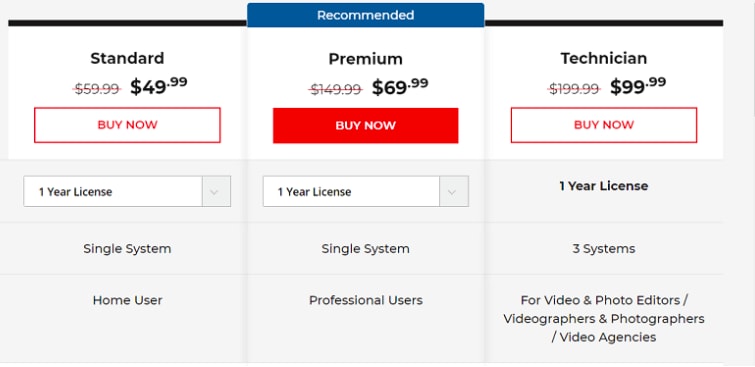
The original article listed Standard, Premium, and Technician pricing as one-time purchases. That section is outdated. Stellar's current official buy page lists Standard, Professional, and Premium editions with 1-year and longer license options. At the time of this review update, the public 1-year prices shown on Stellar's official US buy page are $49.99, $59.99, and $69.99.
| Edition | Current Listed 1-Year Price | Main Use Case | Review Note |
| Standard | $49.99 | Repair corrupt or damaged videos. | Best entry plan if you only need video repair. |
| Professional | $59.99 | Repair corrupt videos and photos. | Useful when both video and photo repair matter. |
| Premium | $69.99 | Repair videos and photos, plus recover deleted photos, videos, and audio. | Broader media workflow, but still verify recovery needs and limits before purchase. |
Pricing pages can change by country, promotion, license term, and storefront. Always verify the current price on Stellar's official buy page before purchase.
| Question | Short Answer | Review Detail |
| Is Stellar Repair for Video free? | Free to try, not fully free. | The demo can repair and preview a limited portion of the repaired video; saving the full repaired file requires a paid license. |
| Can you save repaired videos in the trial? | No full save. | Stellar states that the demo previews repaired files up to 20% of the total video size. |
| Is the license one-time? | Not always. | Current pricing highlights 1-year licenses and longer license options. Do not rely on old one-time-purchase screenshots. |
| Which plan should most users choose? | Standard first. | If you only need video repair, Standard is usually the most relevant plan. Choose Professional or Premium only if you need the added photo or media recovery features. |
You may also be interested: how to recover CCTV footage.
Part 5. How to Use Stellar Repair for Video
Stellar Repair for Video uses a simple workflow: add the corrupted videos, run repair, preview the results, then save the repaired files after activation. For best results, work on copies of your corrupted videos, not the only original files. Save repaired files to a different folder or drive so you do not overwrite evidence or working copies.
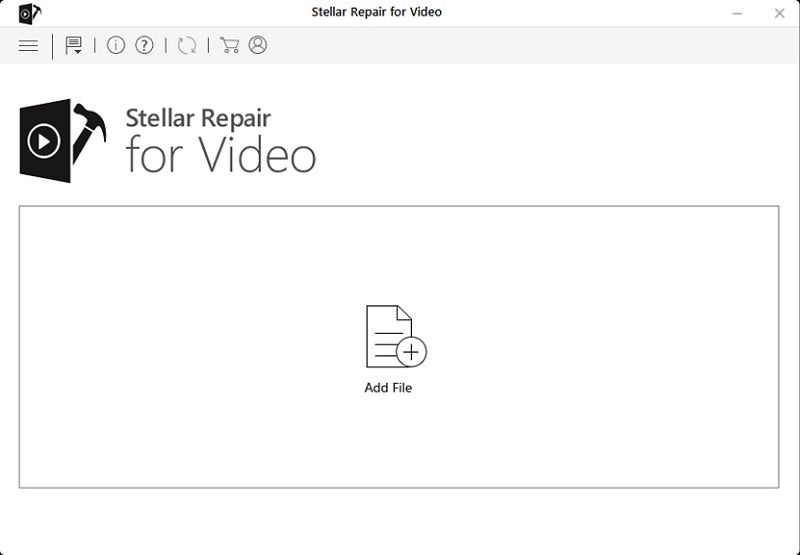
- Add corrupted video files. Install and launch Stellar Repair for Video on a Windows or Mac computer. Click Add File and choose the corrupted or damaged videos you want to repair.
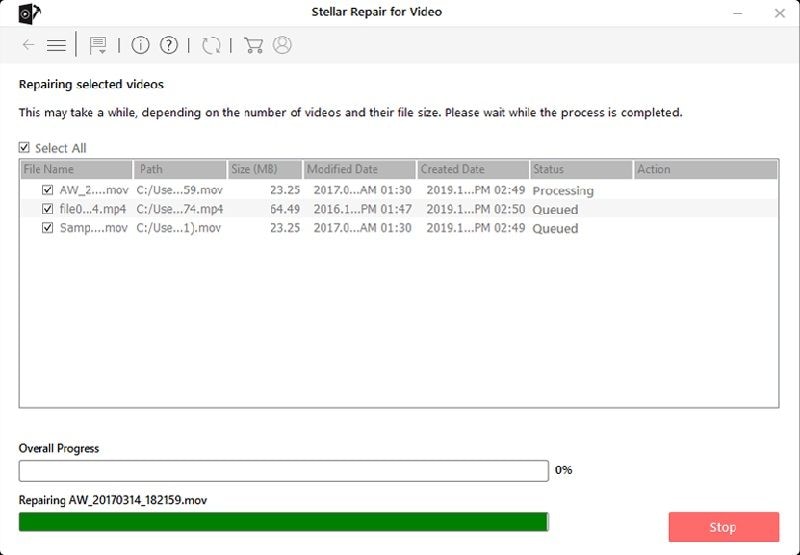
- Start the repair process. After adding the files, click Repair. The software will process the selected videos and show progress for each item.
- Preview repaired videos. Open the preview to check whether the repaired clip plays correctly. Watch the damaged parts of the video, not only the beginning.
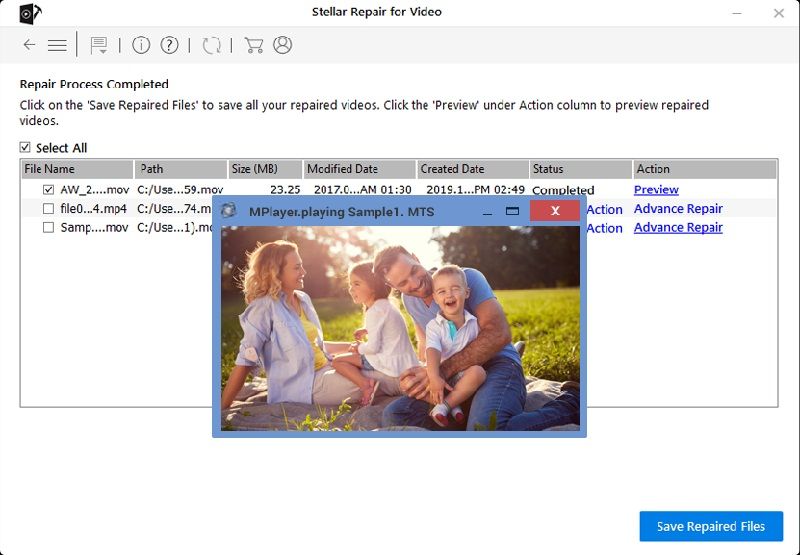
- Use advanced repair if needed. If standard repair fails or the preview is poor, use a sample file from the same camera or device when the software asks for it.
- Save repaired files to a safe location. Use a healthy drive with enough space. Do not save repaired videos back to a failing SD card, USB drive, or original damaged folder.
Part 6. User Reviews, Pros, Cons, and Real-World Limits
User feedback for Stellar Repair for Video is generally positive on high-volume review platforms, but smaller software-review sites show a more mixed picture. This is normal for video repair software because results depend heavily on the file's damage type, recording device, codec, and whether a good sample file is available.
User Review Signals
| Review Source | Current Public Signal | How To Interpret It |
| Trustpilot product reviews | 4.8/5 from 506 reviews in the crawled product page summary. | Strong positive signal, especially around ease of use and support, but always check recent reviews before buying. |
| G2 reviews | 3.5/5 from 2 reviews. | Very small sample size; useful for reading limitations, not enough for a stable rating conclusion. |
| Original article testimonials | Positive but unsourced. | Names were included, but no verifiable review links were provided, so they should not be treated as strong E-E-A-T evidence. |
The most common positive themes are simple operation, support for multiple formats, and the ability to preview repaired videos. The most common complaints are failed repairs in some severe cases, long repair time for larger files, and the need to pay before saving the complete repaired file.
Pros and Cons
| Real-World Limit | What It Means | Best Practice |
| Severe corruption | The file may lack enough usable structure for standard repair. | Use Advanced Repair with a matching sample file. |
| Missing video data | If video frames are gone, repair software cannot invent the original footage. | Recover the original file from backup or storage first. |
| Codec or player issue | The file may be healthy but unsupported by your player. | Test with another player before paying for repair software. |
| Falling storage media | A damaged card or drive can corrupt more files during repeated reads. | Clone or recover from the storage safely before repair. |
Part 7. Best Alternative: Wondershare Repairit
Wondershare Repairit is a strong alternative if you want a modern video repair workflow with broad format support, online and desktop options, full preview on paid plans, and support for more mainstream and professional video formats. It is especially relevant for users repairing videos from cameras, phones, drones, action cams, surveillance devices, and professional workflows.
Repairit is a repair tool, not a deleted-file recovery tool. If the video file is missing, deleted, or overwritten, recover the file first. If the recovered file exists but will not play correctly, then use a video repair tool such as Repairit or Stellar Repair for Video.
When Repairit Is a Better Fit
- You want more video-format coverage: Repairit's official video repair page lists MP4, MOV, AVI, MTS, MKV, M2TS, 3GP, MXF, FLV, WMV, INSV, M4V, MPEG, ASF, TS, KLV, MPG, RSV, DAT, MDT, BRAW, R3D, CRM, 3GPP, LRV, and more for desktop video repair.
- You need online repair: Repairit Online can handle smaller repair jobs without installing desktop software, while desktop Repairit is better for larger files and broader format support.
- You work with professional footage: Wondershare's buy page explains that Professional Mode is intended for RAW formats, HDR/LOG footage, professional codecs, 4K and higher videos, and files with gyroscope data.
- You want a broader repair suite: Repairit also includes workflows for photos, files, audio, and AI enhancement depending on product and plan.
Stellar Repair for Video vs Wondershare Repairit
| Comparison Item | Stellar Repair for Video | Wondershare Repairit |
| Primary purpose | Desktop repair for corrupted, broken, damaged, or unplayable videos. | Desktop and online repair for videos, with broader Repairit workflows for photos, files, audio, and enhancement. |
| Current version signal | Stellar official US page lists version 7.0.0.0, released June 2026. | Repairit official pages list current system, format, online, desktop, and pricing information. |
| Video format coverage | Strong common-format support, including MP4, MOV, AVI, 3GP, MKV, MTS, F4V, ASF, and others. | Very broad listed support, including mainstream and professional formats such as INSV, RSV, BRAW, R3D, CRM, and LRV. |
| Free trial | Preview limited repaired output; full saving requires a license. | Try/free workflows vary by desktop and online plan; paid plans unlock full preview and saving rules by product. |
| Online repair | Desktop-focused product page. | Offers Repairit Online for smaller or quick repair jobs. |
| Professional workflows | Advanced Repair uses a sample file for severe corruption. | Advanced repair and Professional Mode are positioned for severe, high-resolution, RAW, HDR/LOG, professional codec, and gyroscope-data cases. |
| Best choice | Good if you want a simple Stellar desktop repair workflow. | Better if you want broader format coverage, online repair options, and modern professional video repair positioning. |
Part 8. Final Verdict
Stellar Repair for Video remains a solid video repair tool in 2026. It is easy to use, supports common formats and devices, provides preview before saving, and offers advanced repair for severe corruption with a sample file. It is worth testing when your video file still exists but cannot play properly because of corruption.
The biggest buying decision is not whether Stellar Repair for Video is legitimate; it is whether your exact file type, corruption level, and budget match the tool. Use the free preview to verify repair quality before buying. Do not expect it to recover deleted videos, fix physically damaged storage, or guarantee repair for files with missing frame data.
For users who need broader format support, online repair, professional-format handling, or an all-in-one repair workflow, Wondershare Repairit is a practical alternative to compare before purchase.
FAQ
-
Is Stellar Repair for Video free?
No, it is free to try but not fully free. The demo version can repair and preview limited output, but saving complete repaired videos requires a paid license. -
What is the latest version of Stellar Repair for Video?
Stellar's official US product page lists Stellar Repair for Video 7.0.0.0 with a June 2026 release date. Always verify the version on Stellar's official download page before installing. -
Can Stellar Repair for Video repair MP4 and MOV files?
Yes. Stellar lists support for MP4, MOV, AVI, 3GP, and other popular formats, plus codecs such as H.264, H.265, HEVC, and MPEG4. Repair success still depends on the actual file damage. -
Can Stellar Repair for Video recover deleted videos?
No. It repairs existing corrupted files. If a video was deleted, lost, or stored on a formatted card, recover the file first, then repair the recovered copy if it is corrupted. -
Does Stellar Repair for Video work on Mac?
Yes, Stellar promotes a Mac version. Because macOS support can change by version and region, confirm your exact macOS version on Stellar's official Mac product page before purchase. -
Why does Stellar Repair for Video ask for a sample file?
For severe corruption, a sample file helps the software understand the structure of videos created by the same device. Use a working video with the same format, device, codec, and recording settings when possible. -
What is the best Stellar Repair for Video alternative?
Wondershare Repairit is a strong alternative for users who want desktop and online video repair options, broad format support, advanced repair, professional video workflows, and additional media repair features.



